00193463-01.pdf - 第169页
User Manual SIPLAC E S-25 HM 5 Station extensions Software Vers ion SR.503.xx 04/2002 US Edition 5.2 Component barcode 169 – If the c ompone nt barcod e has been a ctivated on the li ne compu ter and "Set-up check w…
5 Station extensions User Manual SIPLACE S-25 HM
5.2 Component barcode Software Version SR.503.xx 04/2002 US Edition
168
PLEASE NOTE 5
The component barcode reader option must be configured on the line computer.
Barcodes that start with the number 1 or 2 and are five digits long are interpreted as track bar-
codes. All other barcodes that do not start with number 1 or 2 are regarded as component bar-
codes. 5
5.2.2 Notes on operation
– The barcode reader must connected.
– The barcode for each component must entered on the line computer.
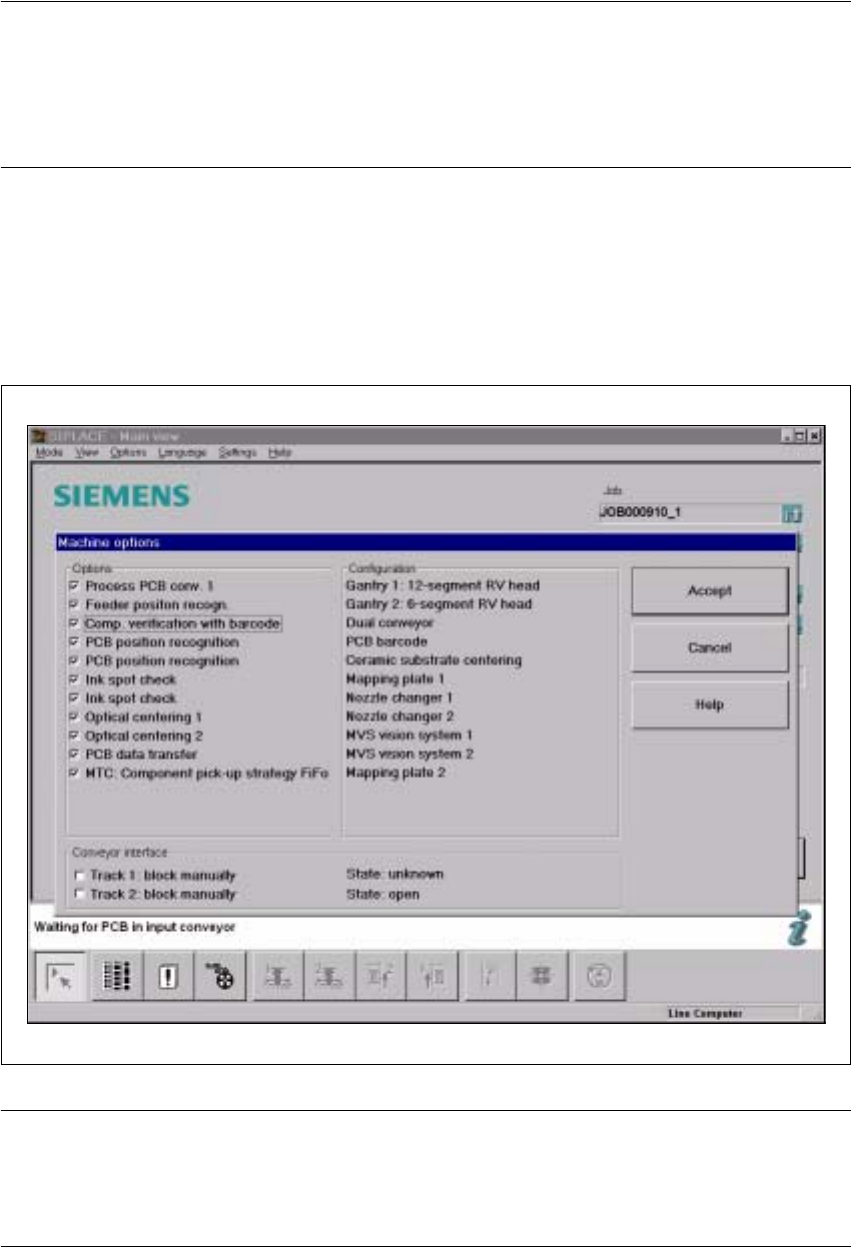
Æ To do this, select the "Set-up check with barcode" function from the Machine options menu.
Fig. 5.2 - 2 Set-up check with barcode
PLEASE NOTE: 5
If one of the digits of the barcode has been assigned to a filter (i.e. a star *), this digit will not be
evaluated. This enables data contained in the barcode, such as the date or company name, to be
skipped. 5
User Manual SIPLACE S-25 HM 5 Station extensions
Software Version SR.503.xx 04/2002 US Edition 5.2 Component barcode
169
– If the component barcode has been activated on the line computer and "Set-up check with bar-
code" has been selected from the machine options on the station, the "Fill location" and "Fill
track with barcode" functions cannot be used manually.
– If there are tracks with components without a barcode, then a manual "Fill" is possible, even if
the refill check has been activated.
Options in the event of an illegible barcode 5
Æ Deactivate the refill check from the Machine options menu.
Æ Enter the Barcode manually.
5.2.3 Operation
Æ Select the "Empty tracks" view from the Set-up menu.
Æ Use the barcode reader to scan the desired track barcode.
If the track is contained in the set-up and the component has a barcode, the "Set-up check with
barcode" dialog will appear, specifying the corresponding track.
PLEASE NOTE 5
You can open the dialog by clicking on the desired track or by clicking on the "Set-up check
with barcode" button. 5
The track can be filled once the comparison has been carried out and the return barcode has been
scanned. 5
5.2.4 Technical data
5
Connected to Station computer
Data entry Via barcode scanner or keyboard
Number of characters Up to 40
Not permissible Barcodes starting with a 1 or 2
and less than 5 characters long
Number of barcodes Up to 6 per component
Filter for suppressing data Up to 1 per barcode
Preset code types Code 39 (standard or ASCII)
Code 2 of 5, interleaved and normal,
Code 128, UPC/EAN/JAN codes
(others available upon request)
5 Station extensions User Manual SIPLACE S-25 HM
5.3 Dual conveyor Software Version SR.503.xx 04/2002 US Edition
170
5.3 Dual conveyor
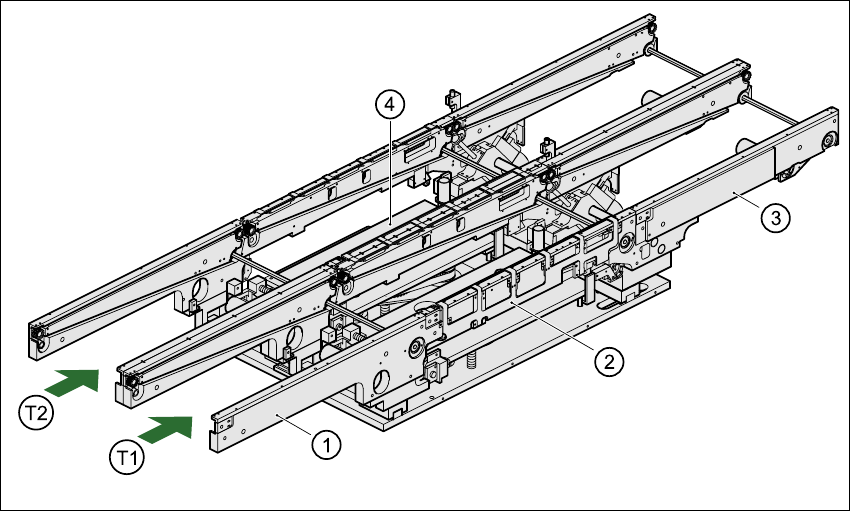
5.3.1 Structure of the dual conveyor
The conveyor belts are driven by DC motors. There is a lifting table for holding the PCBs in each
processing area. The width of the PCB conveyor can be adjusted either via the menu or using the
line computer. 5
5
Fig. 5.3 - 1 Structure of the dual conveyor
5.3.2 General
As the name suggests, the dual conveyor has two transport tracks, which are electrically and me-
chanically independent of one another. In the Standard version, the right-hand side is the fixed
side. There is another version, however, in which the left-hand side is the fixed side. 5
(1) Input conveyor
(2) Center conveyor
(3) Output conveyor
(4) Lifting table
T1 Transport track 1 5
T2 Transport track 2 5