ACT - Accuracy Check Tool mit SSW 6xx User Manual 2017.pdf - 第115页
ACT with SSW 6xx / User Manual 07/2017 Edition 51 Figure 4-29: Dialog box: Enter PC B (example SIPLACE D1) ► Push the board into the input section (see also section 4.2.2 ). The board gets plac ed and then t he measureme…
ACT with SSW 6xx / User Manual 07/2017 Edition
50
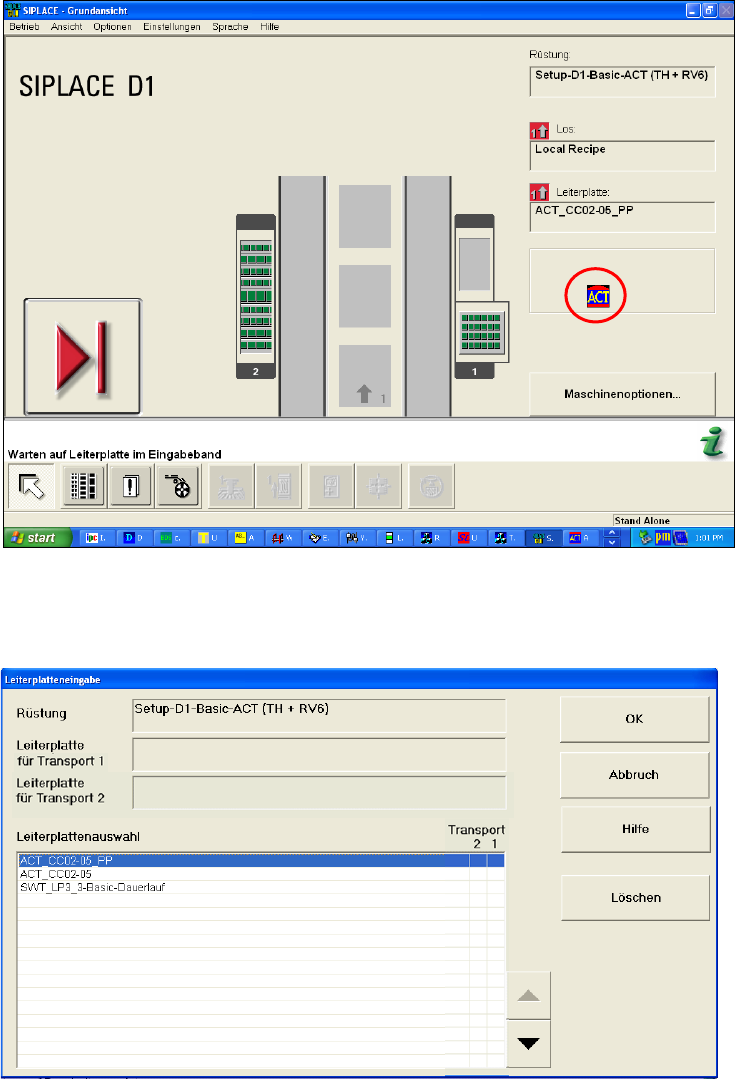
Figure 4-27: Dialog box after ACT mode has been set. Display: ACT icon
The Leiterplatteneingabe (Enter PCB) dialog box opens (Figure 4-28):
► Select the ACT board.
Figure 4-28: Dialog box: Enter PCB (example SIPLACE D1)
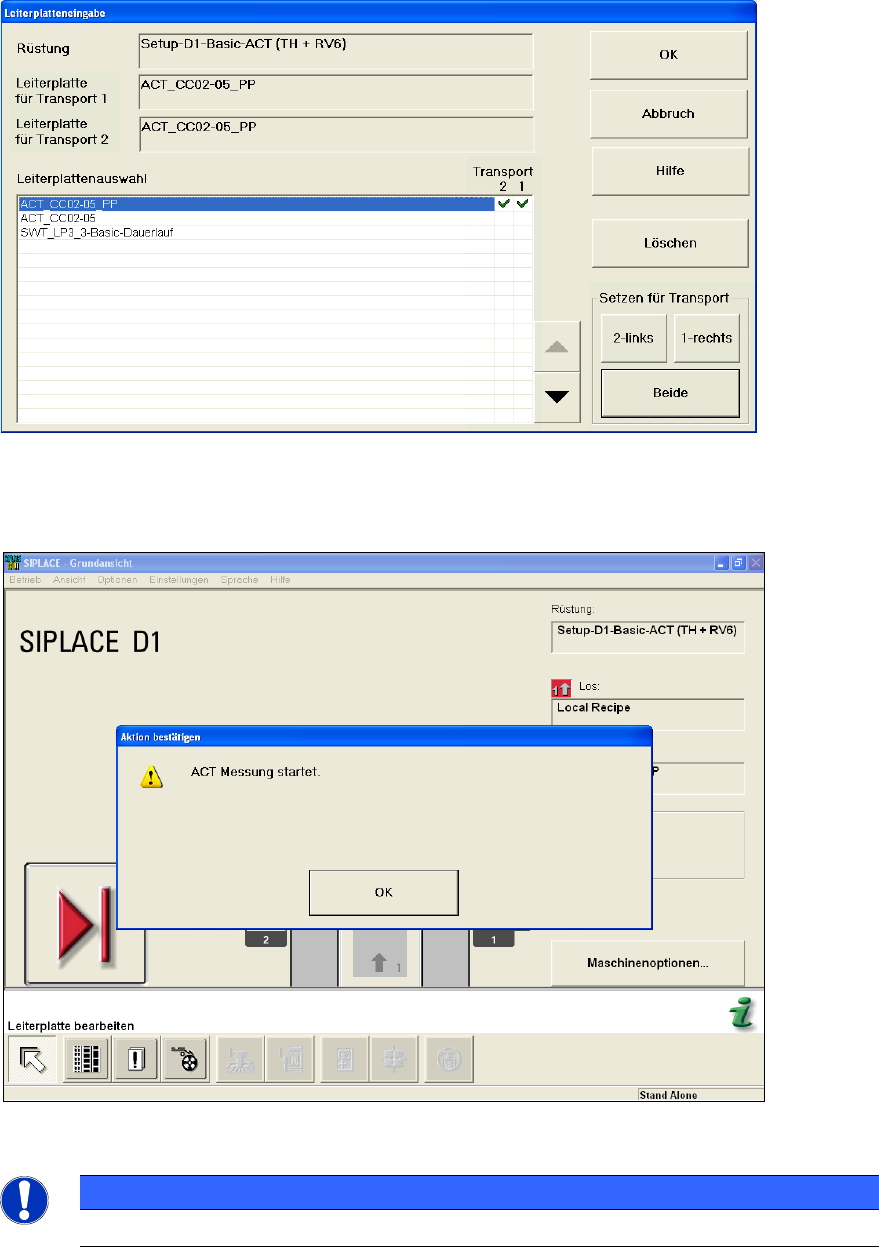
The Leiterplatteneingabe (Enter PCB) dialog box opens (Figure 4-29):
► Select the ACT board.
► Select the conveyor lane.
► Confirm your entry with OK.
ACT with SSW 6xx / User Manual 07/2017 Edition
51
Figure 4-29: Dialog box: Enter PCB (example SIPLACE D1)
► Push the board into the input section (see also section 4.2.2).
The board gets placed and then the measurement starts automatically.
Figure 4-30: Message for ACT measurement (example SIPLACE D1)
NOTICE
The machine should not be operated during the measurement!
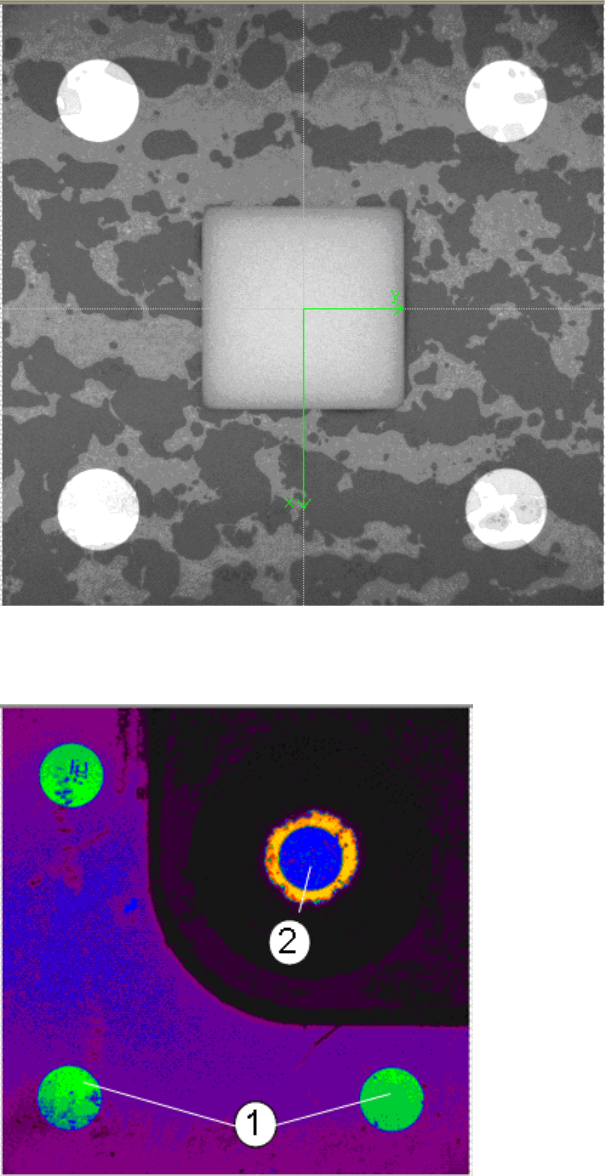
A dialog box opens in which the current measurement operation is displayed. The fiducials which
are currently being measured will be displayed.
ACT with SSW 6xx / User Manual 07/2017 Edition
52
Example of measurement operation with the ceramic components Cerampads:
Figure 4-31: Example of measurement window with Cerampads
Example of measurement operation with glass components:
Abbildung 4-32: Anzeige Messfenster mit Glasbauelementen (Falschfarbendarstellung)
Key:
(1) Fiducials on the ACT plate (2) Fiducials on the glass component