晶圆测试说明书Cascade-11861-6-Manual.pdf - 第66页
42 • Summit 11K/12K Probe Station User’ s Guide For information about ordering counterweights in addition to the two provid ed with the optics bridge, contact your Cascade sales representative. T o planarize the large-ar…
Chapter 3: Installing •
41
To add counterbalance weights
(Large-area bridge mount only)
Each large-area bridge mount is configured to a system at the factory so that the
counterbalance is already adjusted. If the bridge mount is a retrofit, the
counterbalance must be adjusted.
• If you add an option, such as a camera, you may need to add extra weight to
the microscope counterbalance.
• If you add an Olympus Stereo-Zoom Microscope, you may be required to
remove the weights.
• Some applications (i.e., one using a MicroChamber and only one or two
objectives) may require the removal of a small amount of weight.
The probing station includes two counterbalance weights with the hardware and
other parts shipped. You can add a total of two weights to each side of the
counterbalance.
To add weight to the counterbalance
1. Remove the back cover of the optics bridge, as described in the section To
Remove the Optics Bridge Mount Shipping Restraints. See figure 17 on p. 31.
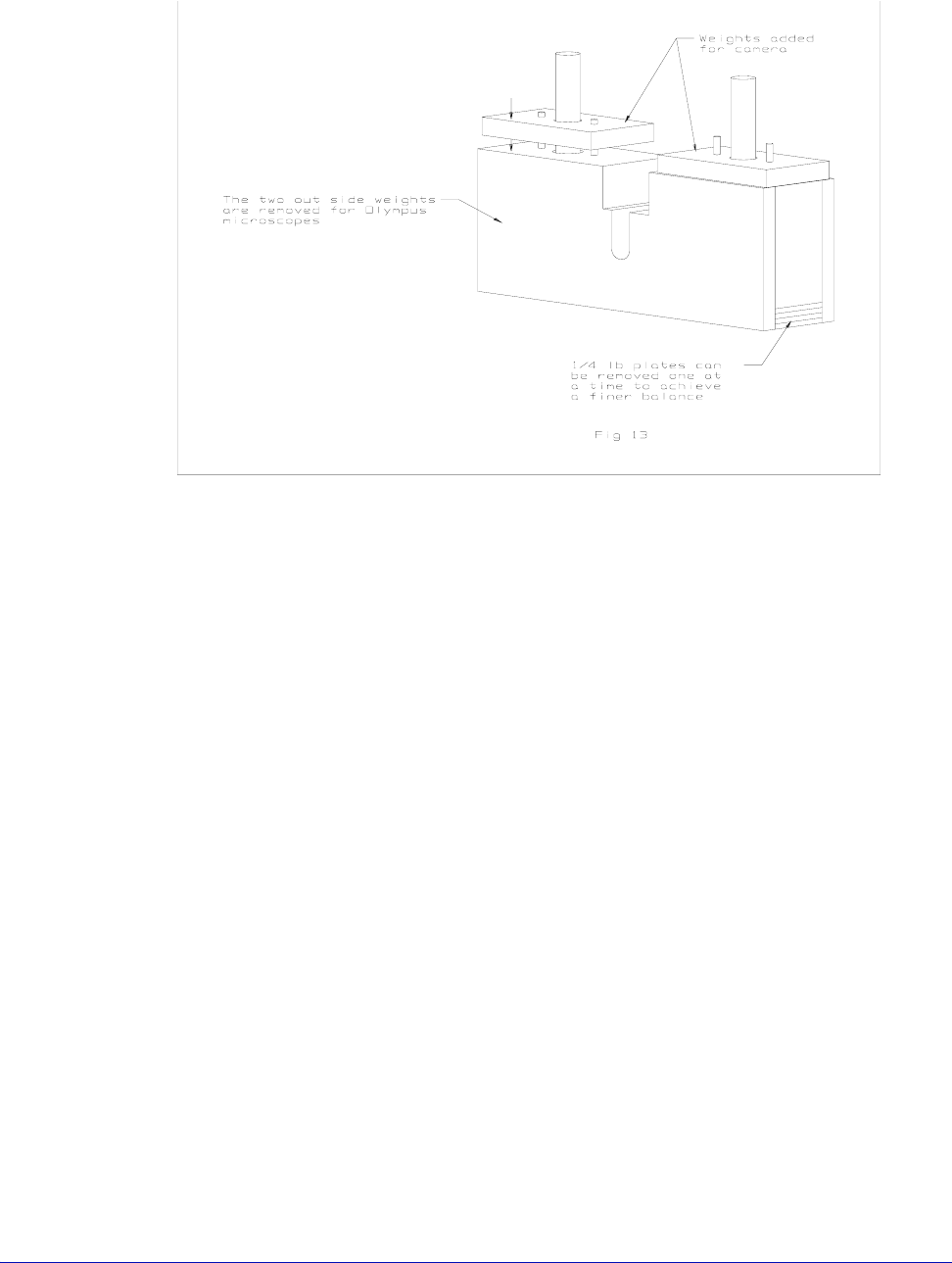
2. Add one or two weights to the counterbalance, as shown in figure 30. The
weights are shaped so that they can be installed in only one orientation.
3. Replace the back cover of the optics bridge.
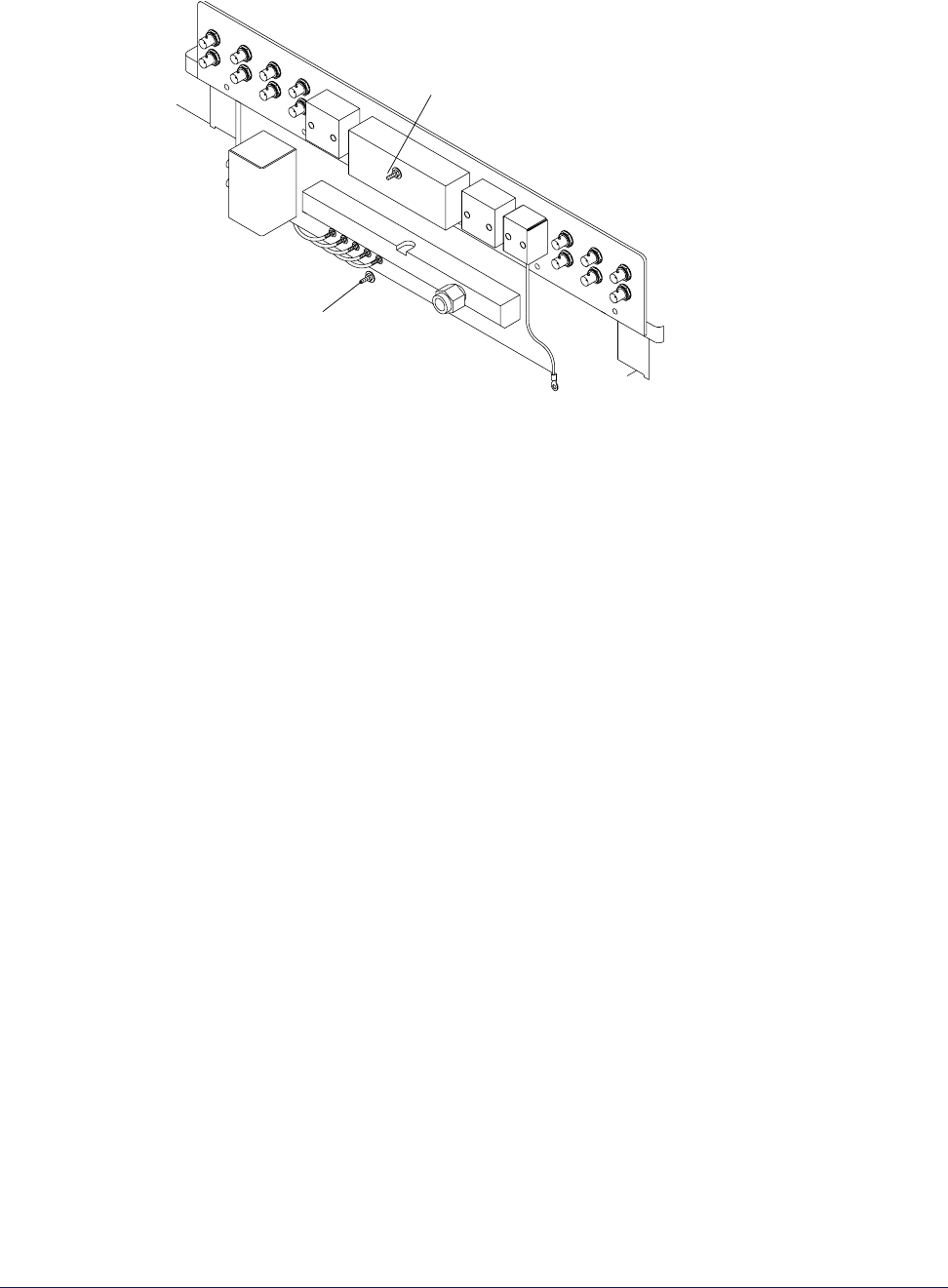
Fig. 29. Vacuum hose connection.
Vacuum input
Probe Station
Rear Connection Panel (if ordered)
Vacuum input
42
• Summit 11K/12K Probe Station User’s Guide
For information
about ordering
counterweights in
addition to the two
provided with the
optics bridge,
contact your
Cascade sales
representative.
To planarize the large-area optics bridge
The optics bridge is factory-planarized to the top chuck of your station and
should not need to be replanarized. However, the procedure is presented here
should you ever need to replanarize in the field.
Materials needed
To replanarize the optics bridge, you need a dial indicator, 0-0.010 inch, with a
magnetic base, or a special fixture that attaches to the dovetail mount on the
bridge.
Procedure
1. Place a sheet of Mylar on the chuck for protection.
2. Attach the dial indicator to the dovetail assembly.
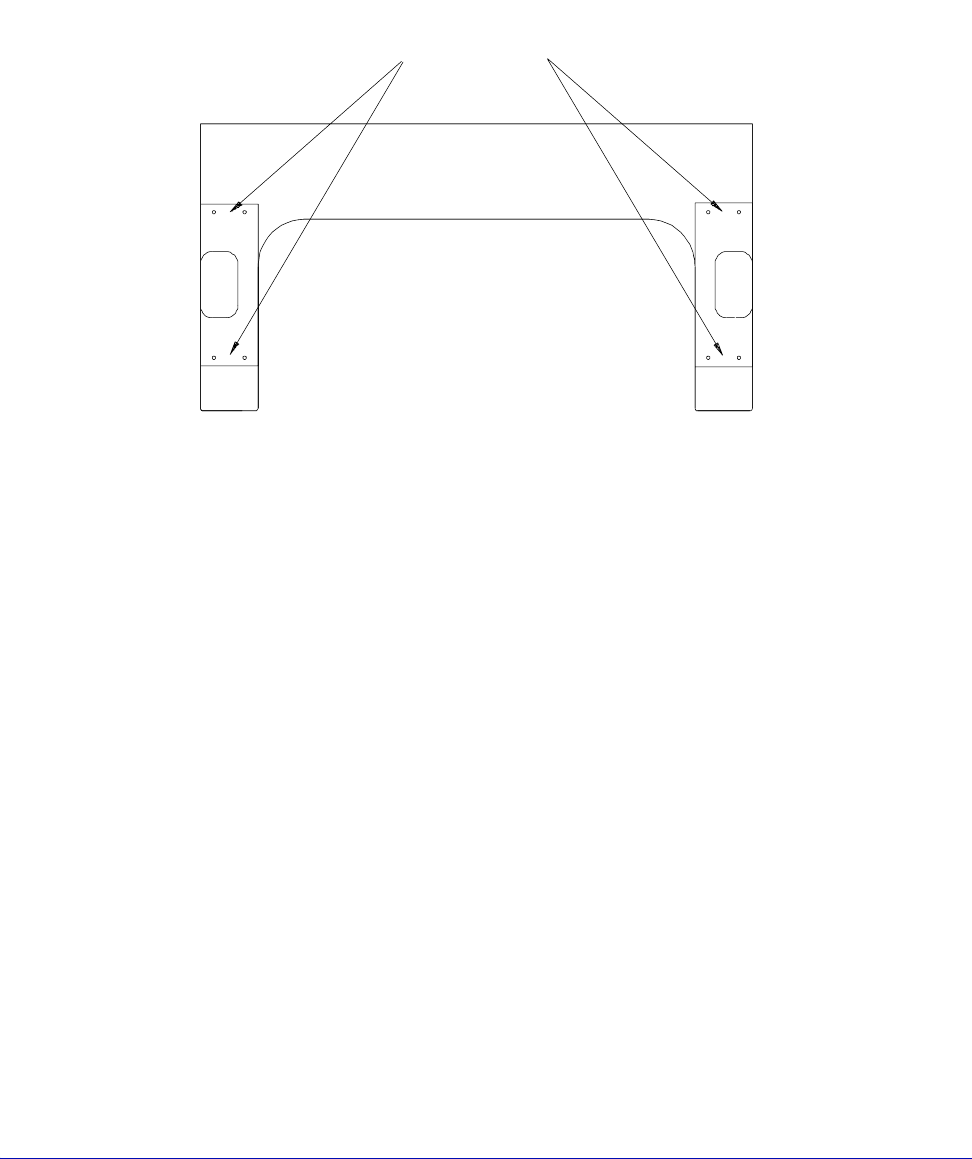
3. Ensure that the eight 10-32 setscrews are loose and that the eight 8-32
capscrews are tightened.
4. Move the bridge to the back of the station (-Y) so that the dial indicator
needle rests near the edge of the chuck.
5. Zero the indicator.
6. Move the bridge to the front of the station (+Y). If there is a change in the
indicator’s reading, you must replanarize.
7. Release the tension on the four 8-32 capscrews in front or back as applicable.
8. Adjust the front or back setscrews to bring the bridge into planarization.
Fig. 30. Adding weight to the counterbalance.
Chapter 3: Installing •
43
• If the indicator’s reading was positive, adjust the front setscrews on both sides
a thousandth of an inch past zero.
• If the indicator’s reading was negative, adjust the back setscrews on both sides
a thousandth of an inch past zero.
Note that tightening the 8-32 screws will bring the indicator reading back to
zero.
Recheck and repeat the steps if necessary.
If you have questions about replanarizing the optics bridge, contact your Cascade
Customer Service.
INSTALLING POSITIONERS AND PROBES
You can mount these positioner types on this probe station: magnetic or vacuum-
based DCM positioners and fixed-mount RF style positioners.
To mount positioners and adjust probes, see the following documents:
• Microwave Probe Positioner User Guide (P/N 101-179)
• RF Positioner Installation Instructions (P/N 106-338)
To mount DCM positioners
Except for the rear port that interferes with the microscope, you can mount the
DCM positioner at any seal in the TopHat, if you have a MicroChamber. See
figure 36.
Procedure
1. Lower the Z-lever to lower the platen. This position keeps the probe head
from crashing into the chuck after installation.
Holes for Adjustment
Screws (8)
Fig. 31. Screw location for planarization.