PS288_OwnersMnl_PriorTo2009 - 第107页
Operation • Administrator Functi ons PS288 Owner’s Manual 3—47 . Figur e 3-64—Double-click to enter Service Mode 2d) On the main screen, click St a r t . 2e) On the Setup wind ow , click System . 2f) On the System window…
Operation • Administrator Functions
3—46 PS288 Owner’s Manual
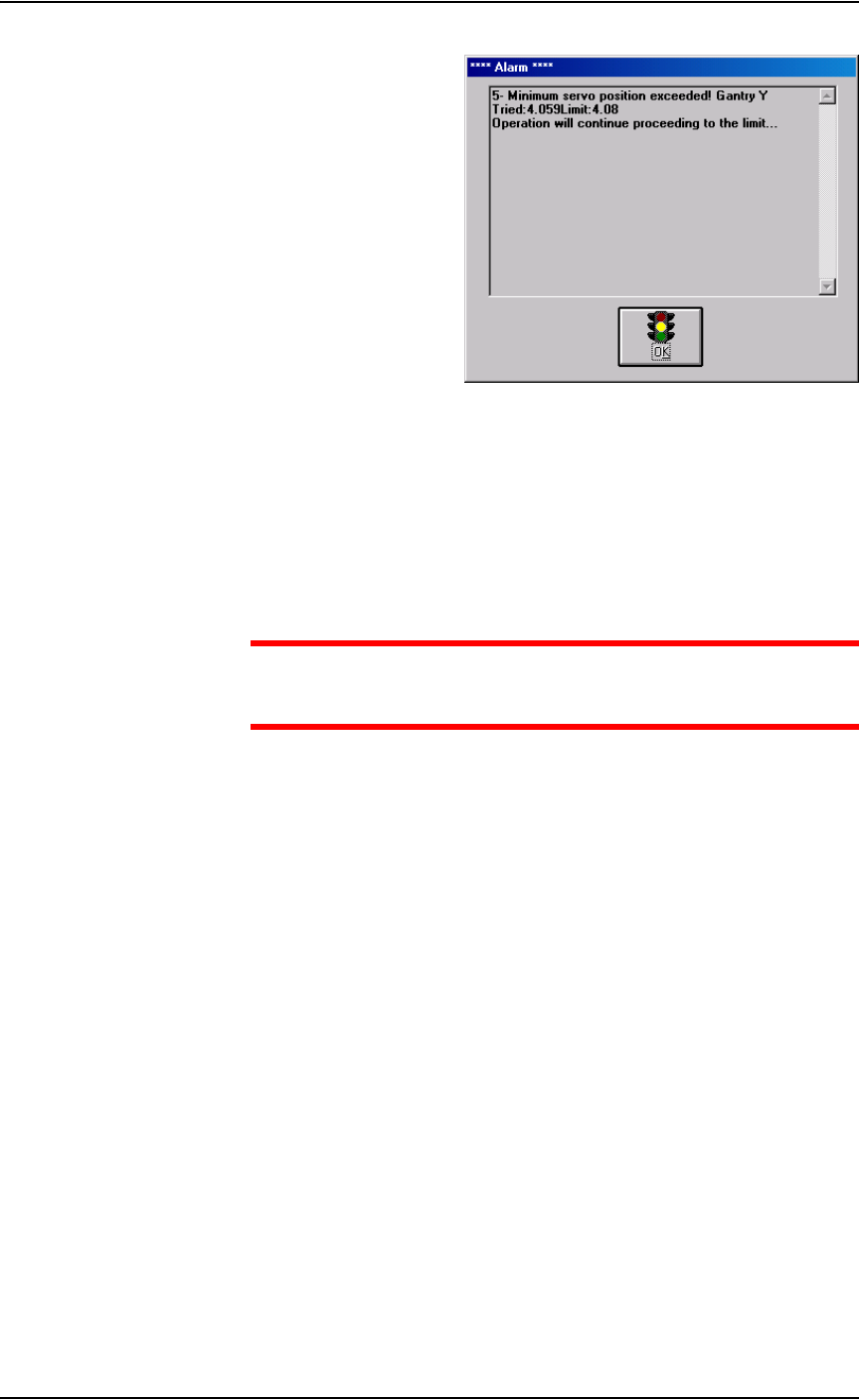
Figure 3-63—Alarm message
1c) Write down the axis (in this case, Y-axis), whether the minimum or
maximum position has been exceeded (in this case, the minimum posi-
tion), and the “Tried” and “Limit” values (in this case, Tried = 4.059
and Limit = 4.08).
1d) Click OK.
2. Enter Service Mode—
CAUTION: Service Mode allows changes that could make the
PS288 inoperable. Do not make changes you are not sure about;
contact Data I/O Customer Support.
2a) Exit AH500 and return to the TaskLink Task/Kit Manager window.
2b) In the Task/Kit Manager window, re-select the Task and click Run.
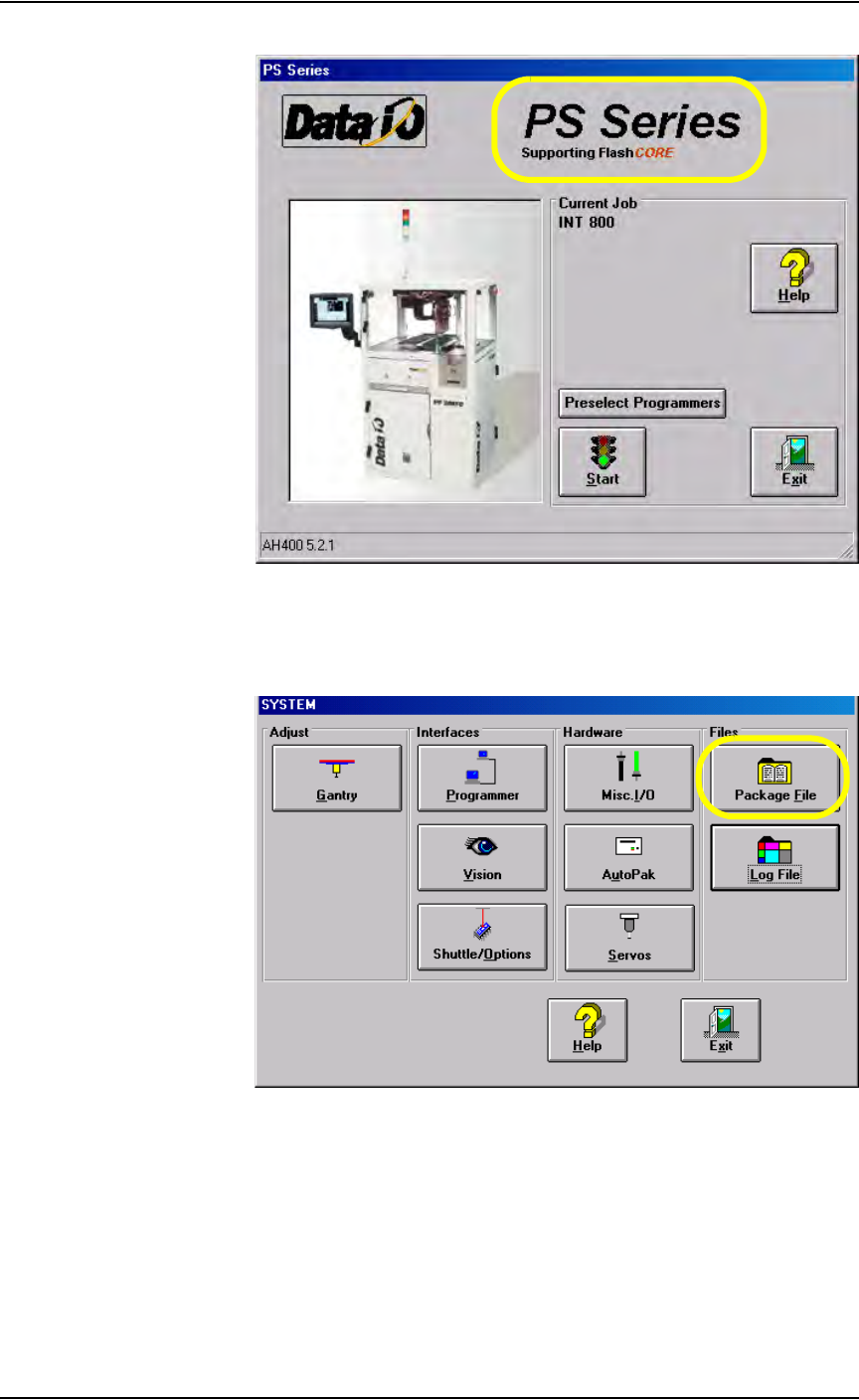
2c) When the AH500 main screen opens, double-click the “PS Series” area
(see Figure 3-64). This places the AH500 software in Service Mode.
Operation • Administrator Functions
PS288 Owner’s Manual 3—47
.
Figure 3-64—Double-click to enter Service Mode
2d) On the main screen, click Start.
2e) On the Setup window, click System.
2f) On the System window, click Package File.
Figure 3-65—Click Package File
3. Edit the package file—
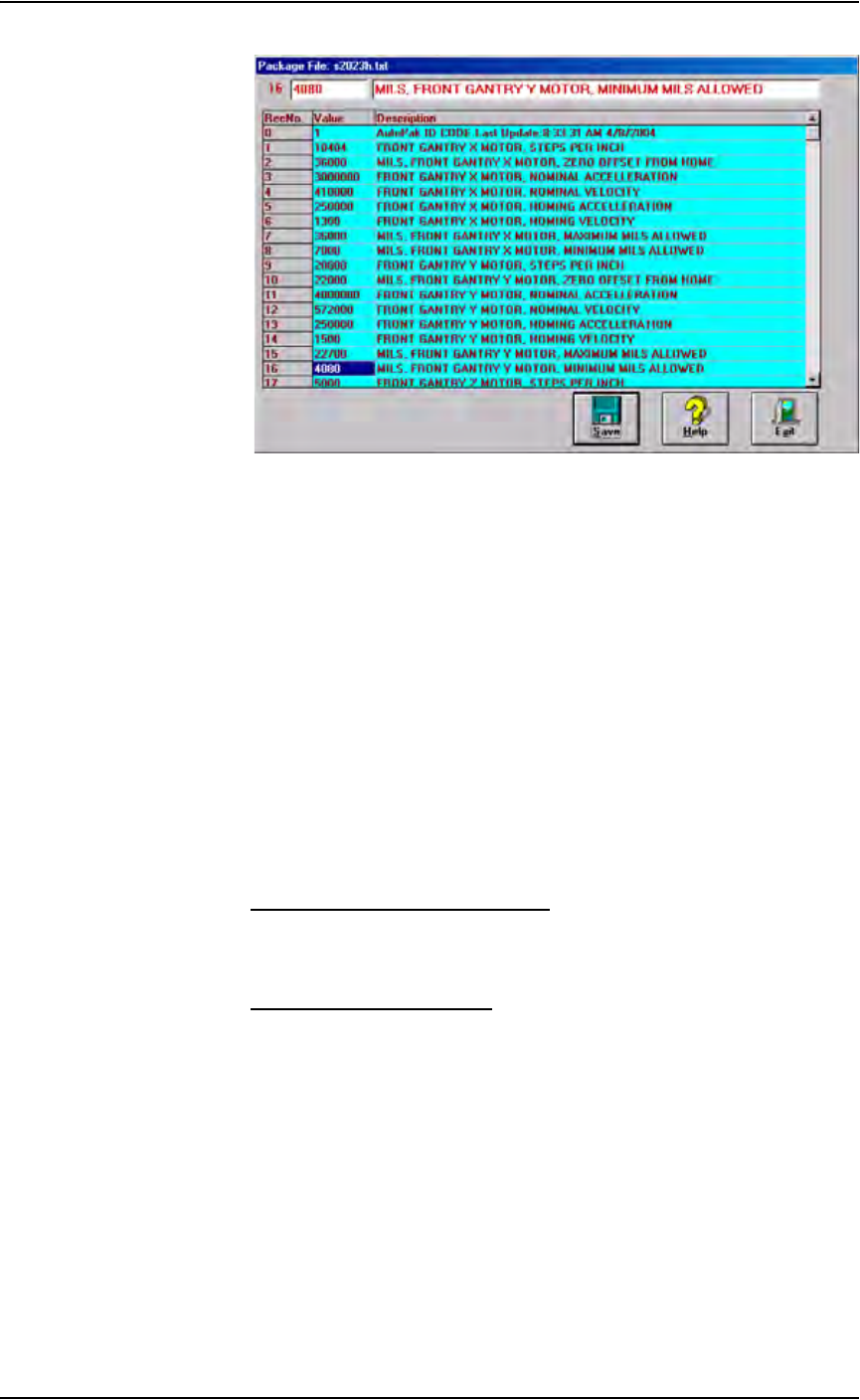
3a) In the Package File window, locate the appropriate line.
In the example shown in Figure 3-63, the error is the Y-axis minimum.
Record No.16 displays the Y-axis minimum value:
“GANTRY Y MOTOR, MINIMUM”
The limit is 4080.
Operation • Administrator Functions
3—48 PS288 Owner’s Manual
Figure 3-66—Edit package file
3b) Edit the appropriate Record No. line in the Package File window.
In this example, the Tried value was 4.059.
Change Record No. 16 value to 10% lower than the Tried value, for
example, 4040.
3c) Click Save.
3d) Click Exit.
Monitor Statistics
Occasionally, the system administrator may require statistics for a group of
devices for a given job. This is easily accomplished using any of three statis-
tics tools:
• TaskLink’s Session Data Logging Feature
• AH500’s Package Statistics Feature
• (Optional) Statistical Process Control Software (user-supplied)
TaskLink Session Data Logging
For complete instructions on enabling and using TaskLink’s Session Data
Logging option, see TaskLink online Help.
AH500 Package Statistics
To view programming statistics using the AH500 software:
1. Prepare the system—
From the Setup window, select the Job Info tab. Click Statistics.