PS288_OwnersMnl_PriorTo2009 - 第117页
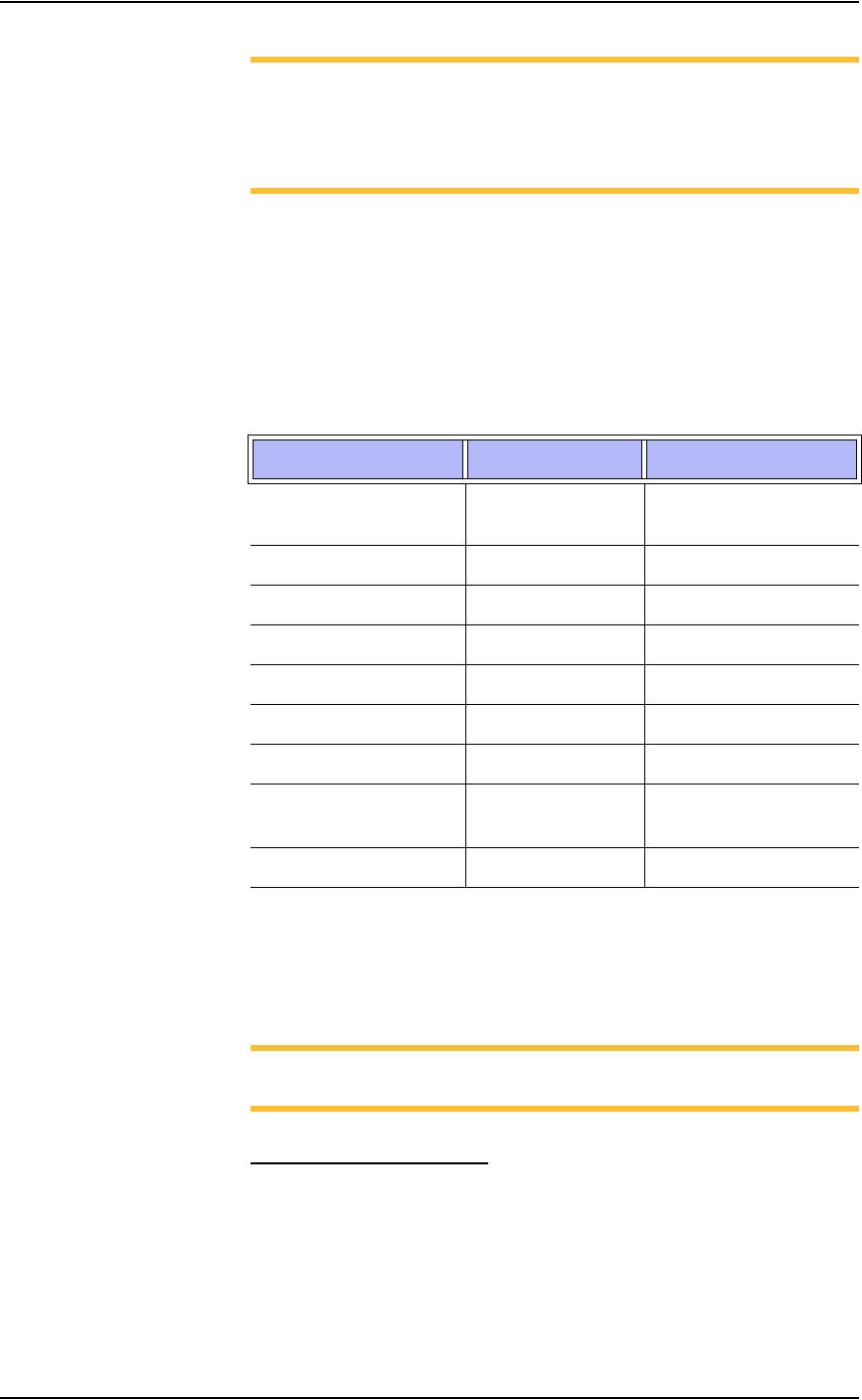
Operation • Administrator Functi ons PS288 Owner’s Manual 3—57 NOTE: The center of the drawing ar ea is the center of the device to be marked and is indicated by the red cr oss hairs. Ensure that the graphics and text fi…
Operation • Administrator Functions
3—56 PS288 Owner’s Manual
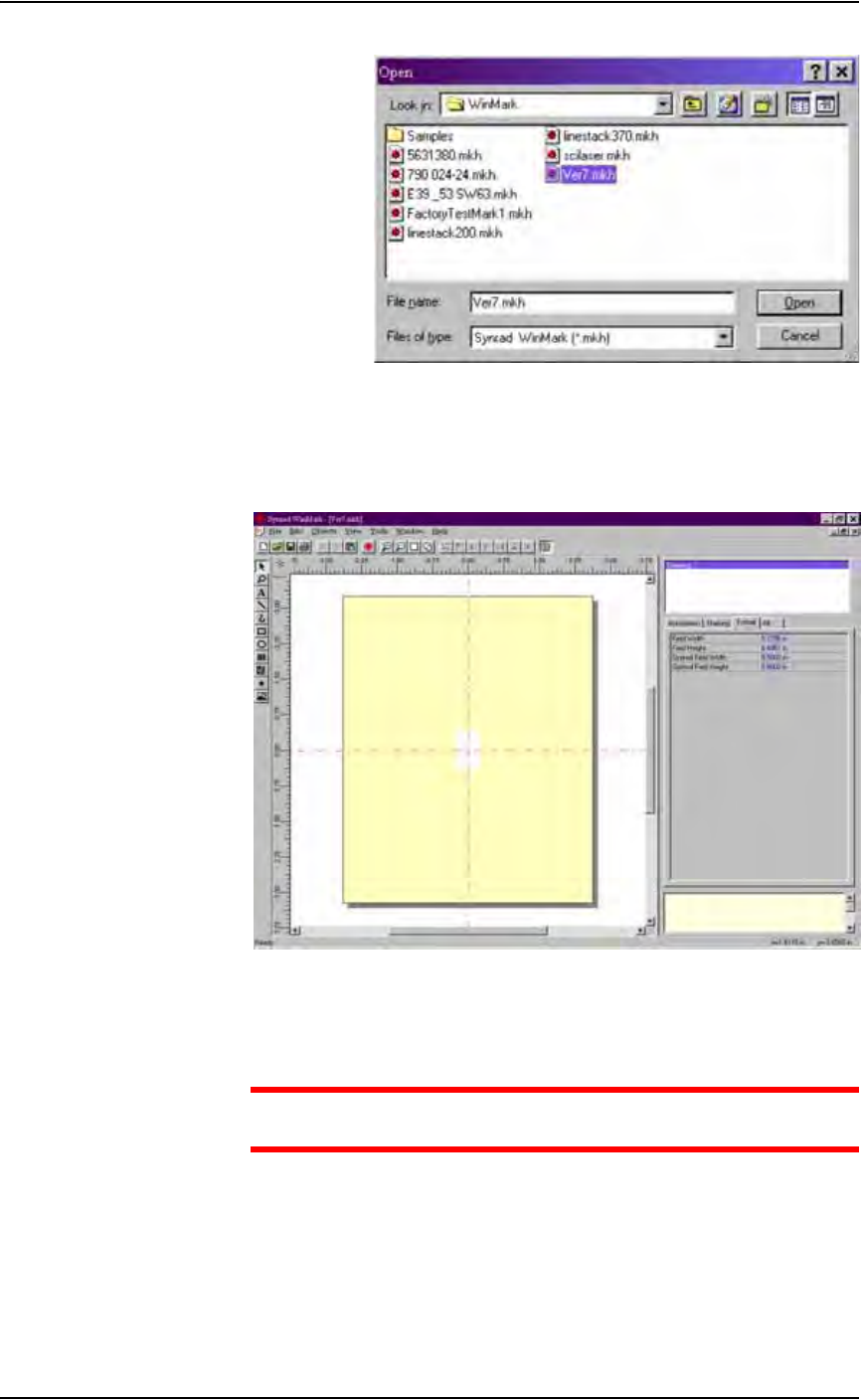
Figure 3-74—Selecting the laser marking file
3. Format—
3a) Click Drawing in the right-hand side of the Properties window.
3b) Click the Format tab.
Figure 3-75— Format tab
3c) On the Format tab, set the Optimal Field Width and Optimal Field
Height to the approximate height and width of the device to be marked.
CAUTION: Do NOT change values in the Automation tab. These
values are set in Template.mkh.
4. Create text—
4a) On the vertical tool bar on the left side of the window, select the Text
tool (the button with the letter A on it).
4b) Click the mouse anywhere in the drawing area.
4c) Type the desired text.
Operation • Administrator Functions
PS288 Owner’s Manual 3—57
NOTE: The center of the drawing area is the center of the device to
be marked and is indicated by the red cross hairs. Ensure that the
graphics and text fit onto the surface of the device to be marked.
Use the rulers above and to the left of the drawing area as guides to
marking placement.
4d) Save the file by selecting File > Save from the menu at the top of the
page.
4e) Exit WinMark Pro by selecting File > Exit.
Default Settings in Template.mkh
When creating or editing text, use Stroke fonts. These fonts are drawn and
marked on the devices very quickly using point-to-point vectors. If you
choose True Type fonts instead of Stroke fonts, marking time increases.
Figure 3-76—Template.mkh settings
The three most important settings are Velocity, Power and Resolution. These
three settings, plus object delays on the Marking tab, are the primary factors
that determine the speed and quality of the laser mark on devices.
NOTE: For more information, refer to the manual that came with
your marking system.
Edit Text in an Image File
If an image file already exists and you wish to edit the text:
1. Prepare the system—
1a) Double-click the WinMark icon on the desktop.
1b) From the menu at the top of the window, select File > Load.
1c) Select your laser marking file from the list that appears, or navigate to
the location and select the file.
Setting Default Value Range
Velocity 30 ips (in./sec) Range 0.01 to 240 ips
(0.25 to 6,096 mm/sec)
Power 60% Range 0 to 100%
Resolution 600 dpi 200 to 1000 dpi
Pline Start Delay 100 secs 0 to 80,000 secs
Pline End Delay 450 secs 0 to 80,000 secs
Interseg Delay 350 secs 0 to 80,000 secs
Off Vector Delay 300 secs 0 to 80,000 secs
Off Vector Velocity 75 ips
(1,905 mm/sec)
0 to 600 ips
Off Vector Resolution 300 dpi 0 to 600 dpi
Operation • Administrator Functions
3—58 PS288 Owner’s Manual
1d) Click Open to load the file.
2. Edit text—
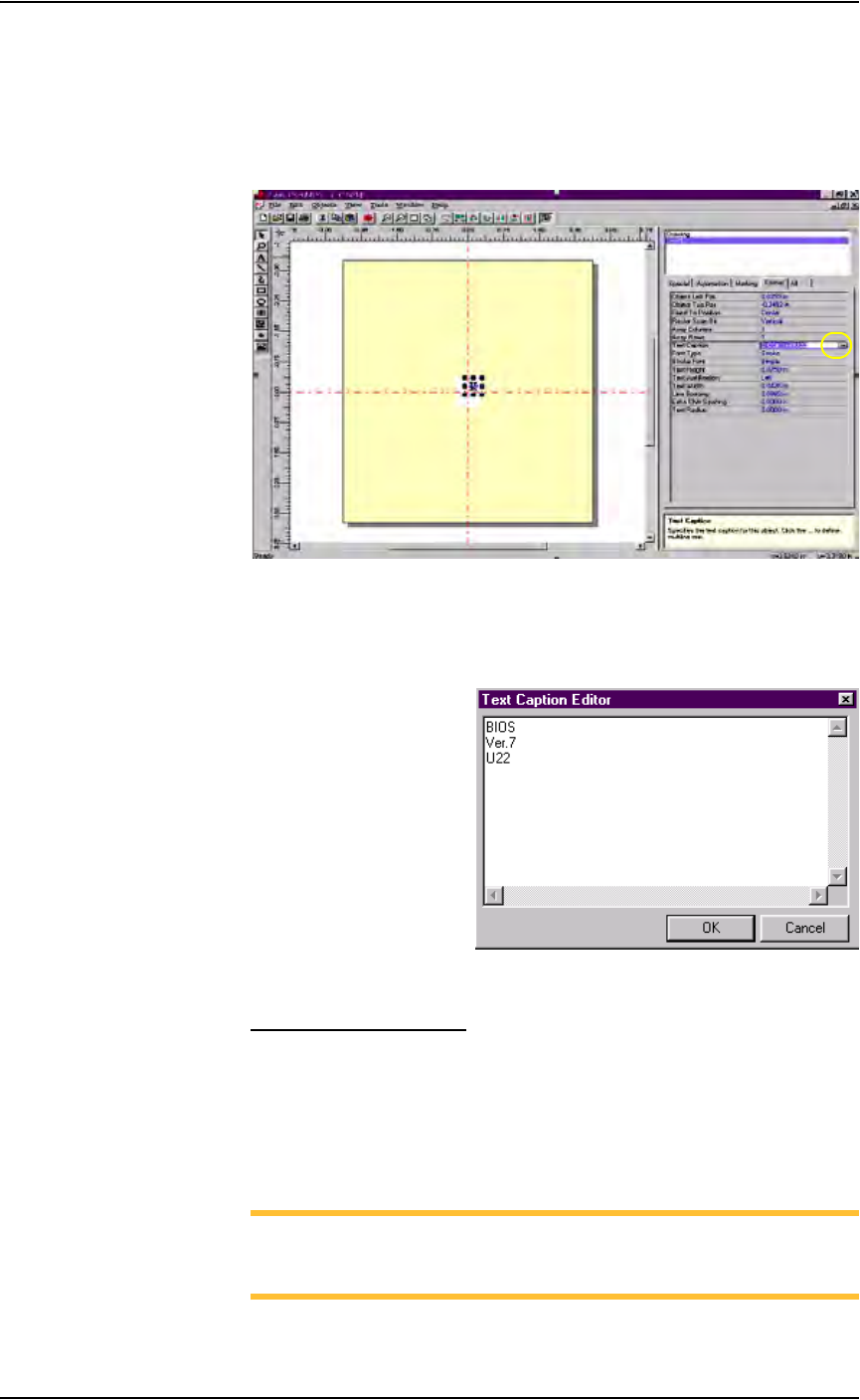
2a) On the Format tab, click the ellipses to the right of the Text Caption
field. See Figure 3-77.
Figure 3-77—Click ellipses
2b) On the Text Caption Editor window, edit the text as desired. Press OK
when finished. See Figure 3-78.
Figure 3-78—Edit text
Loading the Image File
To load the image file and use it to mark devices:
1. Prepare the system—
1a) Select the Laser Computer.
1b) Start Serial Marking Interface (SMI) by double-clicking the icon on the
desktop.
NOTE: This completes the process of loading the image file if your
system has SMI.If your system does not have SMI, continue with
Step 2.