PS288_OwnersMnl_PriorTo2009 - 第182页
Maintenance • Adjustments, Calibrations, and Function al Tests PS288 Owner’s Manual 5—47 3g) On the Calib SysCalib window , set the Wo r l d X and Y values as shown in Figur e 5-55 . Press the Solve button. Then press th…
Maintenance • Adjustments, Calibrations, and Functional Tests
5—46 PS288 Owner’s Manual
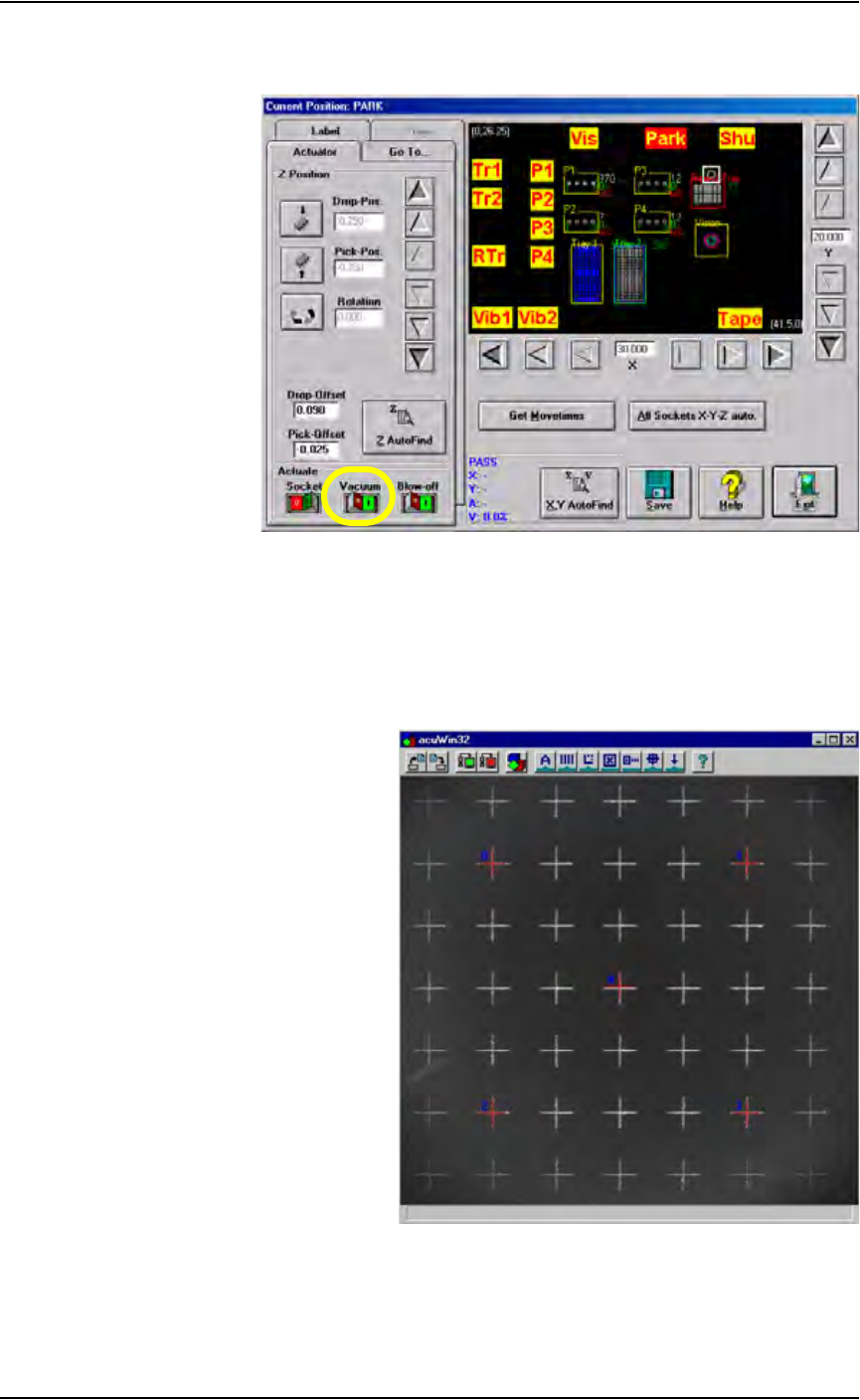
3d) In the Gantry window, turn the Vacuum rocker switch to ON, as shown
in Figure 5-53.
Figure 5-53—Vacuum switch is ON
3e) Place the Vision Calibration Plate on the Vacuum Cup nozzle. Adjust
the Plate location manually until the center White Cross hair fully cov-
ers Red Cross hair 4. Press the Red Acquire Image icon.
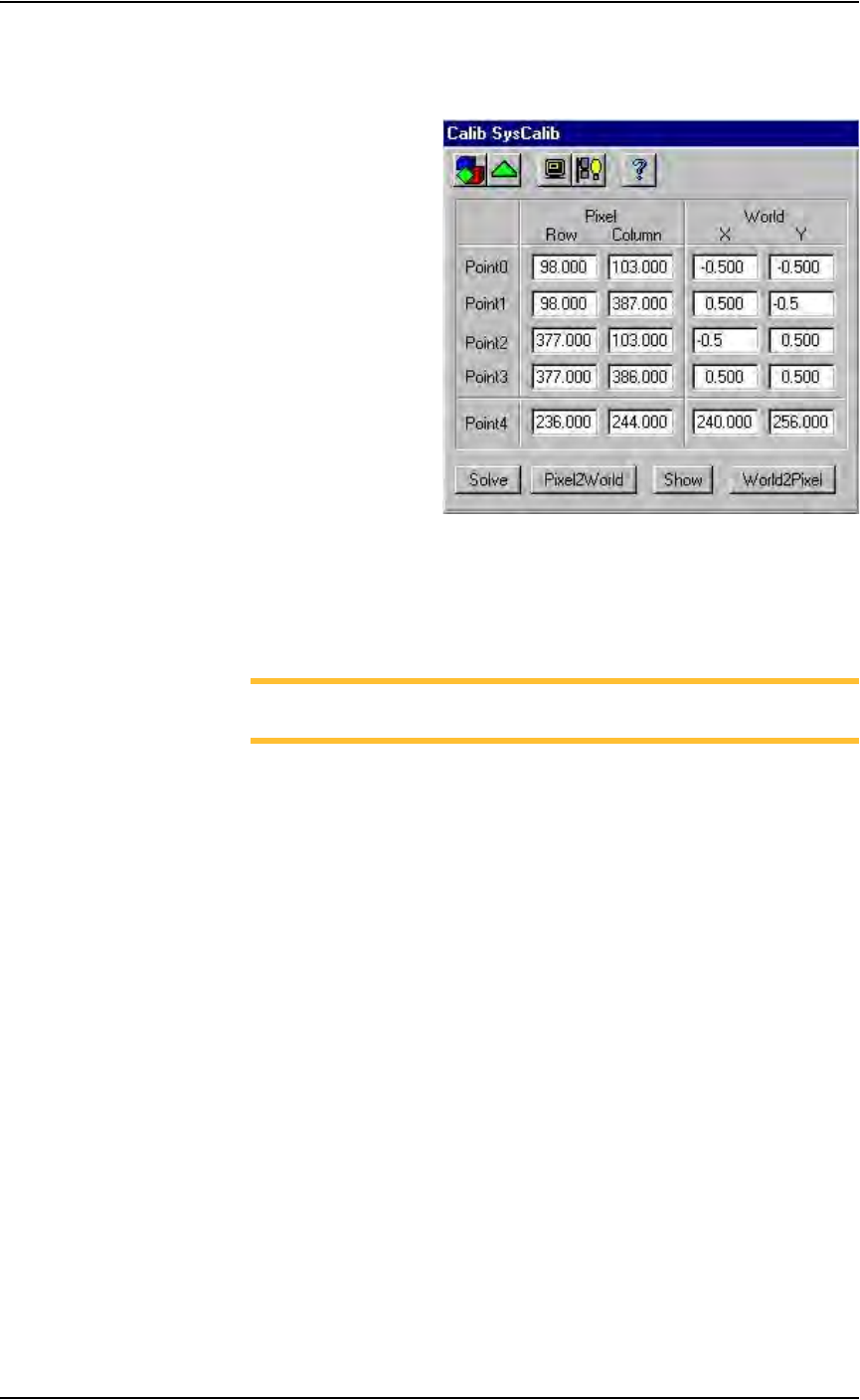
3f) Move the Red Cross Hairs-0, 1, 2 and 3 on top of the four White Cross
hairs in the four corners, as shown in Figure 5-54. Between each Red
Cross hair, there should be three White Cross hairs.
Figure 5-54—Cross hairs line up
Maintenance • Adjustments, Calibrations, and Functional Tests
PS288 Owner’s Manual 5—47
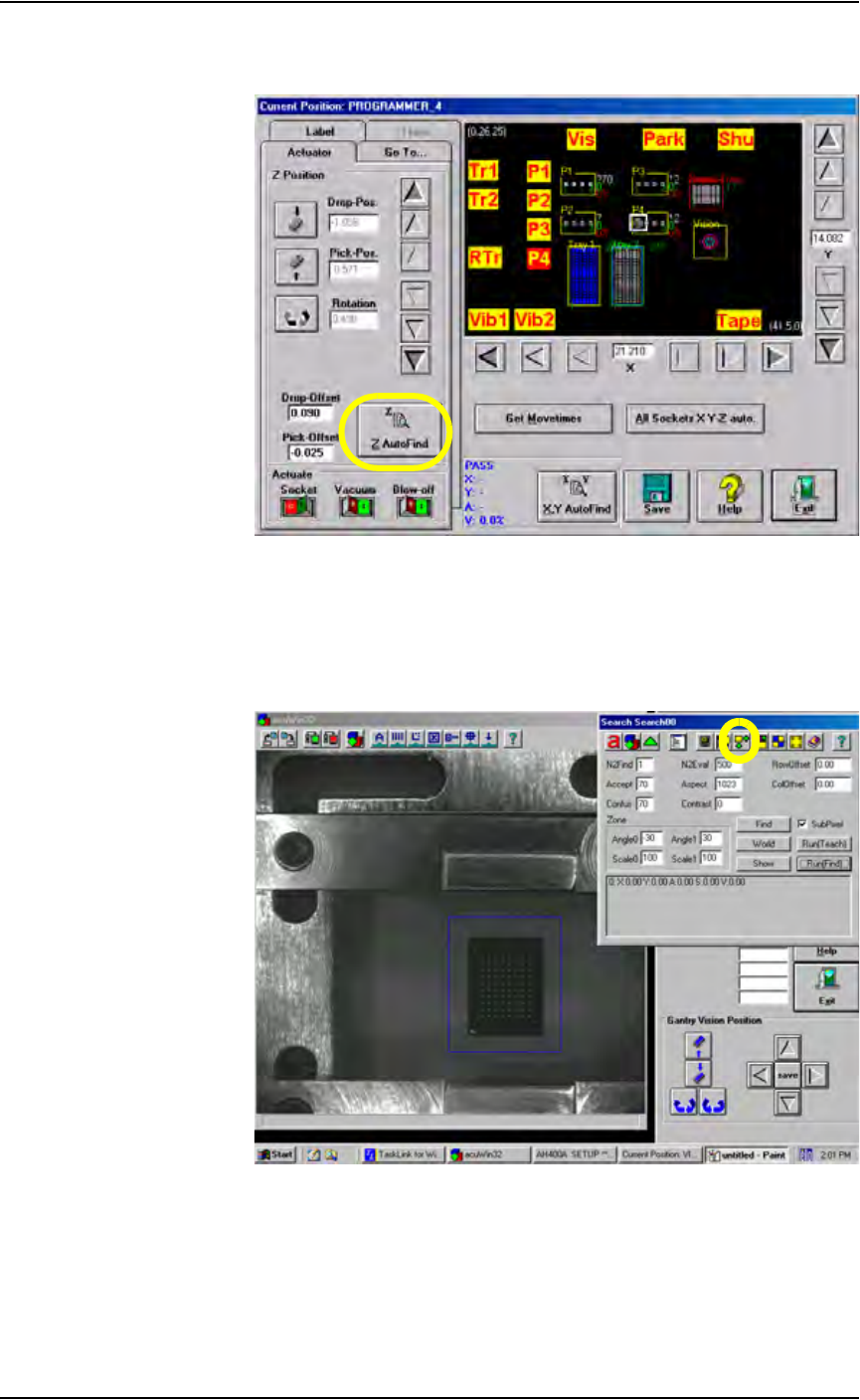
3g) On the Calib SysCalib window, set the World X and Y values as
shown in Figure 5-55. Press the Solve button. Then press the green tri-
angle to return to the Gantry window.
Figure 5-55—World values for X and Y
4. Adjust the Search Area—
4a) Manually remove the Vision Calibration Plate from the Vacuum Cup
nozzle. On the Gantry window, turn the Gantry Vacuum switch to OFF.
NOTE: In this example, Programmer 4 is used for illustration pur-
poses. Choose any programmer near the front of the PS288.
4b) Click P4. The PNP head will move to Programmer 4. Center the vac-
uum cup nozzle on the socket in Programmer 4. Use the X-axis and
Y-axis adjustment buttons on the Gantry window to center the PNP
head on the socket.
4c) Click Park to move the PNP head to the Park position. Manually place
a device in the socket of Programmer 4. Click P4 to move the PNP
head back to Programmer 4. Adjust the width of the Socket Actuator
ribs so that the ribs make contact with the socket top and yet are far
enough apart to be clear of the device when the device is picked.
Maintenance • Adjustments, Calibrations, and Functional Tests
5—48 PS288 Owner’s Manual
4d) On the Actuator tab, click Z AutoFind. See Figure 5-56. Ensure that
the device is picked from the center.
Figure 5-56—Z AutoFind.
4e) Pick up the device by right-clicking the touchpad over the device.
Left-click over the Vis area on the window to move the device to the
Vision system.
4f) On the Search Search dialog tool bar, click the icon to open the Area
Object dialog.
Figure 5-57—Click to open Area Object dialog
4g) Adjust the size of the device search area (red rectangle) around the
device so that it is 30-50% larger than the device. To adjust the device