PS288_OwnersMnl_PriorTo2009 - 第39页
Set Up • Setting Up Static Tray Input/Outp ut PS288 Owner’s Manual 2—5 If electrical or mechanical problems ar e noted, turn off the PS288 and notify Data I/O Customer Support immediately . Setting Up S t atic T ray Inpu…
Set Up • Applying Power for the First Time
2—4 PS288 Owner’s Manual
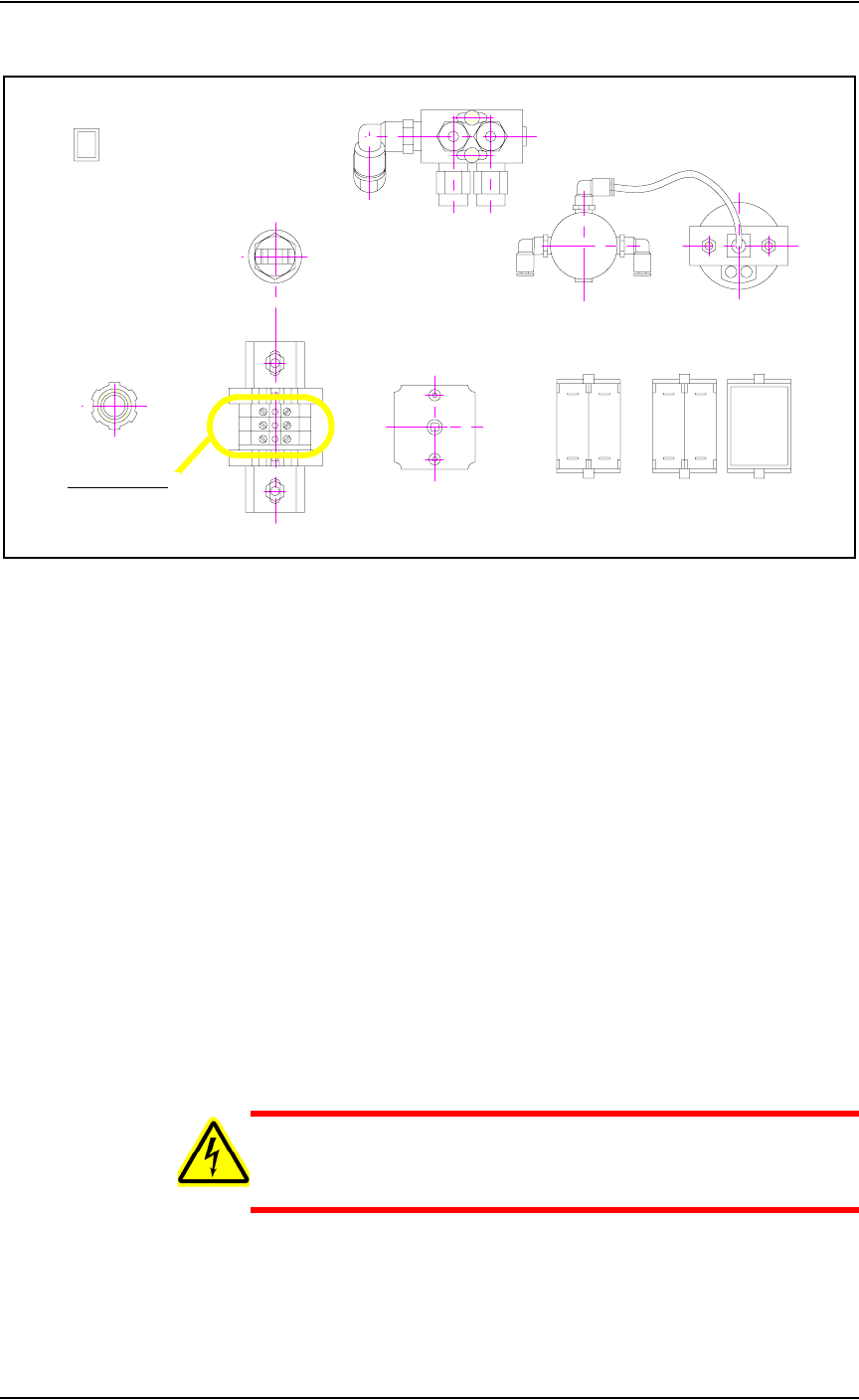
See Figure 2-3 for the terminal block where the 3 wire cable is attached.
Figure 2-3—Terminal block
Applying Power
for the First
Time
Before the PS288 is switched on the first time, ensure the following:
) The external air line is connected, and the main air valve is open.
) All E-Stop buttons are in the released (operating) positions (refer to
Figure 1-2 for location of the E-Stop buttons).
) All safety shields are closed (refer to Figure 1-2 for location of the
safety shields).
) The circuit breakers on the input panel on the back of the PS288 are in
the ON (i.e., UP) position.
) The circuit breaker on the I/O Controller is set to the ON position.
) The power switch on the Handler Computer is set to the ON position.
) The Socket Adapters required for the job have been installed on all
necessary programmer sites. See “(Optional) Change a Socket
Adapter” on page 3-17 for more information.
Once the above conditions have been checked, turn the main power switch
on the input panel (on the rear of the PS288) in a clockwise direction to the
ON position. Then press the I/O Controller START button.
WARNING: Electric shock hazard. Power is applied to the pro-
grammer assemblies when the main power switch is switched on,
even when the I/O Controller is turned off.
After power is applied, verify that all mechanical assemblies appear to be at
rest, and no obvious failures or electrical anomalies occur. Verify that the
Handler Computer boots properly and is waiting at a network login window.
Terminal block
Set Up • Setting Up Static Tray Input/Output
PS288 Owner’s Manual 2—5
If electrical or mechanical problems are noted, turn off the PS288 and notify
Data I/O Customer Support immediately.
Setting Up
Static Tray
Input/Output
Static tray input and output is the standard configuration on the PS288.
NOTE: When using static tray input and output, ensure that blank
devices are loaded with the correct pin 1 orientation. Pin 1 orienta-
tion is set when the PNP head locations are taught. For more infor-
mation, see “Teach Tray Locations” on page 3-38.
To set up the static tray input and output:
1. Prepare system—
1a) If a job is running, press Pause on the Run window.
1b) Press Exit to return to the Setup window.
1c) Click the Options tab.
1d) Open the front safety shield.
2. Install Static Trays—
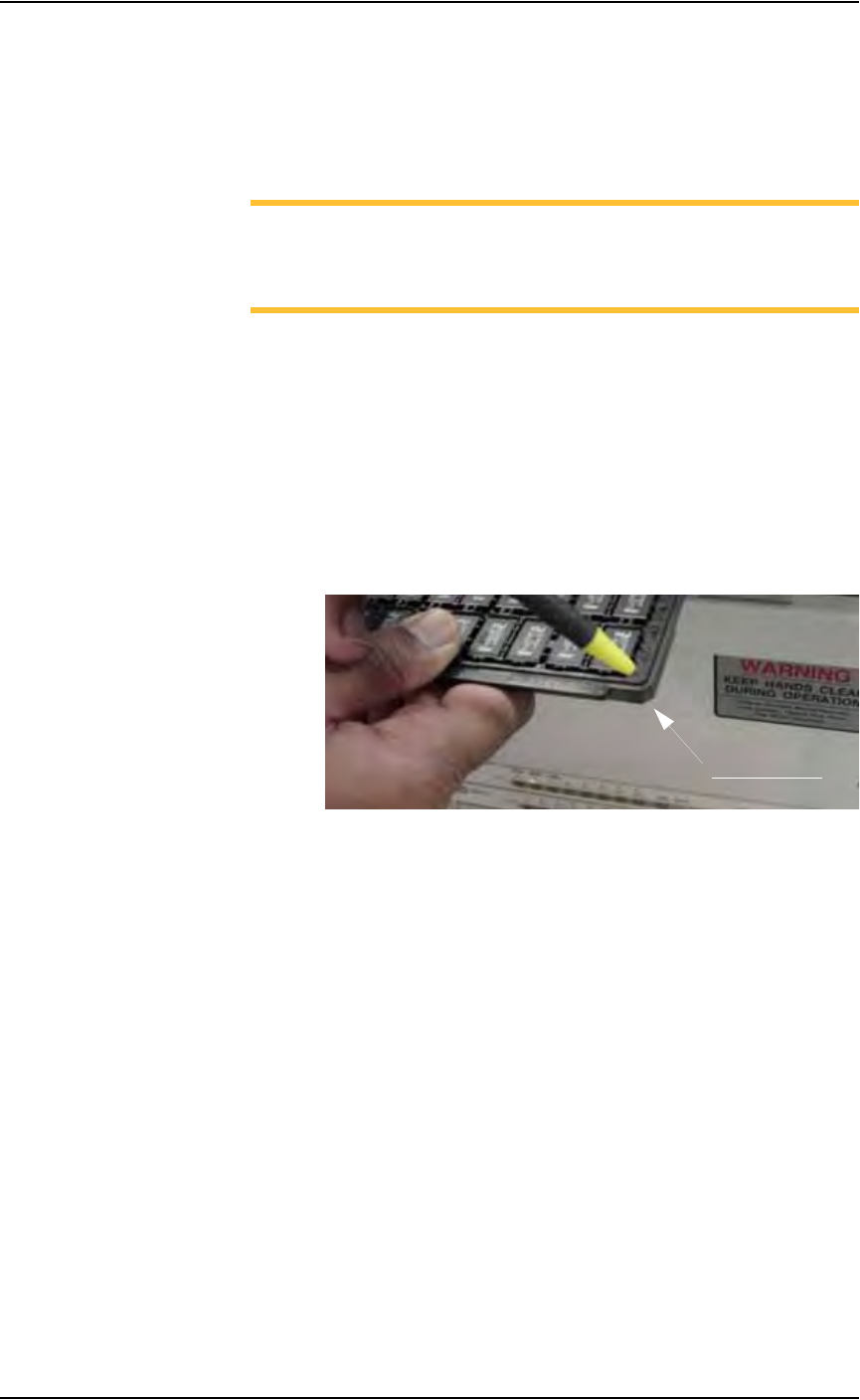
2a) Orient the static trays so that the beveled edge is in the lower right cor-
ner. See Figure 2-4.
Figure 2-4—Static tray orientation
2b) Slip trays into Static Tray 1 and Static Tray 2 locations.
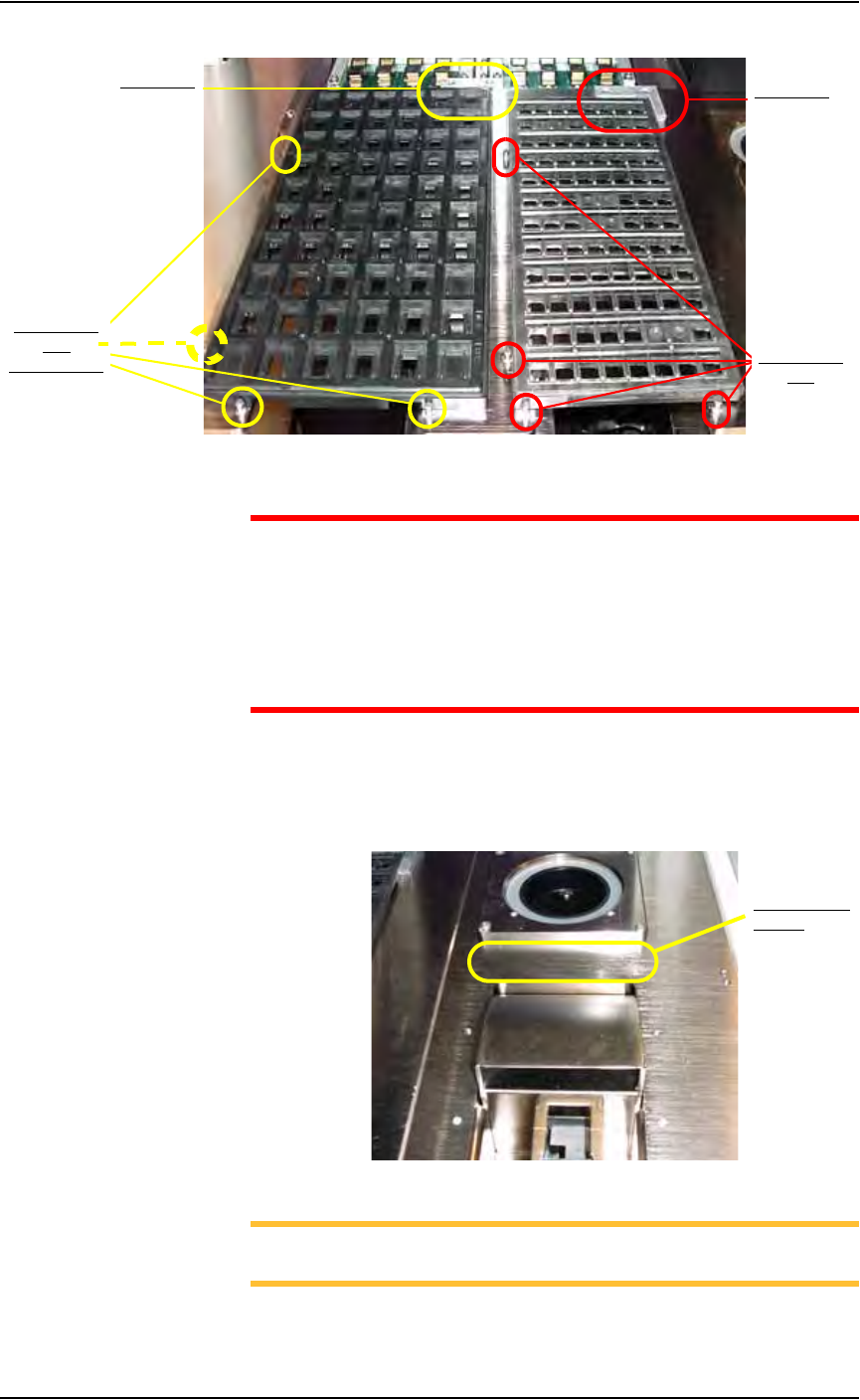
2c) Place the “L” shaped magnet in the upper right corner of each tray so
that the each tray seats against the 4 positioning pins. When properly
seated, each tray blocks an optic sensor. See Figure 2-5.
Beveled edge
Set Up • Setting Up Static Tray Input/Output
2—6 PS288 Owner’s Manual
Figure 2-5—Two Static Trays seated with optic sensors (hidden) blocked
CAUTION: If a Job is Paused and a static tray is removed from the
Static Tray 1 or Static Tray 2 location and then returned to the
Static Tray 1 or Static Tray 2 location, the software detects that the
optic sensor was uncovered. As a result, all devices in a static tray
are reset to new, and the PS288 proceeds as if all devices are blank
(unprogrammed). Therefore, use caution when removing partially
programmed static trays.
3. Install optional reject bin/box—
Place a small bin or box to the front of the Vision position (and behind
the optional Tape input position) on the work surface, as shown in Fig-
ure 2-6.
Figure 2-6—Reject bin/box location
NOTE: On the Gantry window, the reject bin/box is represented
with the RTr yellow position label.
4 Positioning
Pins
4 Positioning
Pins
(one pin hidden)
“L” bracket
“L” bracket
Reject bin/box
location