PS288_OwnersMnl_PriorTo2009 - 第58页
Set Up • (Optional) Setting Up th e Label Printing System 2—24 PS288 Owner’s Manual 23e) On the tape o utput controller, press ESC to enter run mode. The tape output system is now ready for program med devices. 24. Repla…
Set Up • (Optional) Setting Up the Tape Output System
PS288 Owner’s Manual 2—23
23a) On the PLC controller:
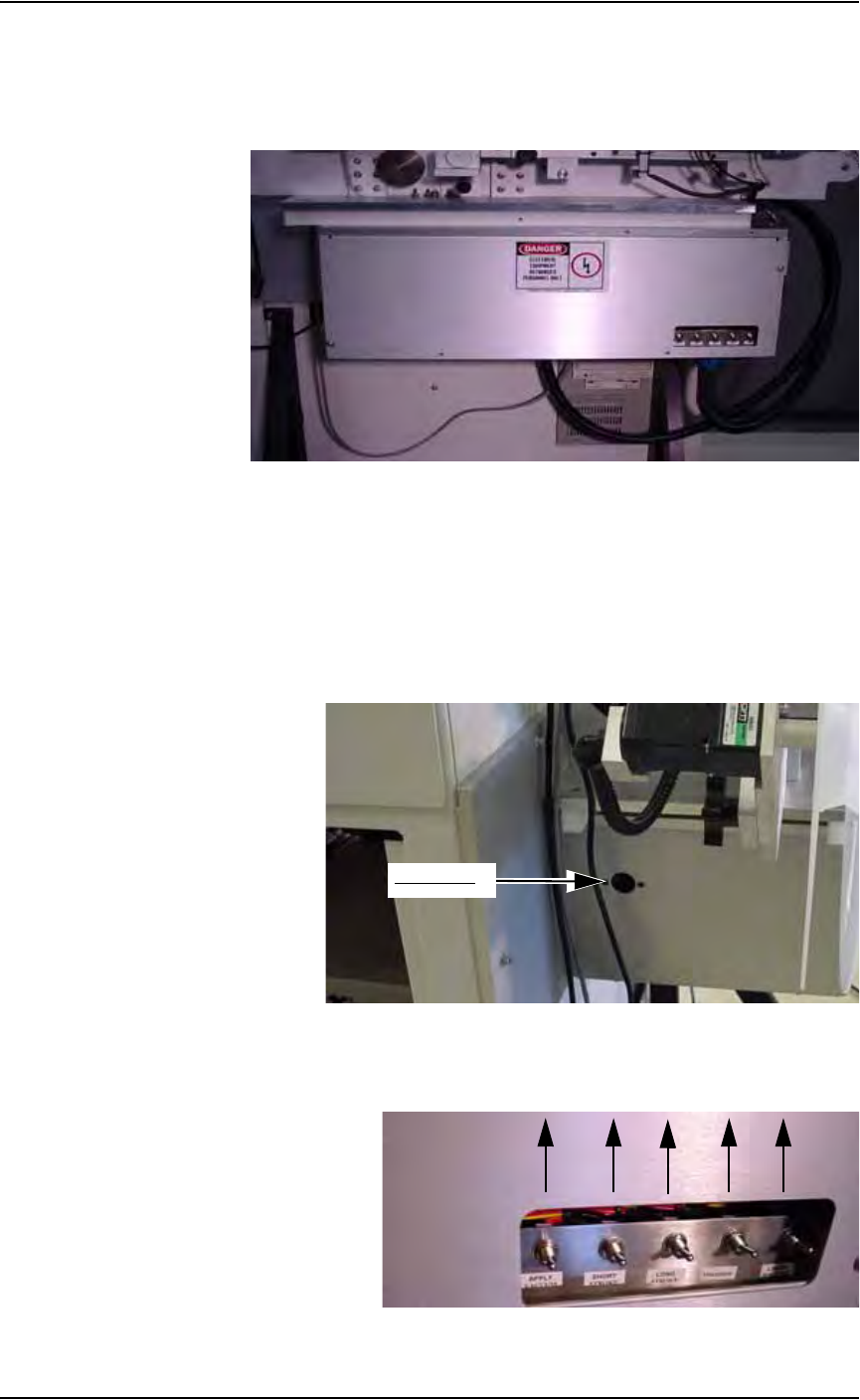
• Toggle DOWN the switch labeled “Transfer.”
• Toggle DOWN the switch labeled “Long Stroke.”
• Toggle DOWN the switch labeled “Short Stroke.”
Figure 2-36—Toggle switches in DOWN position
23b) On the tape output controller:
• Select 6 for Jog. This advances the carrier tape in 0.04 mm increments.
• Continue to press 6 for Jog until the center of the empty pocket is
directly beneath the PNP head.
23c) On the PLC controller, press the black reset button located on the left
side of the PLC controller.
Figure 2-37—Reset button
23d) On the front of the controller, toggle UP all switches. This is the “nor-
mal” position. See Figure 2-38.
Figure 2-38—Toggle switches should be in UP (“normal”) position
Reset button

Set Up • (Optional) Setting Up the Label Printing System
2—24 PS288 Owner’s Manual
23e) On the tape output controller, press ESC to enter run mode.
The tape output system is now ready for programmed devices.
24. Replace full take up reel—
When the take up reel is full:
24a) Leave job-specified number of empty pockets on the carrier tape.
24b) Cut the carrier tape.
24c) Roll carrier tape onto take up reel and remove reel.
24d) Install empty take up reel.
24e) Continue job.
(Optional)
Setting Up the
Label Printing
System
The PS288 can be configured with the optional label printing system. To set
up the label printing system, load the media (labels and transfer ribbon) and
install the tamp applicator.
NOTE: For detailed information about the label printing system,
see the Apollo 1 Operator’s Guide and the Apollo 1 Service Man-
ual that came with your label printing system.
If the label printing system is being installed for the first time on your
PS288, the WinAH400.ini file may need to be edited.
1. For first-time installation—
1a) Using Windows Explorer, open C:\AH400_32\WinAH400.ini.with
NOTEPAD editor.
1b) Locate the section
;------- marking system settings -----
1c) Ensure the value for Marking System corresponds to the label printing
system installed on your PS288. For example, if your label printing
system is Apollo, the value should look like this:
;MarkerSystem=M&R
;MarkerSystem=M&R+TAPE
MarkerSystem=BRADY_APOLLO
1d) Save the WinAH400.ini file and exit Windows Explorer.
2. Loading labels and transfer ribbon—
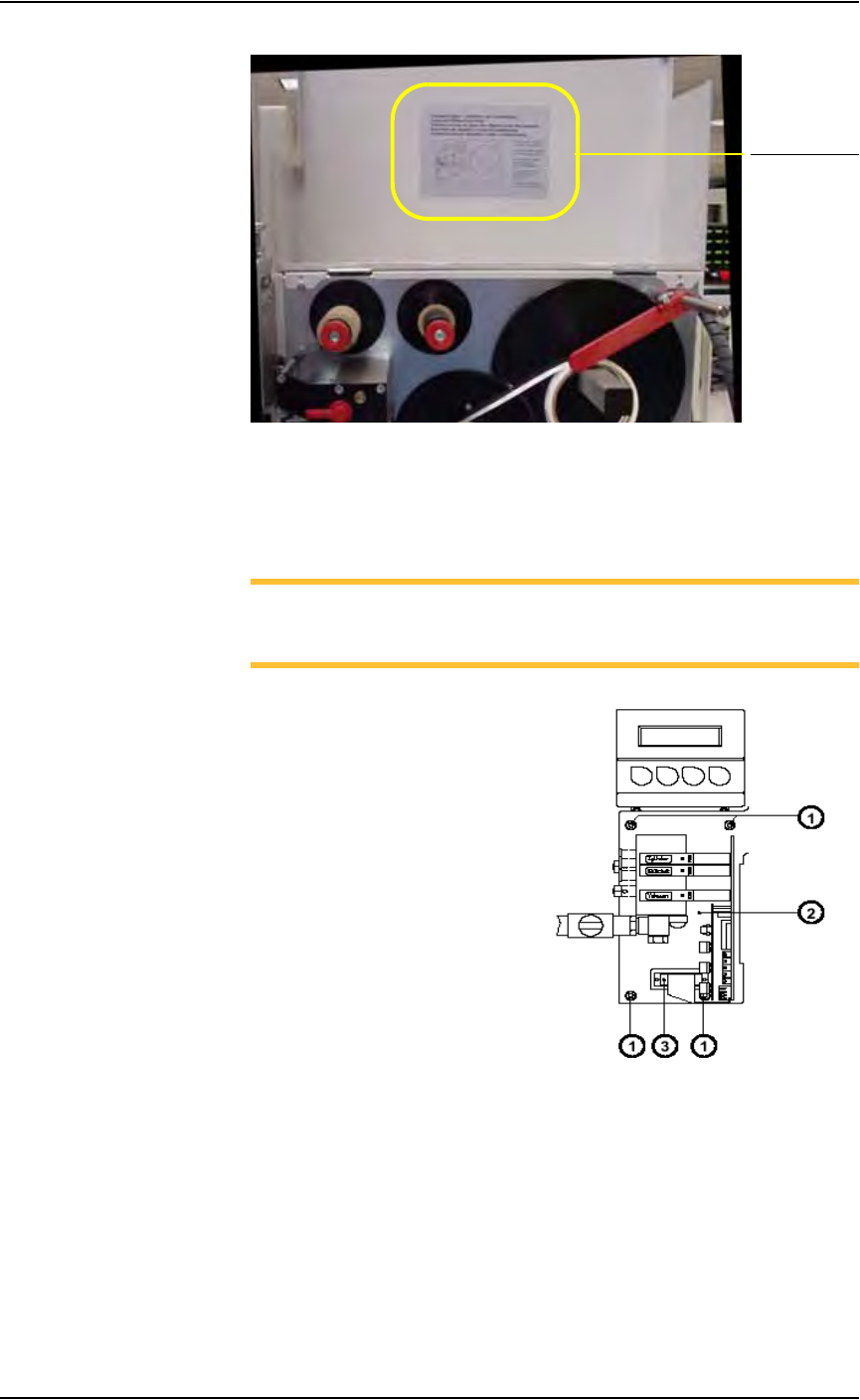
To load labels and transfer ribbon in the label printing system, follow
the loading diagram located on the labeler. See Figure 2-39 for the
location of the loading diagram:
Set Up • (Optional) Setting Up the Label Printing System
PS288 Owner’s Manual 2—25
Figure 2-39—Loading diagram
3. Installing the tamp applicator—
To install the tamp applicator in the label printing system, follow the
steps below. Refer to Figure 2-40.
NOTE: For additional information about the tamp applicator, see
the Tamp Applicator with Lift Cylinder Operating Instruc-
tions/Service Manual that came with your label printing system.
Figure 2-40—Installing the tamp applicator:
1=screw locations; 2=cover; 3= connector
3a) Remove the applicator's cover (2) by loosening the screws, two on the
left and one on the right.
3b) Fasten the applicator to the front of the label printer using the four sup-
plied screws (1) including the washers.
3c) Plug the connector (3) of the applicator's electronic system into the
peripheral port of the label printer.
3d) Reinstall the applicator cover.
Loading diagra
m