PS288_OwnersMnl_PriorTo2009 - 第64页
Operation • Operator Functions 3—4 PS288 Owner’s Manual 5. When Job loading is comp lete, T ask Link displays the calculated check- sum value and prompts to launch the AH500 software. Click Ye s to launch AH500. T askLin…
Operation • Operator Functions
PS288 Owner’s Manual 3—3
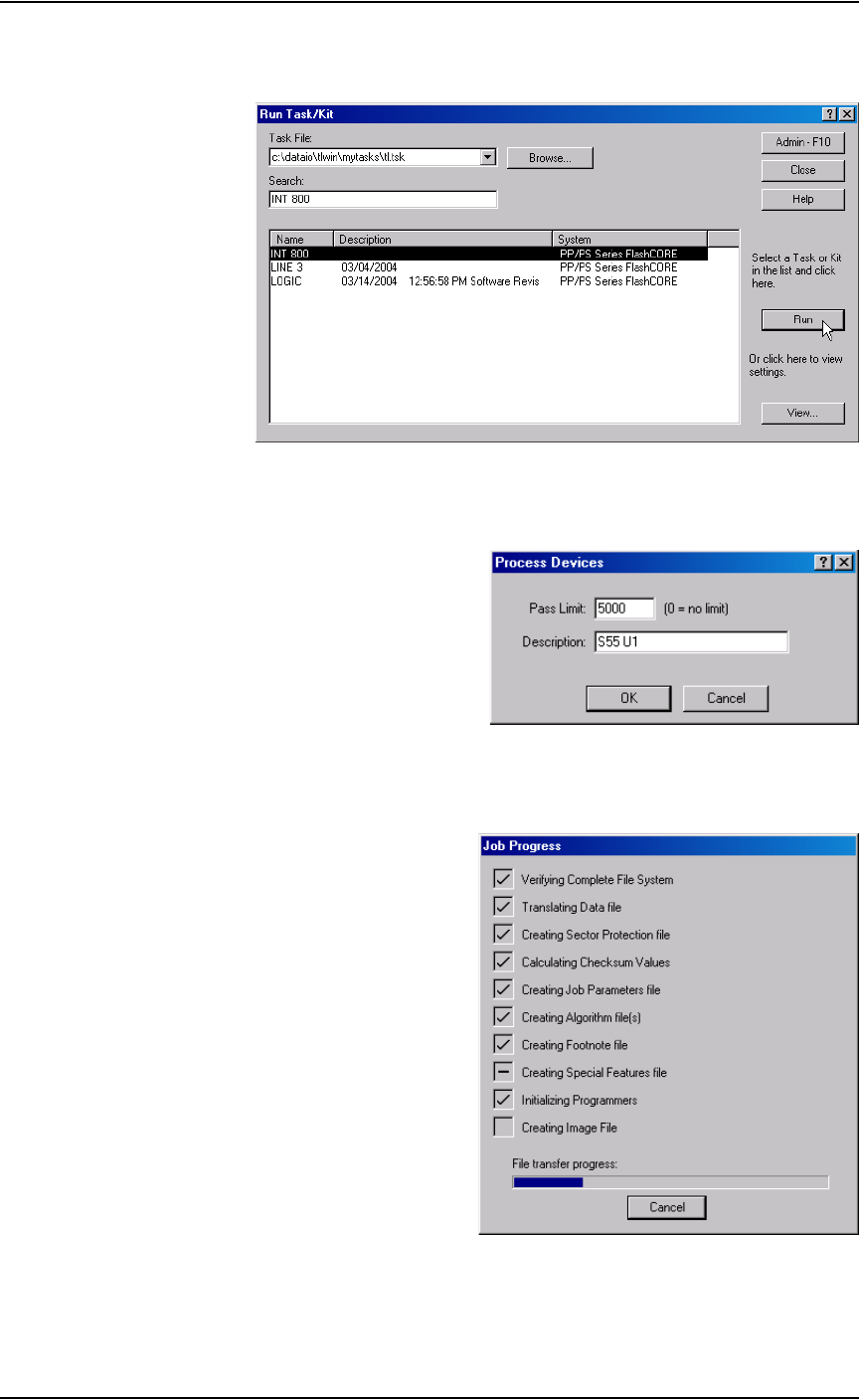
2. From the TaskLink Run Task/Kit window, select the Task from the list
and click Run
.
Figure 3-4—Select Task and click Run
3. Enter the number of devices to be processed in the Pass Limit field (or
leave at 0 for an unlimited number of devices). Click OK.
Figure 3-5—Set Pass Limit
4. TaskLink displays Job progress which includes transferring files to the
programmers. This may take several minutes.
.
Figure 3-6—File transfer progress
Operation • Operator Functions
3—4 PS288 Owner’s Manual
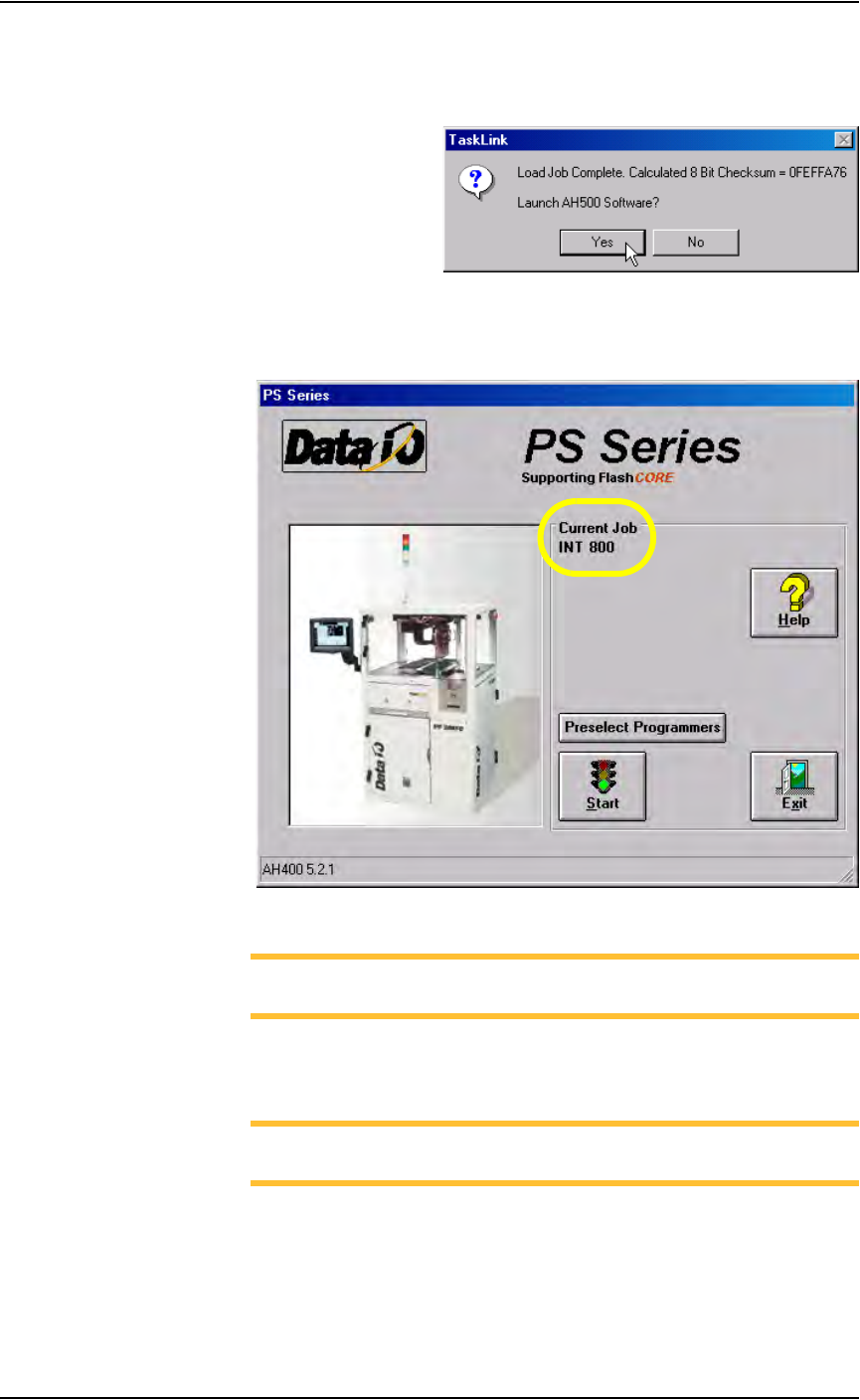
5. When Job loading is complete, TaskLink displays the calculated check-
sum value and prompts to launch the AH500 software. Click Ye s to
launch AH500. TaskLink then minimizes itself.
.
Figure 3-7—Launch AH500 software
6. The AH500 main window opens. Under Current Job, the name of the
Job just loaded is displayed.
.
Figure 3-8—AH500 main screen with Job loaded
NOTE: At this time, you can select which programmers are used.
See “(Optional) Preselect the Programmers” on page 3-15.
Configure Input/Output Settings
NOTE: If you preselected programmers [see “(Optional) Preselect
the Programmers” on page 3-15.], skip forward to Step 1b.
1. Prepare the system—
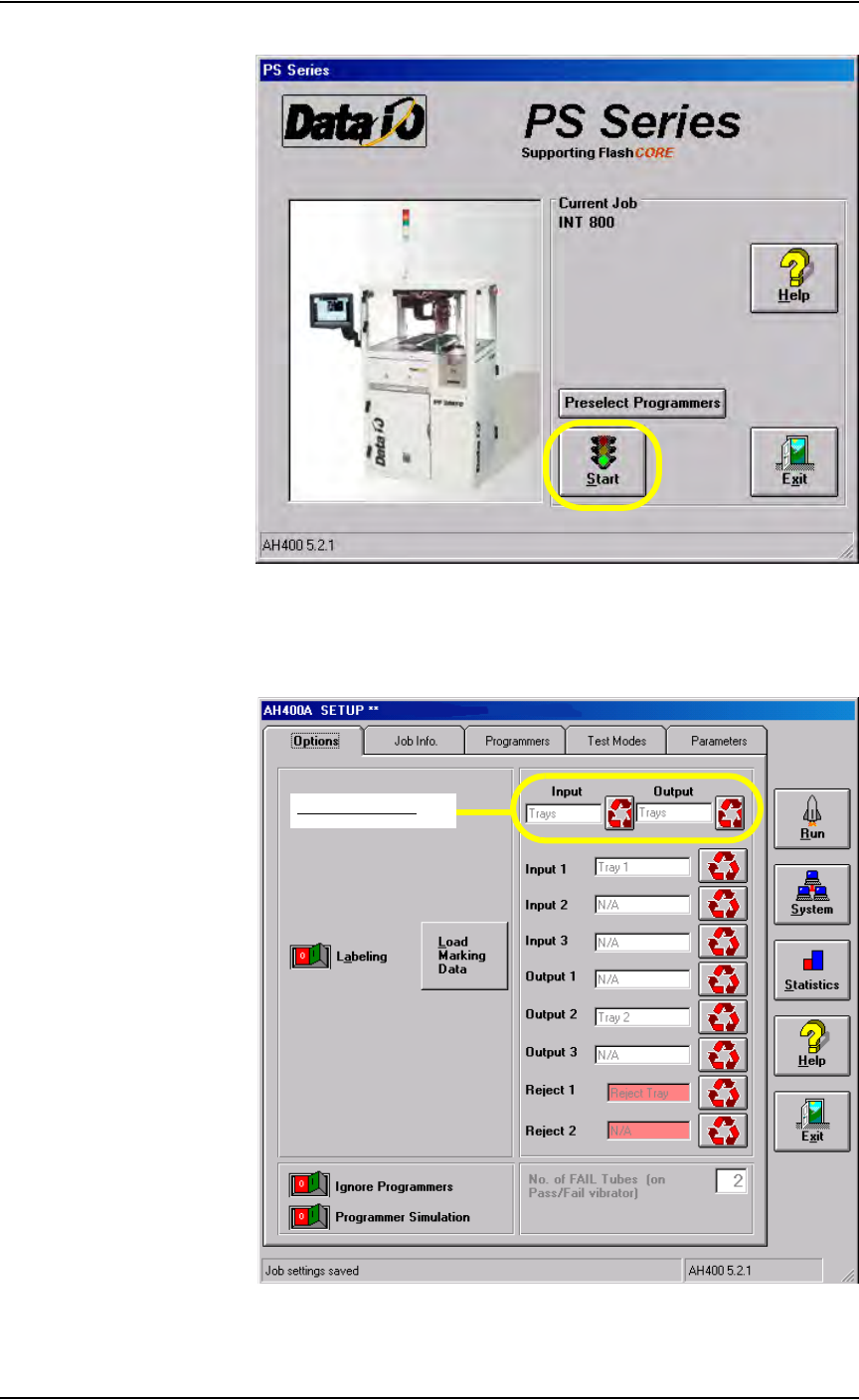
1a) On the AH500 main window, click Start.
Operation • Operator Functions
PS288 Owner’s Manual 3—5
.
Figure 3-9—Click Start
1b) From the Setup window, select the Options tab.
1c) With the cycle buttons, select the main Input and Output media. The
selections are Tube, Tape, and Tray.
Figure 3-10—Main Input/Output selections on Options tab
Main Input/Output