PS288_OwnersMnl_PriorTo2009 - 第72页
Operation • Operator Functions 3—12 PS288 Owner’s Manual NOTE: If you ar e using tape output, you also must press the r ed r eset button on the taping machine to continu e running a job after pausing. T o remove all devi…
Operation • Operator Functions
PS288 Owner’s Manual 3—11
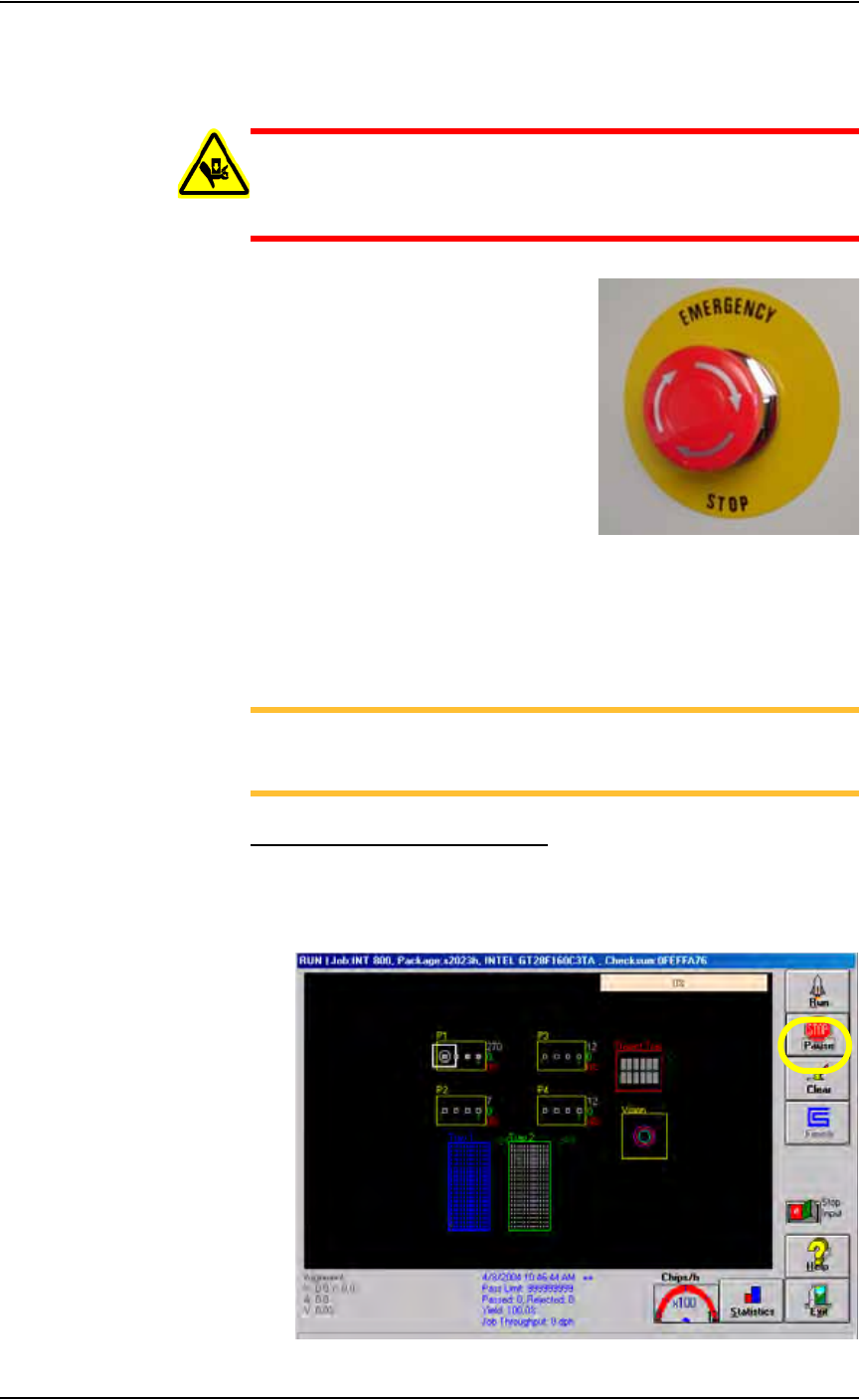
sides of the system. Pressing an E-Stop button immediately stops motion of
the PNP head and the gantry.
WARNING: Do not use the Pause button in an emergency. Press-
ing Pause allows the PNP head to continue moving at full speed
until the current operation is complete. In an emergency, press
the E-Stop button.
Figure 3-17—Emergency stop (E-Stop) button
To restart the system, turn the E-Stop button clockwise (in the direction of
the arrows) until it springs back to its full height. On the touch screen moni-
tor is the message “Check doors/E-stop!” Click OK. The system starts up
and resumes the interrupted operation.
NOTE: The PNP head shuts down if the input air pressure drops
below a factory-set threshold level. If the system stops for no appar-
ent reason, check the input air pressure and air line connections.
Pause a Programming Session
To pause a moving PNP head at the end of the current programming cycle,
click Pause on the Run window. This is the preferred method of pausing the
system in a non-emergency situation. To recover, click Run. See Figure
3-18.
Figure 3-18—Click Pause

Operation • Operator Functions
3—12 PS288 Owner’s Manual
NOTE: If you are using tape output, you also must press the red
reset button on the taping machine to continue running a job after
pausing.
To remove all devices that are currently in programmers, click Clear on the
Run window. All devices will be removed from the programming sockets
and placed in the reject module.
End a Job
To end a job, click Finish on the Run window. This completes the current
programming cycle. No more blank devices are picked from the input media,
and all devices in the sockets are removed and placed in the appropriate out-
put or reject modules.
Another method to end a job is to click the Stop Input switch to the ON
position. The job then ends after a “pass” tray or tube is full.
Shut Down the System
To remove power to all PS288 components, for instance when the system
will not be run overnight or before performing major service procedures, fol-
low these steps:
1. Complete or exit any Job that is running.
2. Remove all devices from the system.
3. Exit the laser software (if this option is installed), and shut down the
Laser Computer from the Windows Start menu.
4. Exit AH500 and TaskLink, and shut down the Handler Computer from
the Windows Start menu.
5. Turn the main power switch to the OFF (vertical) position.
6. (Optional) Padlock the main power switch so that it cannot be turned
back on until the padlock is removed.

Operation • Operator Functions
PS288 Owner’s Manual 3—13
Monitor the Light Tower
During operation of the PS288, you can monitor the light tower to reduce
system down time. The light tower displays the following conditions:
Figure 3-19—Light tower indictors
Troubleshoot Programmer Problems
During operation, you may need to troubleshoot programmer problems.
Clearing Programmer Disabled Status
If the status indicator disappears from any of the programmer outlines, or the
PNP head skips a programmer, you might be able to correct the problem by
simply clearing the programmer disabled status using the following proce-
dure.
1. On the Run window, click Pause.
2. Place the cursor over the disabled programmer.
2a) To re-enable all sockets on a programmer, right-click the touchpad and
select
All => EMPTY
Light Condition Action Required Possible Causes PS288 Status
Red Major
error
Operator intervention is
mandatory. Likely that
tools and troubleshoot-
ing skills required.
Motion control system
error; actuator error;
vacuum sensor mal-
function; insufficient
air pressure; possible
collision; socket opener
sensor error; input shut-
ter error; laser not
ready; software excep-
tions.
Stopped
Yellow/
Red
(alternating)
Error Operator intervention is
mandatory. Correction
through AH500 or
minor hardware adjust-
ment.
Unprogrammed devices
on Input/Pass tray;
labeler error;
setup-related errors;
serialization errors;
chip lost; tape input
error; laser error, no
programmer can be
used; file read/write
error.
Stopped
Yellow Normal
stop
Operator intervention is
mandatory.
Output media full or
input media empty.
Stopped
Yellow/
Green
(alternating)
Normal Operator intervention is
suggested.
End of job; vacuum
errors present on pro-
grammers; sockets dis-
abled due to errors.
Processing or
Stopped (end of job)
Green Normal No operator action
needed.
Processing devices;
clearing sockets to
reject output.
Processing