PS288_OwnersMnl_PriorTo2009 - 第88页
Operation • Administrato r Functions 3—28 PS288 Owner’s Manual Figur e 3-37—Click gr een triangle to exit Ar ea Sear ch dialog 7e) On the Search Search dialog tool bar , click a to hide the Search Search dialog. See Figu…
Operation • Administrator Functions
PS288 Owner’s Manual 3—27
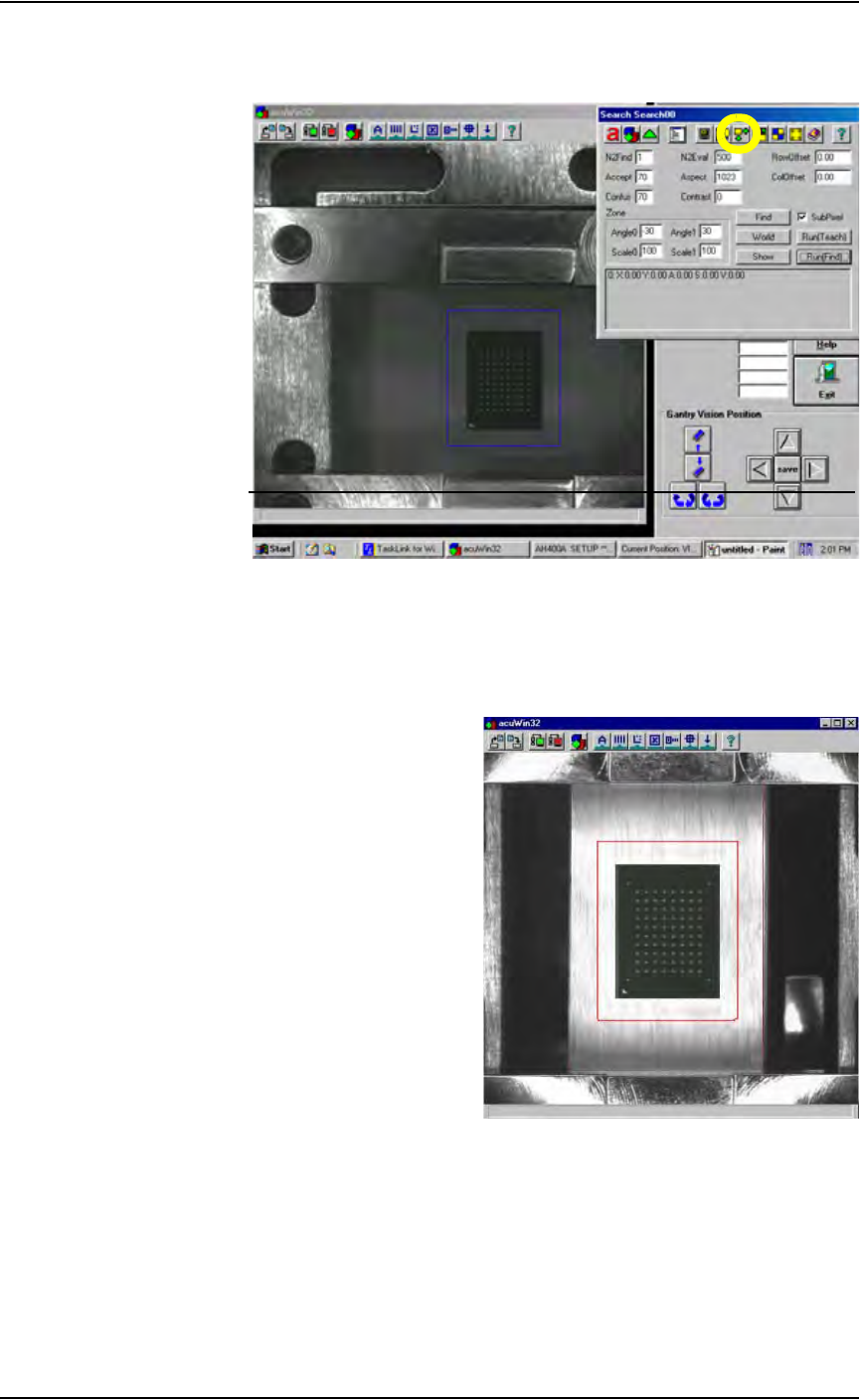
7b) On the Search Search dialog tool bar, click the icon to open the Area
Search dialog.
Figure 3-35—Click to open Area Search dialog
7c) Set the device search area (red rectangle in Figure 3-36) around the
device so that it is 30-50% larger than the device. To adjust the device
search area, place the arrow on any red line, hold down the left touch-
pad button, and use the touchpad to drag the line.
Figure 3-36—Set device search area (red rectangle) around device
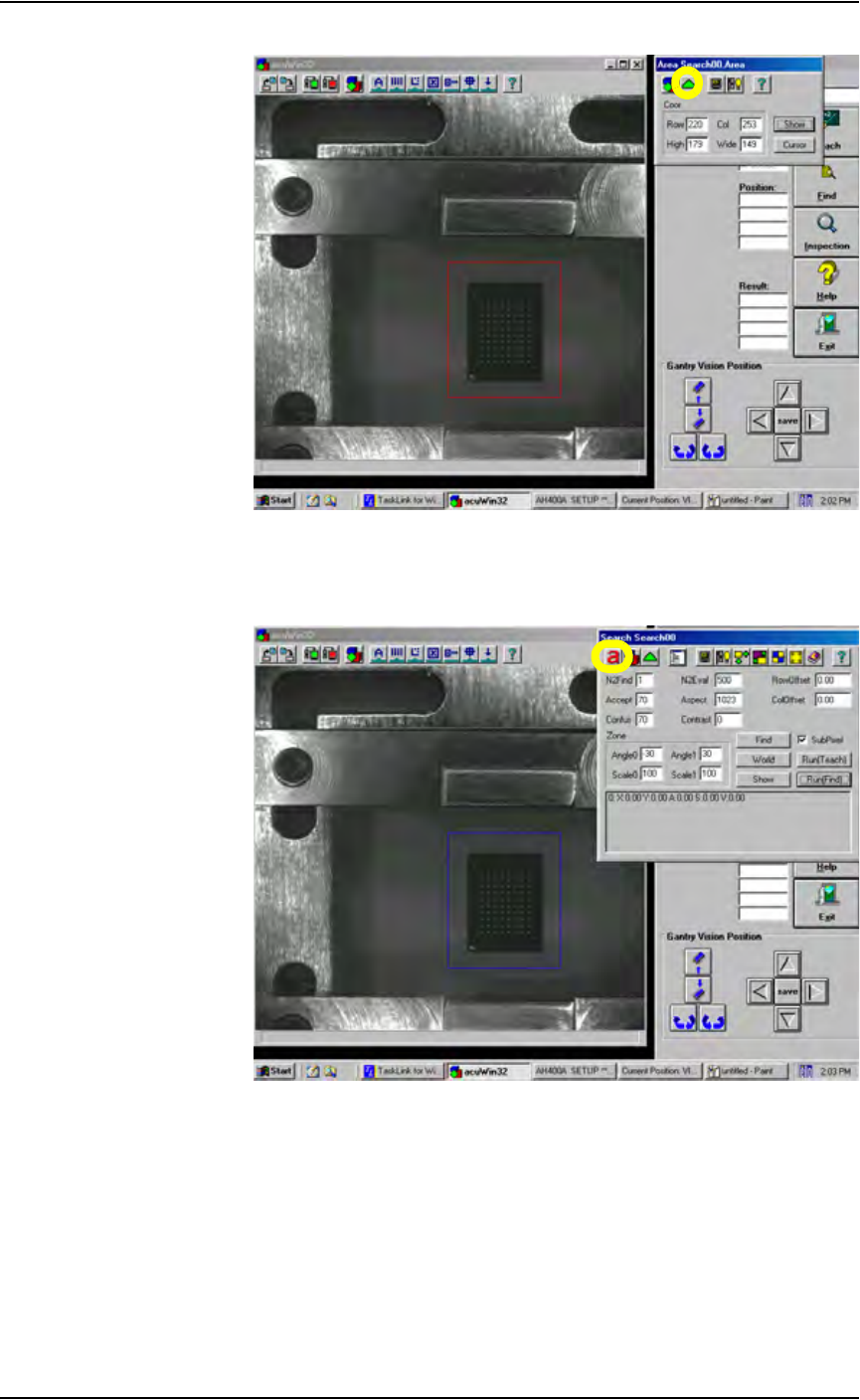
7d) When the device search area is adjusted, click the green triangle to exit
the Area Search dialog. See Figure 3-37.
Operation • Administrator Functions
3—28 PS288 Owner’s Manual
Figure 3-37—Click green triangle to exit Area Search dialog
7e) On the Search Search dialog tool bar, click
a to hide the Search Search
dialog. See Figure 3-38.
Figure 3-38—Click
a to hide Search Search dialog
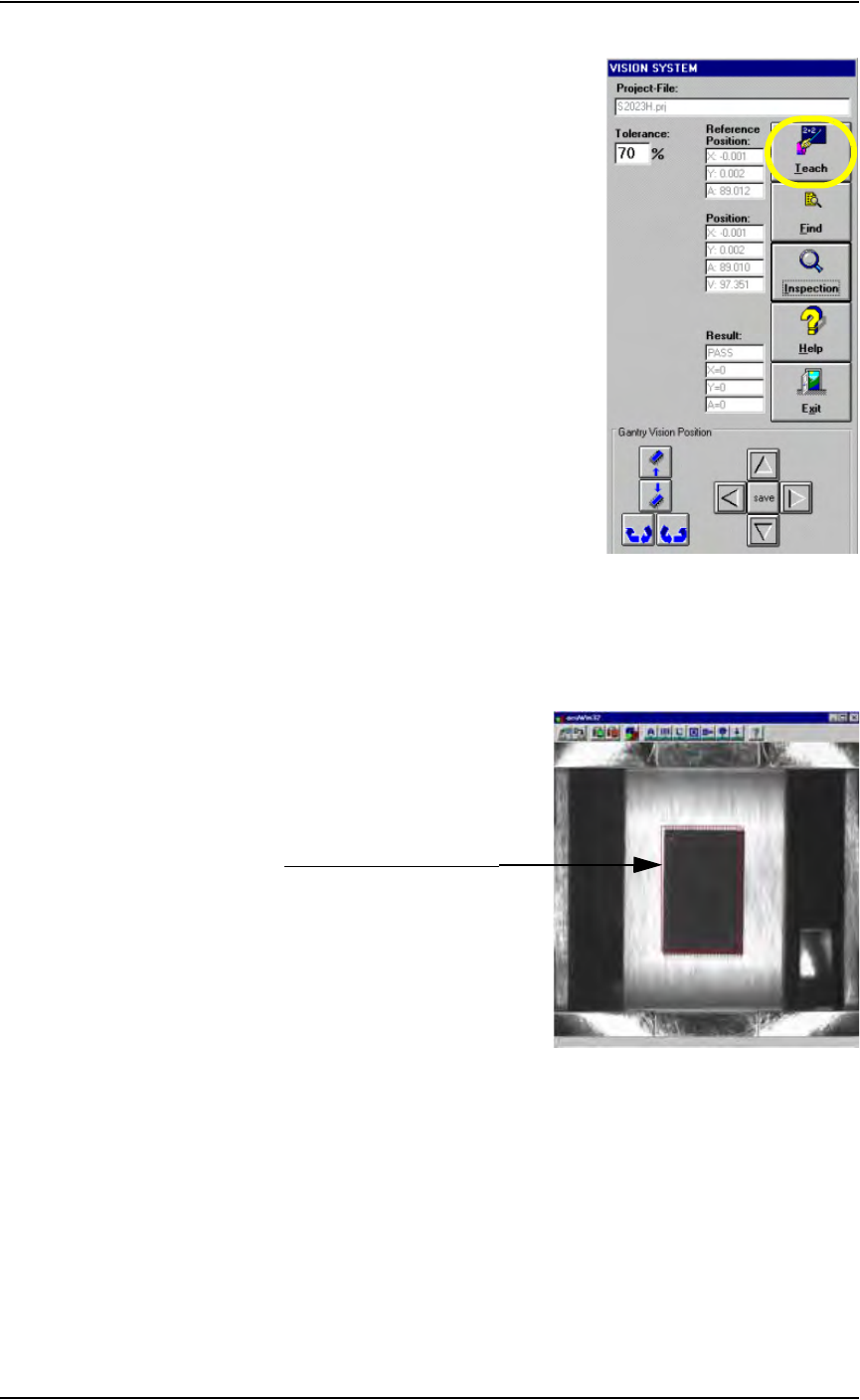
8. Teach—
8a) On the Vision System window, click Teach.
Operation • Administrator Functions
PS288 Owner’s Manual 3—29
Figure 3-39—Click Teach
8b) In the acuWin32 window, size the device image area (red rectangle) so
that it matches the edges of the device. In Figure 3-40, the device
image area is offset slightly from the device for clarity. In actuality, the
device image area needs to match the device exactly.
Figure 3-40—Device image area (red rectangle) matches the device
8c) When the device image area exactly matches the device, click OK.
8d) If the Attention message box appears, click Ye s to save the changed
value. See Figure 3-41.
Device image area (red rectangle)