PS288_OwnersMnl_PriorTo2009 - 第98页
Operation • Administrato r Functions 3—38 PS288 Owner’s Manual T each T ray Locations The PS288 can have static tray or automatic tray feeder (TF20 or TF30) input and output modules. T eaching tray locations is the same.…
Operation • Administrator Functions
PS288 Owner’s Manual 3—37
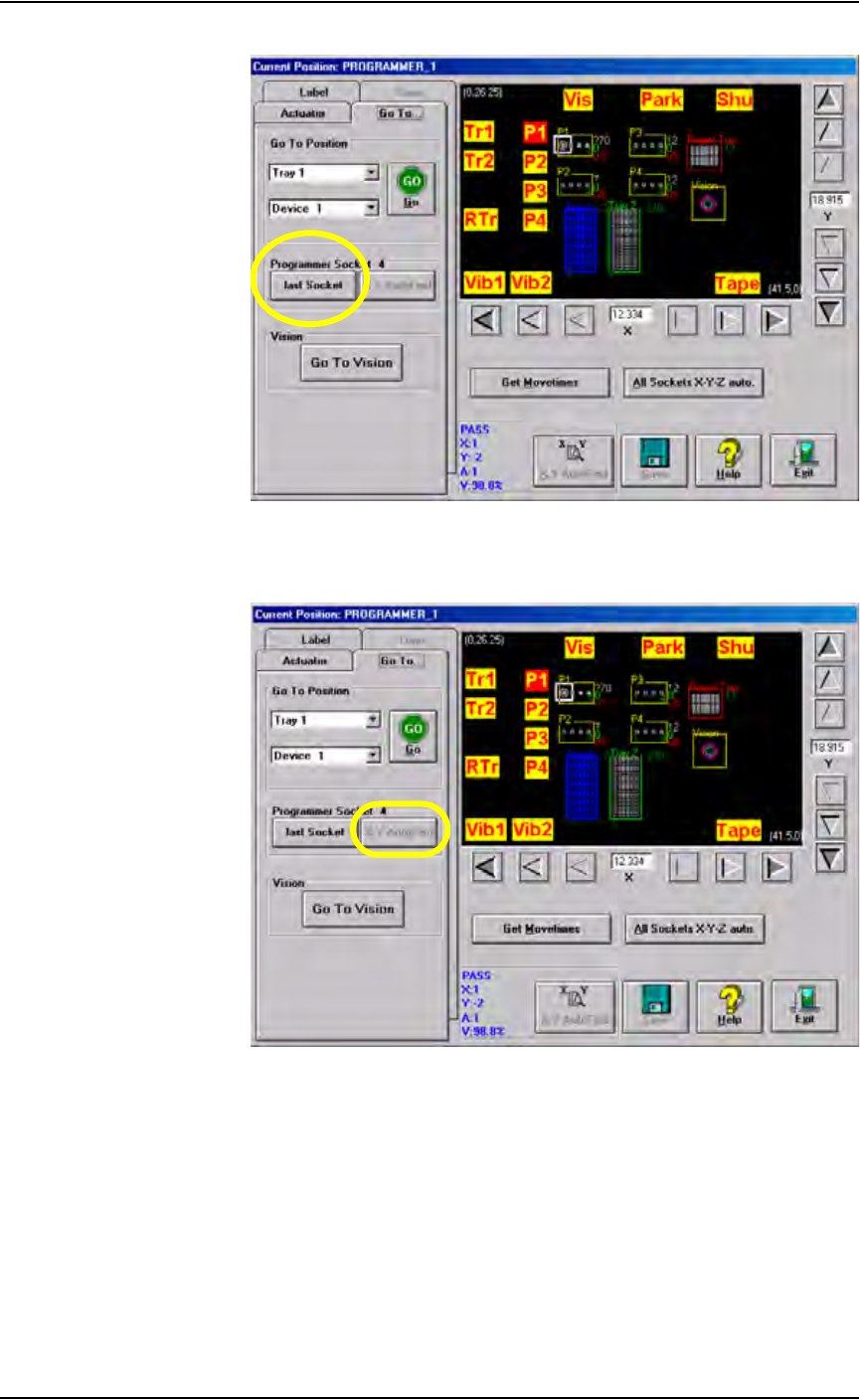
Figure 3-51— last Socket
7b) Click X,Y AutoFind.
Figure 3-52—X,Y AutoFind
7c) When the Attention message box pops up, check the Results field.
7d) If the new values for X and Y are >±5, press Ye s and repeat Step 7b.
If the new values for X and Y are <±5, press No.
This completes the process of teaching Programmer 1 locations. Repeat for
ALL programmers.
Operation • Administrator Functions
3—38 PS288 Owner’s Manual
Teach Tray Locations
The PS288 can have static tray or automatic tray feeder (TF20 or TF30)
input and output modules. Teaching tray locations is the same.
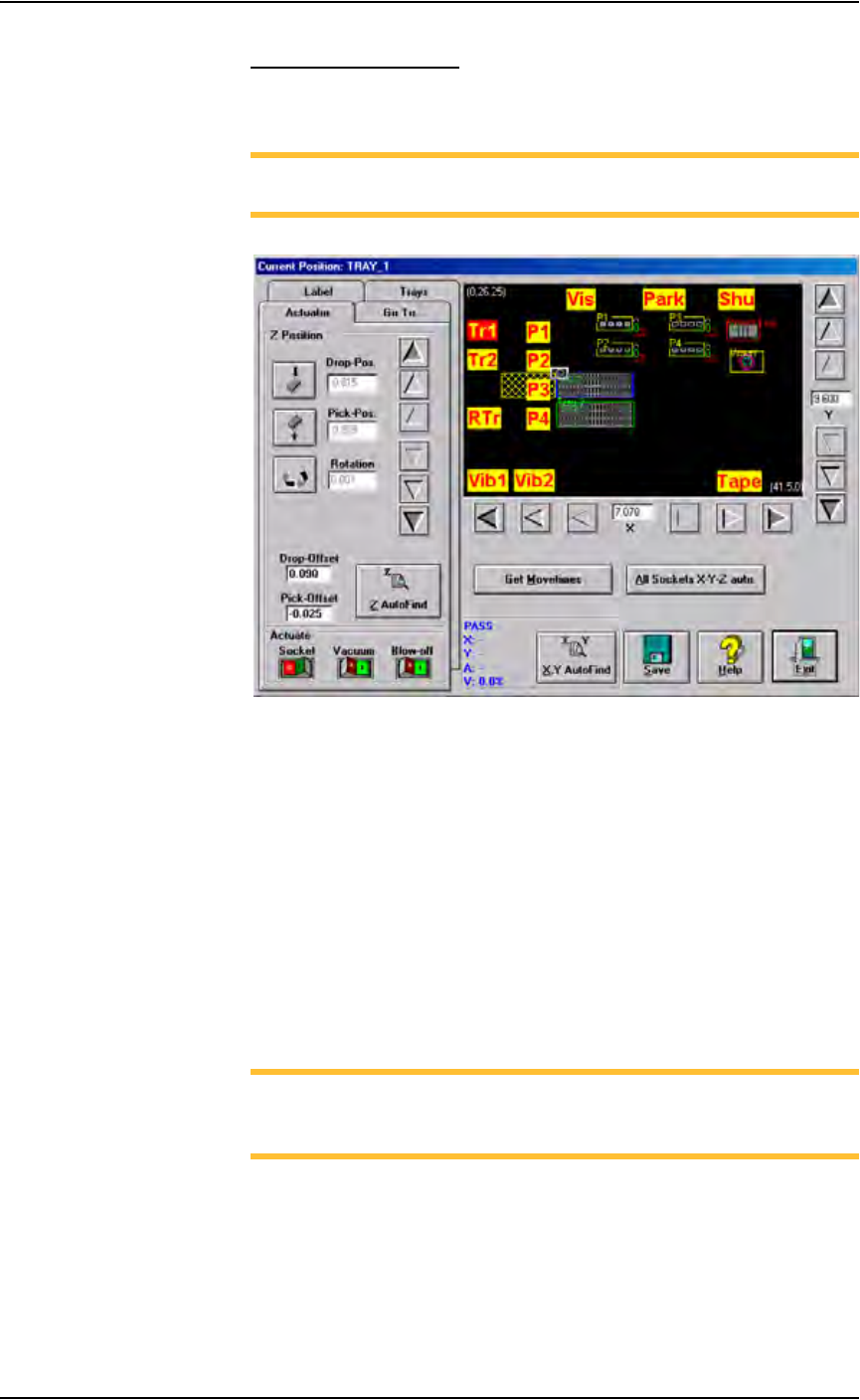
NOTE: If the automatic tray feeder option is installed, trays are
displayed in the Gantry window as shown in Figure 3-53.
Figure 3-53—Gantry window display with automatic tray feeder installed
1. Prepare the system—
1a) In Tray 1, insert devices in the upper left corner and lower right corner.
1b) In Tray 2, insert a device in the upper left corner only.
2. Teach upper left corner of Tray 1—
2a) Click Tr1.
2b) Adjust the location of the probe tip so that it is centered on the device
in the upper left corner of Tray 1. Use the up/down arrows for Y-axis
adjustments and the left/right arrows for X-axis adjustments. From the
inside working outward, the arrow buttons adjust the position ±0.001,
0.010, and 0.100 inches respectively.
2c) Click Save.
NOTE: When saved, these settings are kept in the appropriate
package file (.txt) in the directory C:\AH400_32\Package on
the Handler Computer.
2d) Click Z AutoFind. The PNP head lowers and the probe tip touches the
device. Click Yes to save the new values. The Z-axis reference position
is now set.
2e) Press X,Y AutoFind. The PNP head picks the device, takes it to Vision
and compares the orientation of the device to the orientation in the ref-
erence vision file.
Operation • Administrator Functions
PS288 Owner’s Manual 3—39
2f) If the new values for X and Y are >±5, press Yes and repeat Step 2e.
If the new values for X and Y are <±5, press No.
3. Teach lower right corner of Tray 1—
3a) Select the Trays tab.
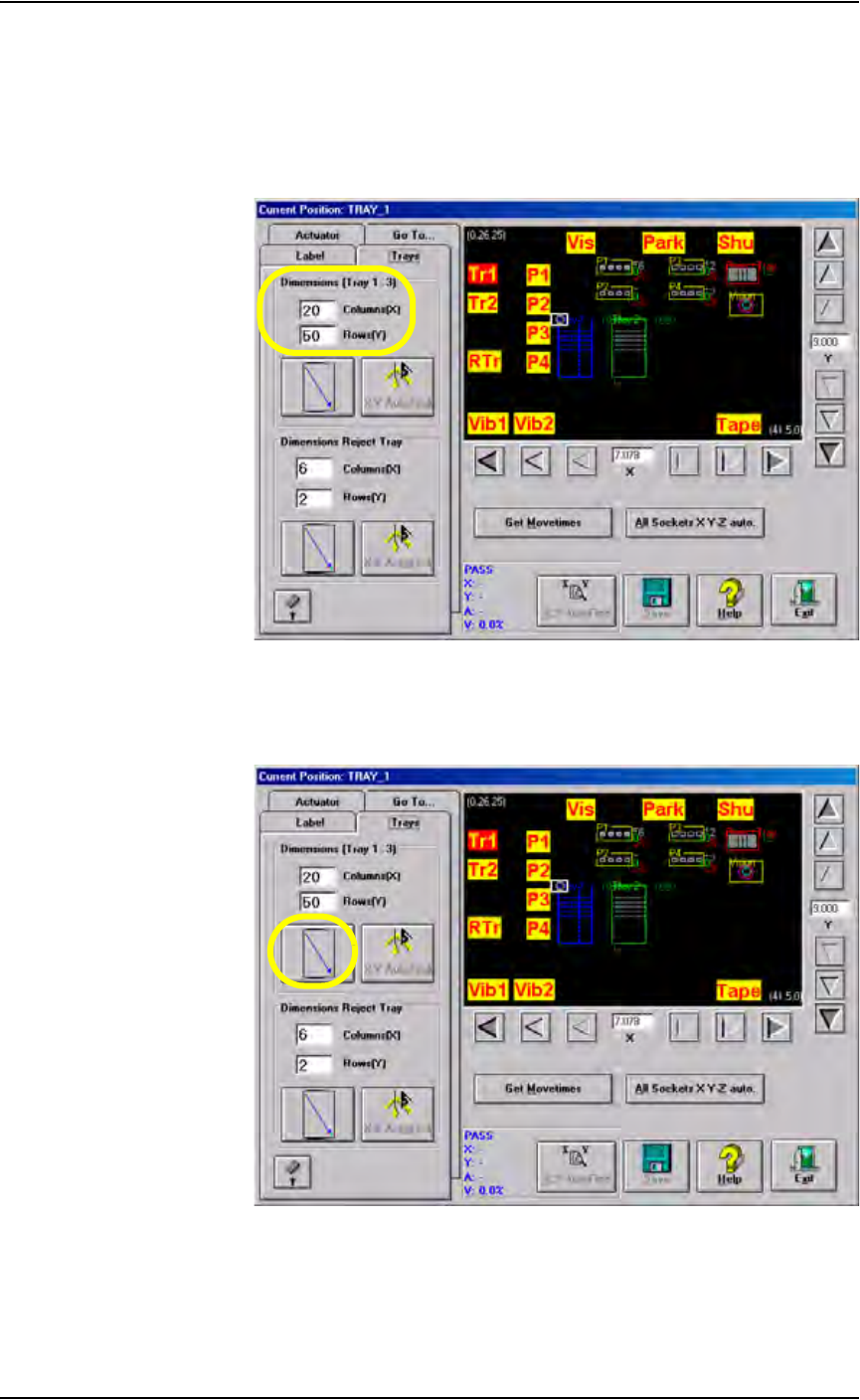
3b) Enter the number of columns and rows for this tray. See Figure 3-54.
Figure 3-54—Specify dimensions of Tray 1
3c) Click the diagonal arrow. See Figure 3-55. The PNP head moves to the
lower right corner of Tray 1.
Figure 3-55—Click diagonal arrow
3d) Adjust the location of the probe tip so that it is centered on the device
in the lower right corner of Tray 1. Use the up/down arrows for Y-axis
adjustments and the left/right arrows for X-axis adjustments.