Apollo1_Operators_Manuel.pdf - 第74页
74 cab - Produkttechnik GmbH / Tharo Systems, Inc. 5 T est Pattern The test pattern field contains seven areas with different stroke patterns. With these patterns a range of print faults can be analyzed. The printout sho…
73cab - Produkttechnik GmbH / Tharo Systems, Inc.
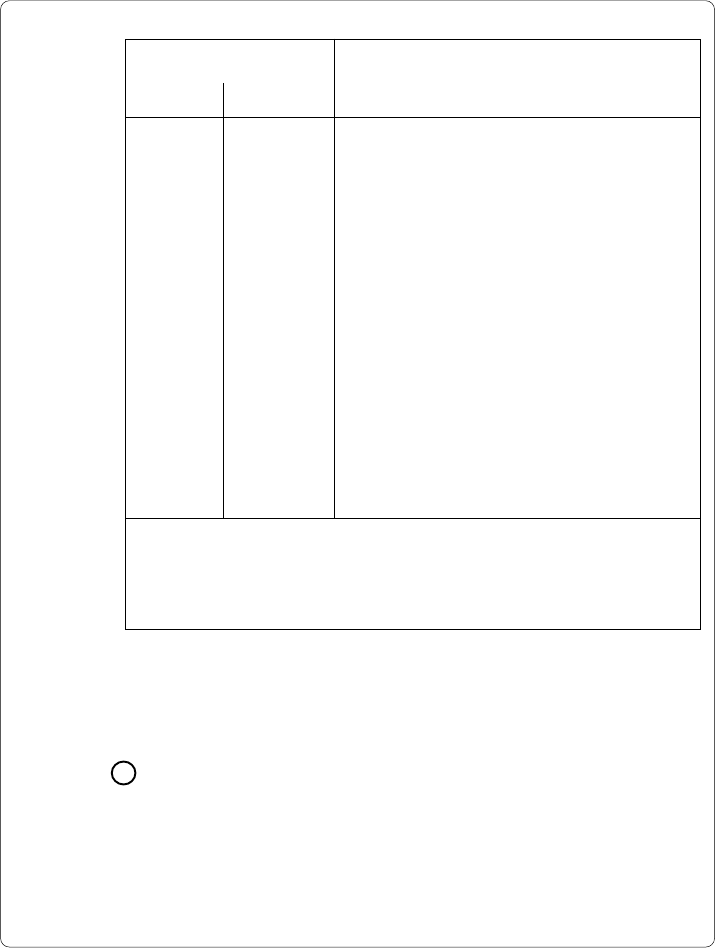
Error code
Type of error
HEX DEC
0001 1 dRAM fault
0002 2 dRAM multiplexer fault
0004 4 A/D converter fault
0008 8 Ribbon saver fault
0010 16 sRAM fault
0020 32 LCD damaged
0040 64 Cutter fault
0080 128 ROM fault
0100 256 Voltage fault (Apollo 3)
0200 512
0400 1024
0800 2048
1000 4096
2000 8192
4000 16384 Wrong board revision (Apollo 3)
8000 32768 Setup invalid
For the test result, the codes of occurred errors are added up to a four-digit
hexadecimal number to determine the final test result.
For example : Ribbon saver fault + LCD damaged : Test result = 0028
Table 10 Self test - Test result error codes
3 Bar Code with Test Information
This special bar code is designed for use by Technical Service. It contains
compressed information about the current configuration of the Apollo as well
as previously occurred faults.

74 cab - Produkttechnik GmbH / Tharo Systems, Inc.
5 Test Pattern
The test pattern field contains seven areas with different stroke patterns.
With these patterns a range of print faults can be analyzed. The printout shows
errors such as varying print intensity which indicates the printhead being
misadjusted or dirty, or missing ink dots causing vertical white lines.
4 Existing Character Sets
No. : Identification No. of the font for programming
(command T)
Name : Name of font used for internal storing
Name of command (query sequence) q...CR
Type : Method of generating the characters
(see programming of command T)
Description : Font description (size, type)
75cab - Produkttechnik GmbH / Tharo Systems, Inc.
11 Printer Info Display
Viewing the Printer Info Display
Apollo offers a convenient option for retrieving and viewing information about
the printer configuration and occurred hardware problems without using setup
mode or test print mode.
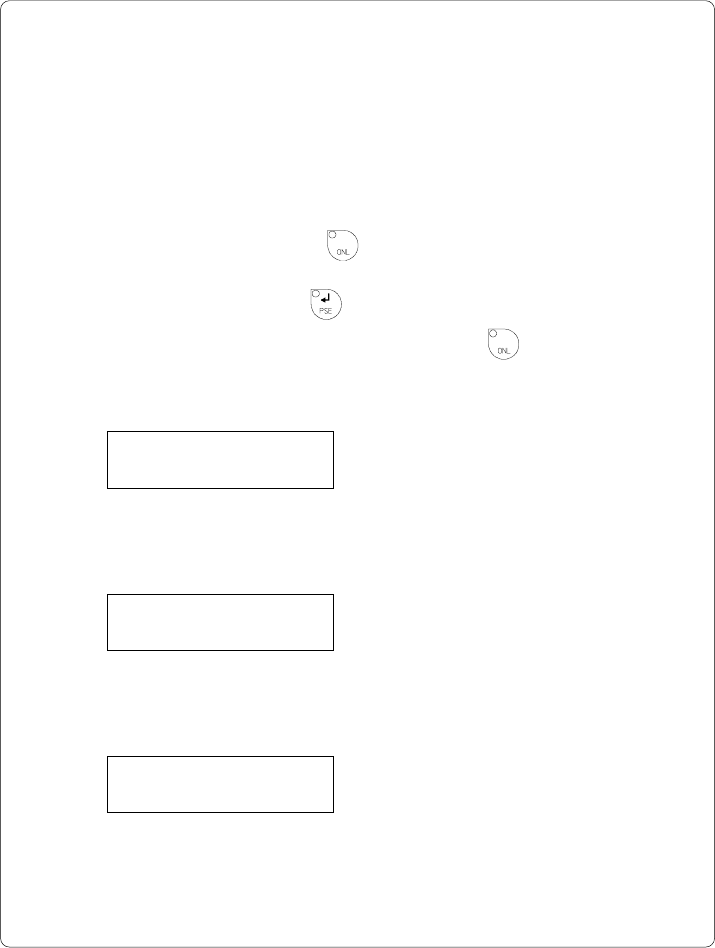
After switching on, or completing the system test or print jobs, the printer is in
ONLINE mode. Pressing the key will switch into OFFLINE mode where the
display shows the status information on five different pages which are accessible
by repeatedly pressing the key.
The printer info display can be exited by pressing the key. (back into
ONLINE mode)
Definition of the Printer Info Display
Printer info
1: RS 232 / RTS/CTS
Fig. 11 a Printer info display 1
On the first page, the selected interface (RS-232, RS-422, RS-485, Centronics)
and, in case of a serial interface, the handshake or protocol (RTS/ CTS or - - - ) will
be shown.
Printer info
2: 9.600
Fig. 11 b Printer info display 2
The second page contains information about the fixed baud rate of the serial
interface. When the parallel interface has been selected (Centronics), the second
page of the display is not applicable and shows three dashes.
Printer info
3: 2.38 / Jan 31 97
Fig. 11 c Printer info display 3
On the third page, the version and the date of the firmware are shown.
The example as shown in Figure 11c represents the firmware version No. 2.38
as at January 31, 1997.