YG200_200L_E.pdf - 第69页
2-22 2 Basic operation 3 . 4 A d j u s t i n g t h e c o n v e y o r u n i t s e t u p W h e n t h e b o a r d t y p e t o b e p r o d u c e d i s c h a n g e d , t h e c o n v e y o r u n i t s e t u p m u s t b e a d j…
2-21
2
Basic operation
4
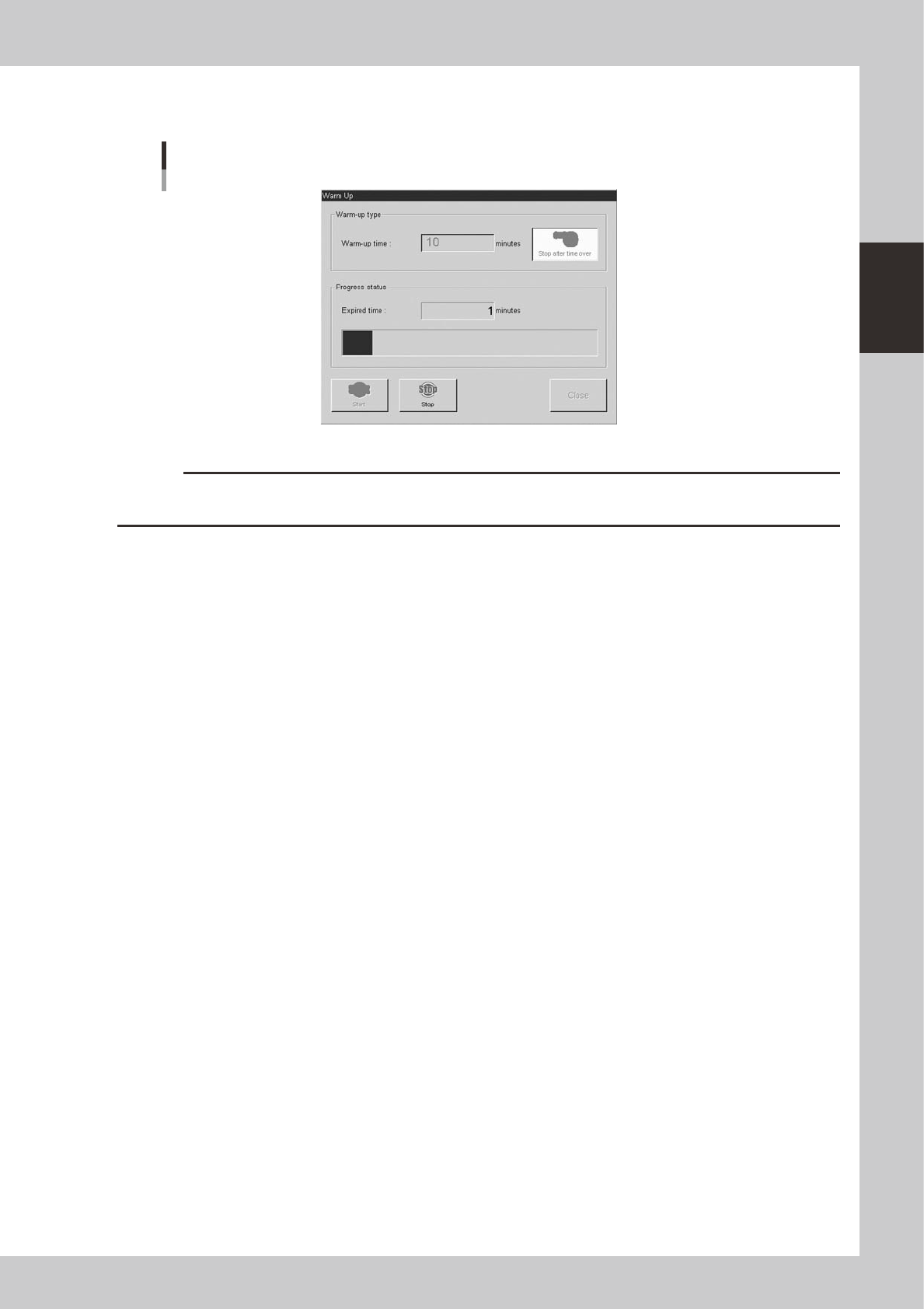
Press the [Start] button to start warm-up.
The warm-up progress time and status will appear under the "Progress status".
Warm-up screen
24208-M0-00
c
CAUTION
If an abnormality occurs during warm-up, press the [Stop] button to stop operation immediately, check the cause of
the problem and eliminate it.
5
Finish the warm-up.
Warm-up will automatically stop when the warm-up time you set is reached. Press the [Close] button,
and return to the previous screen.
2-22
2
Basic operation
3.4 Adjusting the conveyor unit setup
When the board type to be produced is changed, the conveyor unit setup must be adjusted, and the feeders
prepared to match that board type. This section describes how to change the conveyor unit setup.
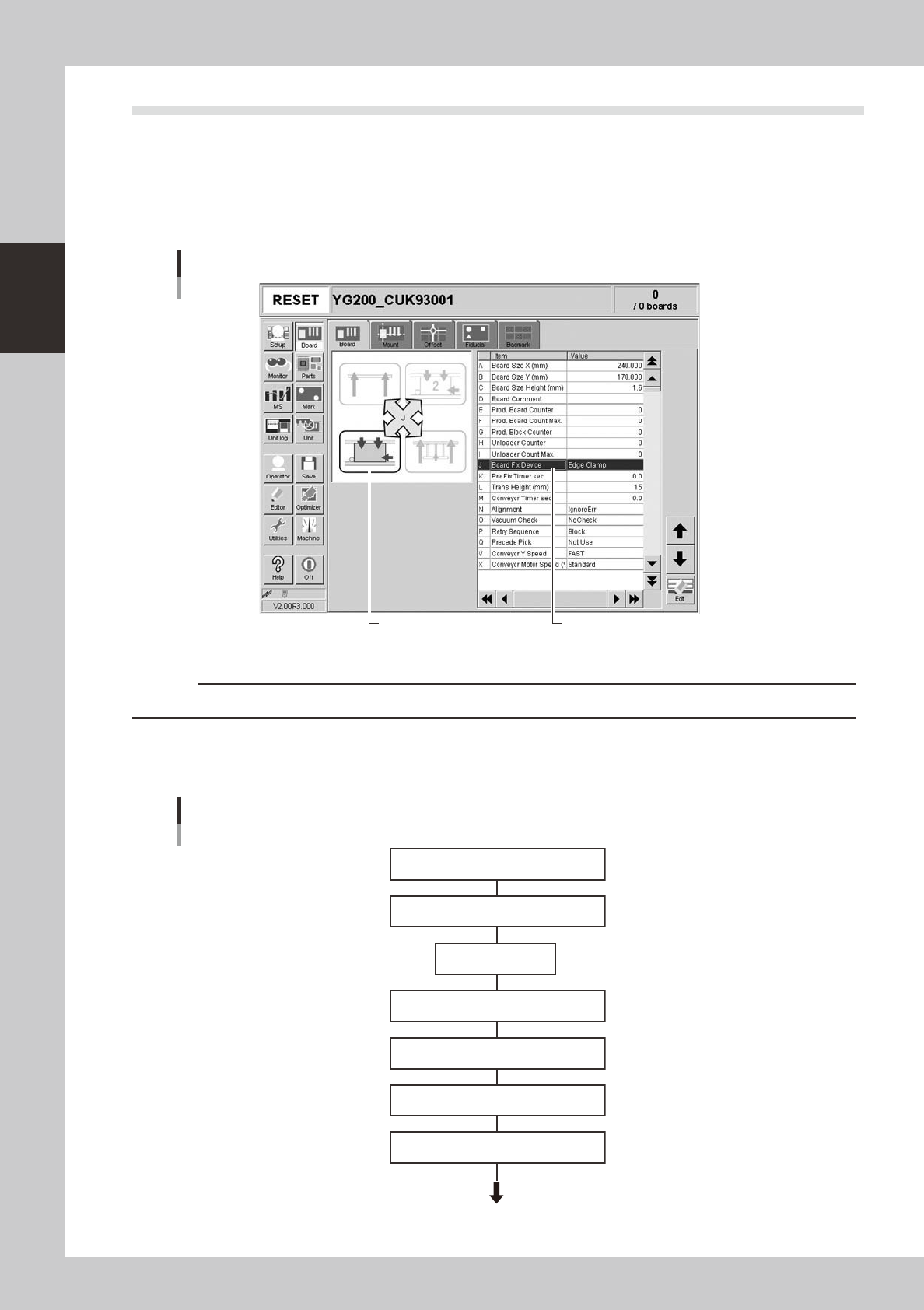
Board clamping method
Select "Edge Clamp" for the board clamping method. This method clamps a board by pushing up its edges against the
board hold plates. Push-up pins are also used to support the board at points other than its edges.
Board clamping method
Checking board clamp method
Illustration shows how board
is clamped on the conveyor.
24209-M0-00
c
CAUTION
Conveyor's board sensors may fail to detect a production board if it has a slit or cutout.
3.4.1 Conveyor unit setup flow
Set up the convey units as shown in the flowchart below.
Start operation
Flow chart for changing the conveyor units
Adjust conveyor width
Place board in position
Raise push-up plate
Press emergency stop
button
Raise main stopper
Adjust push-up pin positions
Edge Clamp
Move conveyor unit to setup position
23201-M2-00
2-23
2
Basic operation
3.4.2 Conveyor width
Adjust the conveyor width to match the board width to be produced.
1
Select the board data.
See the description in "1. Starting production" in Chapter 3.
n
NOTE
When the conveyor width is set in the board data, the conveyor width will be automatically adjusted. Skip the
following steps.
2
Open the [Unit]-[Conveyor] screen.
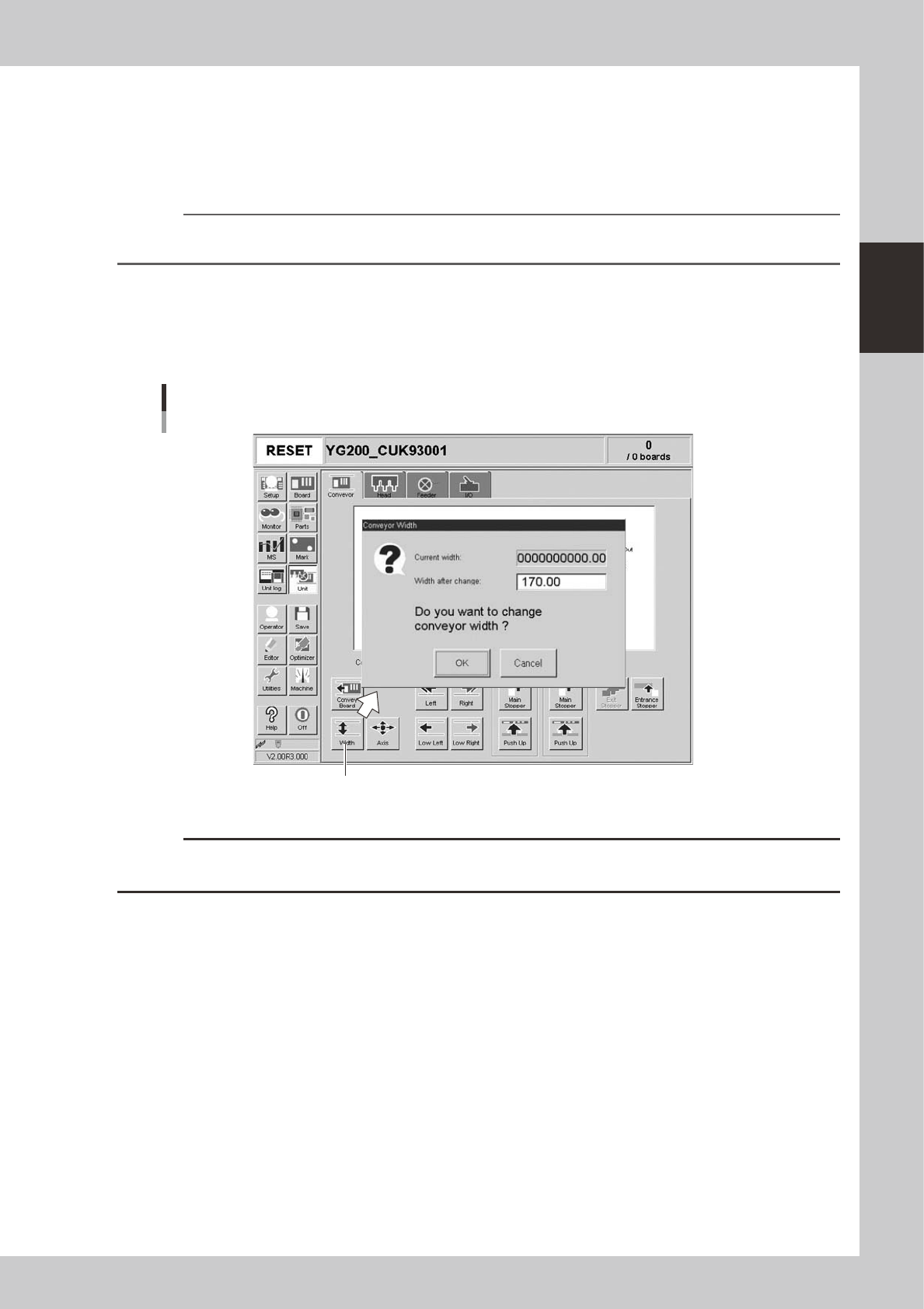
3
Press the [Width] button.
The "Conveyor Width" dialog box appears. Check the conveyor width (units: mm) and press the [OK]
button. The conveyor rail automatically changes to the specified width.
"Conveyor Width" dialog box
[Width] button
24213-M2-00
c
CAUTION
When push-up pins are set on the push-up plate, make sure that they do not touch the conveyor rails while adjusting
the conveyor width.