00193796-08.pdf - 第19页
Installation Manual, Station Software Version 505.04 Edition 07/2006 19 of 156 4.1.1.1 Changing the screen settings → Select Start Æ Settings Æ Control Panel Æ Display . → Click the Settings tab. → Make the following set…

Installation Manual Station Software Version 505.04
18 of 156
4 Installation instructions
4.1 Installing the SIPLACE software
4.1.1 Requirements
You must have installed the Windows XP Professional operating system with service pack 2
before installing the station computer version 505 (see section
3).
Caution:
When installing the RMOS operating system (see section
4.4.3), it is imperative that the
installation disks for Version 505 or higher are used. If any other disks are used, the
machine will not boot.
The default Windows display settings must be changed and the touchscreen must be calibrated.
You must be logged on as the Administrator
in order to be able to carry out this work.
Installation Manual, Station Software Version 505.04 Edition 07/2006
19 of 156
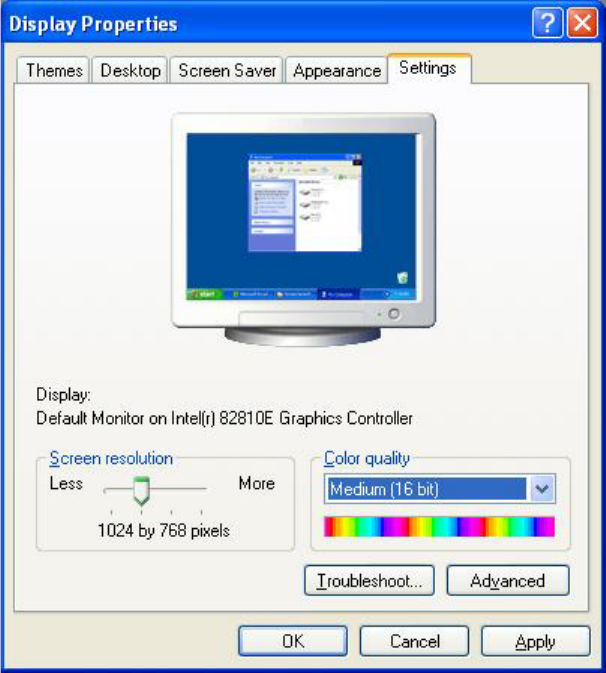
4.1.1.1 Changing the screen settings
→ Select Start Æ Settings Æ Control Panel Æ Display.
→ Click the Settings tab.
→ Make the following settings here:
Fig. 4-1: Screen settings
Installation Manual Station Software Version 505.04
20 of 156
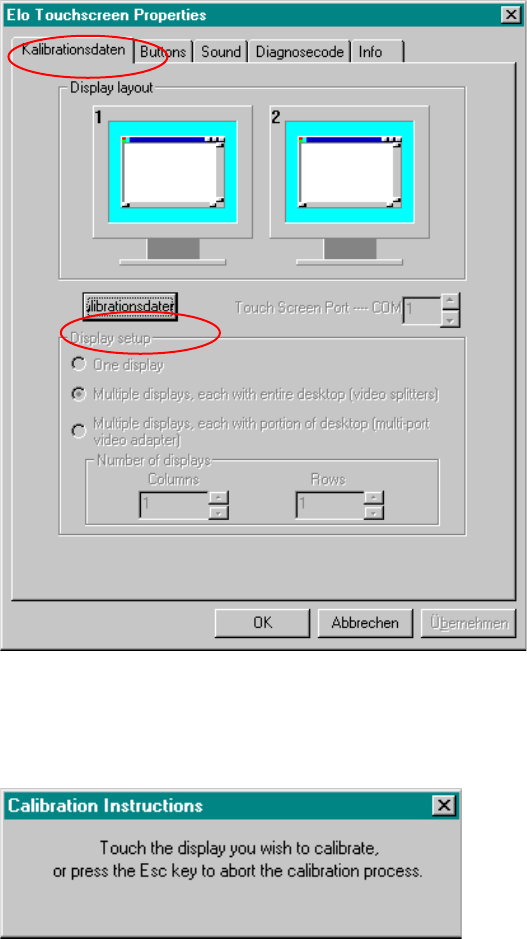
4.1.1.2 Calibrating the touchscreen
Select Start Æ Settings Æ Control Panel Æ Elo to go to EloTouchscreen Properties:
Fig. 4-2:Elo Touchscreen properties
→ Click the Kalibrationsdaten tab.
→ Then click the Kalibrationsdaten button. The following message then appears:
Fig. 4 -3 Selection window for the screen to be calibrated
→ Touch the display you wish to calibrate.
A new screen is displayed on which you can perform a calibration.
→ Repeat this procedure for the second screen (on HS and HF machines).
→ Click the OK button to accept the data.