DECAN_S1_Administrator′s_Guide(Eng_Ver1.5)_Print.pdf - 第153页
6-39 Board Definition Figure6.10 Barcode Posi tion’ Dialog Box <1.Use> check box Check the 2D barcode function to use it. <2. Bar Code Position> group Indicates the position of the 2D barcode. <Board…
6-38
Next Generation, Multi-Functional Placer DECAN S1 Administrator’s Guide
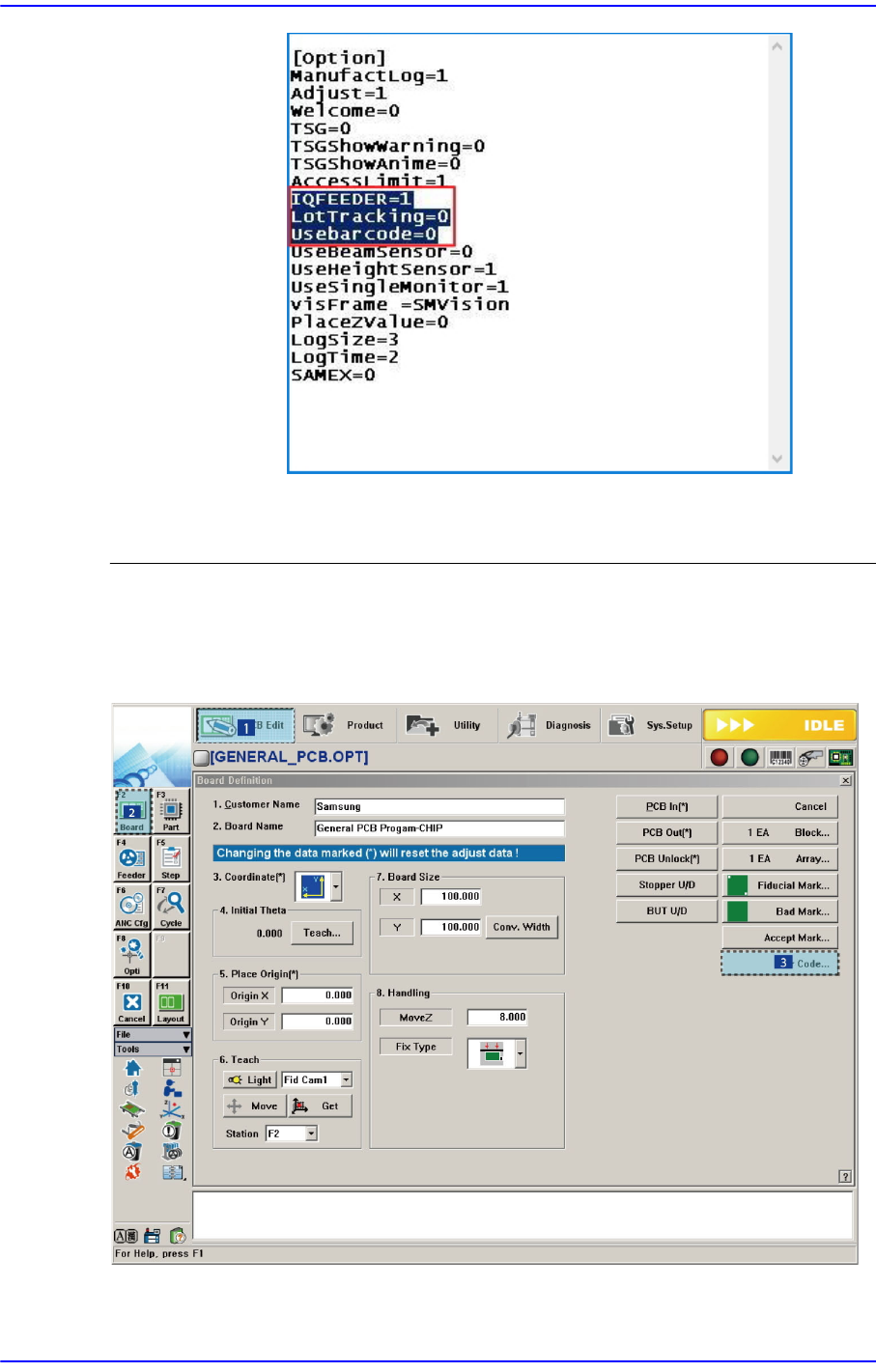
Run “SmartSM.exe” after completing modifications to the
configuration file.
6.6.2. Barcode Position
Figure6.9 Order of ‘Barcode Position’ Dialog Box Execution
6-39
Board Definition
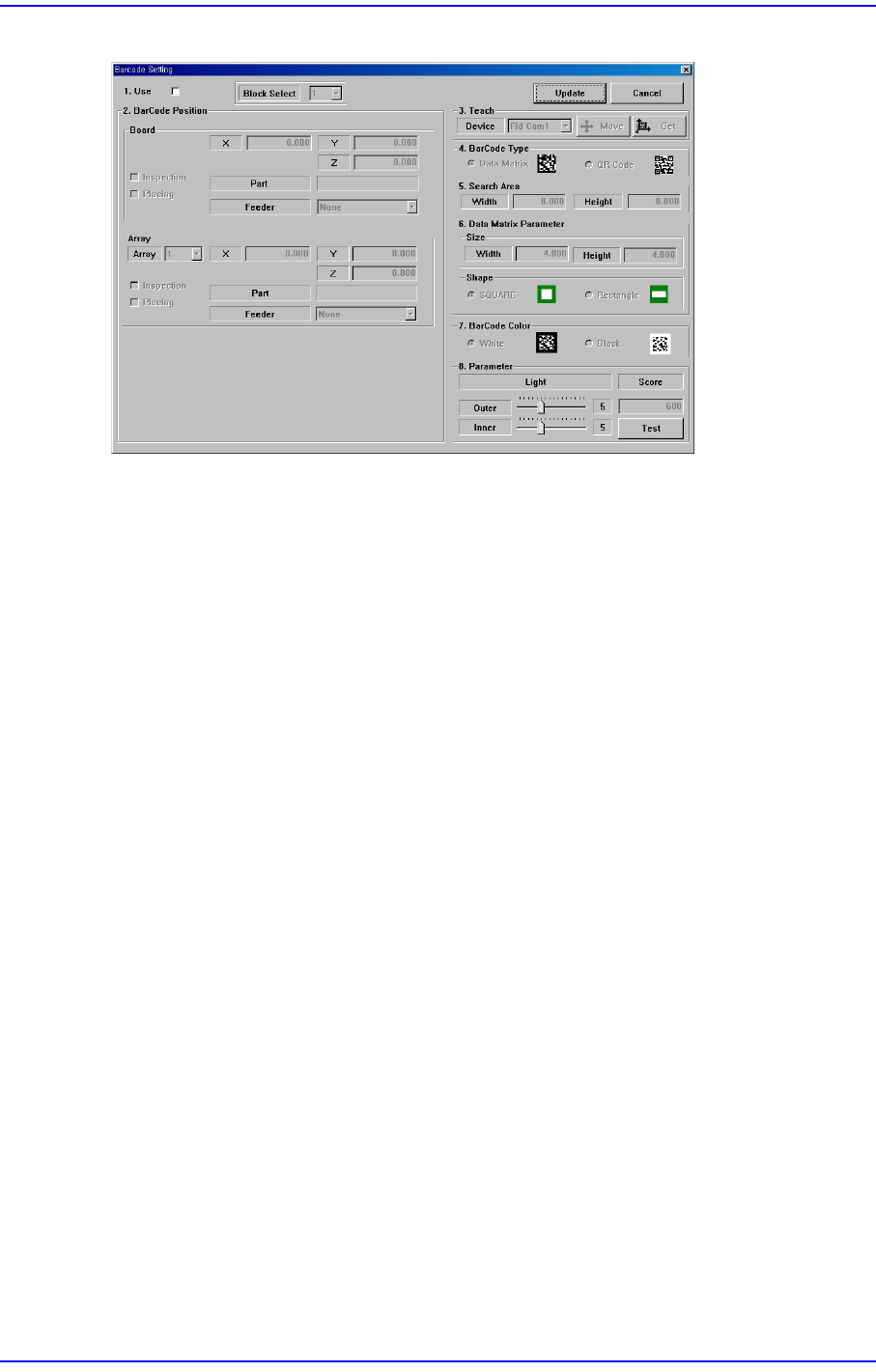
Figure6.10 Barcode Position’ Dialog Box
<1.Use> check box
Check the 2D barcode function to use it.
<2. Bar Code Position> group
Indicates the position of the 2D barcode.
<Board> Area
Teaches the 2D barcode position attached to a board using the fiducial camera
selected from the <3. Teach> area or performs setup for 2D barcode attachment to
a board.
<X/Y> Edit Box
Sets the X/Y coordinate of a 2D barcode.
<Z> Edit Box
When attaching a 2D barcode to a board, sets the Z-axis coordinate in order to
press and attach a 2D barcode to a board with a head spindle.
<Inspection> Check Box
Selecting this check box will recognize the 2D barcode attached to a board.
<Placing> Check Box
Selecting this check box will attach a 2D barcode to a board using the
machine.
Part
Enabled when the <Placing> check box is selected. Displays the part supplied
by the feeder selected from the <Feeder> combo box.
<Feeder> Combo Box
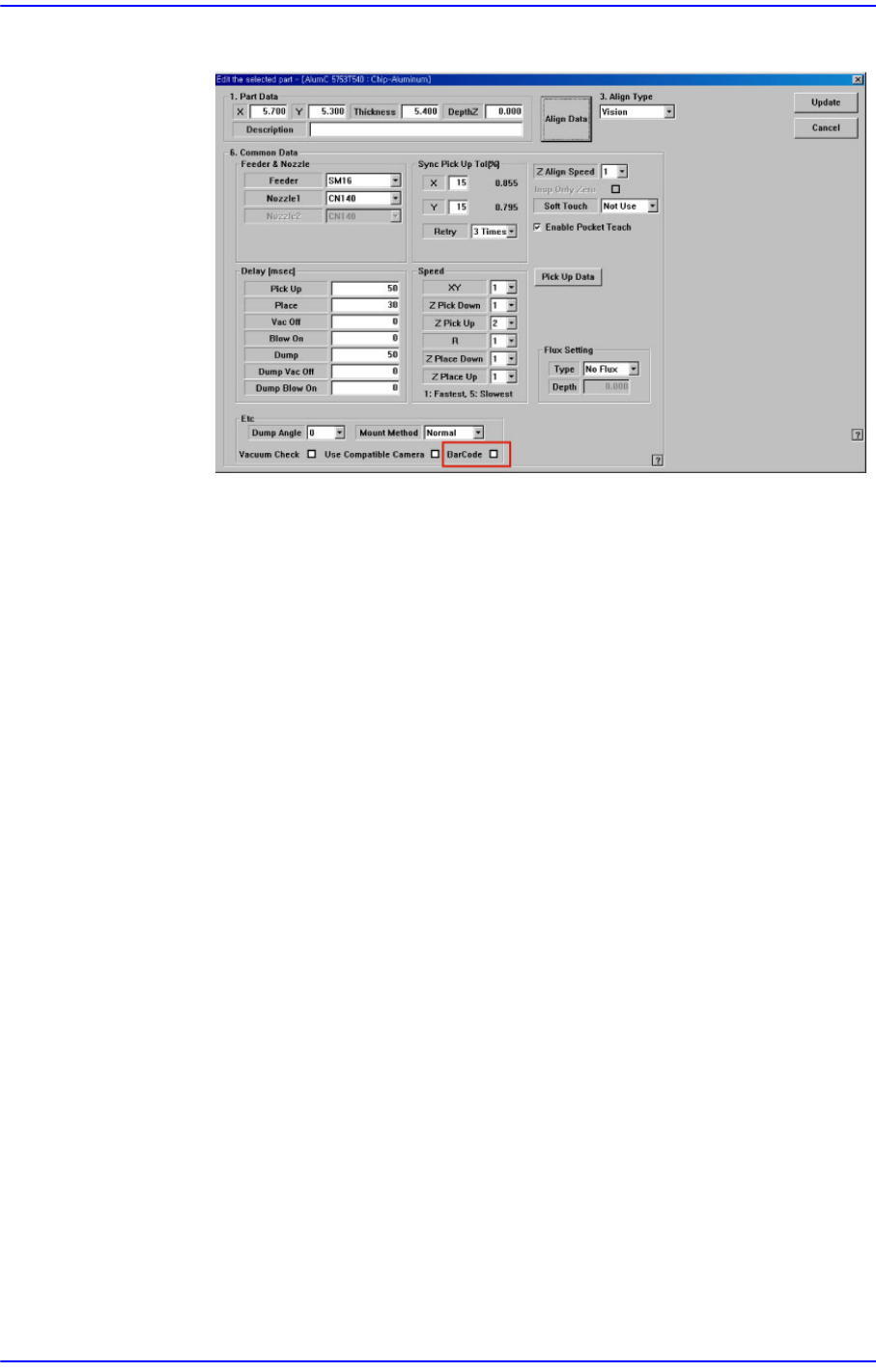
Enabled when <Placing> check box is selected. The feeder supplying the part
registered by selecting the <BarCode> check box from the Common Data
6-40
Next Generation, Multi-Functional Placer DECAN S1 Administrator’s Guide
setup screen appears in the list as shown in the following figure:
<Array> Area
Teaches the 2D barcode position attached to an array of a board using the fiducial
camera selected from the <3. Teach> area or performs setup for 2D barcode
attachment to the array of the board.
<Array> Combo Box
Displays the number of the array selected currently.
<X/Y/Z> Edit Box
Refer to the corresponding description in the <Board> area.
<Inspection> Check Box
Refer to the corresponding description in the <Board> area.
<Placing> Check Box
Refer to the corresponding description in the <Board> area.
Part
Refer to the corresponding description in the <Board> area.
<Feeder> Combo Box
Refer to the corresponding description in the <Board> area.
<3. Teach> group
Used to move the teaching camera on the barcode to recognize the 2D barcode on the
PCB.
<4. Bar Code Type> group
Sets the type of the 2D barcode.
<Data Matrix> option button
Refers to the barcode with the rectangular module of fixed size containing