DECAN_S1_Administrator′s_Guide(Eng_Ver1.5)_Print.pdf - 第196页
7-32 Next Generation, Multi-Functional Plac er DECAN S1 Administrator’s Guide some leads, the part center is calc ulated by using th e remaining leads <Check Positi on> check box Checks the position of each lead …
7-31
Part Registration
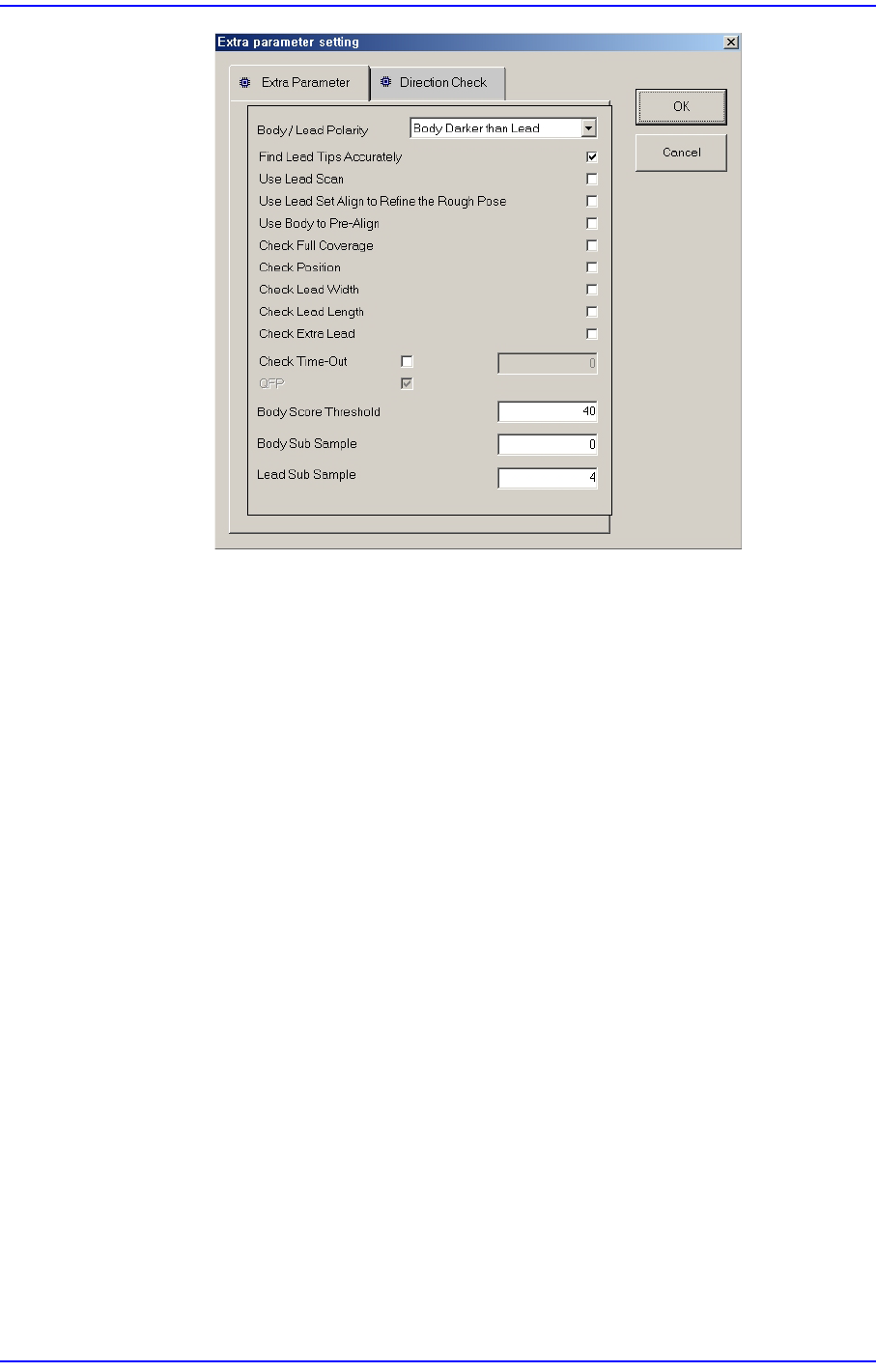
<Body/Lead Polarity> combo box
Set the brightness between the body and the lead.
- Body darker than Lead : Selected when the body is darker than the lead.
- Body lighter than Lead : Selected when the body is darker than or no less
dark than the lead.
<Find Lead Tips Accurately> check box
Used to recognize the lead end accurately. In the case of the connector
whose leads exist at SOP or one direction with the number of leads
exceeding 8, checking this item will increase the recognition accuracy in
the Y direction.
<Use Lead Scan> check box
Used when finding a lead using the “Search Lead” function.
<Use Lead Set Align to Refine the Rough Pose> check box
Calculate the approximate position of the part by using the part lead
information when recognizing the part
<Use Body to Pre-Align> check box
Calculate the approximate position of the part by using the part body
information when recognizing the part.
<Check Full Coverage> check box
If this option is checked, all leads must be checked. Only when all leads
are within the allowable error, the recognition is successfully performed.
If this option is not checked, even though recognition failure occurs for
7-32
Next Generation, Multi-Functional Placer DECAN S1 Administrator’s Guide
some leads, the part center is calculated by using the remaining leads
<Check Position> check box
Checks the position of each lead to see if it is within the allowable value.
<Check Lead Width> check box
Inspects the width of each lead to check if it is within the allowable value..
<Check Lead Length> check box
Inspects the length of each lead to check if it is within the allowable
value..
<Check Time-Out> check box
Set the recognition timeout when recognizing the part (unit: msec)
<Body Score Threshold> edit box
Sets the threshold when recognizing the body. (0~100)
If leads exist in one direction and a pattern similar to the lead exists on the
body when recognizing a connector, inputting 100 for this item will
reduce the dump rate.
<Body Sub Sample> check box
Set the degree of the sampling when recognizing the body. (0~10, 0 : auto)
<Lead Sub Sample> check box
Set the degree of the sampling when recognizing the lead. (0~10, 0 : auto)
Memo In the case of the part that cannot be registered as general UserIC
group among connector parts, when various lead lengths and pitches
exist in one direction, the part can be registered by setting the
following functions after registering all lengths and pitches of a
rectangular shaped lead. (Example: SD memory connector, etc.)
General Setup of Extra Parameter
1. Select the <Use Body to Pre-Align> check box.
2. <Body Sub Sample> edit box: input 1.5
3. <Lead Sub Sample> edit box: input 4
" Extra Parameter " tab screen - Ball
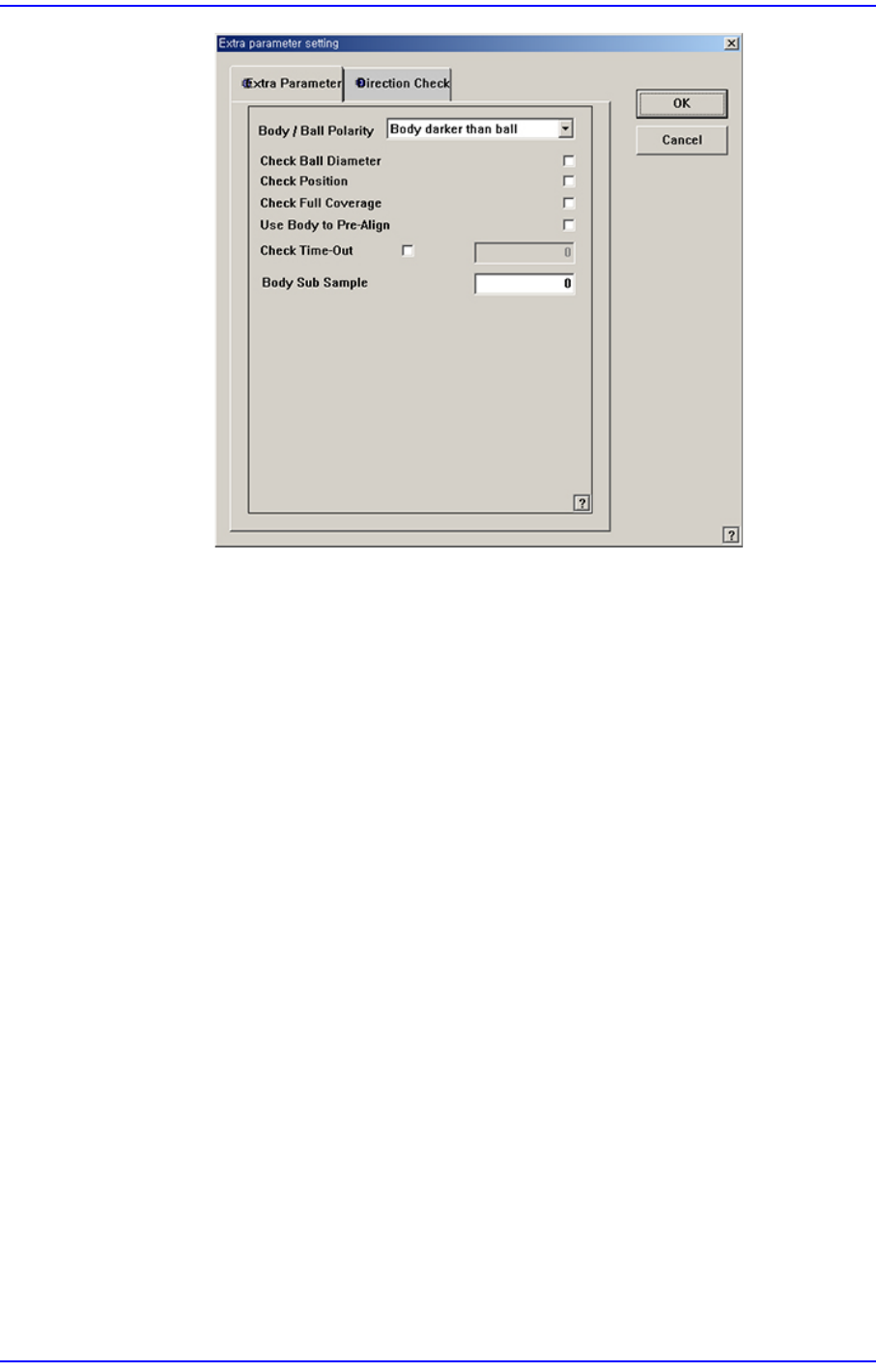
Sets detail parameters related to the recognition of ball parts such as BGA and
Flip-Chip.
7-33
Part Registration
<Body/Ball Polarity> combo box
Set the brightness between the body and the ball.
- Body darker than ball : The body is darker than the bal.
- Body lighter than ball : The body is darker than or no less dark than the
ball.
<Check Ball Diameter> check box
Checks the position of each ball to see if it is within the allowable value.
<Check Position> check box
Checks the position of each ball to see if it is within the allowable value..
<Check Full Coverage> check box
If this option is checked, all balls must be checked. Only when all balls are
within the allowable error, the recognition is successfully performed. If
this option is not checked, even though recognition failure occurs for
some balls, the part center is calculated by using the remaining balls.
<Use Body to Pre-Align> check box
Calculate the approximate position of the part by using the part body
information when recognizing the part.
<Check Time-Out> check box
Set the recognition time out when recognizing the part (unit: msec)
<Body Sub Sample> check box
Set the degree of the sampling when recognizing the part. (0~10, 0: auto)