DECAN_S1_Administrator′s_Guide(Eng_Ver1.5)_Print.pdf - 第284页
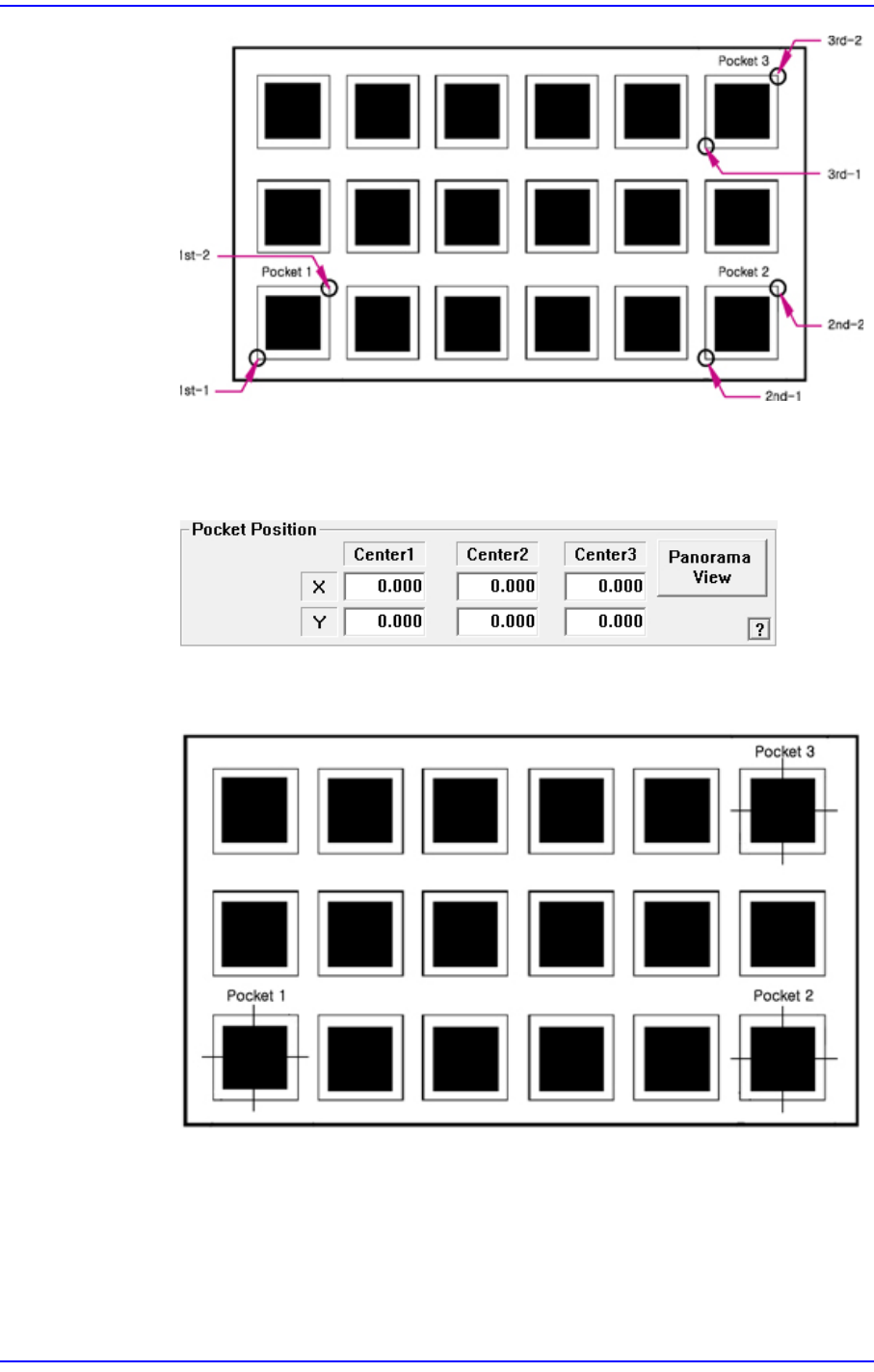
8-26 Next Generation, Multi-Functional Plac er DECAN S1 Administrator’s Guide <2Pocket Diagonal> As per the following figure, input two corner poin ts of pocket No’s. 1, 2 and 3 t hat face each other diagonally .…
8-25
Feeder Setup
The pick-up position of the parts can also be designated using the following
method.
<3Pocket Center>
As shown in the following figure, input the coordinates of the center points of
pocket No’s. 1, 2 and 3.
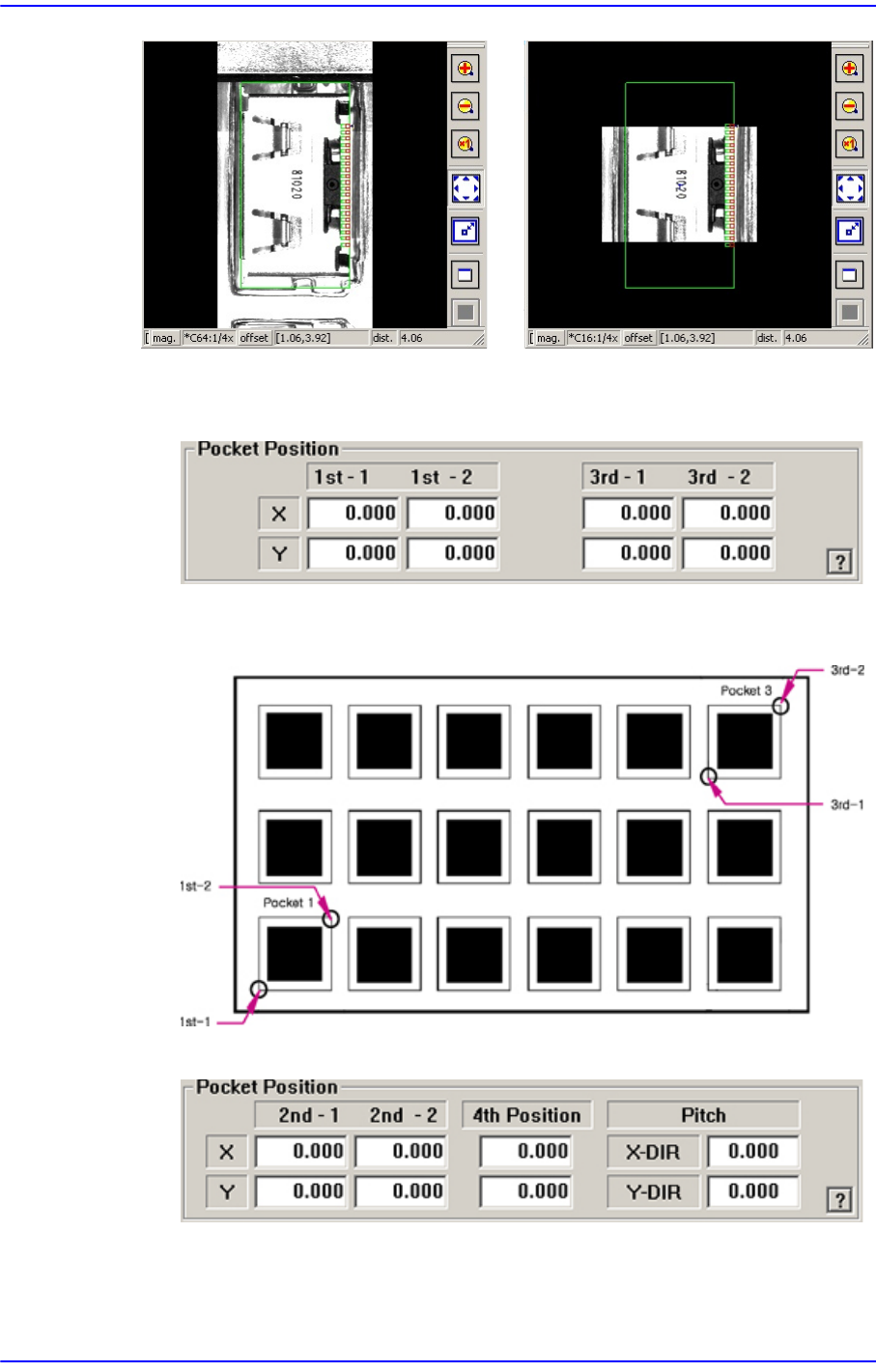
<Panorama View> button
In the case of a large part for which pocket teaching is impossible, its entire
shape is not displayed in the vision window. In this case, it is possible to
display the part shape in on one vision window by performing split
recognition of the part shape and composing the split images into one using
this function.
8-26
Next Generation, Multi-Functional Placer DECAN S1 Administrator’s Guide
<2Pocket Diagonal>
As per the following figure, input two corner points of pocket No’s. 1, 2 and 3 that
face each other diagonally.
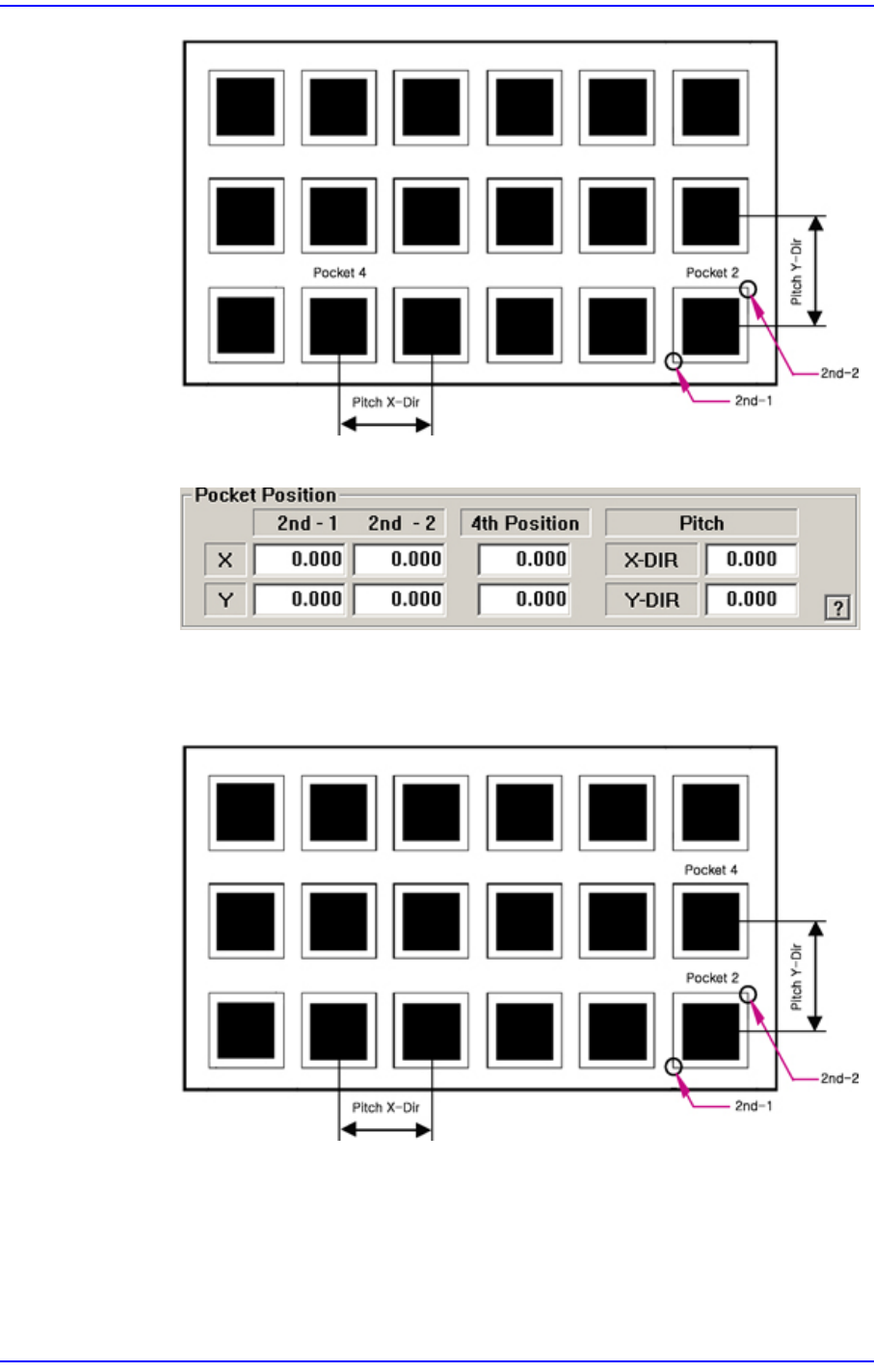
<2Pocket X-Axis>
Enter coordinate of a pocket center in the X direction, coordinate of the diagonal
vertex of the second pocket and the pitches in the X and Y directions.
Panorama General
8-27
Feeder Setup
<2Pocket Y-Axis>
As shown in the following figure, input the coordinates of the center point of any
one pocket in the Y direction, the coordinates of the two corners in the diagonal
position of the second pocket and the pocket pitch in the X and Y directions.