DECAN_S1_Administrator′s_Guide(Eng_Ver1.5)_Print.pdf - 第308页
9-14 Next Generation, Multi-Functional Plac er DECAN S1 Administrator’s Guide The component that has already been register ed in the Local Part DB is registe red automatically as can be seen above. Click the <New Pa…
9-13
Step Programming
Executes Import.
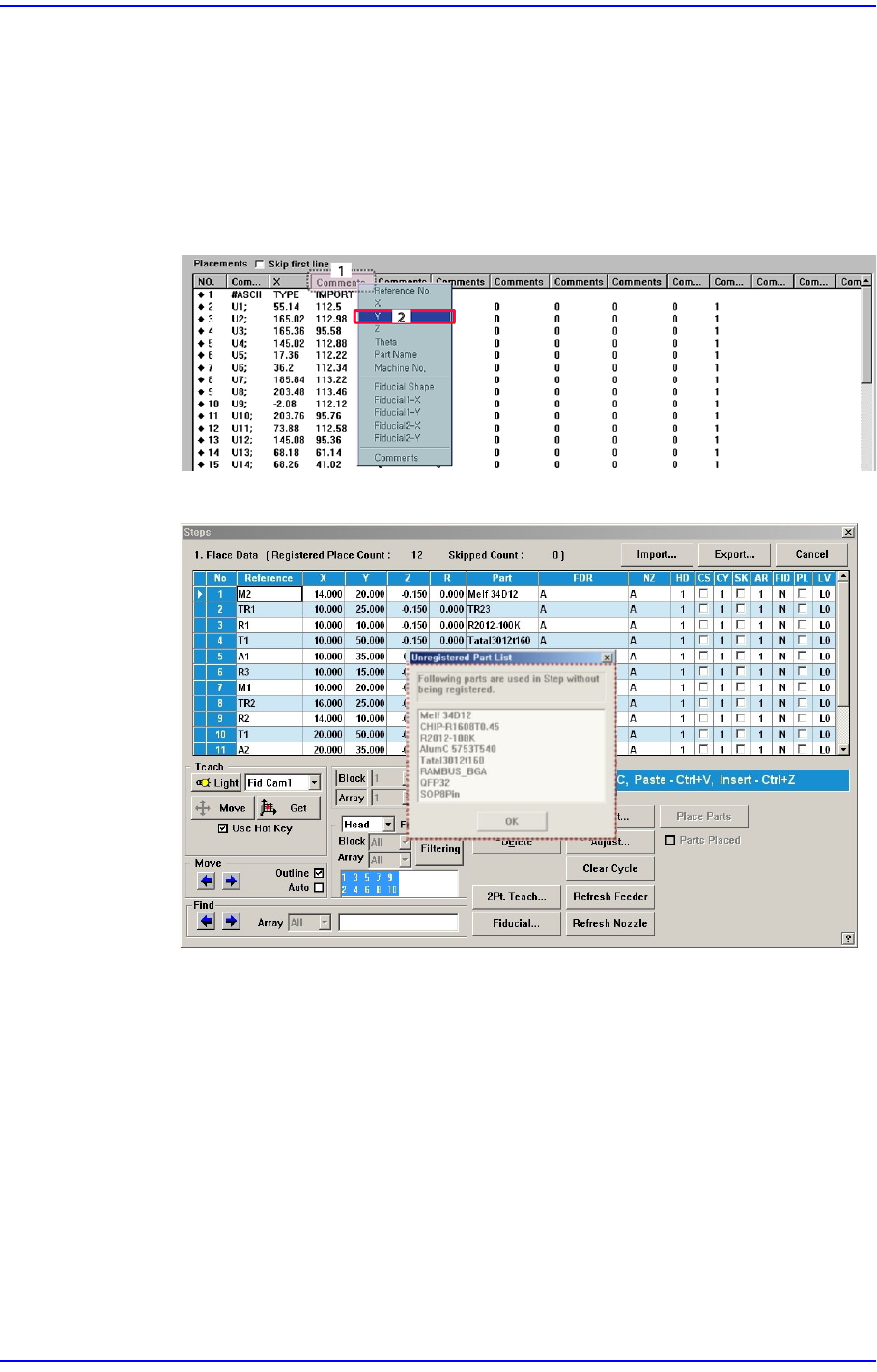
When importing a file in a format other than our standard format, the
corresponding information is indicated in a comment column as follows. Place the
mouse point on the column whose name is to be changed and right click the mouse
to display the menu and select the corresponding name. At this time, when there is
no column name corresponding to the column to be imported, set the column
name in the comment column.
The following figure shows the import completed screen.
When the component imported from the CAD data is not registered, the unregistered
component must be registered.
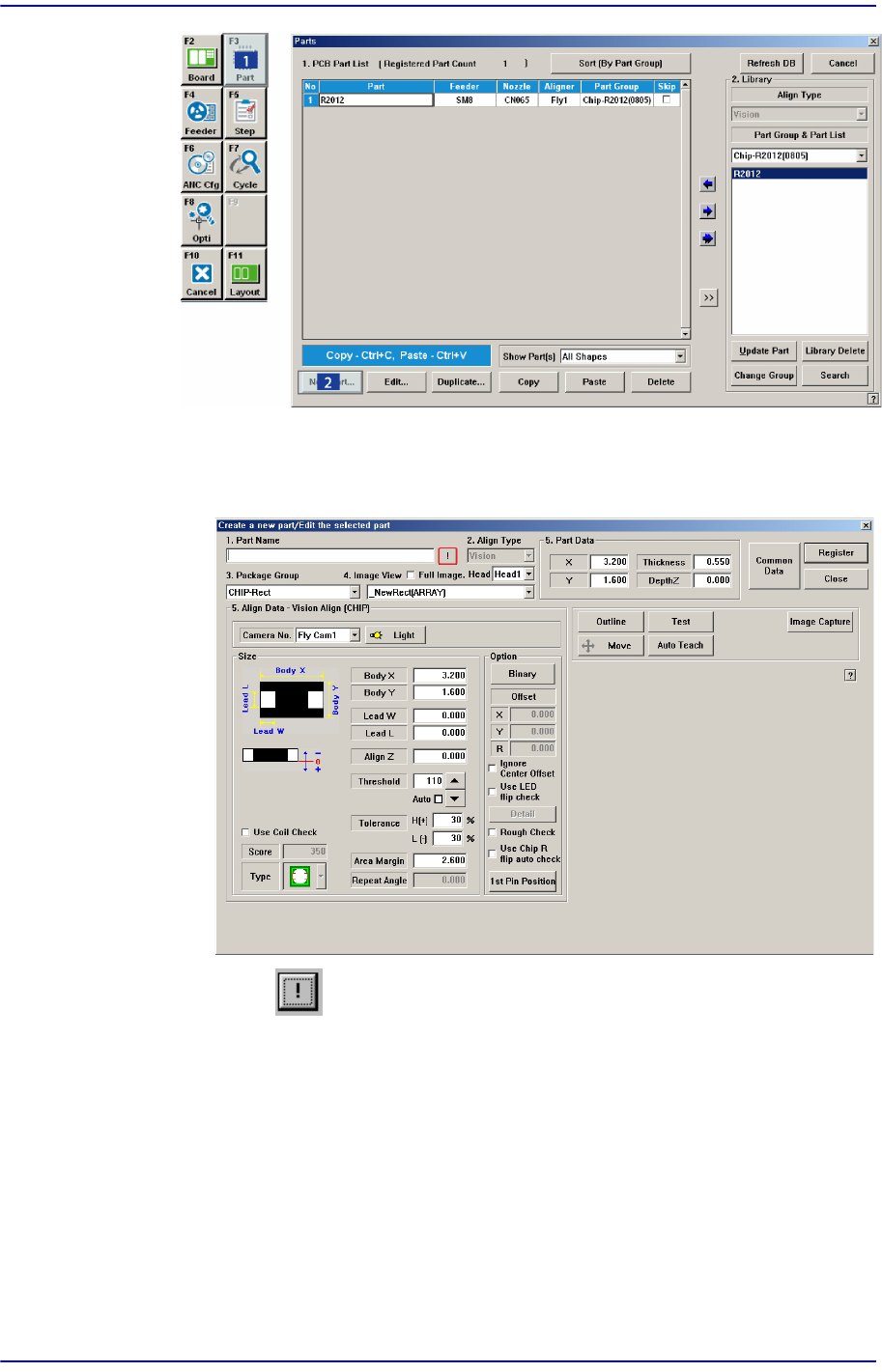
If the data of the part to be placed has not been registered in the Part DB of the
machine, the list screen of these parts (list for unregistered parts) is indicated in
the screen. Register the parts in this list in the “Parts” dialog box in the “Part”
menu.
9-14
Next Generation, Multi-Functional Placer DECAN S1 Administrator’s Guide
The component that has already been registered in the Local Part DB is registered
automatically as can be seen above. Click the <New Part…> button and
execute the <Part Edit> dialog box.
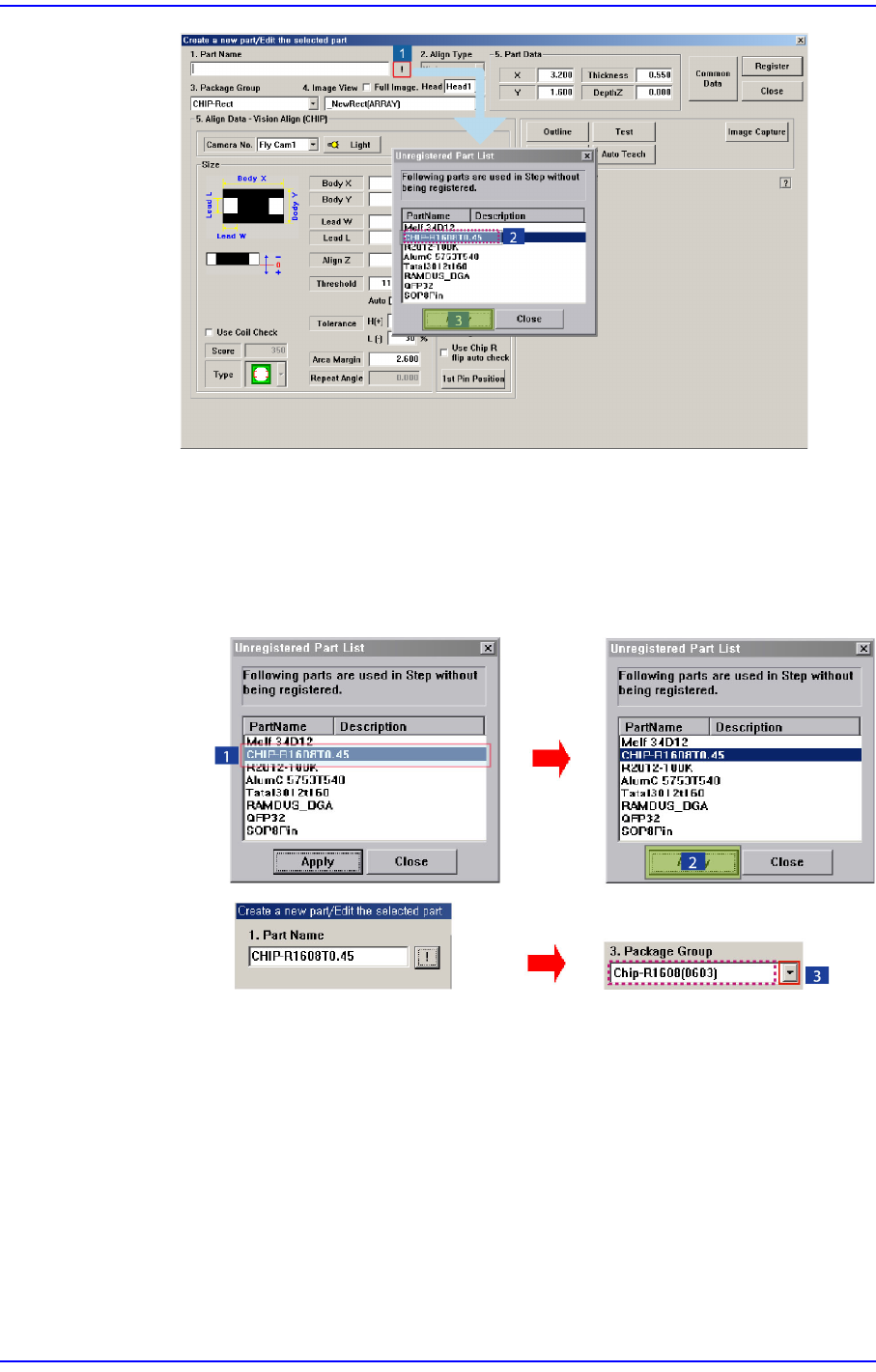
When the button is clicked, the unregistered part list is displayed as shown
in the following figure.
9-15
Step Programming
When the <OK> button is clicked after selecting a component, the name of the
selected file is inputted in the <1.Part Name> edit box.
Select the <Package Group> corresponding to the selected component and
revise the component profile according to the selected component.
Click the <Register> button to register the component to the PCB Part List.