DECAN_S1_Administrator′s_Guide(Eng_Ver1.5)_Print.pdf - 第360页
13-8 Next Generation, Multi-Functional Plac er DECAN S1 Administrator’s Guide <Selection> option box group [‘W ork’ –W ork on the PCB; ‘Ski p’ –Not to work on the PCB] <Click> option box If the small PCB …
13-7
Production Setup
Small PCB (substrate) that is set to ‘Work’ among array PCBs that use no bad mark
Small PCB (substrate) to which ‘One-Time-Skip’ function is applied in the ‘PCB
Array’ dialog box is already set up
PCB download completed.
When these pre-requisitions are met, the ‘One-Time-Skip’ function is applied after
auxiliary menu of ‘Start’ or ‘Cont.’ is selected, and the placement is performed.
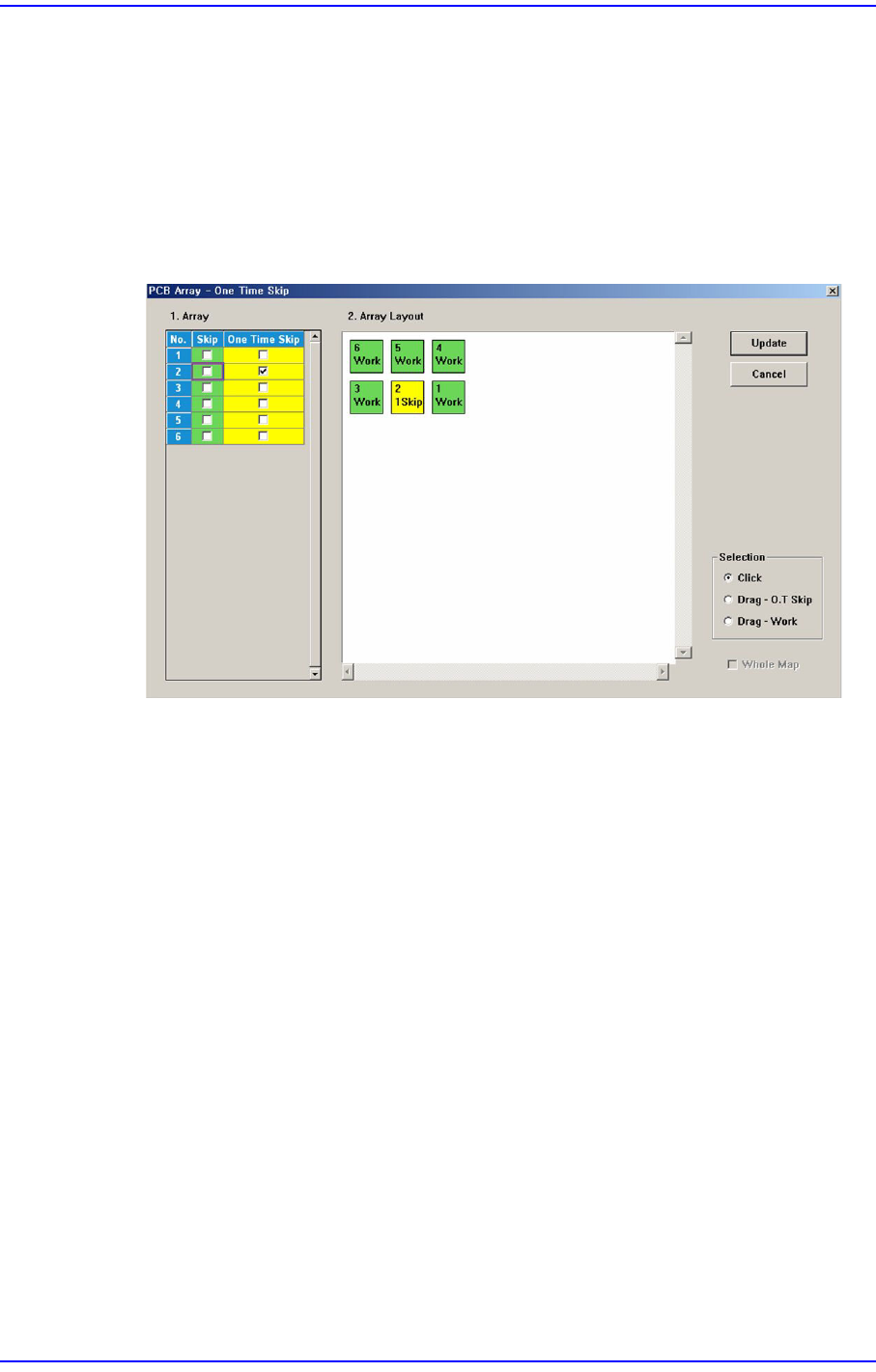
Clicking the button will display the following dialog box.
<1. Array> group
Sets whether to perform placement on small PCBs in the array PCB.
<No> column
Refers to each small PCB in the array PCB. It is created as many as the
number of small PCBs.
<Skip> column
Allows the small PCB selected in this column to be skipped without being
placed during placement and sets the small PCB indicated in the <2.Array
Layout> group to ‘Skip’.
<One Time Skip> column
Of the small PCBs set to ‘Work’ in the array PCB, it allows only the new PCB
fed to the equipment to be skipped temporarily without being placed.
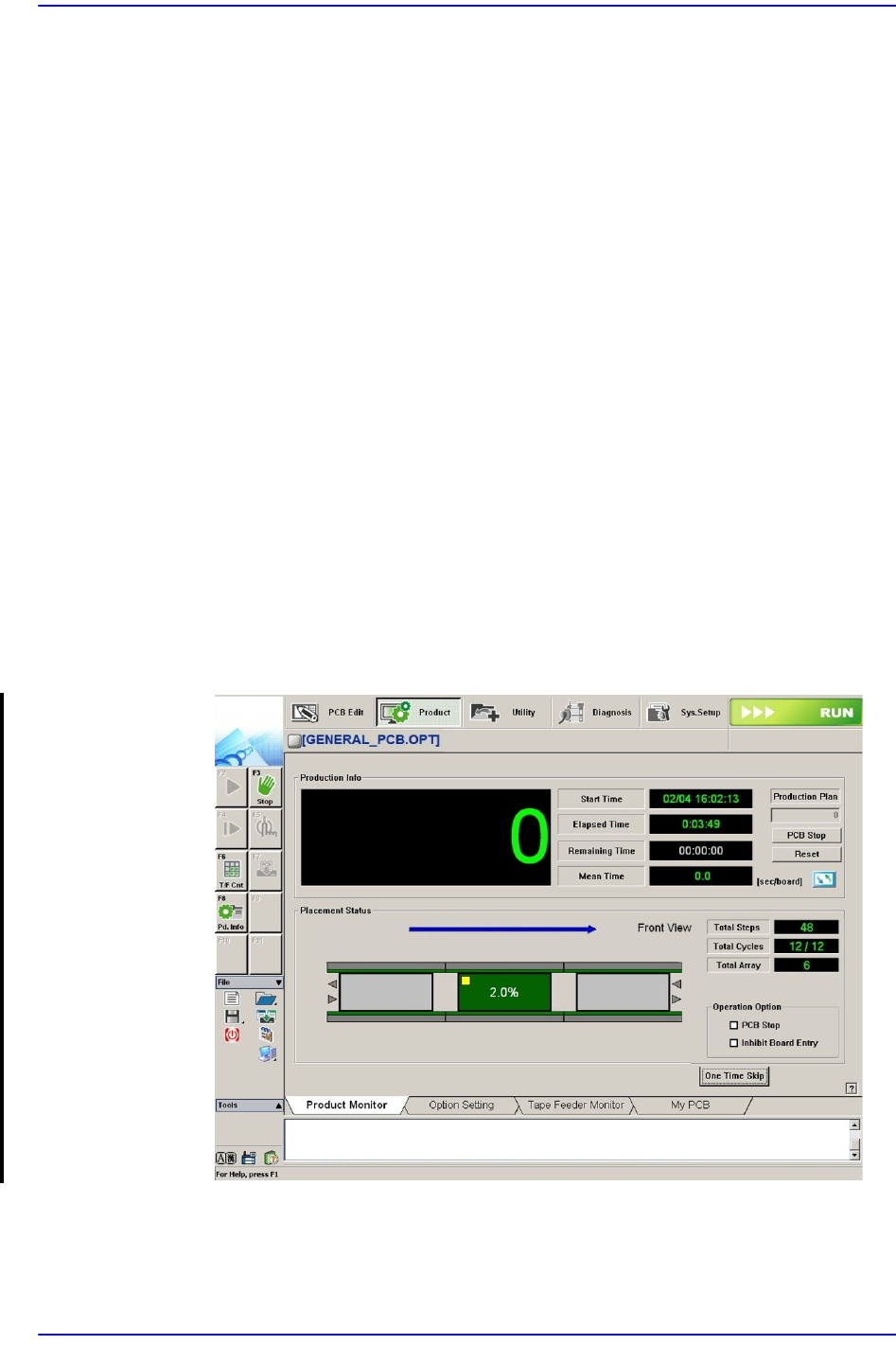
In order to use the ‘One-Time-Skip’ function, select the corresponding small
PCB and click the <One Time Skip> button in the ‘Product Monitor’ tab
dialog box.
<2. Array Layout> group
Selects the small PCBs in the array PCB using the mouse. It indicates whether
currently set placement work has been performed or not on the small PCBs.
13-8
Next Generation, Multi-Functional Placer DECAN S1 Administrator’s Guide
<Selection> option box group
[‘Work’ –Work on the PCB; ‘Skip’ –Not to work on the PCB]
<Click> option box
If the small PCB displayed on the ‘PCB Array Layout’ dialog box is selected
using the mouse with this option box selected, the setup of the corresponding
small PCB is changed.
If the small PCB set to ‘Work’ is selected, ‘Work’ is changed to ‘Skip’. If the
small PCB set to ‘Skip’ is selected, ‘Skip’ is changed to ‘Work’.
<Drag-O.T Skip> option box
After this option box is selected if the small PCBs displayed on the ‘PCB
Array Layout’ dialog box are selected by dragging the mouse, the setup of the
selected small PCBs is changed to ‘Skip’. It is useful when selecting several
small PCBs at once.
<Drag-Work> option box
After this option box is selected if the small PCBs displayed on the ‘PCB
Array Layout’ dialog box are selected by dragging the mouse, the setup of the
selected small PCBs is changed to ‘Work’. It is useful when selecting several
small PCBs at once.
For the PCB to which ‘One-Time-Skip’ function is applied, a yellow rectangle is
indicated on the PCB in the ‘Product Monitor’ tab dialog box.
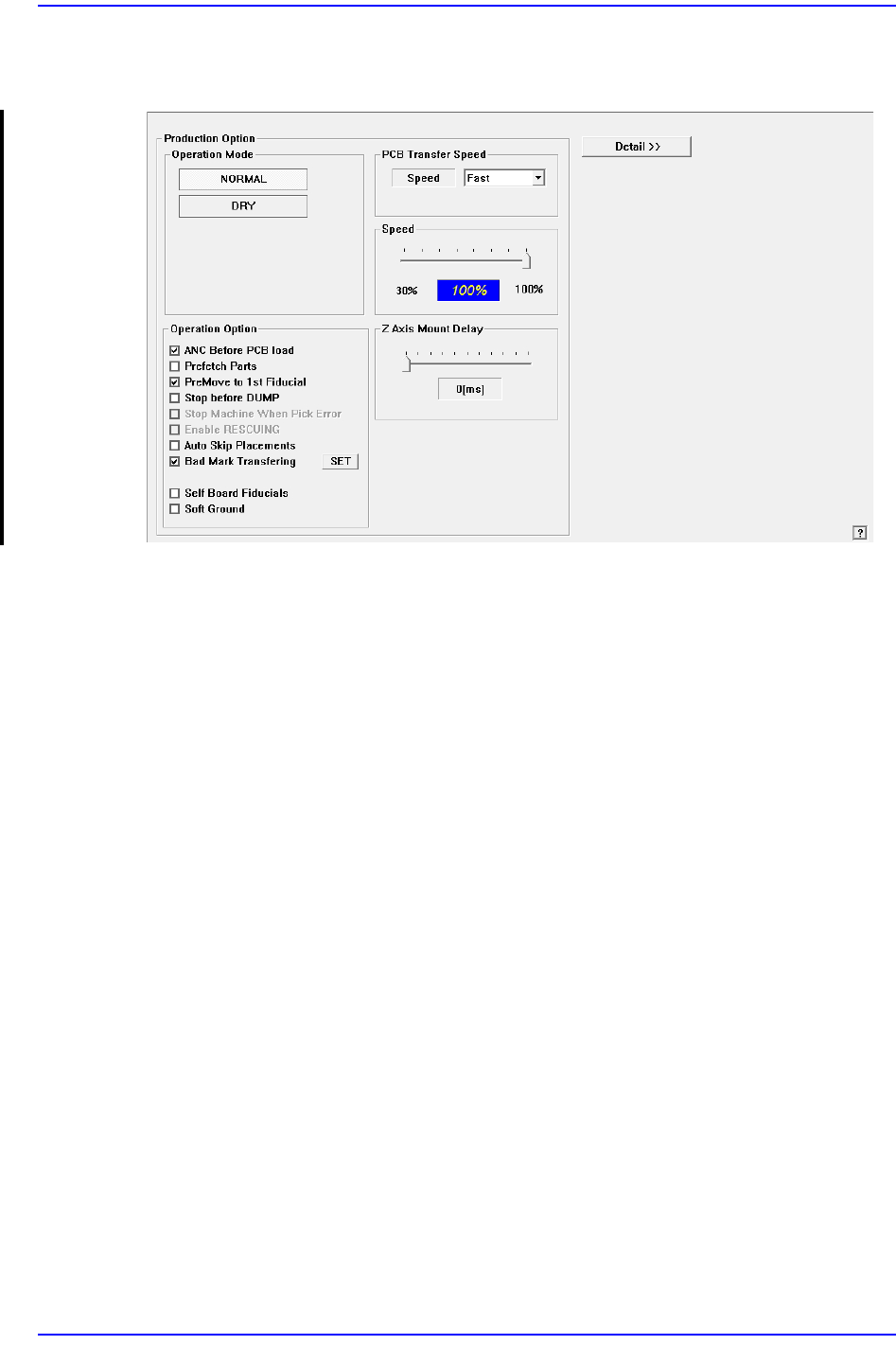
13.1.2. Option Setting
Carries out the function of setting the operation scope. When this button is clicked on, the
13-9
Production Setup
following dialog boxes are displayed.
Figure13.4 “Option Setting” tab dialog
<Operation Mode> group
Set the operation mode. Available modes are as follows.
Normal Mode
Operates normally.
Dry Mode
Without picking up or placing the actual parts, perform the work by selecting the
virtual conditions as shown below. This menu, which is authorized for the service
user, cannot be used unless login is not performed.
<Skip Pick> check box
Perform the work without picking the parts. Finish the work once all work
steps are completed.
<Skip Pick> check box
Perform placement without changing a nozzle.
<Skip Vision Align> check box
Perform the work without vision recognition of the parts. Finish the work once
all work steps are completed..
<Skip Fiducial/Mark Finds> check box
Perform the work without recognizing the fiducial mark on the PCB. Finish
the work once all work steps are completed.
<Skip Board> check box
Perform the work without feeding the PCB into the working area on the