DECAN_S1_Administrator′s_Guide(Eng_Ver1.5)_Print.pdf - 第507页
15-41 System Setup 1 1. Once the file import is completed, ch eck whether light mapping data values increase gradually from Level 0 to Level 15 . Then click the <Update> button. Ref. The test result value must be w…
15-40
Next Generation, Multi-Functional Placer DECAN S1 Administrator’s Guide
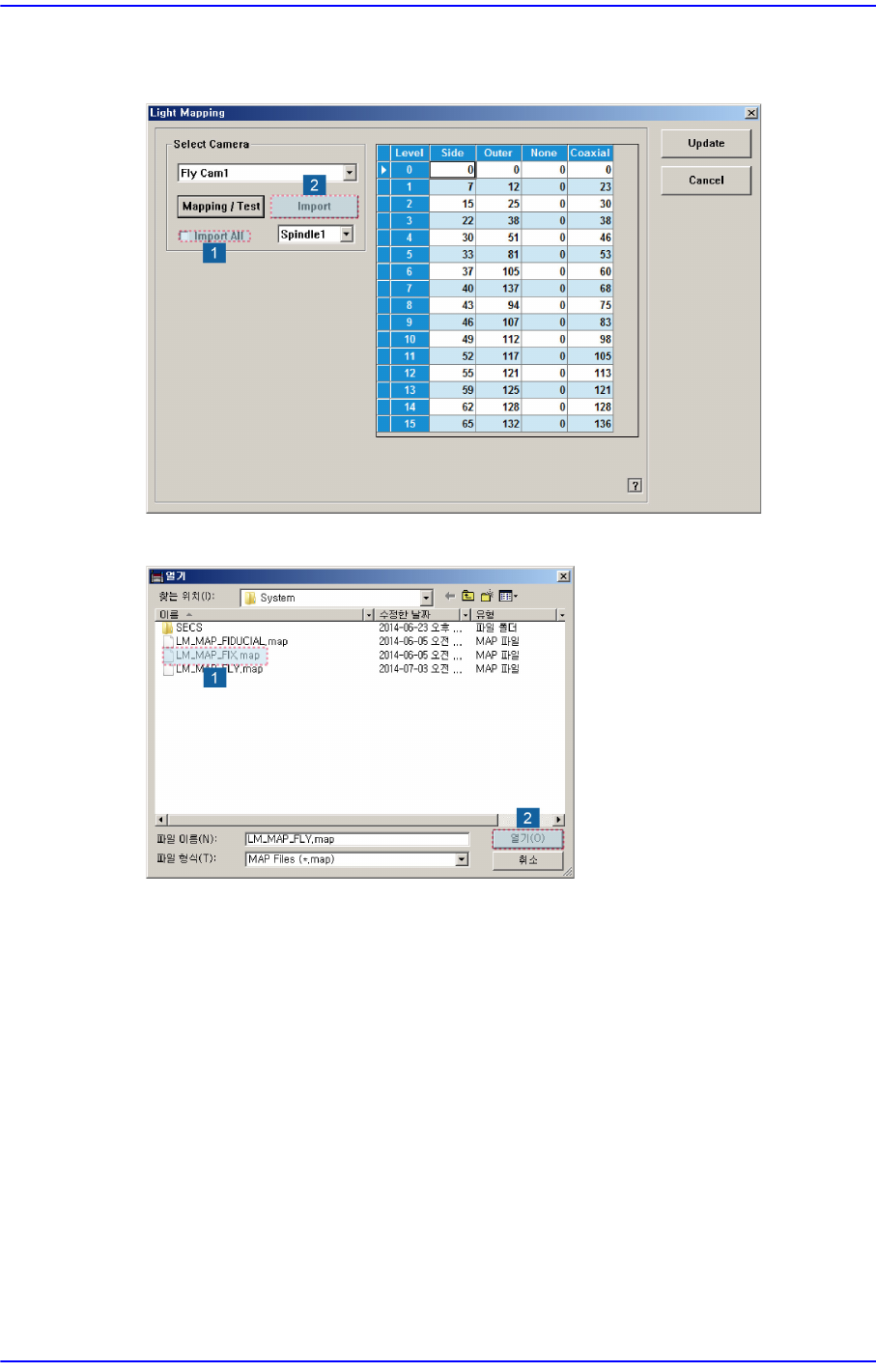
9. Check the <Import All> check box in the <Select Camera> group and click the
<Import> button.
10. Select the LM_MAP_FIX in the <Open> dialog box and click the <Open> button.
15-41
System Setup
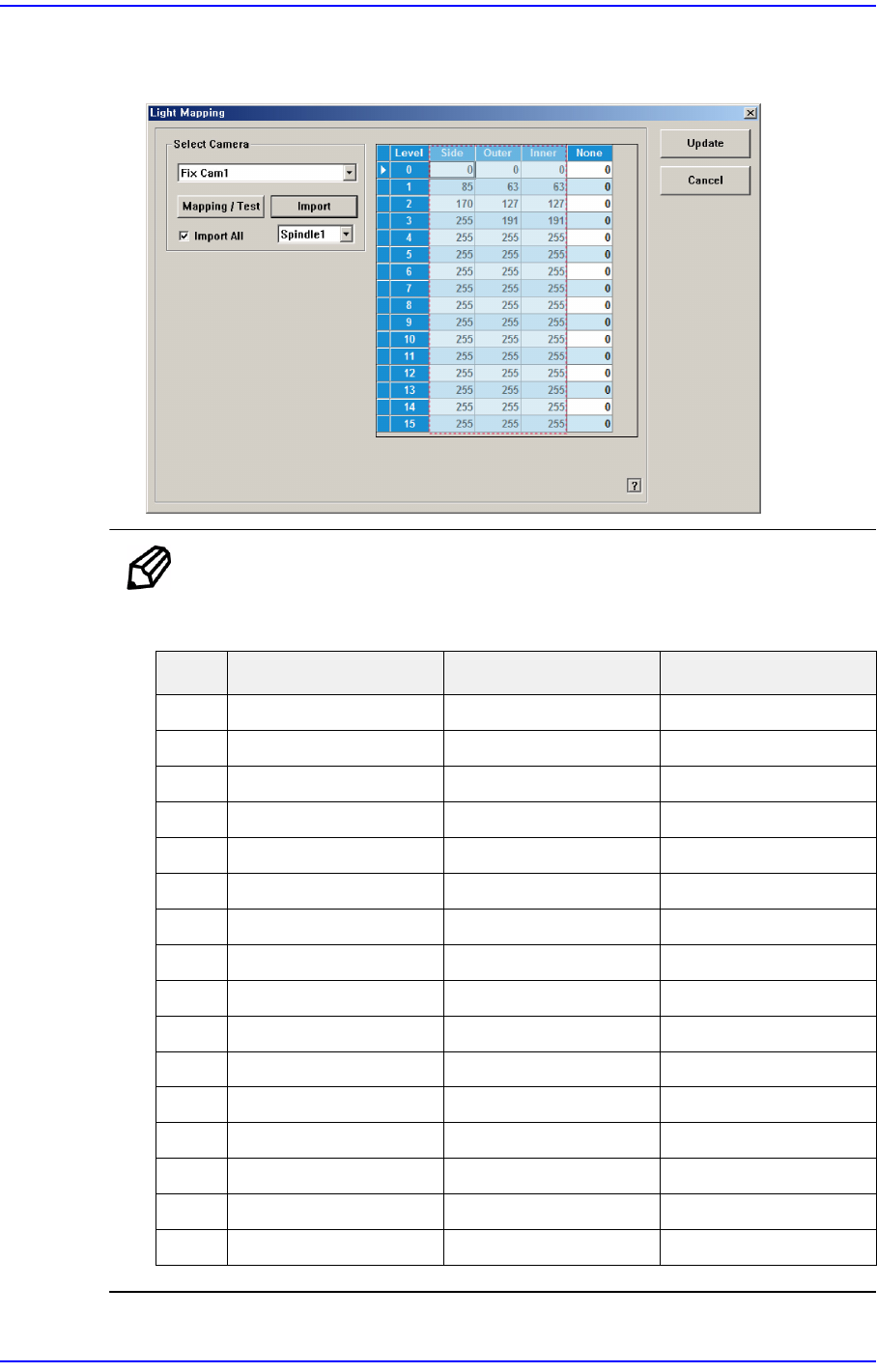
11. Once the file import is completed, check whether light mapping data values increase
gradually from Level 0 to Level 15. Then click the <Update> button.
Ref. The test result value must be within ±10 from the following reference
value.
Side Outer Inner
0121212
1252323
2393335
3514245
4625154
5736064
6867075
7967985
8 105 87 94
9 115 95 102
10 125 103 112
11 135 111 121
12 143 118 128
13 151 125 136
14 160 133 145
15 168 140 152
15-42
Next Generation, Multi-Functional Placer DECAN S1 Administrator’s Guide
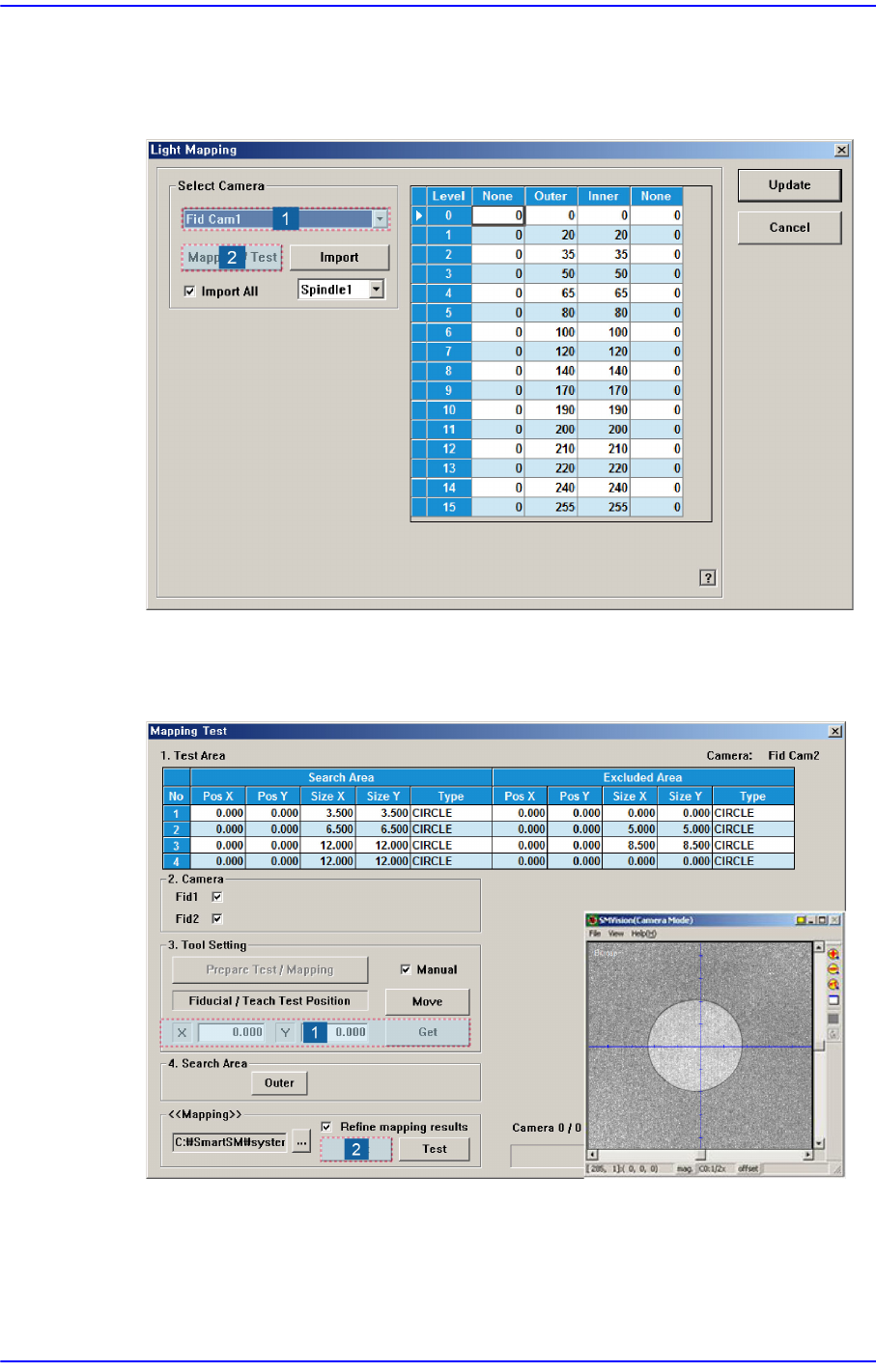
Perform light mapping of the Fiducial Camera (Outer Light) in the following manner:
1. After selecting the camera for which light mapping is to be performed in the <Select
Camera> group, click the <Mapping/Test> button.
2. After placing the mapping plate on the ANC, place the circle of the mapping plate at
the center of the screen. Then click the <Get> button to teach the coordinate and click
the <Start> button in the <<Mapping>> group to perform mapping.