DECAN_S1_Administrator′s_Guide(Eng_Ver1.5)_Print.pdf - 第522页
15-56 Next Generation, Multi-Functional Plac er DECAN S1 Administrator’s Guide Selecting this check box will allow the part DB to be shared between machines by transmitting the part DB of the current machine to the T -OL…
15-55
System Setup
(Machine Type and Version_Unit Information_Creation Date_E-Auto_File
Index.tmr)
Ex) SM411V1.047_Undefined_20080317_103705_E-Auto_0.tmr
4.Save the Telemetry file in the Log directory.
5.Of the Telemetry files automatically saved in the Log directory, only the five
most recent files are kept and older files are deleted automatically.
When performing works including measurement with the Telemetry being
finished forcedly, press the <Upload> button to change the state to the Stop state
and minimize the Telemetry screen and then perform the work.
2nd Stage
When an EMG level error occurs, save the log automatically and stop/start the
system automatically.
Define the rule for naming files when using automatic saving using the details of
the error.
(Machine Type and Version_Unit Information_Creation Date_E-Auto_File
Index.tmr)
Since the automatic Telemetry saving function may decrease the systems’
performance, use an option to turn off the corresponding function when faced with this
problem.
Memo The telemetry file can be saved up to 100 files.
<Scale> option button group
Able to setup the system of unit (mm/inch/mil) used by MMI of the equipment.
<Confirm before Move> option button group
Determines whether to display the confirm window prior to movement.
<None> option button: when this button is selected, does not display the confirm
message box when the movement command is transferred to the equipment.
<Z axis> option button: If this button is selected, when the movement command is
transferred to the equipment, displays the confirm message box if the command is
for Z-axis movement.
<XY, Z axis> option button: If this button is selected, when the movement command
is transmitted to the equipment, displays the confirm message box if the command
is for XY, and Z axes movement.
<Use OLP DB> check box
Selected when synchronize the part DB of each machine in the inline composed of
several machines.
15-56
Next Generation, Multi-Functional Placer DECAN S1 Administrator’s Guide
Selecting this check box will allow the part DB to be shared between machines by
transmitting the part DB of the current machine to the T-OLP of the T-Solution.
<Show Backup Pin> check box
When using the function for sequential changing in the T-Solution, select this check
box to enable the backup pin dialog box.
<Use 1D Barcode JobChange> check box
It is possible to automatically download the corresponding PCB program by scanning
the barcode of the reel list printed in the T-Solution.
<1D Barcode Scan wait time(sec)> check box
When recognizing the 1D barcode using the scanner, sets the time in seconds taken
until the 1D barcode is recognized.
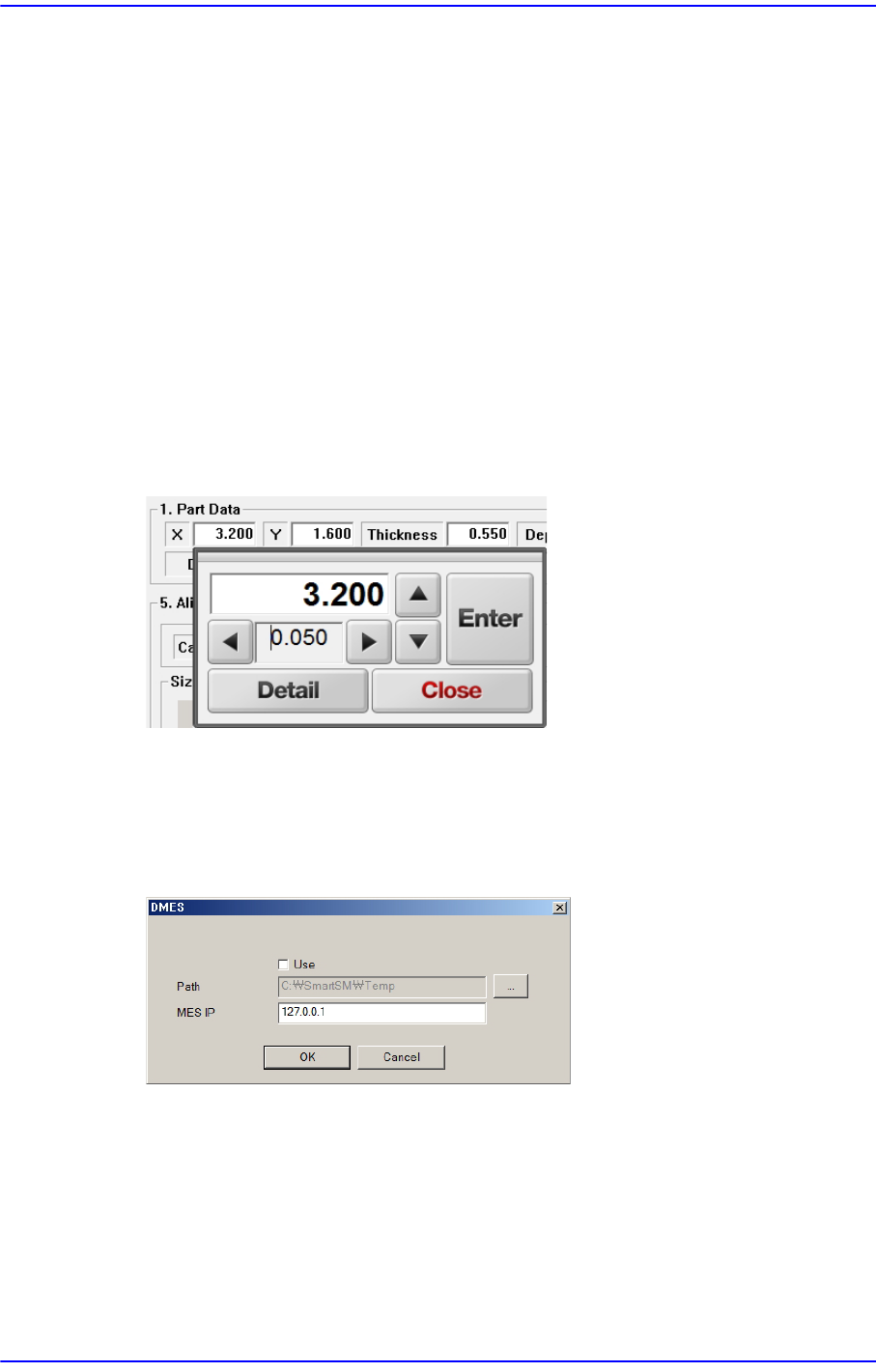
<Use keypad with edit box> check box
Tick this check box to use the virtual keypad when entering values in the edit box.
<Use 2D Barcode> check box
Tick this check box to set 2D barcode parameters in the “Board” menu.
< Use DMES> check box
Sets the IP for communication with the MES host.
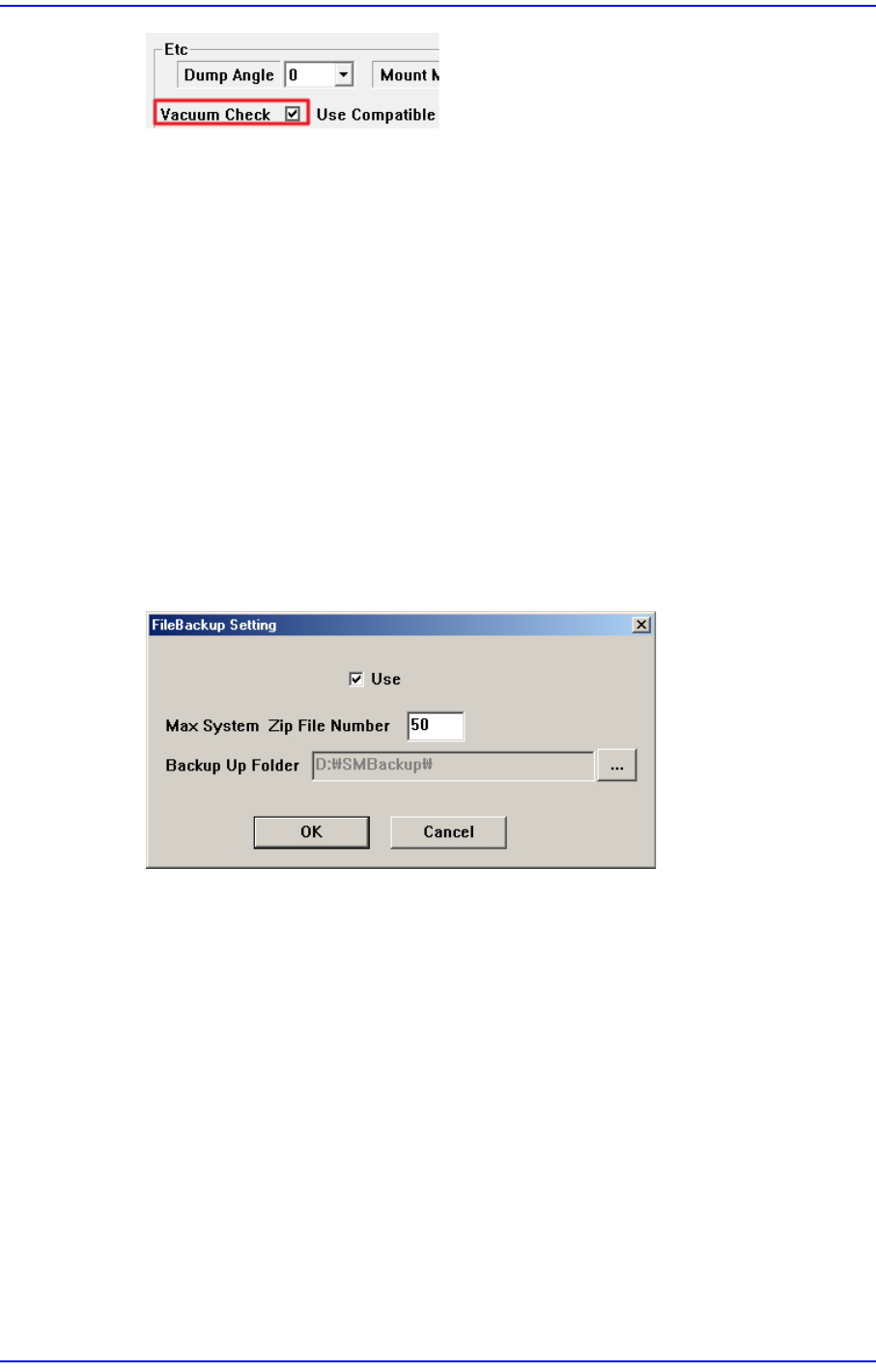
<Use Nz Vac Check> combo box
You can select whether to use the Vacuum Check function.
This function is used to check the pneumatic pressure when parts are adsorbed or
mounted is called the “Vacuum Check” function. When registering parts, you can set
the corresponding function.
15-57
System Setup
Enable
Select this when the “Vacuum Check” function is used. When a Vacuum Check is
performed, if the set value is out of range, an error message will pop up and the
machine will stop.
Disable
Select this when the “Vacuum Check” function is not used.
Ignore
Select this when you use the “Vacuum Check” function, but ignore the error
message that occurs during Vacuum Check and do not stop the machine.
<Use File Backup> button
Backs up the modified system file and restores the MMI file if a problem occurs
during machine operation.
Figure15.18“FileBackup Setting” dialog box
<Use> check box
Checking this check box will allow the file backup function to be used.
<Max System Zip File Number> edit box
Sets the maximum number of backup files.
<Backup Up Folder> edit box
'Sets the path for MMI file backup.
<Use Calibration Guide> check box
After turning on the power to the machine, it is necessary to calibrate the system after
a certain period of time has elapsed before the optimum result can be obtained. When
this check box is selected, a warning message pops up when the “Calibration” menu is
clicked without allowing a certain period of time to elapse.
<Use Auto Error Report> button