00195700-02_Install_701_02_EN_DE.pdf - 第19页
Installation Manual, Station Software Version 701.02 07/2008 Edition 4.4.3 Calibrating the touchscreen 4.4.3.1 Calibrating the touchscreen for the X-Series → Choose Start Æ Settings Æ TouchWare to start the TouchWare Pro…
Installation Manual, Station Software Version 701.02 07/2008 Edition
4.4 Preparations for installing the software
4.4.1 Requirements
Requirements for installing the SIPLACE software and the Vision computer software:
- The Windows XP Professional operating system with Service Pack 2 and all current hotfixes
(Windows XP Hotfixes CD) must be installed on the machine computer and the Vision computer (see
the Installation Manual for the Windows XP operating system, item number 00194575-xx).
The default Windows display settings must be changed and the touchscreen must be calibrated. You
must be logged on as the Administrator
in order to be able to carry out this work.
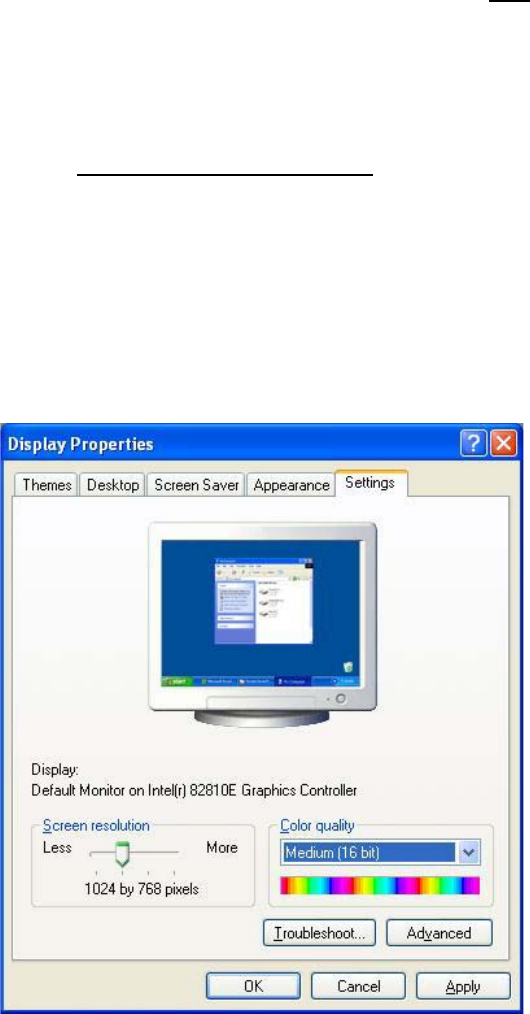
4.4.2 Changing the display settings
→ Choose Start Æ Settings Æ Control Panel Æ Display.
→ Click the Settings tab.
→ Set the "Screen resolution" slider to "1024 by 768 pixels".
Fig. 4-1: Screen settings
→ Confirm the settings by clicking OK.
18 of 38
Installation Manual, Station Software Version 701.02 07/2008 Edition
4.4.3 Calibrating the touchscreen
4.4.3.1 Calibrating the touchscreen for the X-Series
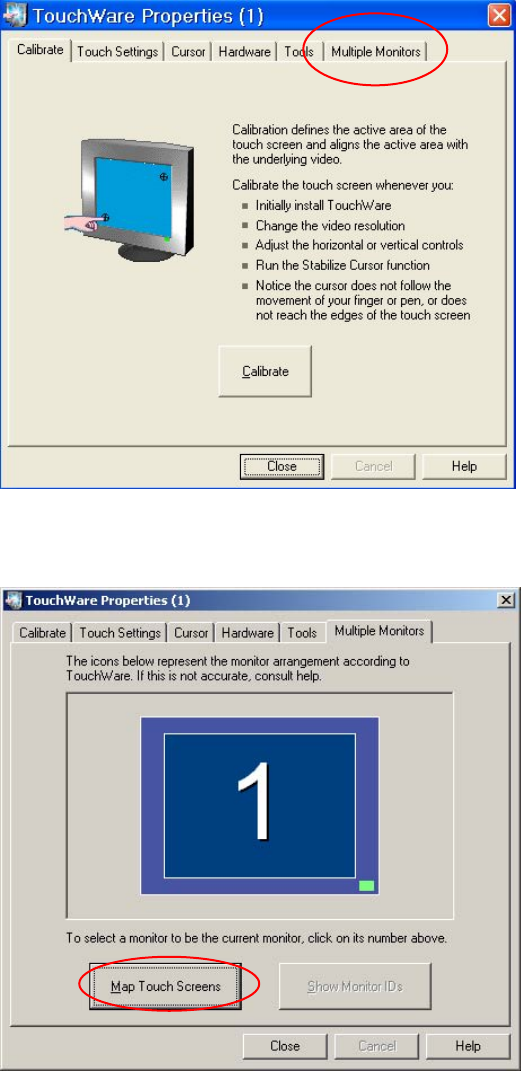
→ Choose Start Æ Settings Æ TouchWare to start the TouchWare Properties program.
19 of 38
Fig. 4-2: TouchWare Properties
→ Open the Multiple Monitors tab.
Fig. 4-3: TouchWare Properties – Multiple Monitors tab
→ Click the Map Touch Screens button.
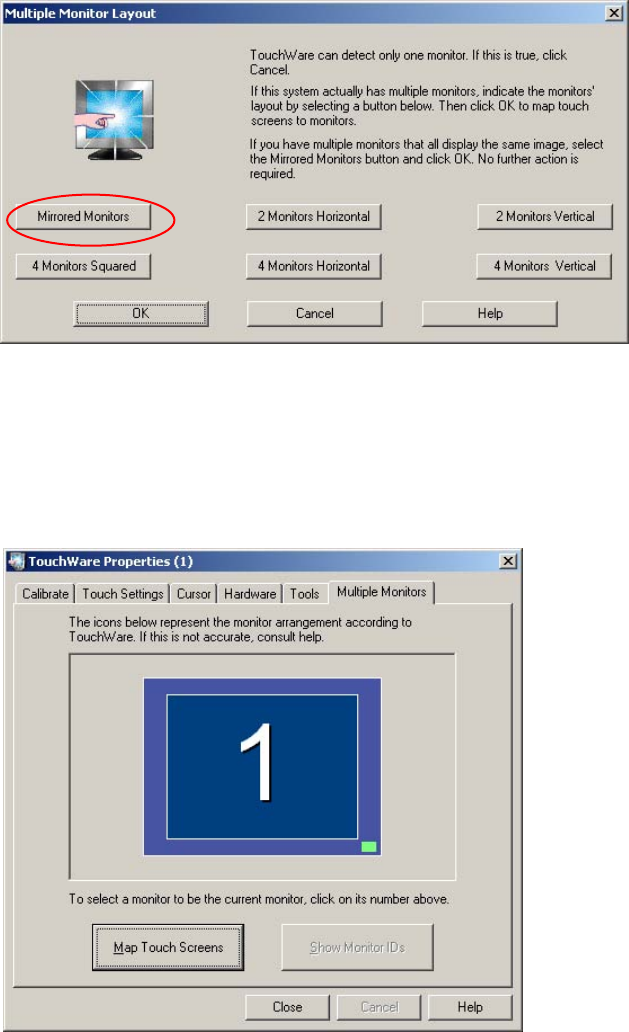
The "Multiple Monitor Layout" dialog box appears.
Installation Manual, Station Software Version 701.02 07/2008 Edition
Fig. 4-4: "Multiple Monitor Layout" dialog box
→ Click the Mirrored Monitors button.
→ Confirm your entry with OK.
The touchscreens are now mapped and the "Multiple Monitors" tab is displayed again.
Fig. 4-5: TouchWare Properties – Multiple Monitors tab (example for Monitor 1)
20 of 38