00195700-02_Install_701_02_EN_DE.pdf - 第28页
Installation Manual, Station Software Version 701.02 07/2008 Edition 28 of 38 4.6 Miscellaneous 4.6.1 Checking/Updating the embedded software - Check the firmware versions of the embedded software and download if necessa…
Installation Manual, Station Software Version 701.02 07/2008 Edition
→ Close the applications listed here and then click the Retry button.
The installation program now installs additional programs on the machine computer.
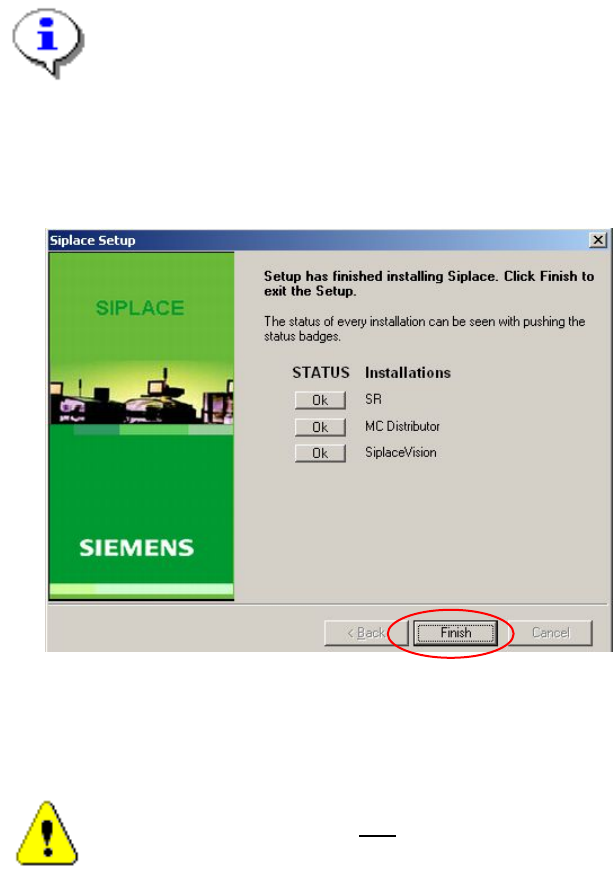
4.5.6 Finalizing the installation
Note:
The status only lists the programs that have just been installed. If, for instance, the current
version of SIPLACE Vision was already installed, it is not listed here.
If errors occurred during installation, the status is indicated by the Error button being
displayed next to the program name instead of the Ok button.
→ If you wish to read the log of the installation of any program, click the Ok (or Error) button next to the
name of the program. The Notepad is started and displays the appropriate file.
Fig. 4-15: Finalizing the installation
→ Click the Finish button.
Caution:
The Vision computer must also
27 of 38
be installed (see section 6) before you shut down the
machine computer, as the station will otherwise not boot correctly due to version conflicts.
Installation Manual, Station Software Version 701.02 07/2008 Edition
28 of 38
4.6 Miscellaneous
4.6.1 Checking/Updating the embedded software
- Check the firmware versions of the embedded software and download if necessary.
- Start an overall reference run for the machine.
4.6.2 Storage location of the machine files (calibration data etc.)
The machine-specific configuration, measurement and parameter data is stored in XML files under
C:\Sirio\Work\Individual. These XML files contain all the calibration data.
Installation Manual, Station Software Version 701.02 07/2008 Edition
5 Uninstalling the SIPLACE software
Note:
You must be logged in as administrator to uninstall the software.
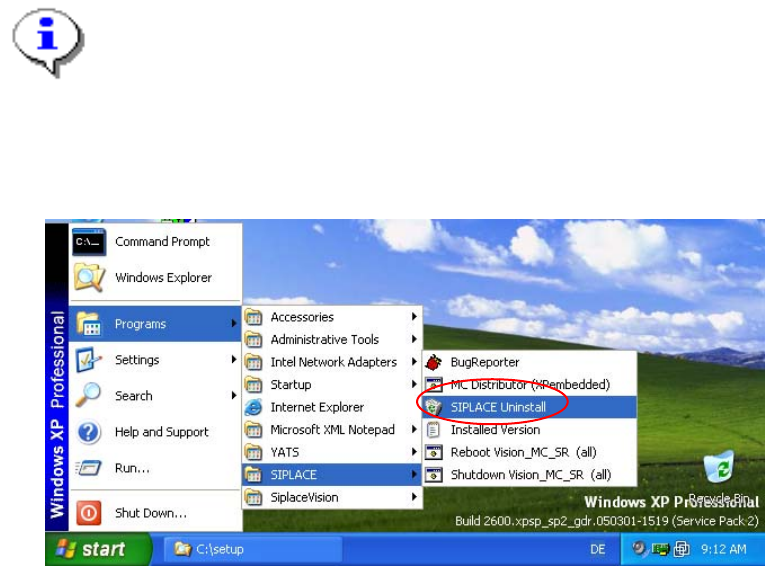
→ Open the Start menu and choose Programs Æ SIPLACE Æ SIPLACE Uninstall.
Fig. 5-1: Starting uninstallation (alternative 1)
Or:
→ Open the Start menu and choose Settings Æ Control Panel.
→ Double-click Add/Remove Programs.
29 of 38