00195700-02_Install_701_02_EN_DE.pdf - 第34页
Installation Manual, Station Software Version 701.02 07/2008 Edition 34 of 38 Fig. 6-3: Finaliz ing the installation → Click the Finish button. Note: To establish the connection between the SI PLACE Vision computer softw…
Installation Manual, Station Software Version 701.02 07/2008 Edition
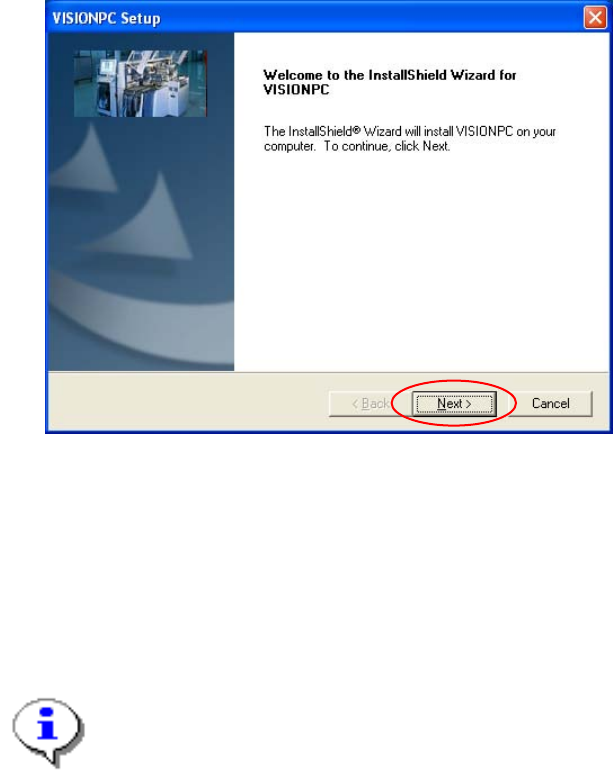
6.1 Welcome screen
Fig. 6-2 Welcome screen
→ Click the Next button.
The necessary files are installed on the Vision computer.
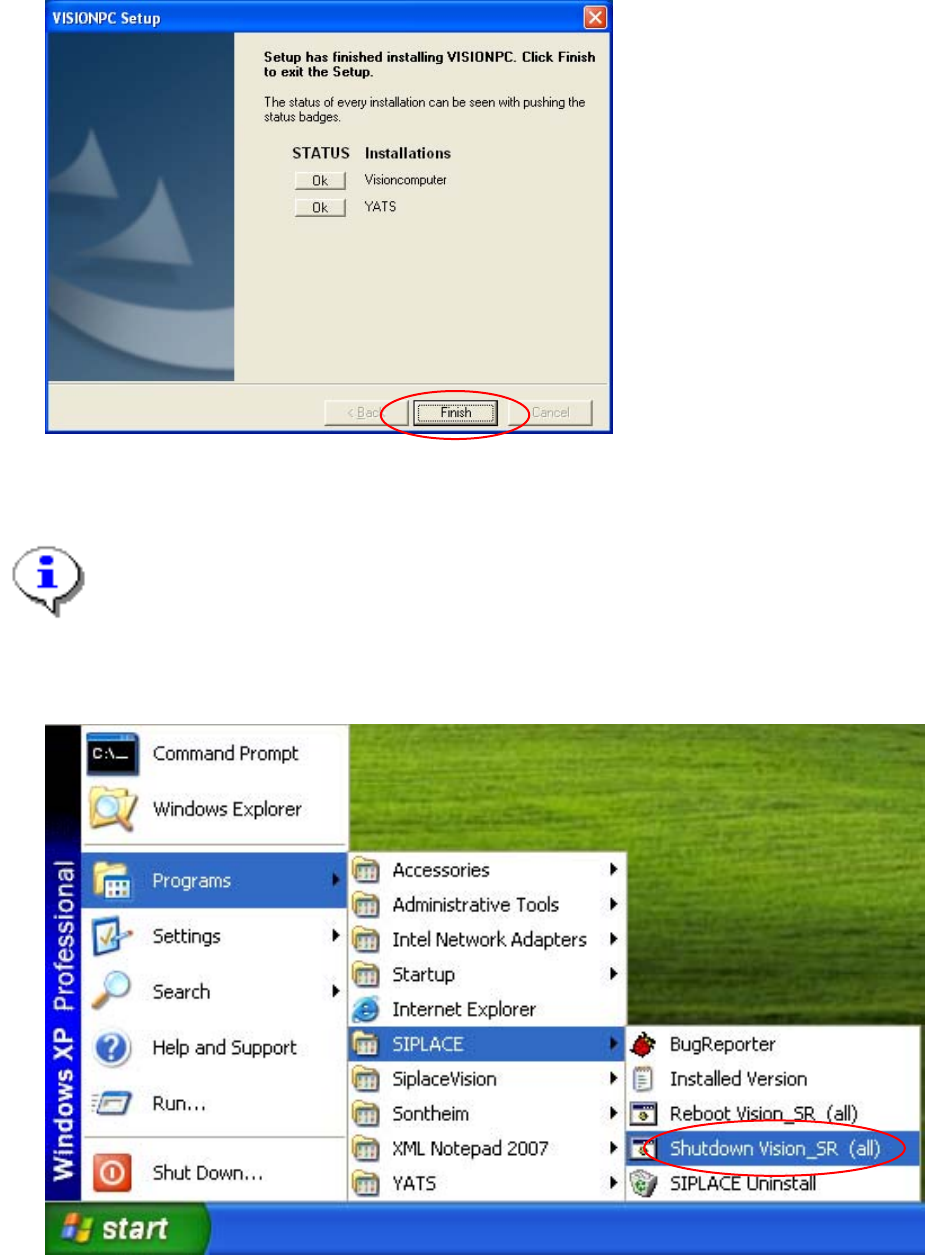
6.2 Finalizing the installation
Note:
The status only lists the programs that have just been installed.
If errors occurred during installation, the status is indicated by the Error button being
displayed next to the program name instead of the Ok button.
→ If you wish to read the log of the installation of any program, click the Ok (or Error) button next to the
name of the program. The Notepad is started and displays the appropriate file.
33 of 38
Installation Manual, Station Software Version 701.02 07/2008 Edition
34 of 38
Fig. 6-3: Finalizing the installation
→ Click the Finish button.
Note:
To establish the connection between the SIPLACE Vision computer software and the
SIPLACE station software after installation has been completed, the Vision computer and
the machine computer must first be run down and the machine must then be switched off
completely.
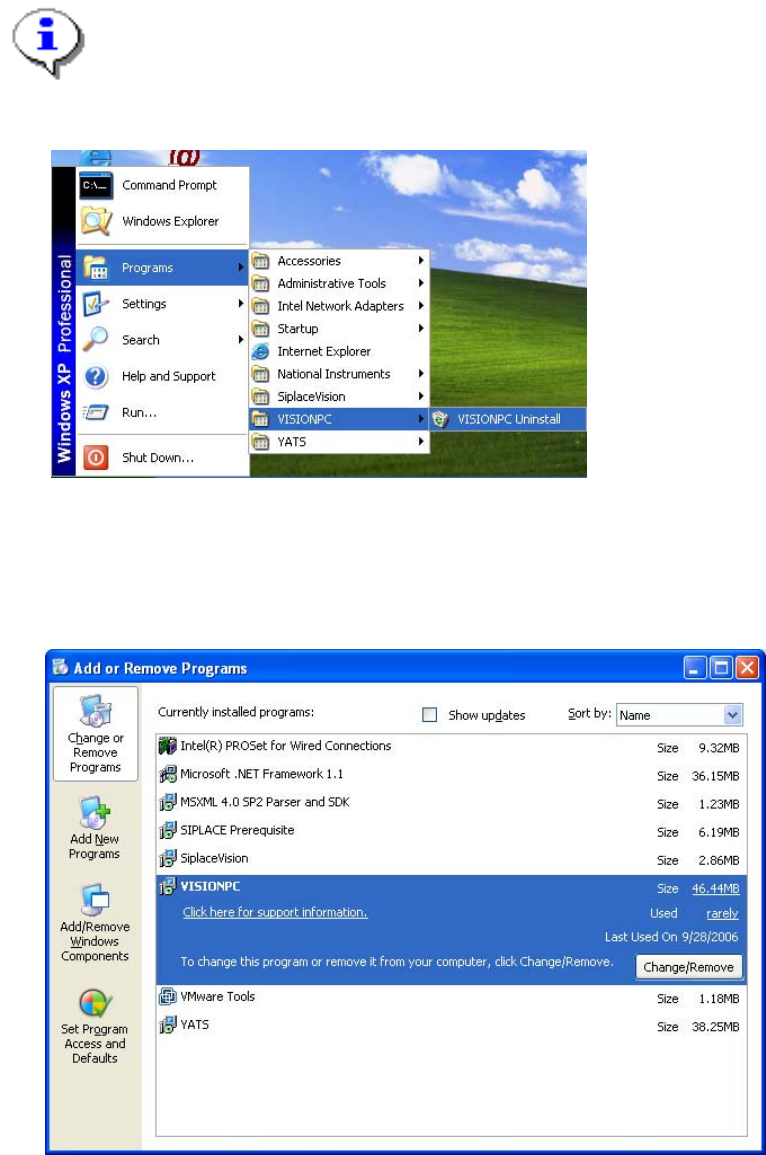
→ To do this, open the Start menu and choose Programs Æ SIPLACE Æ Shutdown Vision_SR (all).
Fig. 6-4: Shutting down the machine computer and Vision computer
→ Switch the machine off when the computer systems have shut down.
→ Switch the machine back on again. This then reboots the Vision computer and the machine computer.
Installation Manual, Station Software Version 701.02 07/2008 Edition
7 Uninstalling the Vision computer software
If it is necessary to uninstall the Vision computer software manually, this must be done in one of the ways
described below.
Note:
You must be logged in as administrator to uninstall the software.
→ Open the Start menu and choose Programs Æ VISIONPC Æ VISIONPC Uninstall.
35 of 38
Fig. 7-1: Starting uninstallation (alternative 1)
Or:
→ Open the Start menu and choose Settings Æ Control Panel.
→ Double-click Add/Remove Programs.
Fig. 7-2 Starting uninstallation (alternative 2)
→ Select VISIONPC from the list of installed programs.
→ Click the Change/Remove button.