00197501-02_AI_WPC_Umbau_X-Series_S_DE_EN - 第85页
Review 4 Operator Tasks 4.3 Automatic Calibration Assembly Instructions / Montageanleitung SIPLACE WPC an SIPLACE X-Serie S SIPLACE WPC on SIPLACE X Series S 03/2020 85 Fig.44: Automatic calibration ► In the Station Sof…
Review
4 Operator Tasks
4.3 Automatic Calibration
84 Assembly Instructions / Montageanleitung SIPLACE WPC an SIPLACE X-Serie S SIPLACE WPC on SIPLACE X
Series S 03/2020
4.3 Automatic Calibration
The fixed table needs to be calibrated before operating the SIPLACE WPC5/WPC6.
NOTICE
Incorrect version of the station software.
The insert type requires version 701.1 of the station software.
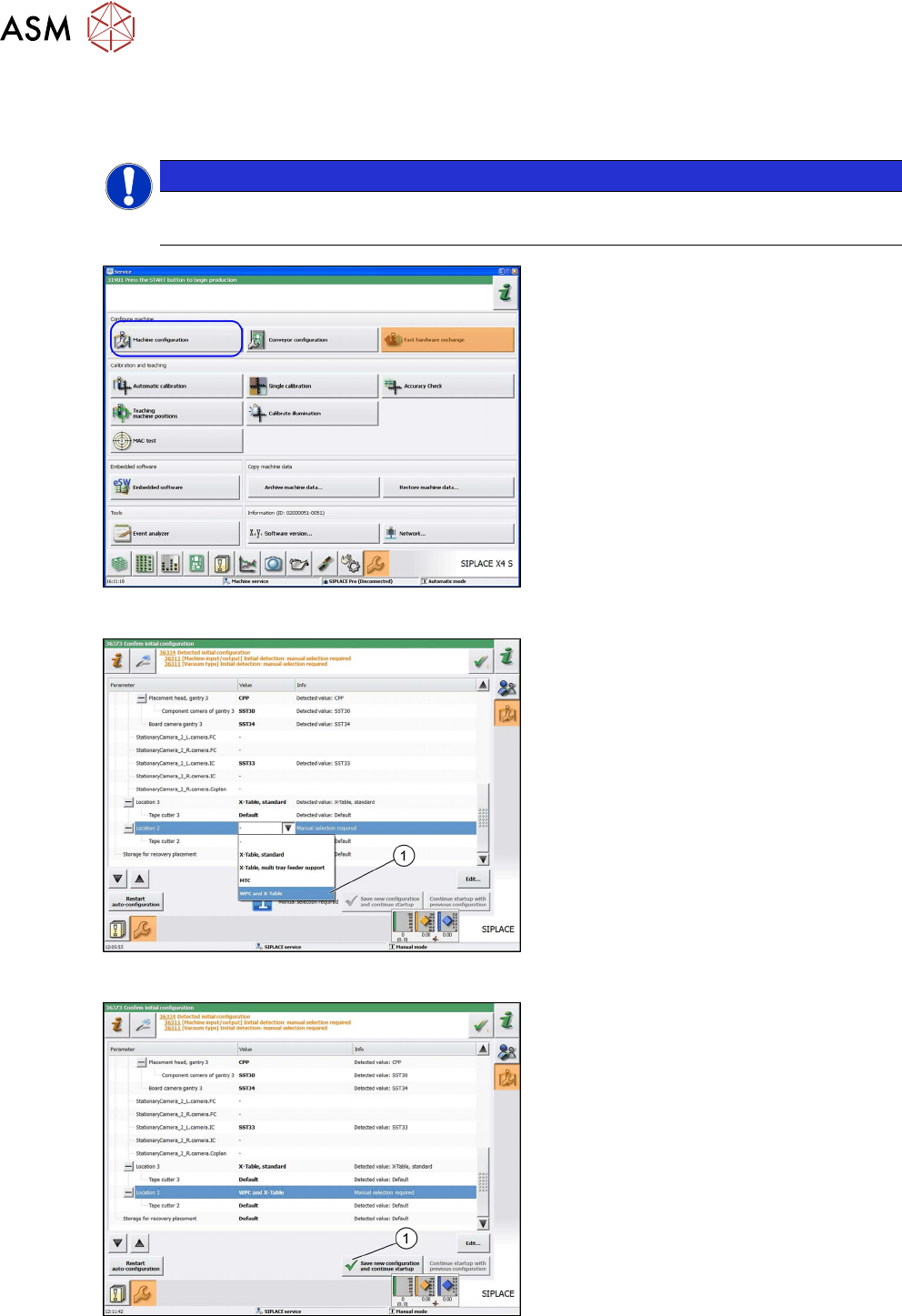
Fig.41: Machine configuration
► In the station software view, click on
Service
, Configure Machine and se-
lect Machine Configuration
.
Fig.42: Table type
► Go to the Machine Configuration view
and select the table type WPC and X
table (1).
Fig.43: Save new configuration and continue startup.
► Go to the Machine Configuration view
and select the Save new configura-
tion and continue startup (1) button.
ð The selection of the table type will
be confirmed.
► Go back to the Station Software view
at Service, Configure Machine
.
Review
4 Operator Tasks
4.3 Automatic Calibration
Assembly Instructions / Montageanleitung SIPLACE WPC an SIPLACE X-Serie S SIPLACE WPC on SIPLACE X
Series S 03/2020
85
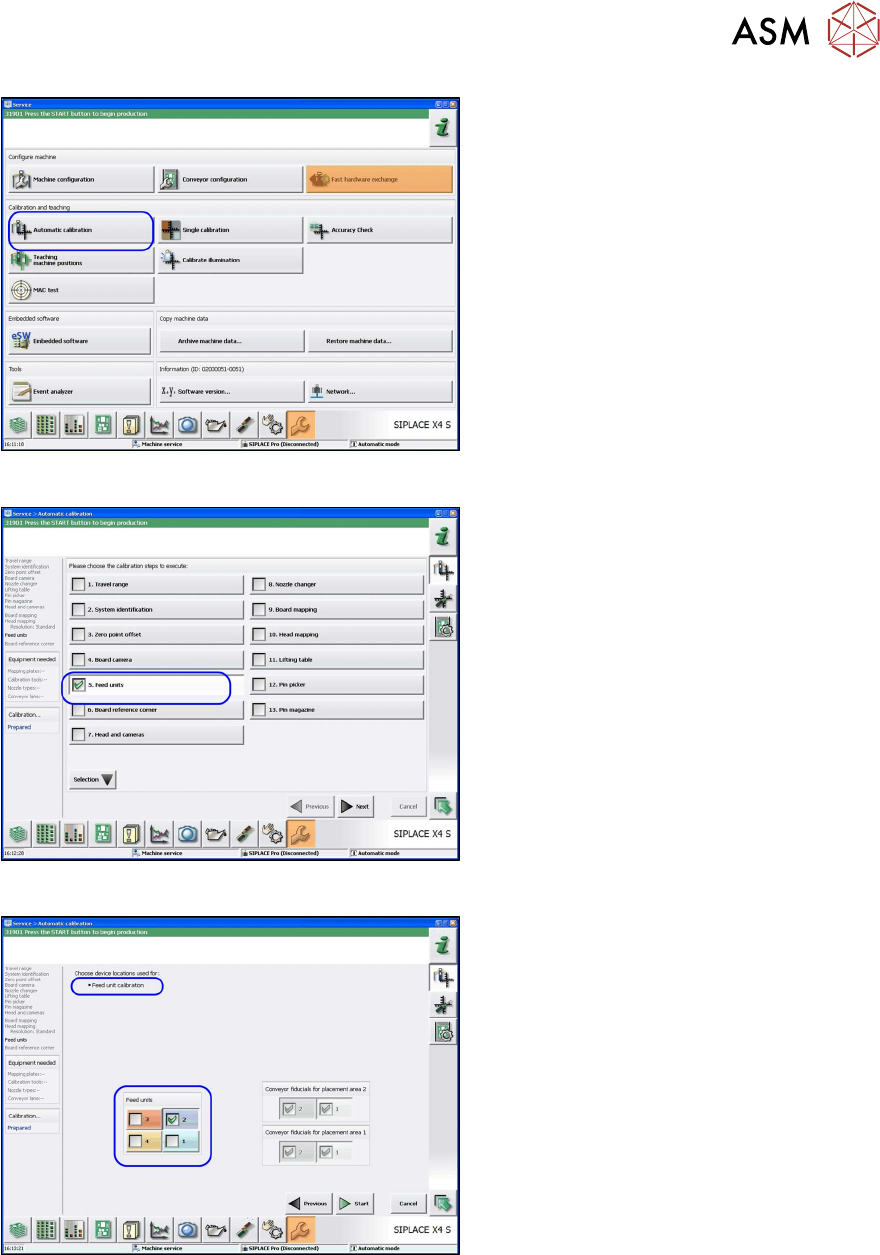
Fig.44: Automatic calibration
► In the Station Software view, click on
Service
, Configure Machine and se-
lect Automatic Calibration
.
ð The Automatic Calibration view
will be shown.
Fig.45: Automatic calibration: feed units
► Go to the Automatic Calibration view
and select the calibration step Feed
units.
► Click Next.
ð The Feed unit calibration view will
open.
Fig.46: Feed unit calibration
► Go to the Feed unit calibration view
and select the feeder unit at location 2.
► Click on Start.
Review
4 Operator Tasks
4.3 Automatic Calibration
86 Assembly Instructions / Montageanleitung SIPLACE WPC an SIPLACE X-Serie S SIPLACE WPC on SIPLACE X
Series S 03/2020
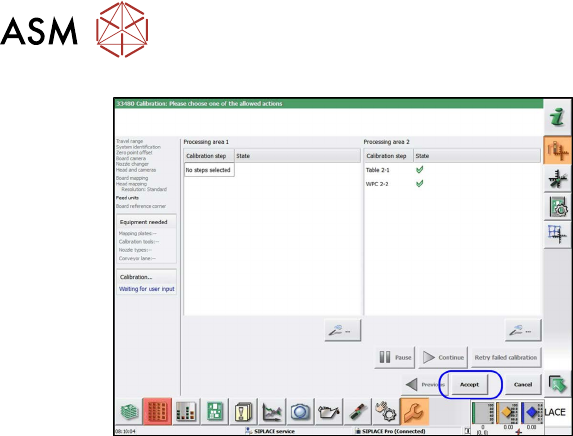
Fig.47: Accept
► After successful calibration, the X table
will be shown at location 2. Click on
Apply
.
ð Calibration has finished.