00197196-02_VB_SetupCenter_5.1_de_en.pdf - 第47页
New Functions in Setup Center 5.1 Permit Packaging Unit Chains to be Split in the Packaging Unit Editor User Interface in Polish Chinese Version Description / Versions beschreibung SIPLACE Setup Center 5.1 47 ▪ If the ve…
New Functions in Setup Center 5.1
Find Material Permit Packaging Unit Chains to be Split in the Packaging Unit Editor
46 Version Description / Versionsbeschreibung SIPLACE Setup Center 5.1
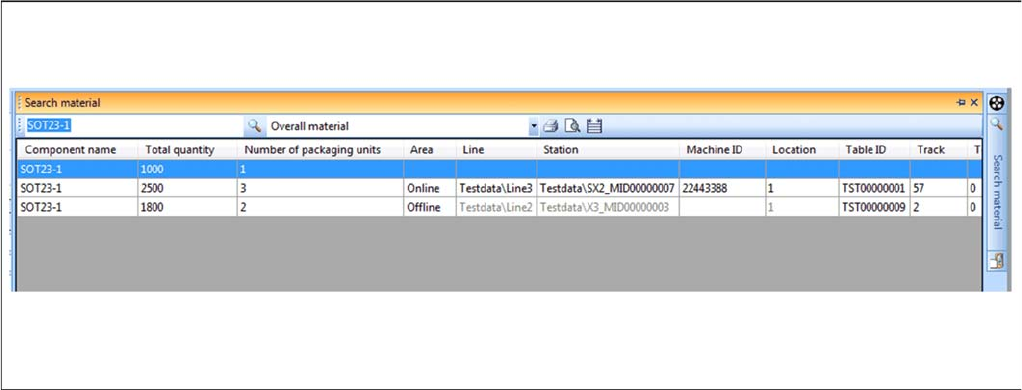
5.2 Find Material
Purpose
You can search by material (part number or component name). The materials are those packaging units
or packaging unit chains available in the database. This is helpful for seeing where this material is still
available in the production environment.
Function
► Right click with the mouse on a track to open the context menu.
► Select Find Material... to open the Find Material dialog box. Provided that the selected track already
has a material allocated to it, the component name will appear in the search field.
Or
► Alternatively, you can open the Find Material dialog box in the menu of the SIPLACE Setup Center
user interface Extras => Find Material…. Provided that a track which already has a material allocated
to it has been selected, the component name will appear in the search field.
► For detailed information, refer to the user manual "Setup Center 5.1" or the Online Help.
5.3 Verification History
Purpose
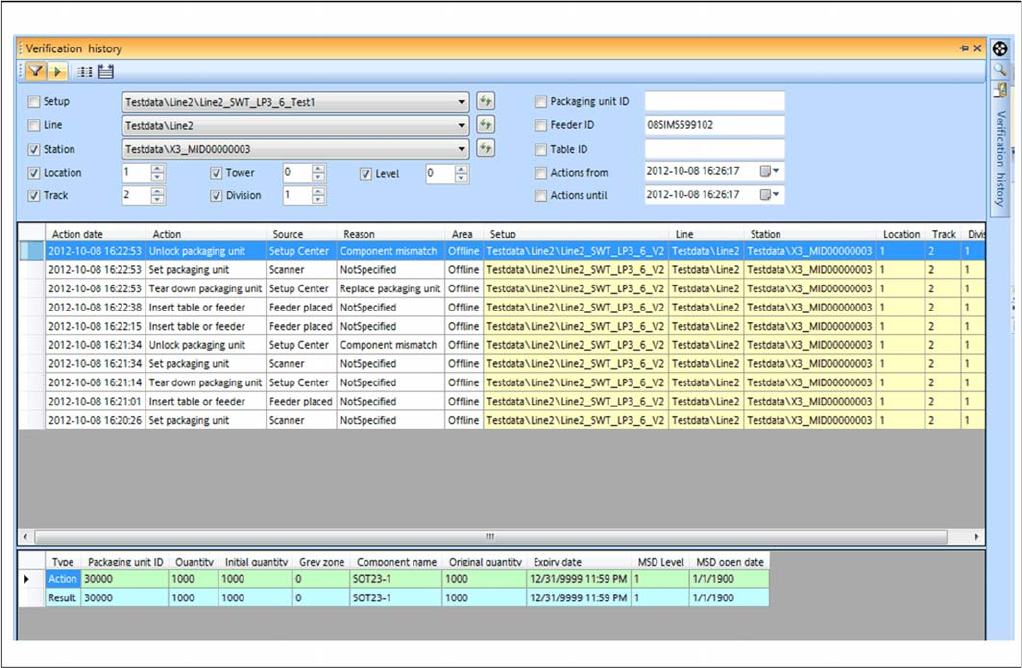
The verification history saves actions during the online and offline setup verification. Only those scan
runs which were successful will be recorded. You can also record material movements e.g. when a new
packaging unit is set up on a track and the previous packaging unit had a torn foil. Records of the veri
-
fication history which are older than 14 days will be deleted. The verification history is shown in a dialog
box.
▪ If the verification history is started from the table view (context menu), predefined filters will be ap
-
plied.
– Packaging ID
– Feeder ID
– Pickup point
New Functions in Setup Center 5.1
Permit Packaging Unit Chains to be Split in the Packaging Unit Editor User Interface in Polish Chinese
Version Description / Versionsbeschreibung SIPLACE Setup Center 5.1 47
▪ If the verification history is started from the Packaging Unit Editor, the following filter options are
available:
– Pickup point
– Packaging ID
Function
Starting the verification history
► Go to the main menu and select Extras > Verification History to open the Verification History window.
Or
► Alternatively, you can open the Verification History in the Packaging Unit Editor: go to Setup Infor
-
mation and select the Verification History button.
► For detailed information, refer to the user manual "Setup Center 5.1" or the Online Help.
5.4 User Interface in Polish Chinese
The user interface is available as a separate language installation in Polish and Chinese. Once the lan
-
guages have been installed, simply go to Extras => Change Language to enable the required language.
New Functions in Setup Center 5.1
Bluetooth Barcode Scanner Supported Permit Packaging Unit Chains to be Split in the Packaging Unit Editor
48 Version Description / Versionsbeschreibung SIPLACE Setup Center 5.1
5.5 Bluetooth Barcode Scanner Supported
Purpose
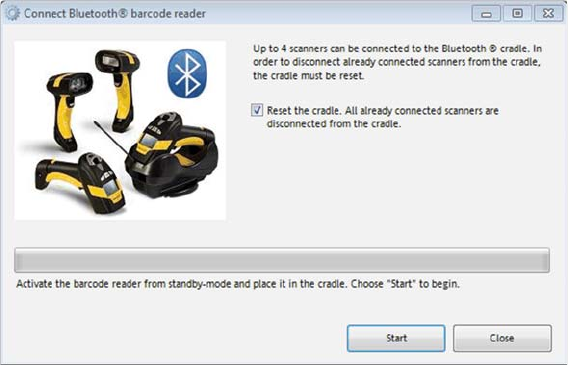
The Datalogic Bluetooth
TM
barcode scanner Datalogic PowerScan® BT8300 (1D barcode) is supported.
You also need the base unit BC-8030-BT.
Each Setup Center application supports one base unit with up to four registered PowerScan BT8300 bar
-
code scanners.
Configuration
► In the main menu open Extras > Settings and the Settings window is opened.
► Select the category Scanner and the settings are opened.
► Go to Datalogic Scanner and select Connect Barcode Reader...
► The start page for the installation procedure will open.
► For detailed information, refer to the user manual "Setup Center 5.1".
5.6 Improved Table Management
Function – for forced setup verification
If the changeover table management is active, you need to scan in the table ID. The table ID is then
shown in the graphical view of the table in Setup Center.
If a setup changeover is then performed, the tables will no longer be switched over to offline mode but
will remain logged on. This means that the tables are no longer moved out and do not need to be logged
on again.