YS12调整.pdf - 第34页
Service Engineer Service I nformati on SI080 4004 E-000 = YS12 , YG12: Procedure for adjustmen t after installa tion of the mach ine 34/60 5.2. The w orkflow of the A CP adjustment There are two m ethods for m ounting an…
Service Engineer
Service Information
SI0804004E-000 = YS12, YG12: Procedure for adjustment after installation of the machine
33/60
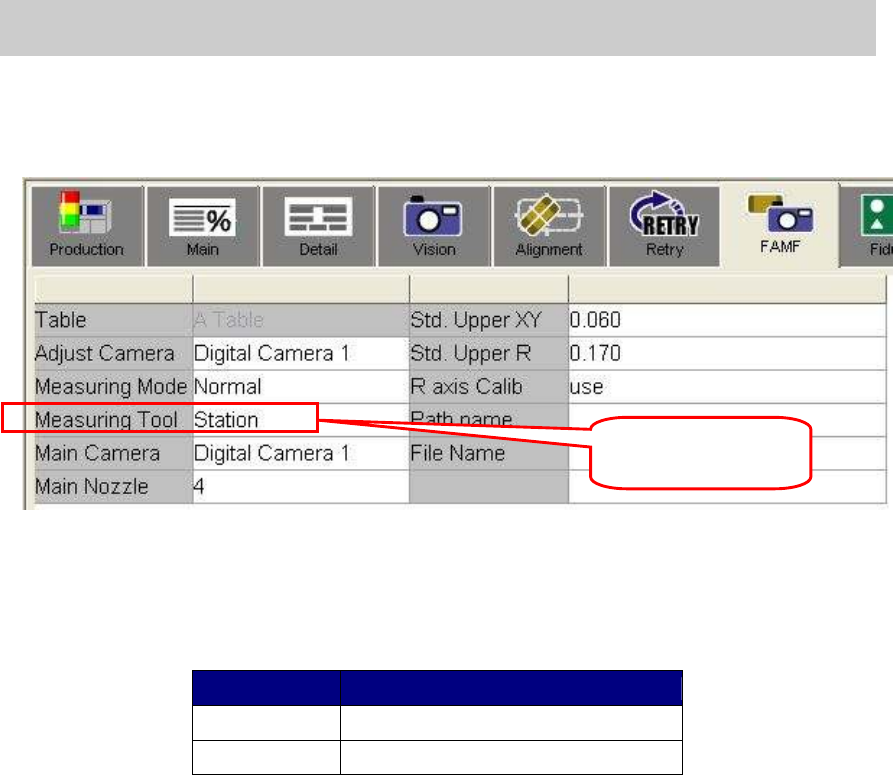
6. Check if the “PCB” is selected from “Measuring tool” item.
When performing ACP, if “Station” is selected from the “Measuring tool” item, it slows the
mounting speed. Please display the FAMF screen and make sure that “PCB” is selected
before performing ACP adjustment.
Figure 47
5.1.4.Preparation for mounting and initial setup
1. Read the board data
The board data varies depends on the glass board used for adjustment.
Glass Board Name of the board
ACP board ACP_1005_10HEAD_FL.ygx
AMFboard ACP_1005_10HEAD__OLD.ygx
Table 21
2. Clamp the glass board.
- Put the double-faced tape on the mounting surface of the board.
- As the board clamp is used for clamping the board, the pushup pins are not necessary.
- Change the board width on the “Unit” screen and clamp the board manually by clicking
on the [Board Clamp] button.
3. Check the “PCB origin”.
Move the camera to the PCB origin coordinate on the “Offset” tab on the “Board” screen, and
check if the Φ.0.5mm mark is near the center. If it is off the center, please adjust the
coordinate by performing teaching.
4. Check the mark information.
Check if the fiducial mark on the glass board can be recognized.
Select the mark No.1 “GlassFid_0.5_Circle” and click on the [MarkAdj] button to check if
the fiducial mark can be recognized.
Check if the mounted ceramic chip component can be recognized.
Affix the ceramic chip on the mounting position on the glass board.
Select the mark No.11 “CERA1005” and click on the [MarkAdj] button to check if the
mounted 1005 ceramic chip can be recognized.
The preparation for ACP adjustment is completed.
Change the setting to
“PCB”.
Service Engineer
Service Information
SI0804004E-000 = YS12, YG12: Procedure for adjustment after installation of the machine
34/60
5.2. The workflow of the ACP adjustment
There are two methods for mounting and measuring of the ACP adjustment.
1. Click on the [All] button in the ACP utility to perform mounting and the measurement
consecutively.
2. Click on the [Auto Run] button to perform mounting, and then click on the [Measure] button to
perform measurement.
The following describes how to perform mounting using the [All] function.
5.2.1. Start up and setting of the ACP utility
1. Click on the [ACP] button on the CalibSm main menu to display the “ACP” screen.
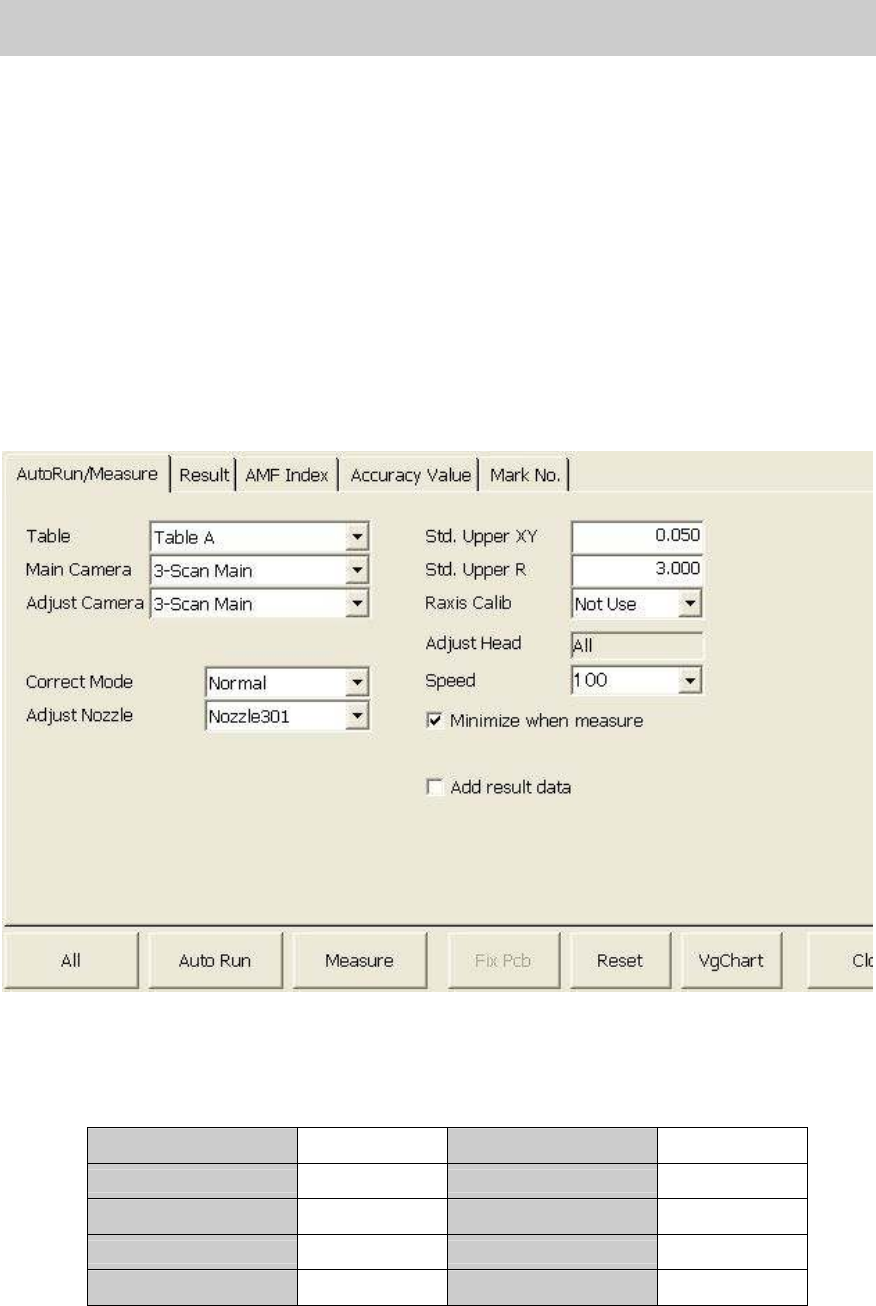
2. How to perform setting on the “AutoRun/Measure” tab.
The main camera of the YS12 is the scan camera (3-Digital Scan Main).
Please check all the settings referring to Table 22.
Table A Table Std. Upper XY 0.050
Main Camera Digital 3 Std. Upper R 3.000
Adjust Camera Digital 3 Raxis Calib Not Use
Correct Mode Normal
Adjust Nozzle Nozzle 301
Table 22
Service Engineer
Service Information
SI0804004E-000 = YS12, YG12: Procedure for adjustment after installation of the machine
35/60
[Items to be adjusted]
- Fiducial camera position (XY)
- Digital 3_Head 1 –10 Precision Zigzag parameter (X, Y): Main nozzle
- Digital 3_Head 2 –10 Precision Parallel parameter (X, Y): Main nozzle
5.2.2. Mounting and measurement performed by ACP
When completing the initial setup and the setting, please perform ACP adjustment.
Though the adjustment is normally performed by [All] function, if the mounting is interrupted and
restarts, please click on the [All] button again or click on the [Auto Run] button.
When the measurement is interrupted and perform only measurement, please click on the
[Measure] button.
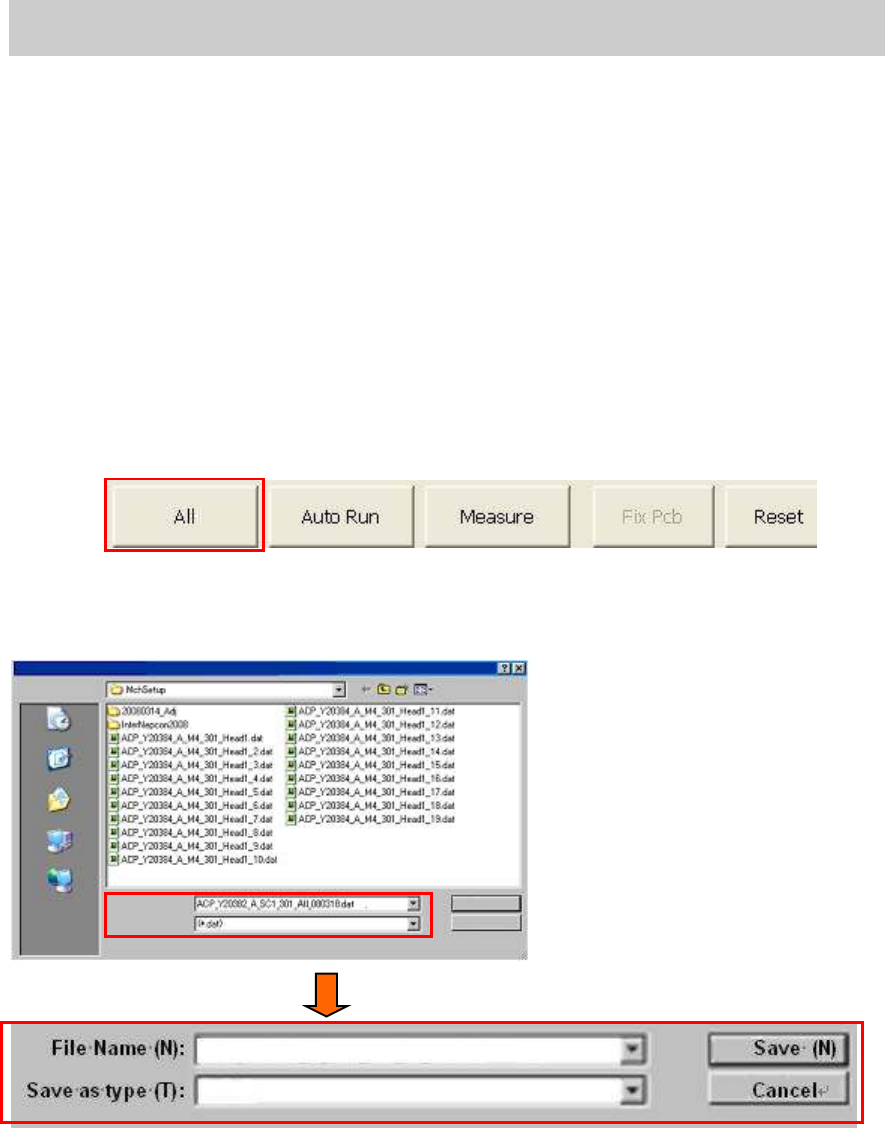
1. Click on the [All] button on the “AutoRun/Measure” tab.
After checking the setting of the ACP adjustment and initial setup of the glass board, click on
the [All] button.
Figure 48
2. Save the measured result and input the file name
Click on the [All] button to display the screen to input the file name of the measured data.
Figure 49
[The name of the file for saving the adjustment data]
The default file name indicates the adjustment method and the item to be adjusted, so you just
need to add the date of the adjustment before the extension (.dat) and save the data.
Save
in:
Recently used file
Desktop
My Document
My Computer
My Network
File Name (N):
Save as type (T):
Save (N)
Cancel
ACP_Y20382_a_SC1_301_All_080318.dat
(*.dat)