MAN00000772_SI-G200BB_SVCPDFA.pdf - 第161页
Preparation for Calibration HLGB-10103-01 Front, Rear LED Control PWB Setup SHEET 3/3 4 Check and change setu p value of each light. 1. Press the DA T A button for three seconds or longer . The LED109 and LED103 light up…
Preparation for Calibration
HLGB-10103-01
Front, Rear LED Control PWB Setup
SHEET
2/3
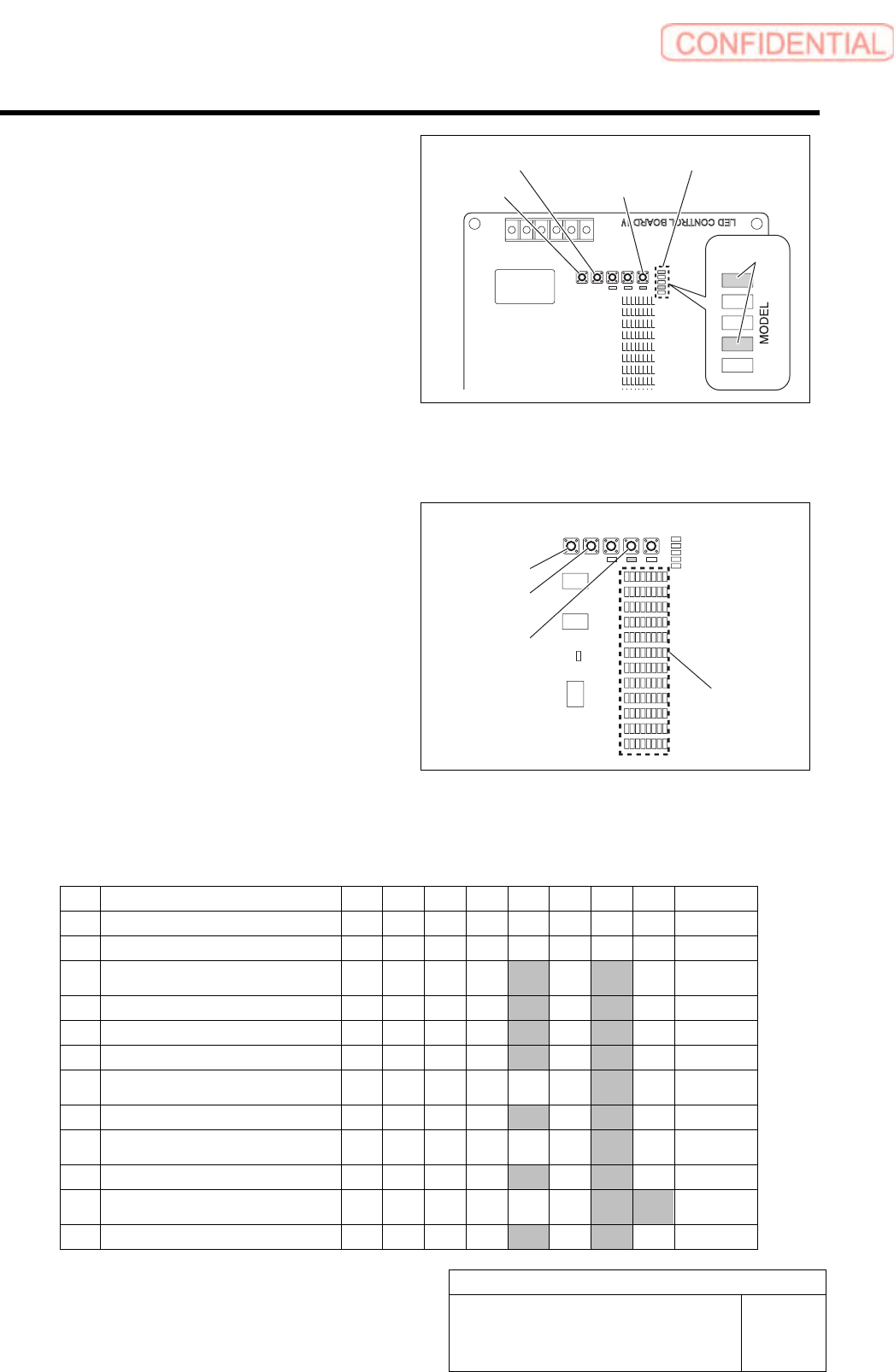
2 Check and change machine type setup of
LED control board.
1. Press the MODEL button for three
seconds or longer.
The MODEL changeover display LED lights up.
2. Check that the LEDs light up at the
position shown in the Fig.
3. If the LED lighting-up state is
different, press the UP/DOWN switch
to change the lighting LED as shown
in the Fig.
4. When ending setup, wait until the
LED lights off.
3 Check and change setup of REF value.
1. Press the REF button for three
seconds or longer.
The LED111 lights up.
2. Press the REF button to select light to
be set up.
3. To change the setting, press the
UP/DOWN button to change so that
the camera setup LED lights up.
4. When ending setup, wait until the
LED lights off.
LED95
|
LED102
LED87
|
LED94
LED7
|
LED14
LED15
|
LED22
LED23
|
LED30
LED31
|
LED38
LED39
|
LED46
LED47
|
LED54
LED55
|
LED62
LED63
|
LED70
LED71
|
LED78
LED79
|
LED86
LED108
|
LED104
SW6
MODEL
SW7
REF
SW3
DATA
SW4
UP
SW5
DOWN
LED103
MODEL
LED110 LED111 LED109
SI-G200BB head REF value setup list
Light 128 64 32 16 8 4 2 1 Value
12 Pickup check (LED7~14) -
11 Not used (LED15~22) -
10
Fixed camera lower stage light2
(LED23~30)
10
9 Not used (LED31~38) 10
8 Parts 45° light (LED39~46) 10
7 Not used (LED47~54) 10
6
Fixed camera lower stage light1
(LED55~62)
2
5 Parts permeable light (LED63~70) 10
4
Fixed camera middle stage light
(LED71~78)
2
3 Parts coaxial light (LED79~86) 10
2
Fixed camera upper stage light
(LED87~94)
3
1 PWB camera light (LED95~102) 10
* Hatched portions mean that the LED lights up.
DOWN button
UP button
MODEL button
MODEL changeover display LED
Lighting up
DOWN button
UP button
REF button
Camera
setup LED
Preparation for Calibration
HLGB-10103-01
Front, Rear LED Control PWB Setup
SHEET
3/3
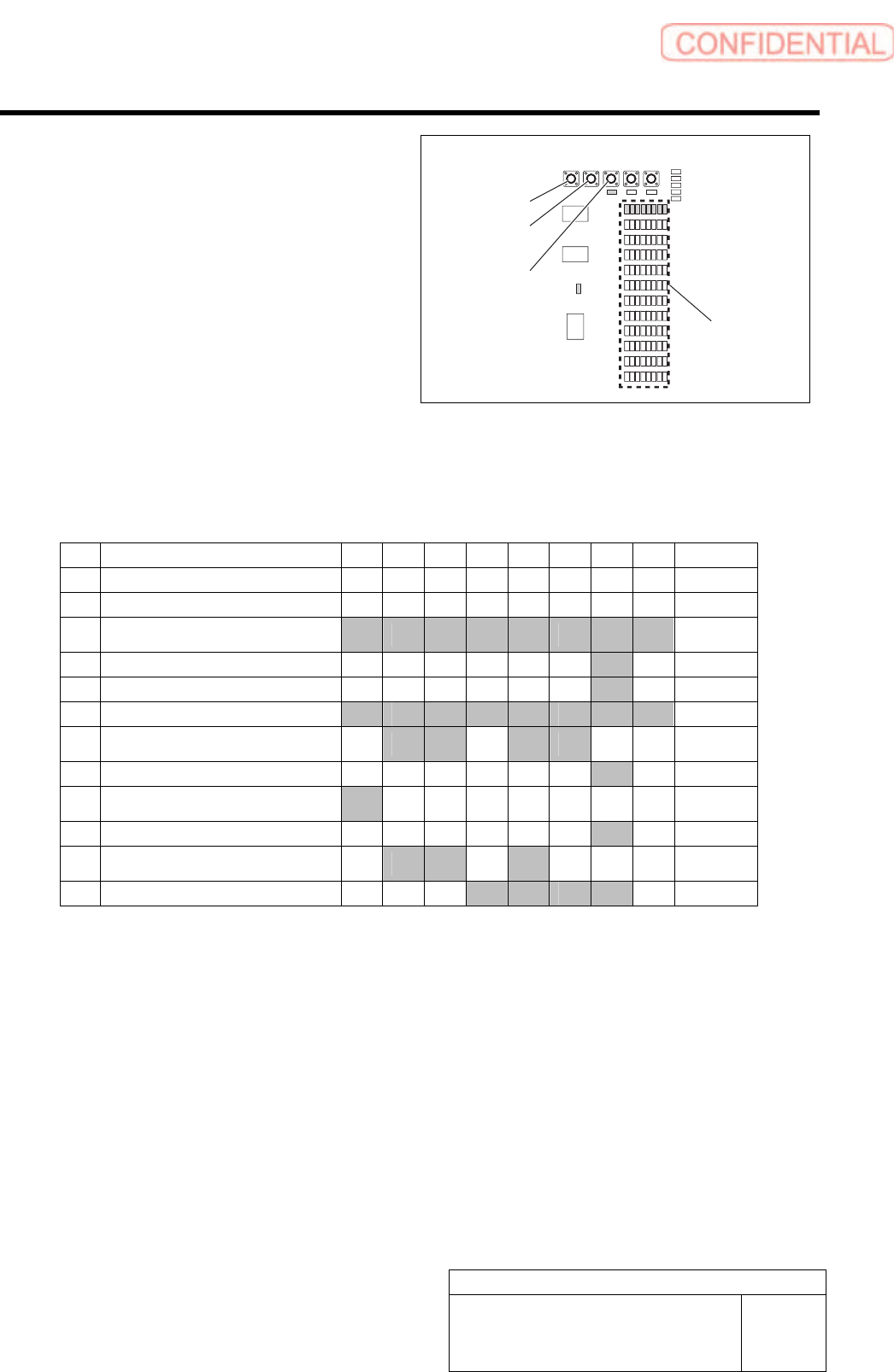
4 Check and change setup value of each light.
1. Press the DATA button for three
seconds or longer.
The LED109 and LED103 light up, and the
LED09 5through LED102 blink.
2. Press the DATA button to select light
to be setup.
3. To change the setting, press the
UP/DOWN button to change so that
the camera setup LED lights up.
4. When ending setup, wait until the
LED lights off.
LED95
|
LED102
LED87
|
LED94
LED7
|
LED14
LED15
|
LED22
LED23
|
LED30
LED31
|
LED38
LED39
|
LED46
LED47
|
LED54
LED55
|
LED62
LED63
|
LED70
LED71
|
LED78
LED79
|
LED86
LED108
|
LED104
SW6
MODEL
SW7
REF
SW3
DATA
SW4
UP
SW5
DOWN
LED103
MODEL
LED110 LED111 LED109
SI-G200BB head light setup value list
Light 128 64 32 16 8 4 2 1 Value
12 Pickup check (LED7~14) -
11 Not used (LED15~22) -
10
Fixed camera lower stage light2
(LED23~30)
255
9 Not used (LED31~38) 2
8 Parts 45° light (LED39~46) 2
7 Not used (LED47~54) 255
6
Fixed camera lower stage light1
(LED55~62)
108
5 Parts permeable light (LED63~70) 2
4
Fixed camera middle stage light
(LED71~78)
128
3 Parts coaxial light (LED79~86) 2
2
Fixed camera upper stage light
(LED87~94)
104
1 PWB camera light (LED95~102) 30
* Hatched portions mean that the LED lights up.
5 When setting of LED control PWB is ended,
return the I/O unit to the previous position to
install the lower cover.
DOWN button
UP button
DATA button
Camera
setup LED
Preparation for Calibration
HLGB-10104-01
Change in User Level
SHEET
1/1
Change in User Level
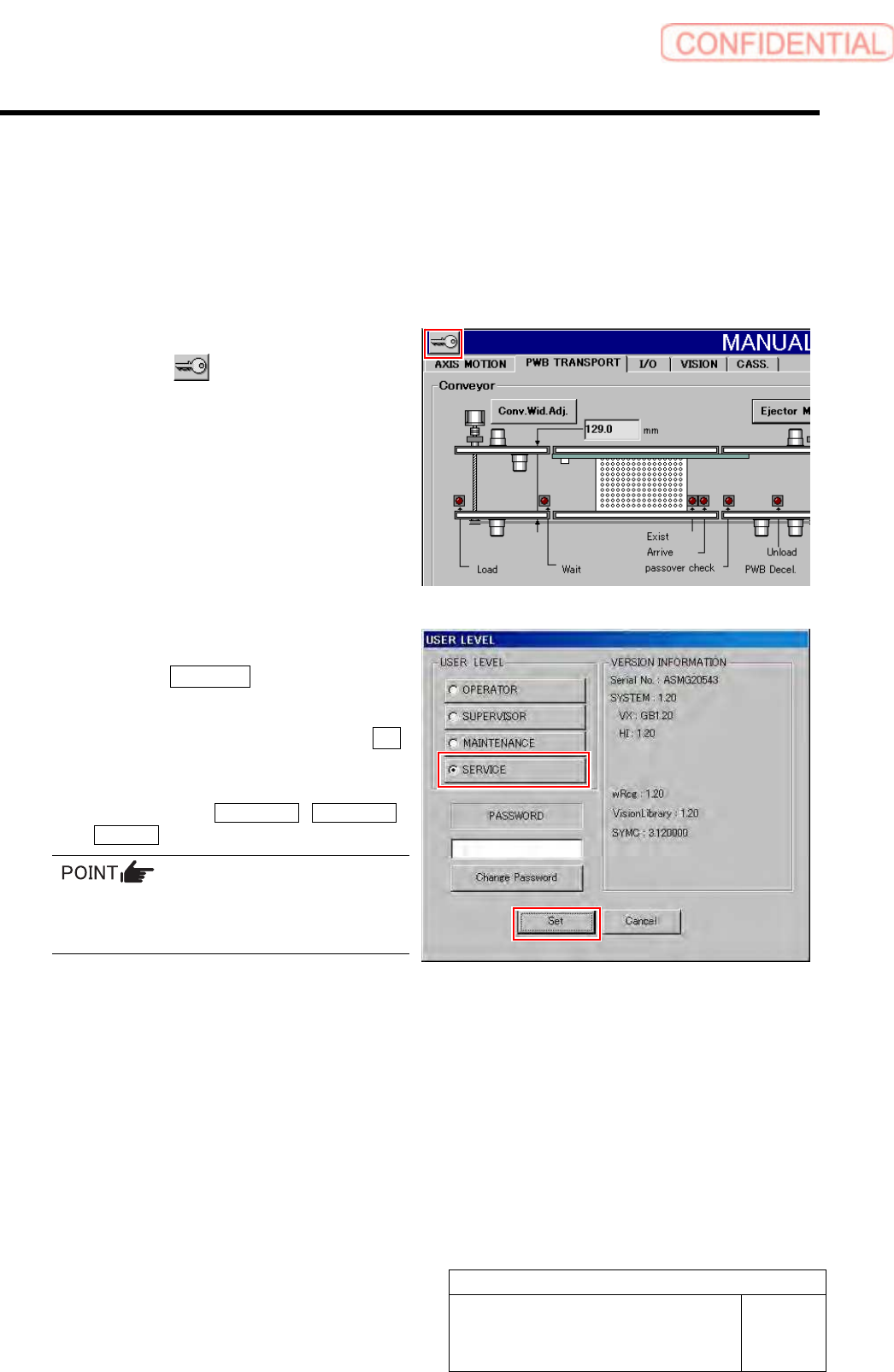
To display a screen used for calibration, it is necessary to change user level. This section describes a
procedure to change user level.
[Procedure]
1 Display the USER LEVEL screen.
1. Click the
button on the left
upper of the screen.
USER LEVEL screen is displayed.
2 Change the USER LEVEL to “SERVICE”.
1. Click the SERVICE button.
A cursor appears on a PASSWORD entry space.
2. Enter the password and click the Set
button.
The screen returns to HI screen and respective
menu buttons of DATA EDIT, M/C SETUP,
SERVICE appear on the right of the screen.
To display the calibration screen, it is necessary
to change the USER LEVEL to
[MAINTENANCE] or [SERVICE].