MAN00000772_SI-G200BB_SVCPDFA.pdf - 第251页
Calibration HLGB-1031 1-01 Pickup Position Setup SHEET 7/9 [H Position Dat a T eaching] 1 Lower the length reference nozzle jig to a height of 0.03mm above the pickup point jig. 1. Click the H button on the fron t and ca…
Calibration
HLGB-10311-01
Pickup Position Setup
SHEET
6/9
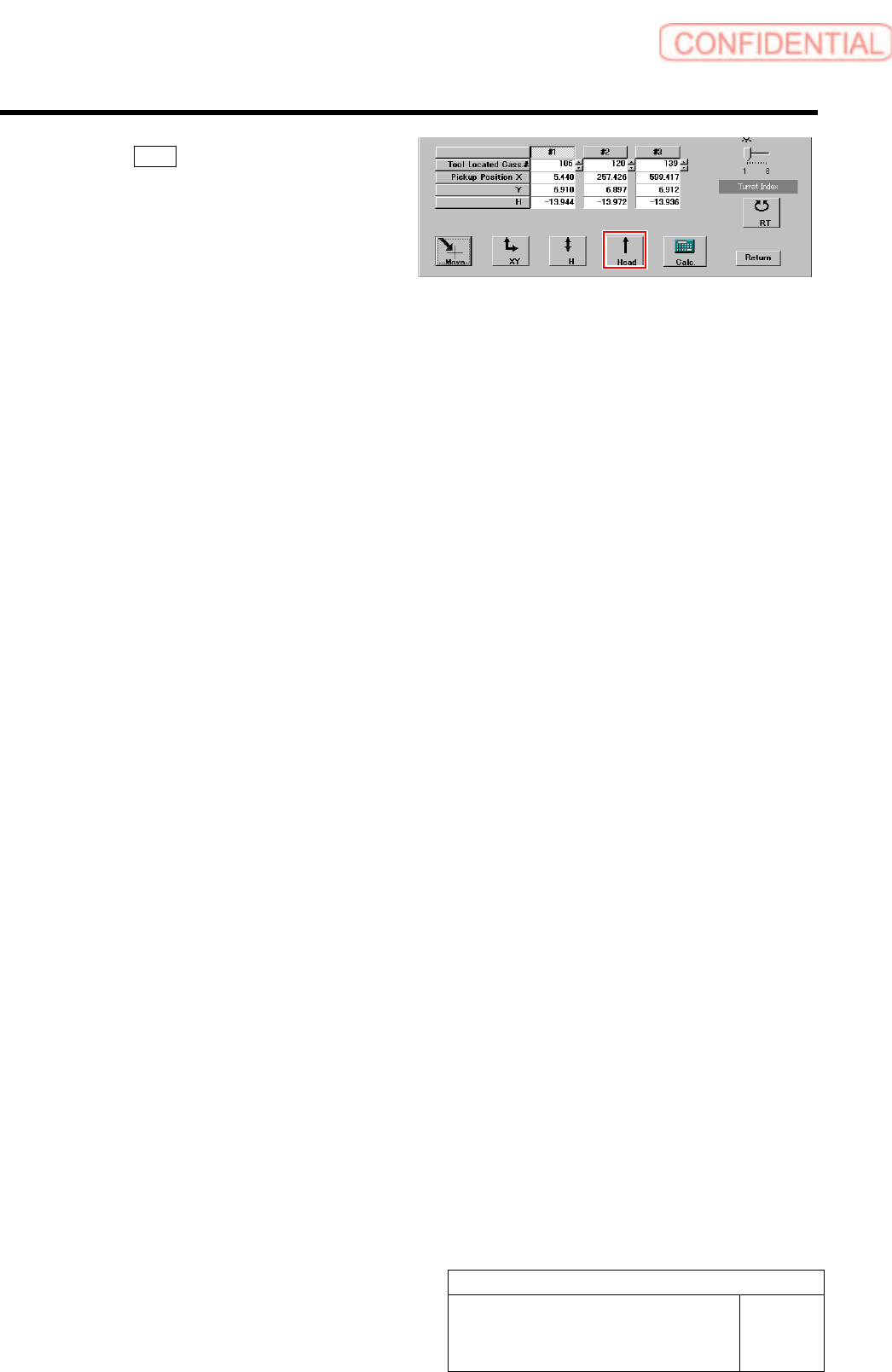
6 Click the Head button to move the head
away from the pickup position.
This is completion of acquiring the XY position data
of Z106.
7 Perform teaching of XY positions on Z120
and Z139 by the same procedure.
Calibration
HLGB-10311-01
Pickup Position Setup
SHEET
7/9
[H Position Data Teaching]
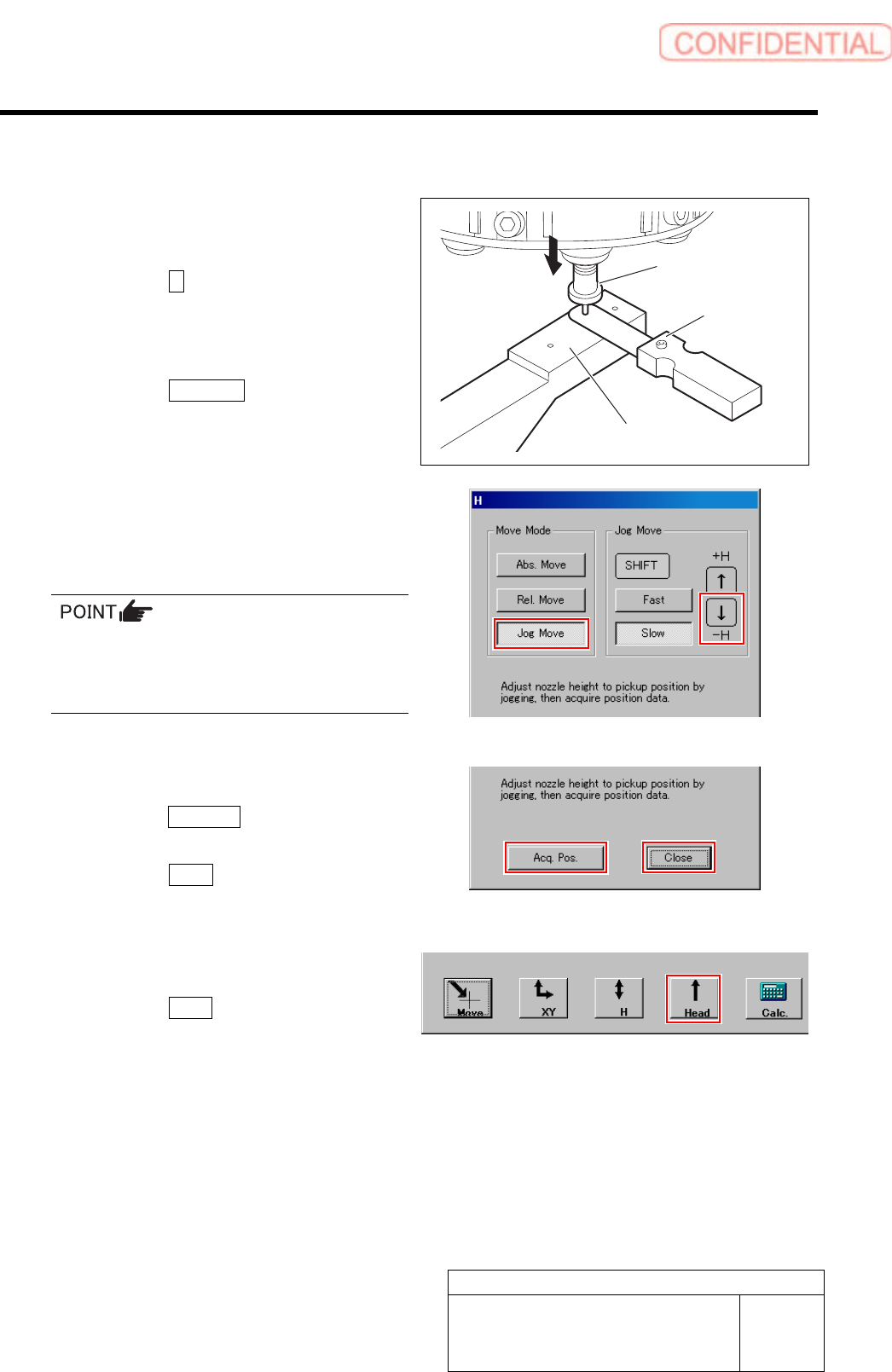
1 Lower the length reference nozzle jig to a
height of 0.03mm above the pickup point jig.
1. Click the H button on the front and
cassette position whole teaching
screen.
H screen is displayed.
2. Click the Jog Move button.
3. Press the downward cursor key to
lower the H axis until the gap between
the length reference nozzle jig and
pickup point jig becomes 0.03mm.
4. Check that thickness gauge of 0.03mm
is inserted into the gap, and thickness
gauge of 0.04mm is not inserted.
・ Use a thickness gauge with the same
thickness as the “spacer thickness” input in
the Front/All Cass. Pos. Teaching by Tools
screen.
2 Acquire the H position after positioning.
1. Click the Acq. Pos. button on the H
screen to acquire H position of Z106.
2. Click the Close button to close H
screen.
3 Move the head away.
1. Click the Head button to move the
head away from the pickup position.
This completes acquiring H position data for
Z106.
Length reference
nozzle jig
Thickness gauge
Pickup point Jig
Calibration
HLGB-10311-01
Pickup Position Setup
SHEET
8/9
4 Perform XY position data teaching and H
position data teaching at Z120 and Z139.
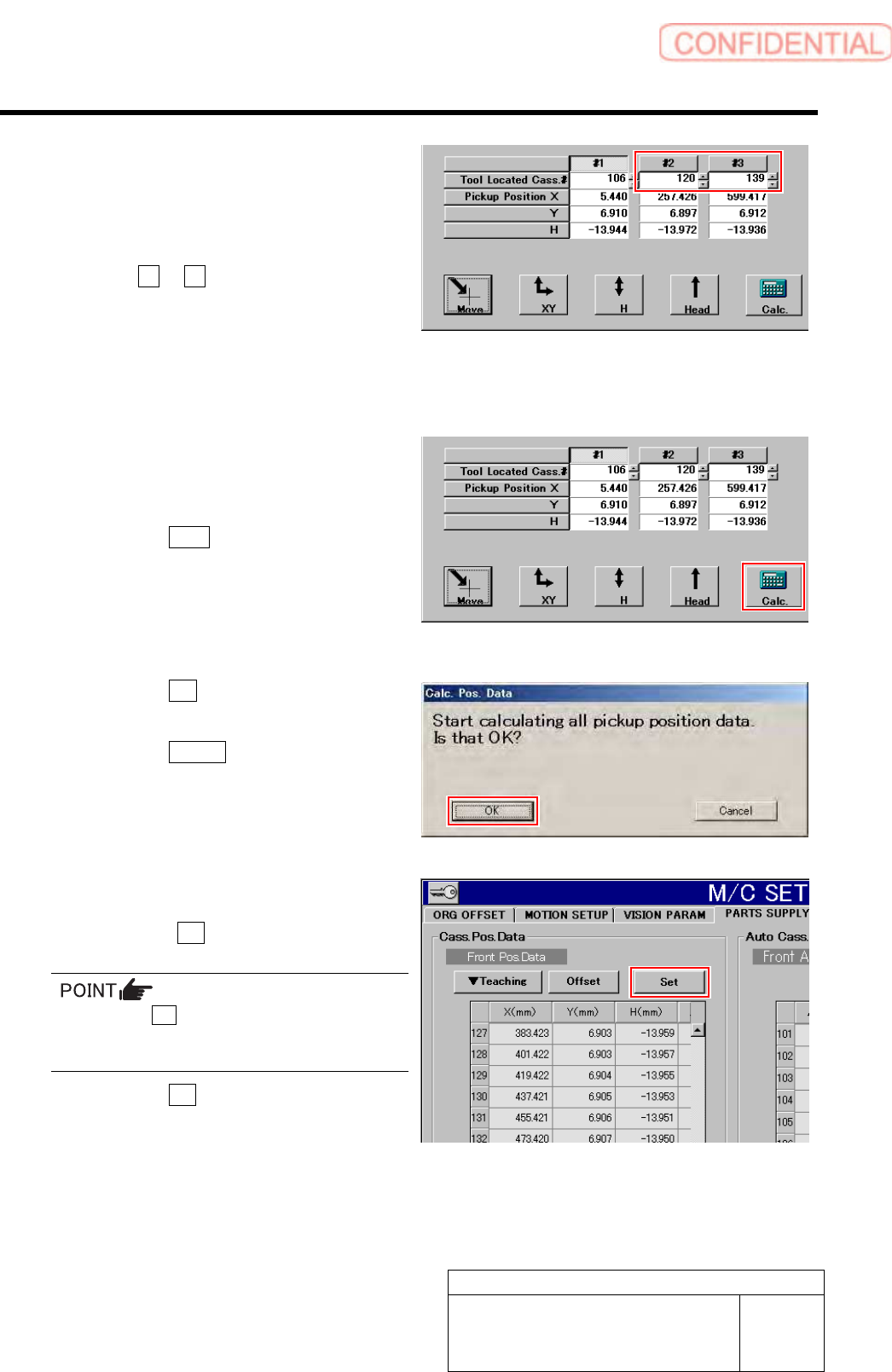
1. Move the pickup point jig to the
positions of Z120 or Z139.
2. Click #2 or #3.
3. Acquire pickup position data of Z120
and Z139 in the same procedure as
those in the “XY Position Data
Teaching” and “H Position Data
Teaching” (procedure 1 to 3).
5 When teaching is ended on three locations
of #1、#2、#3, pickup position coordinate is
calculated.
1. Click the Calc. button.
Confirmation window for calculating position
data.
2. Click the OK button.
Calculation for position data is performed.
3. Click the Return button on the
Front/All Cass. Pos. Teaching by Tools
screen to close the screen.
6 Set the calculated position data.
1. Check the Set button for the Front
Pos. Data is displayed in blue letter.
Unless the Set button is displayed in blue,
position calculation is not performed. Again,
perform “Acq.Pos.” or “Calc.”.
2. Click the Set button.
Confirmation window for setting is displayed.