MAN00000772_SI-G200BB_SVCPDFA.pdf - 第31页
Setting UPS w h e n exchanging h a r d disk WKGB-10103-02 Setting UPS when exchanging hard disk 6/14 10. Click Next butto n. 11. Confirm if Copy ma nufaturer ’ s files from field is filled “C : \ FT232” to click OK butt …
Setting UPS when exchanging hard disk
WKGB-10103-02
Setting UPS when exchanging
hard disk
5/14
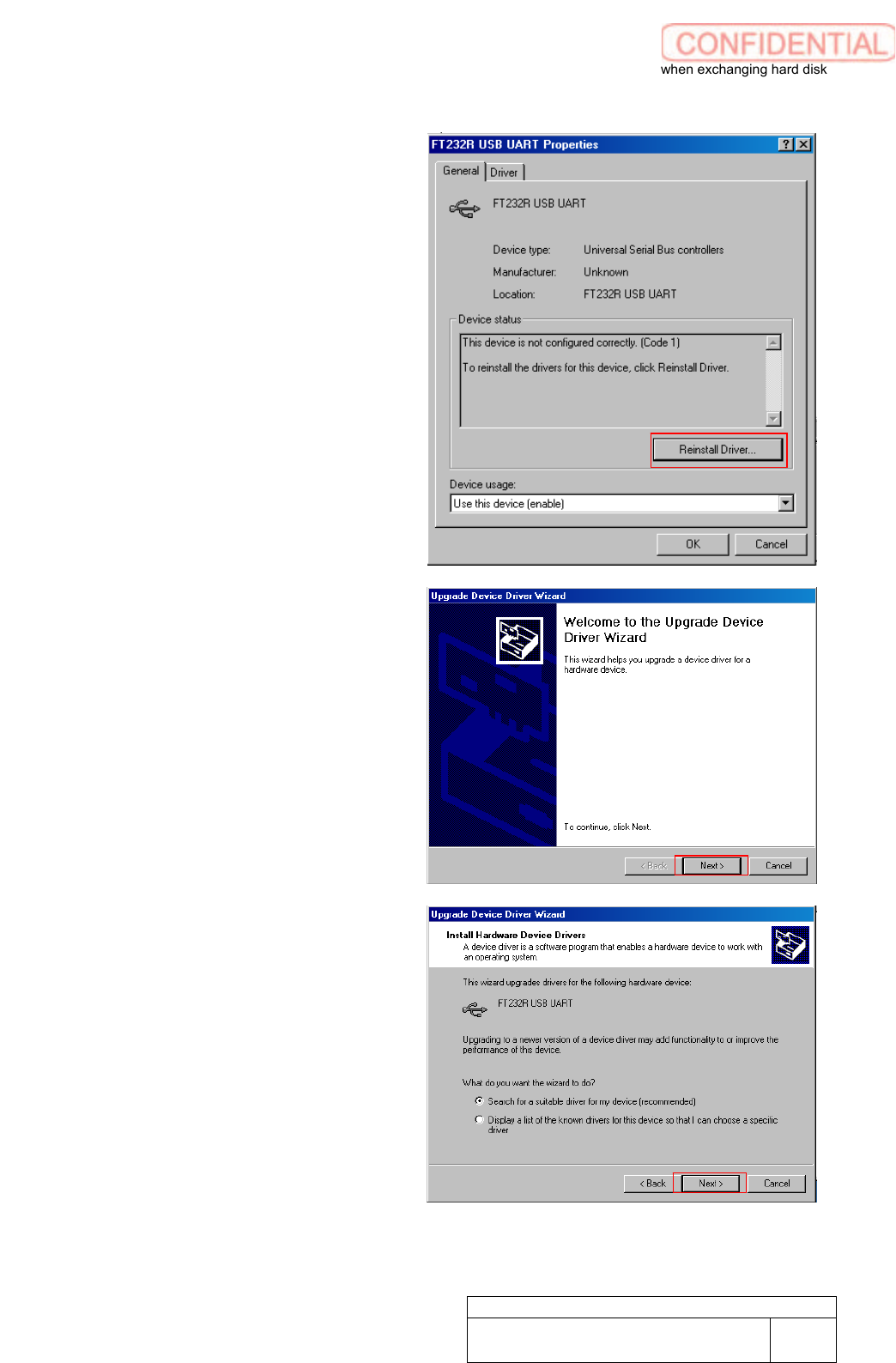
7. Click Reinstall Driver button.
Upgrade Device Driver Wizard screen
appears.
8. Click Next button.
9. Click Next button.
Setting UPS when exchanging hard disk
WKGB-10103-02
Setting UPS when exchanging
hard disk
6/14
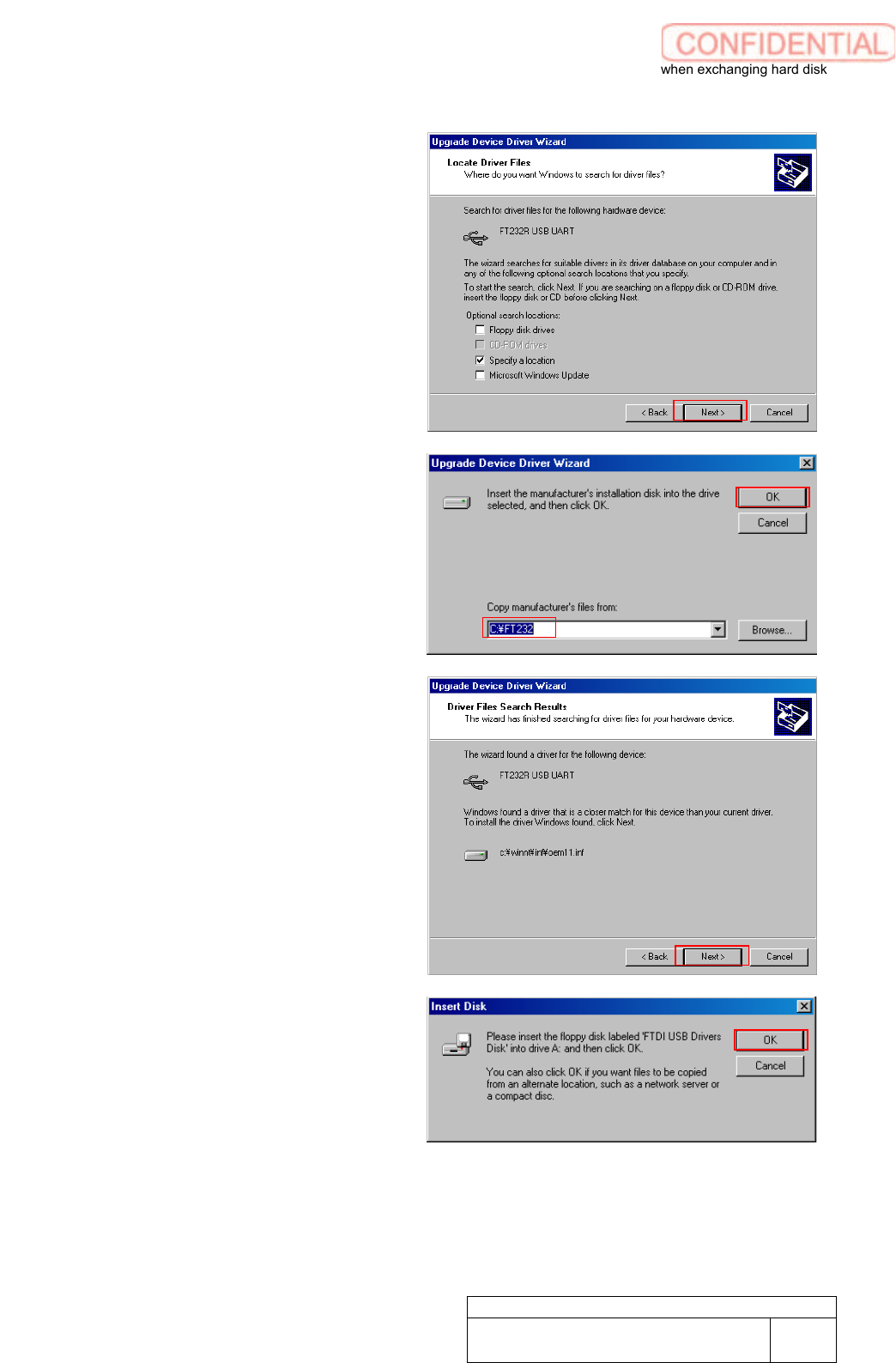
10. Click Next button.
11. Confirm if Copy manufaturer’s files
from field is filled “C:\FT232” to click
OK button.
Driver Files Search Results appears.
12. Click Next button.
Insert Disk screen appears.
13. Click OK button.
Files Needed screen appears.
Setting UPS when exchanging hard disk
WKGB-10103-02
Setting UPS when exchanging
hard disk
7/14
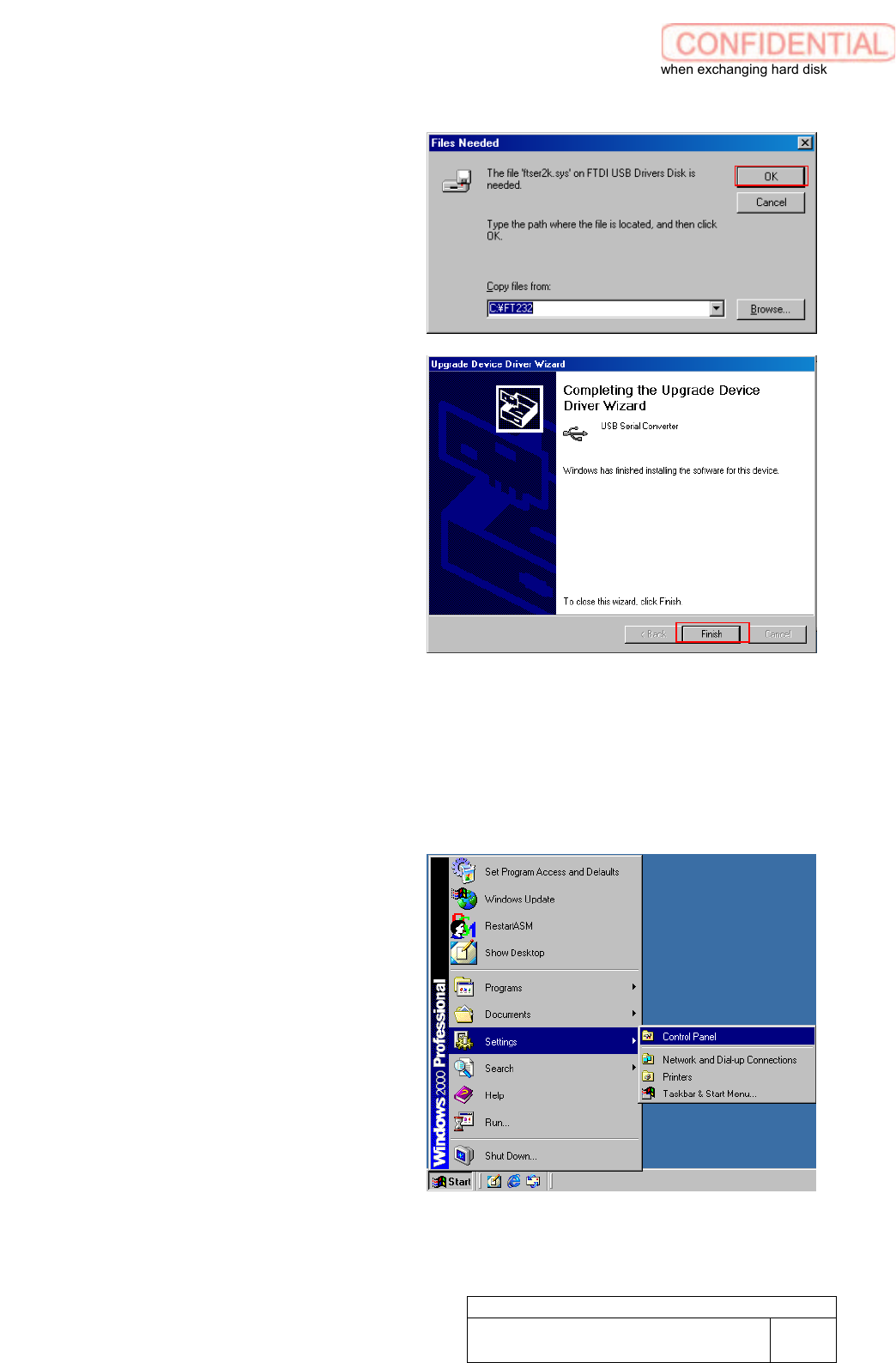
14. Click OK button.
Completing the Upgrade Device
Driver Wizard screen appears.
15. Click Finish button.
16. Close all windows.
[COM PORT setting]
Thi
s work should
be done on the machine
front and rear separately.
1. Open Control Panel. Windows の
Open Control Panel from Windows
Start Menu.