MAN00000772_SI-G200BB_SVCPDFA.pdf - 第7页
Work Procedure WKGB-10101-01 Installin g System Sof tware SHEET 1/8 Inst alling System Software [Procedure] 1 Change the USER LEVEL to “SER VICE”. 1. Click the button on the left up- per of the screen. USER LEVEL screen …

Work Procedure
WKGB-10101-01
Installing System Software
SHEET
1/8
Installing System Software
[Procedure]
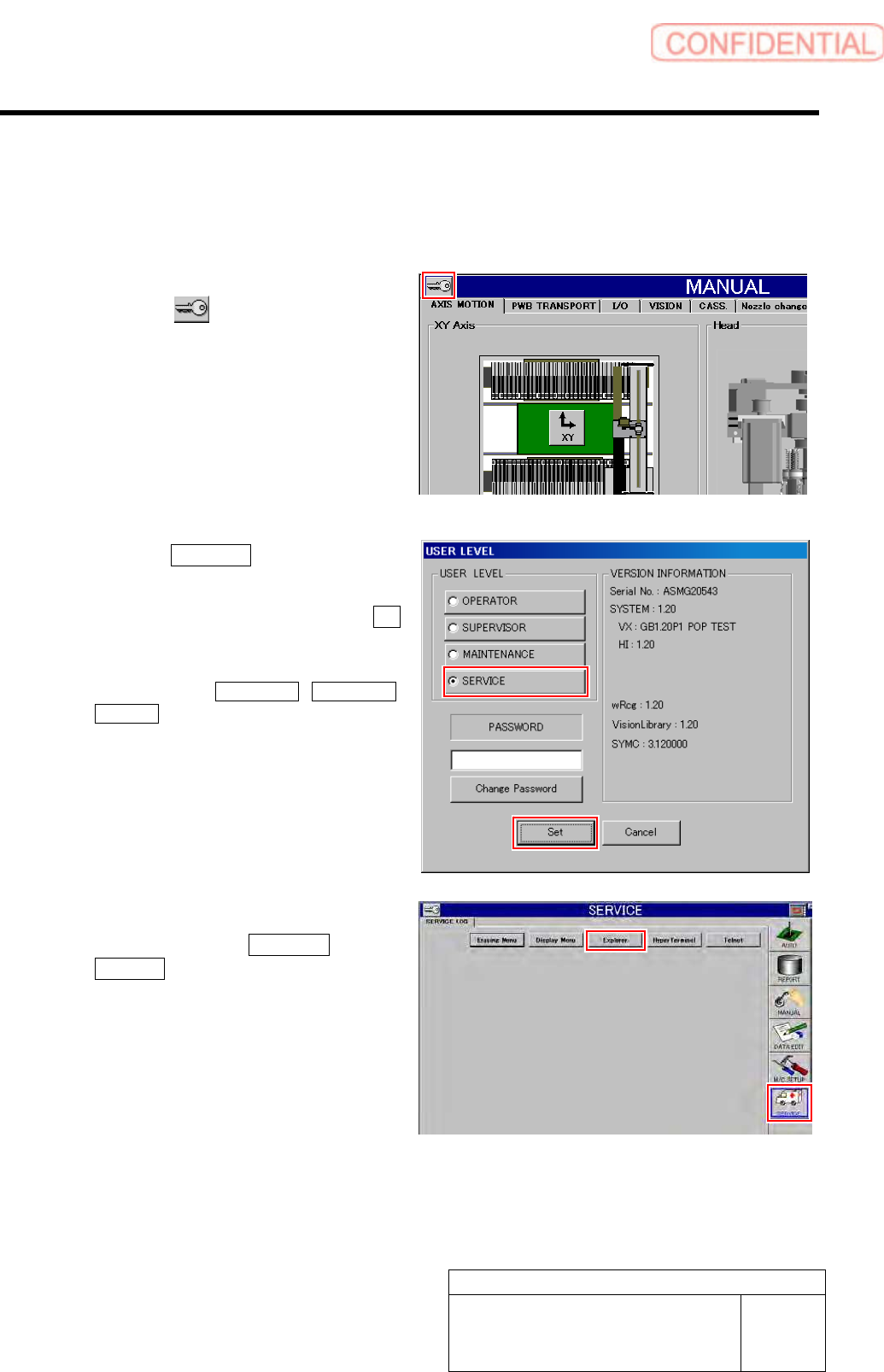
1 Change the USER LEVEL to “SERVICE”.
1. Click the
button on the left up-
per of the screen.
USER LEVEL screen is displayed.
2. Click the SERVICE button.
A cursor appears on a PASSWORD entry space.
3. Enter the password and click the Set
button.
The screen returns to HI screen and respective
menu buttons of DATA EDIT, M/C SETUP,
SERVICE appear on the right of the screen.
2 Display the USER LEVEL screen.
1. Click in an order of SERVICE menu
Explorer button.
Explorer screen is displayed.
Work Procedure
WKGB-10101-01
Installing System Software
SHEET
2/8
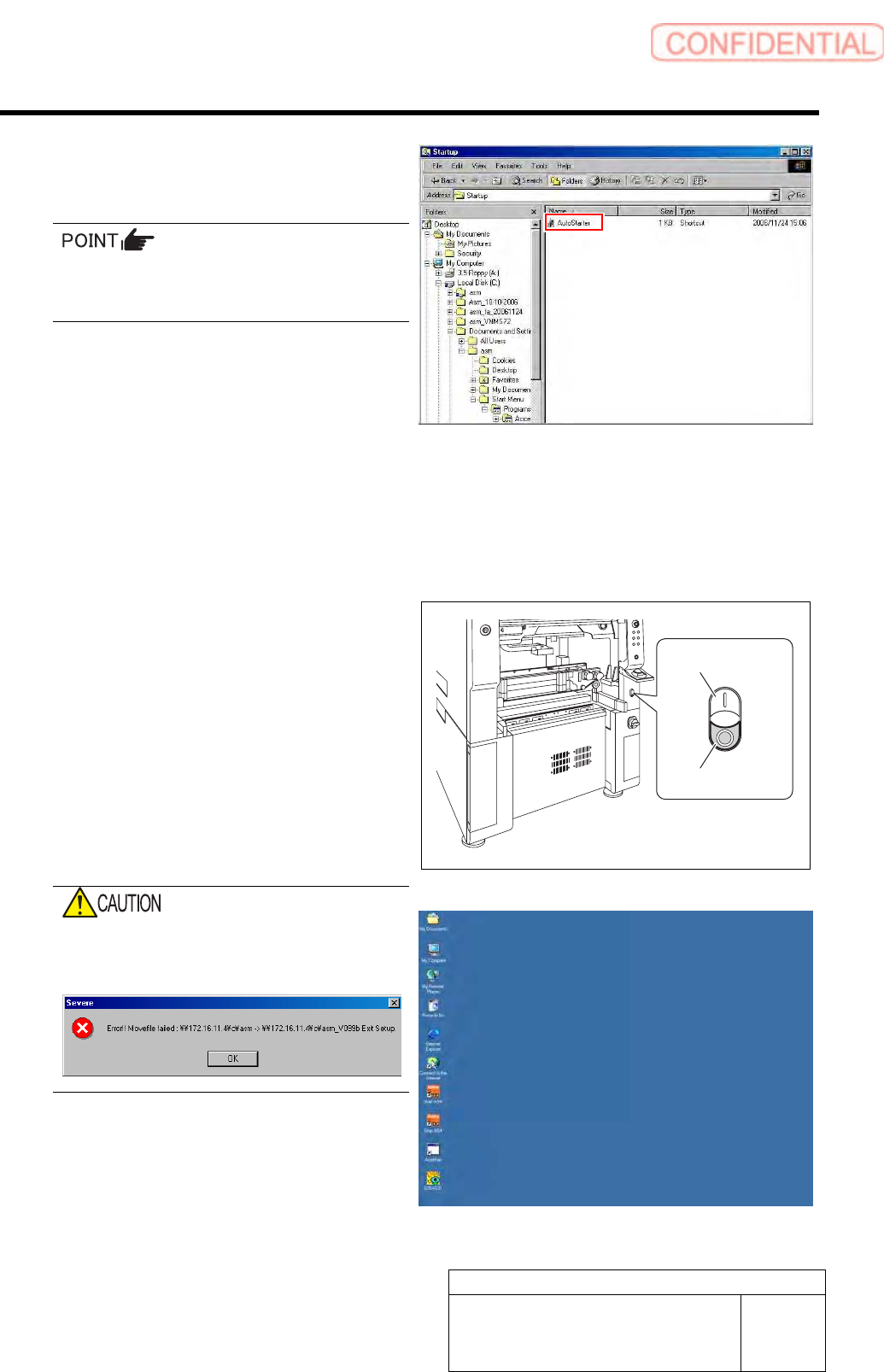
3 Move the “AutoStarter” of shortcut file to the
other folder which cannot be rewritten by the
installer.
This working is a risk measure when install is
failed. Delete the shortcut in the moving des-
tination after version up.
1. Move the “AutoStarter” file to the
other folder which cannot be rewritten
by the installer from the C:¥Document
andSetting¥asm¥StartMenu
¥Programs¥startup in the front PC.
2. Move the “AutoStarter” file to the
other folder which cannot be rewritten
by the installer from the C:¥Document
andSetting¥asm¥StartMenu
¥Programs¥startup in the rear PC.
4 Re-start the unit.
1. Close the explorer window.
2. Press the power off switch.
Shutting down of the system starts and the power
is automatically shut off.
3. Press the power on switch.
Only Windows screen is started.
If the HI screen, soft key board start, camera im-
age is not moved. Move the “AutoStarter” file to
the other folder to restart the unit.
If install is performed in s state that the HI
screen, soft key board start, camera image
are started, error occurs.
Windows screen
Power on switch
Power off switch