MAN00000772_SI-G200BB_SVCPDFA.pdf - 第9页
Work Procedure WKGB-10101-01 Installin g System Sof tware SHEET 3/8 5 Connect the local PC through network to connect it to the front side PC body . I n a n e n v i r o n m e n t i n w h i c h P C c a n n o t b e brought…
Work Procedure
WKGB-10101-01
Installing System Software
SHEET
2/8
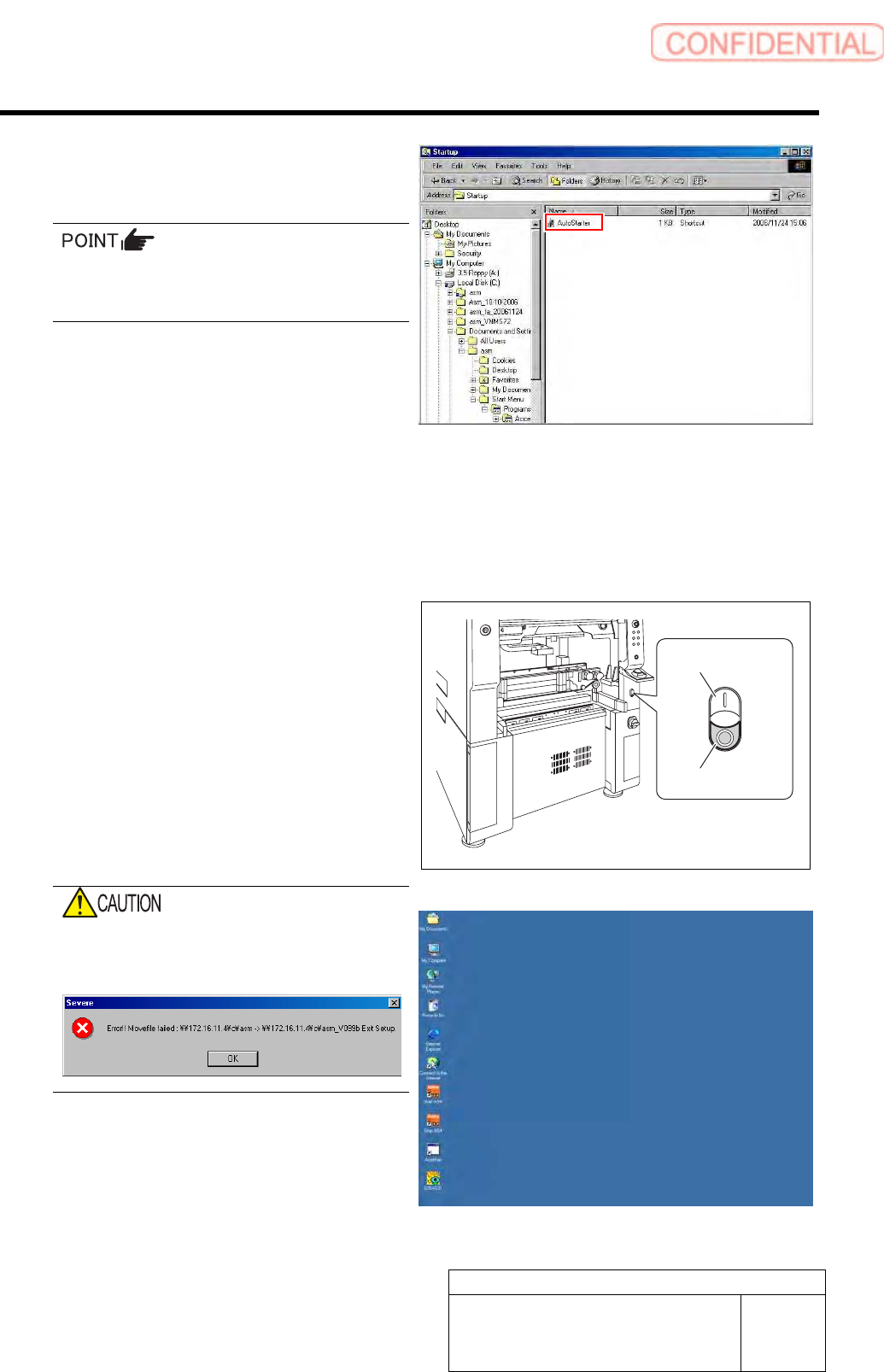
3 Move the “AutoStarter” of shortcut file to the
other folder which cannot be rewritten by the
installer.
This working is a risk measure when install is
failed. Delete the shortcut in the moving des-
tination after version up.
1. Move the “AutoStarter” file to the
other folder which cannot be rewritten
by the installer from the C:¥Document
andSetting¥asm¥StartMenu
¥Programs¥startup in the front PC.
2. Move the “AutoStarter” file to the
other folder which cannot be rewritten
by the installer from the C:¥Document
andSetting¥asm¥StartMenu
¥Programs¥startup in the rear PC.
4 Re-start the unit.
1. Close the explorer window.
2. Press the power off switch.
Shutting down of the system starts and the power
is automatically shut off.
3. Press the power on switch.
Only Windows screen is started.
If the HI screen, soft key board start, camera im-
age is not moved. Move the “AutoStarter” file to
the other folder to restart the unit.
If install is performed in s state that the HI
screen, soft key board start, camera image
are started, error occurs.
Windows screen
Power on switch
Power off switch
Work Procedure
WKGB-10101-01
Installing System Software
SHEET
3/8
5 Connect the local PC through network to
connect it to the front side PC body.
In an environment in which PC cannot be
brought in, put installer file into the USB
memory, and connect to the USB port in the
front side PC.
In this case, use the USB memory only for the
installer, and do not put the other files into the
USB memory.
6 Install a system software into the front side
PC.
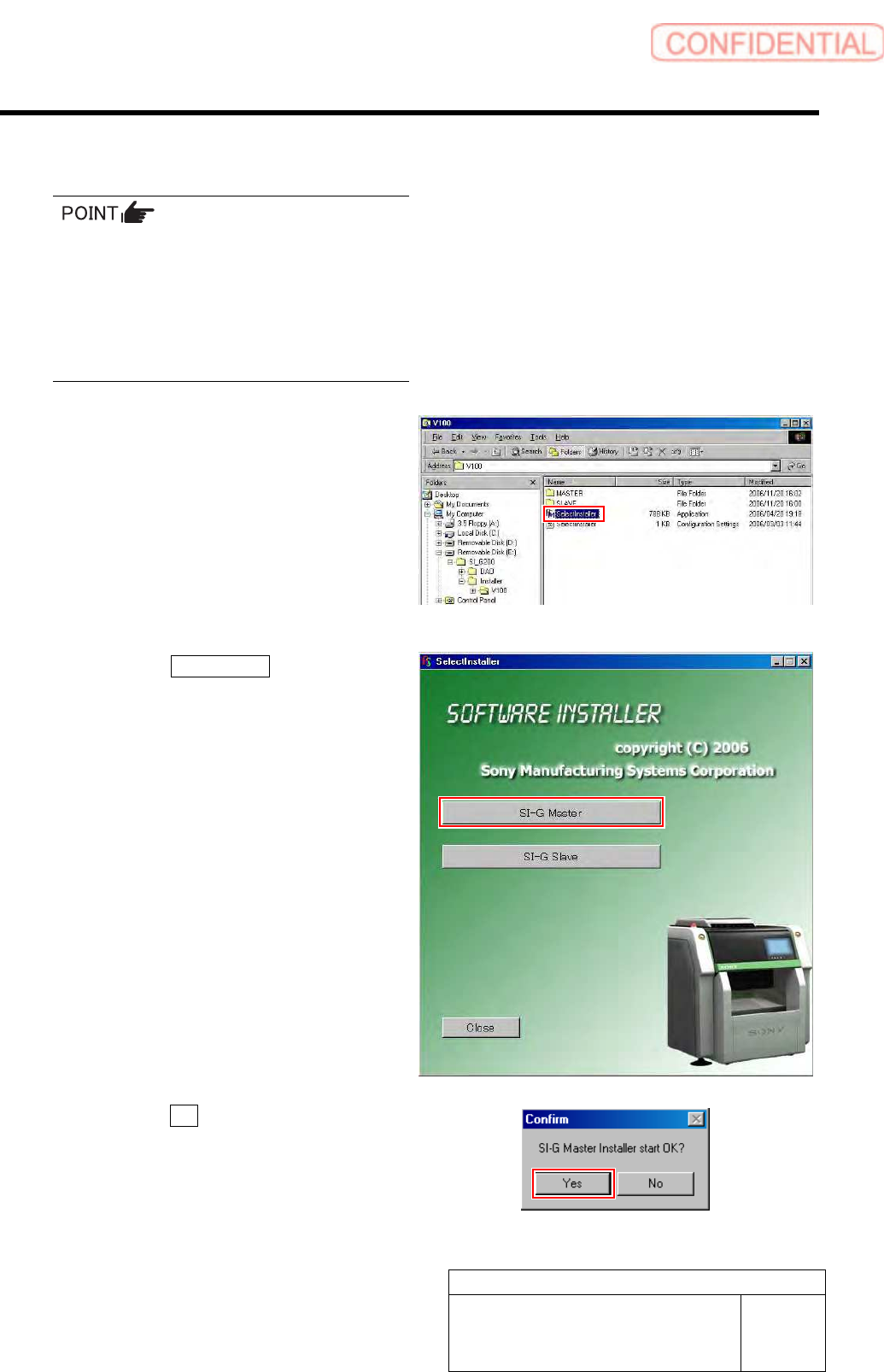
1. Double-click the “SerectInstaller” file.
An installer screen appears.
2. Click the SI-G Master button.
Confirm dialog box is displayed.
3. Click the Yes button on the Confirm
dialog box.
Work Procedure
WKGB-10101-01
Installing System Software
SHEET
4/8
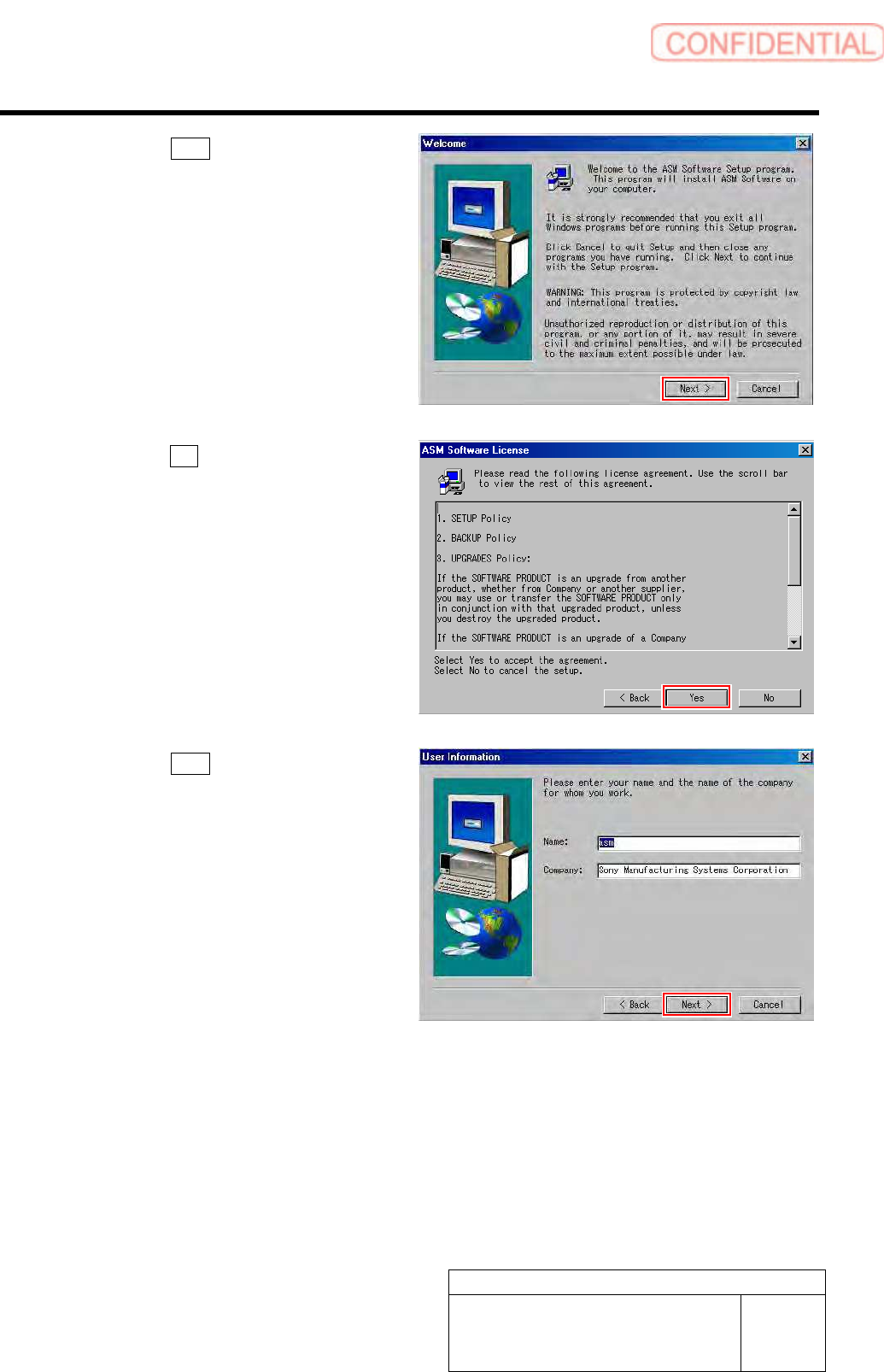
4. Click the Next button on the Welcome
screen.
5. Click the Yes button on the ASM
Software License screen.
6. Click the Next button on the User In-
formation screen.