TR7500_Series_Software_ch-v5-0-0.pdf - 第523页
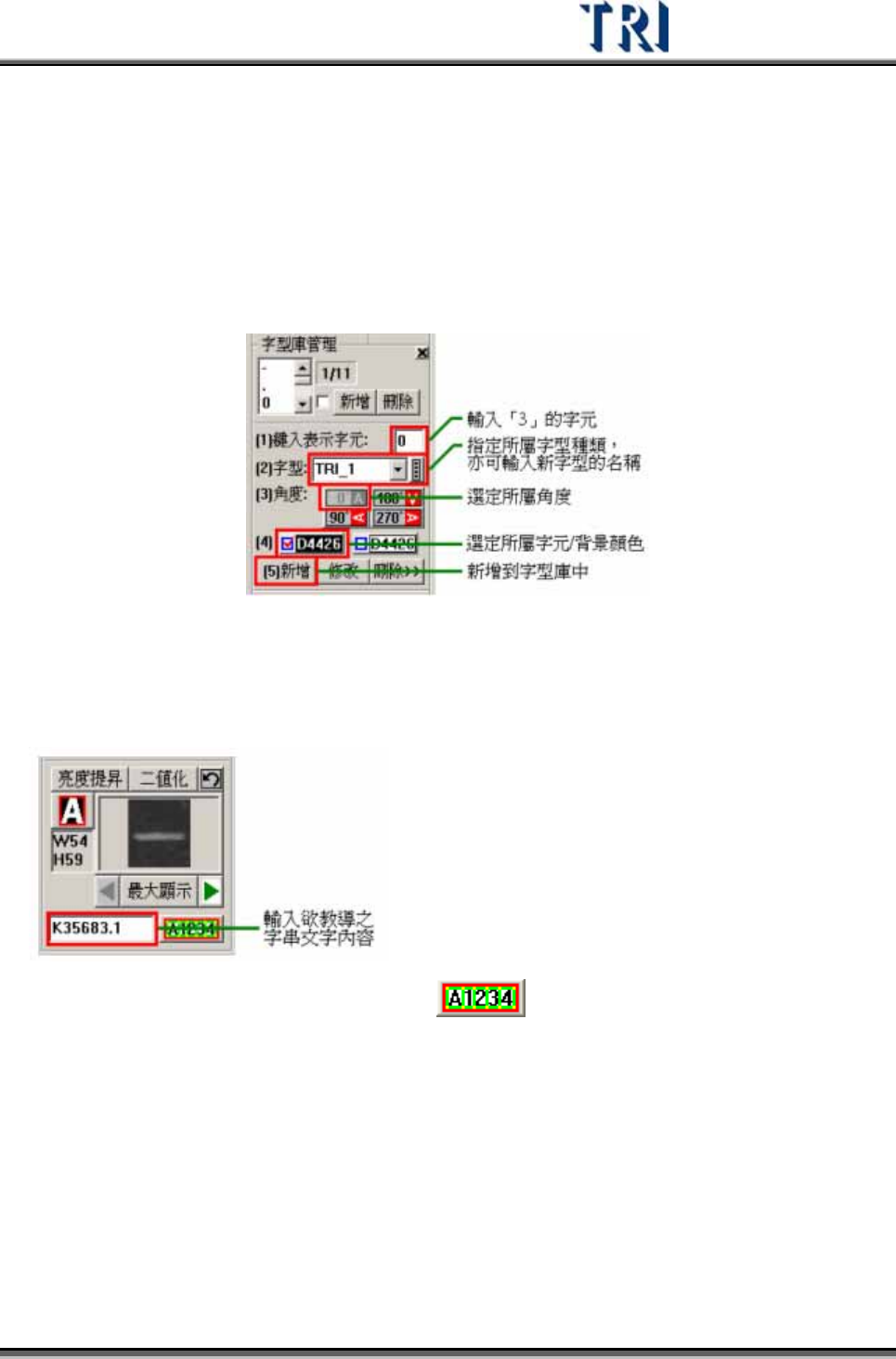
Test Research Inc. TRI 7500 Series User Gu ide – Software 511 3) Input the character definition 4) Input font type 5) Input angle 6) Select the character and background color. (Black ground white string or …
510 TR7600UserGuide–Software
1) 按下字型教導框按鈕 。
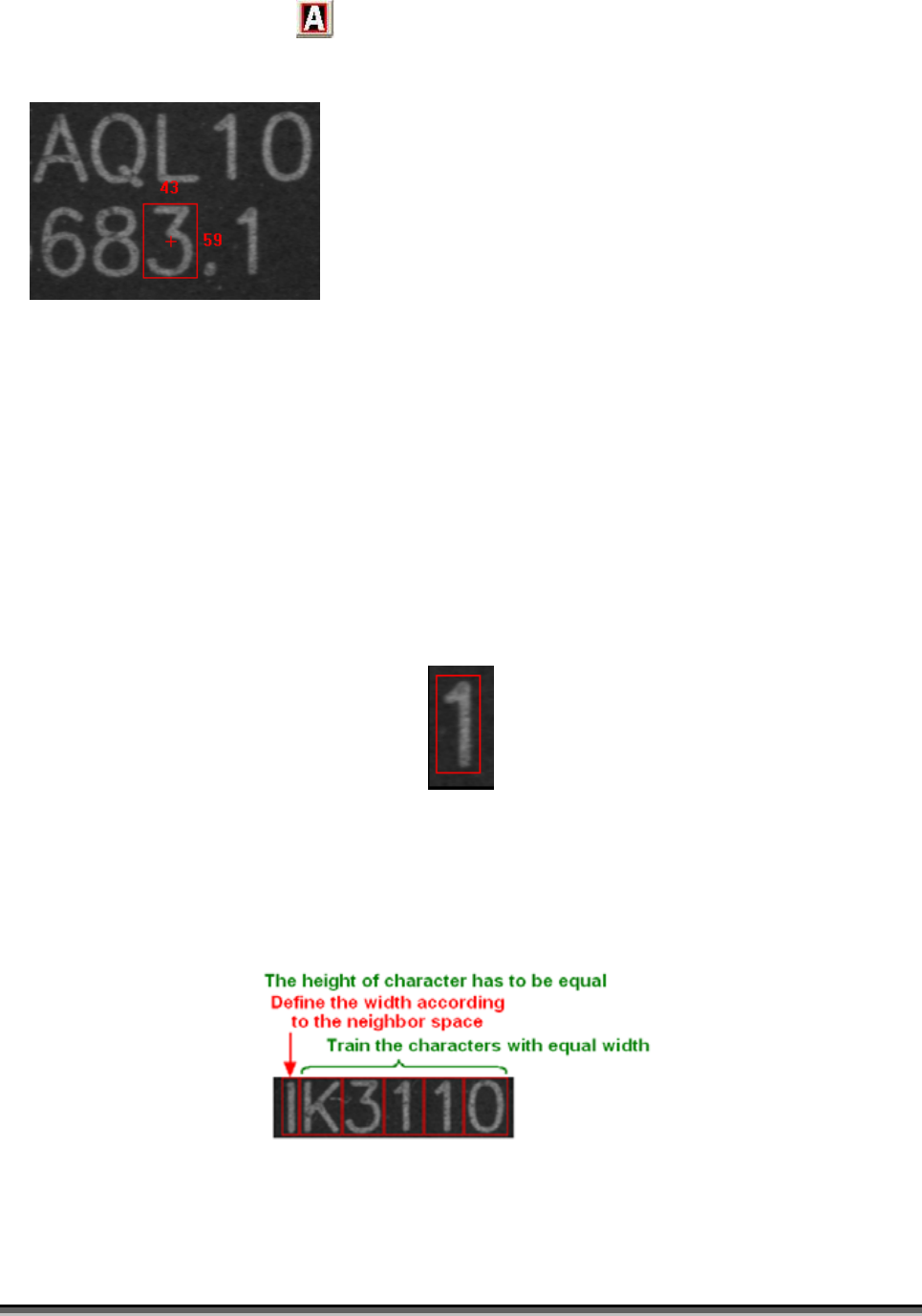
2) Adjust the size of font training frame.
The standard of size:
D. Train all characters with same height. For example, the heights of the
characters on image above are all 59.
E. Train the characters which have same angle in same size, such as the
characters above are W=43, H=59.
F. Reserve the space on both left and right sides for thin characters.
G. The numbers, “023456789” are normal width otherwise “1” belong to thin
character. So it’s better to reserve the space and have the same size with
other characters for “1” image. The following picture shows the situation.
H. The English characters, except the characters with normal width, “Q” and
“W” belong to the wilder characters, it needs to be enlarged the width when
training; “I” and the other small letters are like the thin characters. But it
also has to divide the characters according the real situation.
Test Research Inc.
TRI7500SeriesUserGuide–Software 511
3) Input the character definition
4) Input font type
5) Input angle
6) Select the character and background color. (Black ground white string or
reversed)
7) Press [Add] to add a new font.
Teach Multi Font
8) Input the string that has to be taught font.
9) Press the multi font teaching button
.
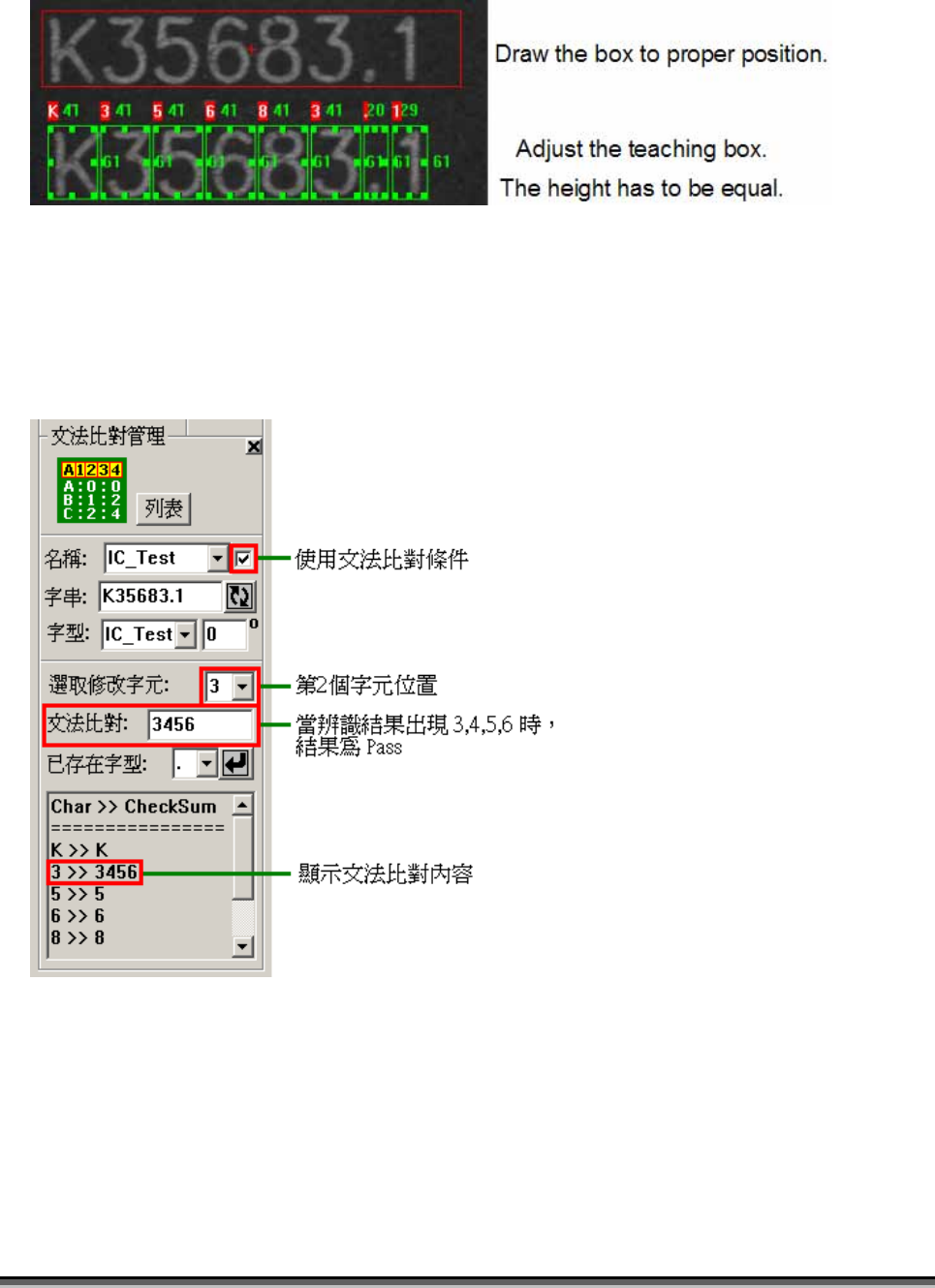
10) Locate the teaching box individually.
11) Input the font.
12) Input the angle.
13) Select the character and background color. (Black ground white string or
reversed)
14) Press [Add] to add a new font.
512 TR7600UserGuide–Software
5.3.2 CheckSum
文法比對條件管理
After training the system defines every character checksum condition. The default is
the character itself. You can add several conditions to be the base for “Pass” or “Fail”.
The default setting for the function is disabled.
Modify the content of date code