WaferTransportSolutionManual.pdf - 第112页
INSTALLATION EQUIPMENT INSTALLATION 3.36 Wafer Transport Solutio n Chapter Issue 1 Aug 11 Automatic Load In this mode of operatio n t he CHAD Handler has wafers pre-loaded into the system. The pallet is placed in the tr …
INSTALLATION
EQUIPMENT INSTALLATION
Chapter Issue 1 Aug 11 Wafer Transport Solution 3.35
6. The green power lamp is ON.
7. Press the green ON button. The vacuum pins raise.
8. Load the first production wafer onto the pins.
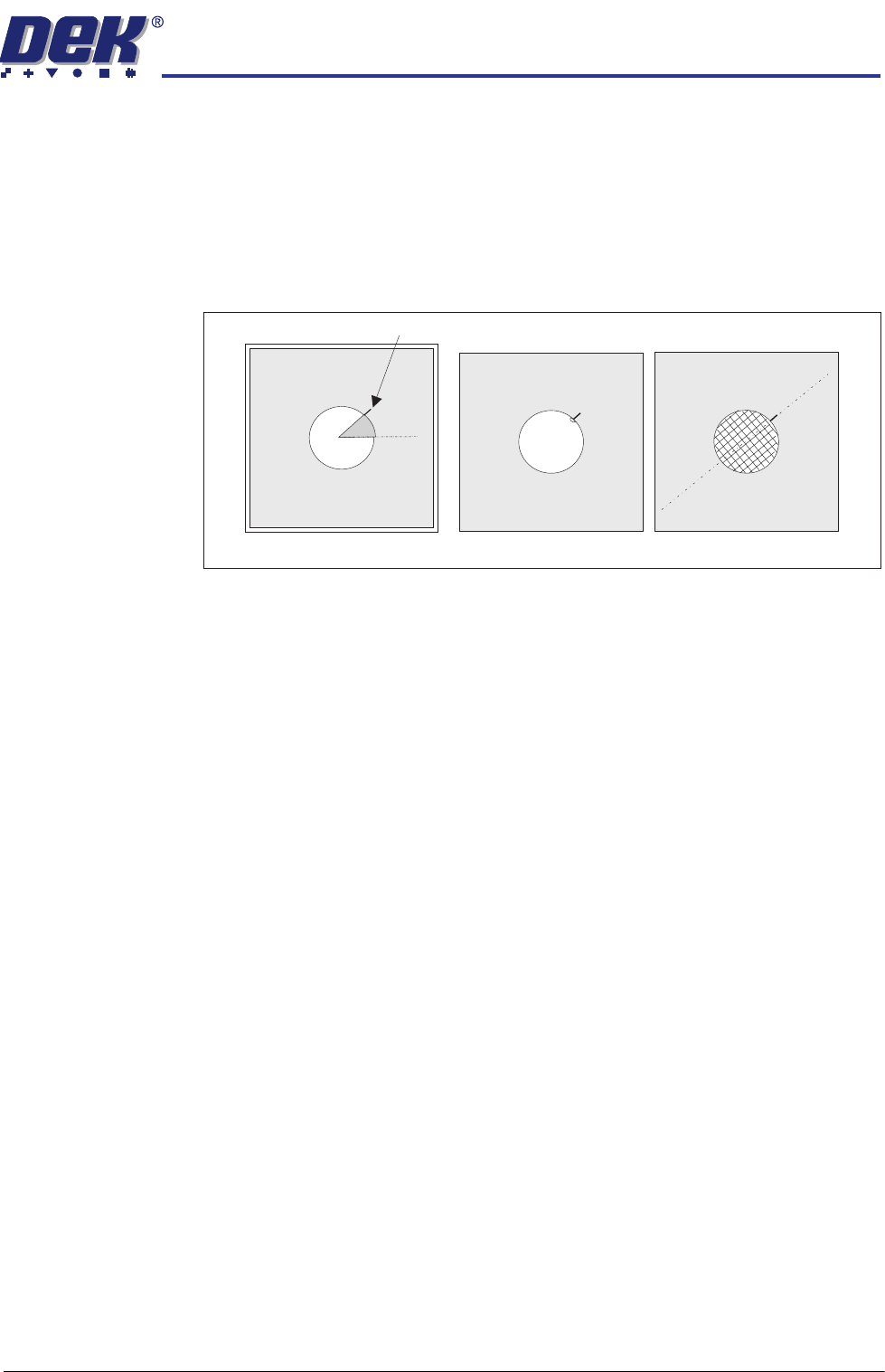
9. Users can decide the alignment options; however, DEK suggest following
the procedure below:
a. Make an alignment mark, on the shim, measured 45 degrees above
horizontal as shown.
b. Align the wafer notch or pattern to the alignment mark.
10. Close the front cover.
11. Press PLATE Vacuum. The Plate Vacuum button light is ON. The pins
retract. Shim vacuum holds the shim in place.
12. Press START Vacuum. The Start Vacuum button light is ON. The pallet
moves to the selected conveyor output. If the printer is ready to demand a
product, the pallet transfers into the printer.
13. After printing, the pallet transfers back to the NUTEK Linking Conveyor.
NOTE
If the process is to continue with another printer, the mode switch is set to
position two. If the process has been set up for same side return, the mode
switch is set to one or three.
14. If the keyswitch is set to Mode 1 or 3 the front cover can be opened. The
printed wafer is removed and a blank wafer is loaded. If the keyswitch is set
to mode 2 the pallet is transferred to the ball placement printer for process-
ing. On completion, the pallet is returned to the transfer station
15. Remove the wafer and restart the cycle for the next wafer.
16. The print quality can be monitored in the printer as part of its production
cycle. Software that is available to do this includes: Statistical Process
Control (SPC), 2D inspection™, HawkEye™ and HawkEye Bridging™.
External inspection systems include Sentinel™. Contact DEK for advice on
the best option for the application.
Wafer Notch Aligned Wafer Pattern Aligned
45
0
Alignment Mark
45
0
INSTALLATION
EQUIPMENT INSTALLATION
3.36 Wafer Transport Solution Chapter Issue 1 Aug 11
Automatic Load In this mode of operation the CHAD Handler has wafers pre-loaded into the
system. The pallet is placed in the transport rails and wafers are loaded using
a robotic arm.
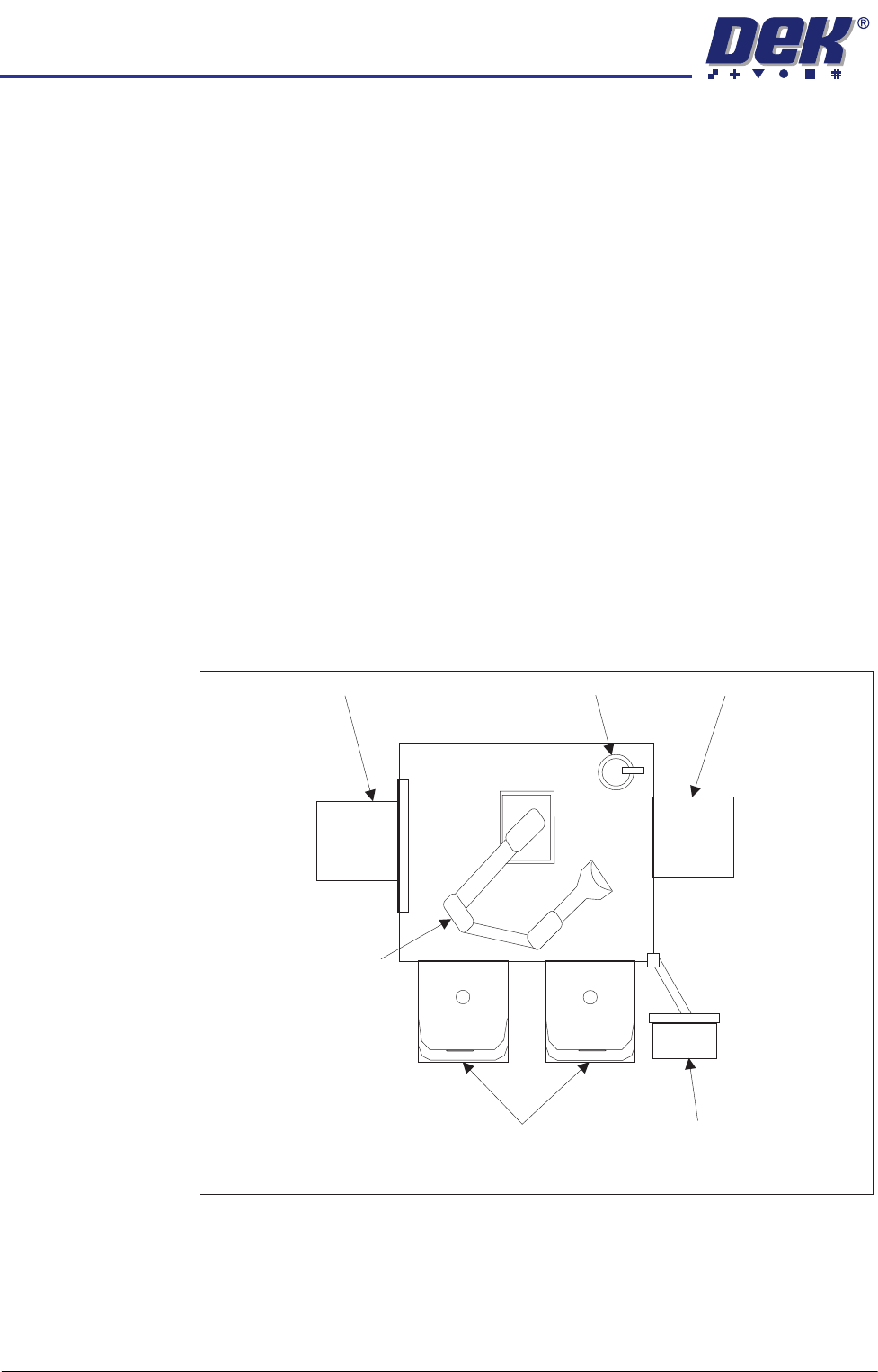
There are two CHAD Handlers:
• WaferMate 300-2 handling wafers from 200mm to 300mm diameter.
• WaferMate 200-3 handling wafers from 125mm to 200mm diameter.
Both systems provide a pair of front loading FOUP’s (Wafer Stacks). They
each have a four axis robotic arm which, dependent upon configuration,
provide wafer handling to one or two DEK printers.
1. Turn the mains isolator ON.
2. Wafers loaded in the FOUP's are picked out of the stack by the robotic arm.
3. The arm places the wafer into the aligner which spins it to detect the wafer
slot or notch position.
4. Once aligned, the wafers are loaded into pallets where they are fed into the
flux printer.
5. After printing, the pallet is fed back into the transfer station, through the
handler’s centre section and out to the opposite side transfer station, for
transfer to the ball placement printer.
Figure 3-10 CHAD Handler Overview
6. The print quality can be monitored in the printer as part of its production
cycle. Software that is available to do this includes: Statistical Process
Control (SPC), 2D inspection™, HawkEye™ and HawkEye Bridging™.
External inspection systems include Sentinel™. Contact DEK for advice on
the best option for the application.
WaferMate Layout
FOUPs
MMI
Transfer Station
Aligner
Four-axis Robotic Arm
Transfer Station

A3 DRAWINGS
ELECTRICAL DRAWINGS
Chapter Issue 1 Apr 11 Wafer Transport Solution 4.1
CHAPTER 4 A3 DRAWINGS
ELECTRICAL DRAWINGS
Electrical
Description Drawing No. Sheets Issue State
Circuit Thin Wafer Handling 200483 1 02