WaferTransportSolutionManual.pdf - 第31页
HEAVY PALLET RAILS ADJUST MENTS & SE TTINGS Chapter Issue 1 August 11 Wafer Transport Solutio n 1.23 16. Using the adjustment screw , pivot the beam about the left hand side until the setting bar is parallel to the c…
HEAVY PALLET RAILS
ADJUSTMENTS & SETTINGS
1.22 Wafer Transport Solution Chapter Issue 1 August 11
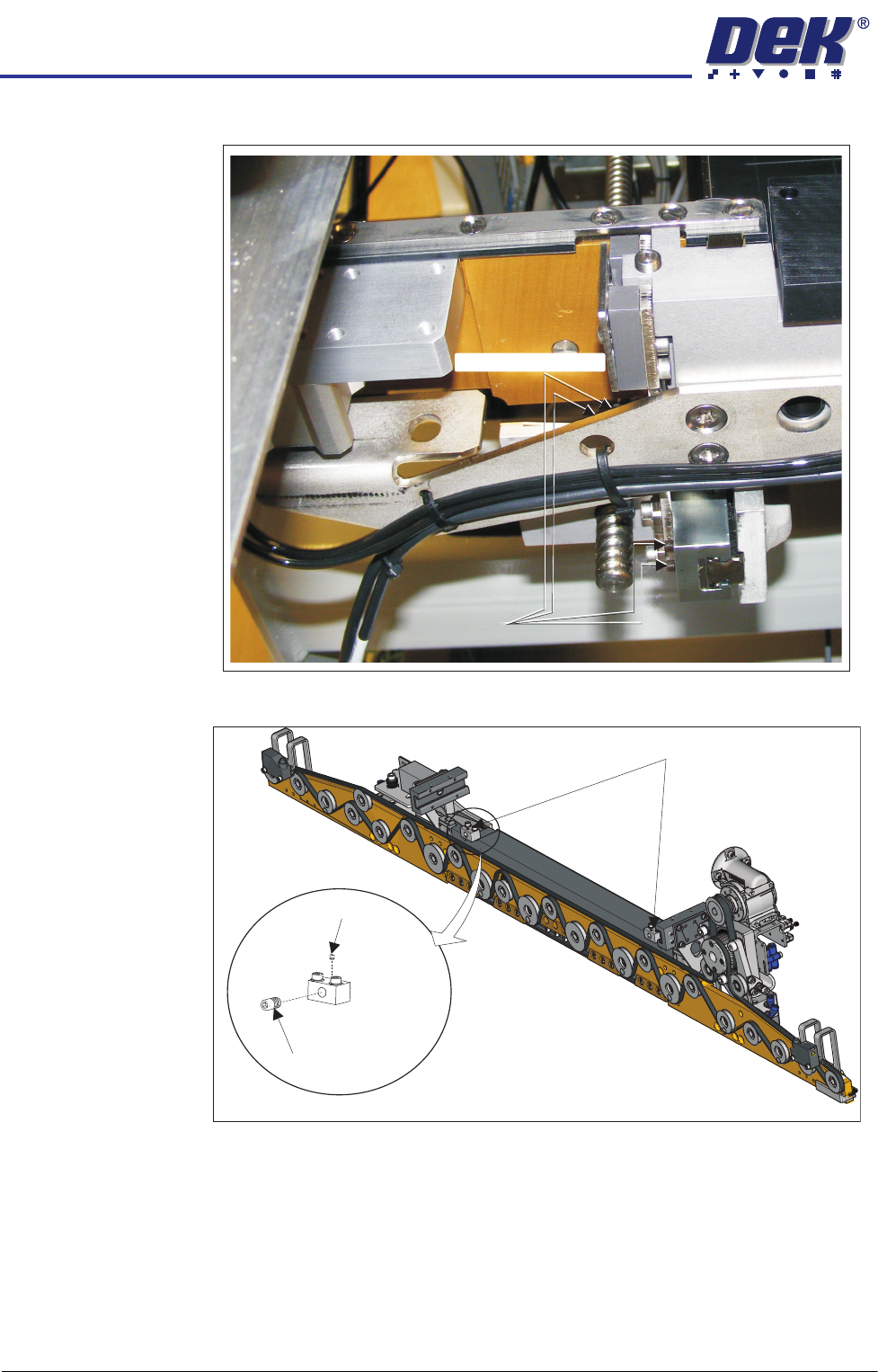
14. Release the four left hand bearing mount grubscrews.
15. Loosen the right-hand adjuster block locking grubscrew.
Grubscrews
Grubscrews (at rear)
View on Underside of the Front Rail
Adjuster Blocks
Locking
Grubscrew
Adjustment
Screw
HEAVY PALLET RAILS
ADJUSTMENTS & SETTINGS
Chapter Issue 1 August 11 Wafer Transport Solution 1.23
16. Using the adjustment screw, pivot the beam about the left hand side until the
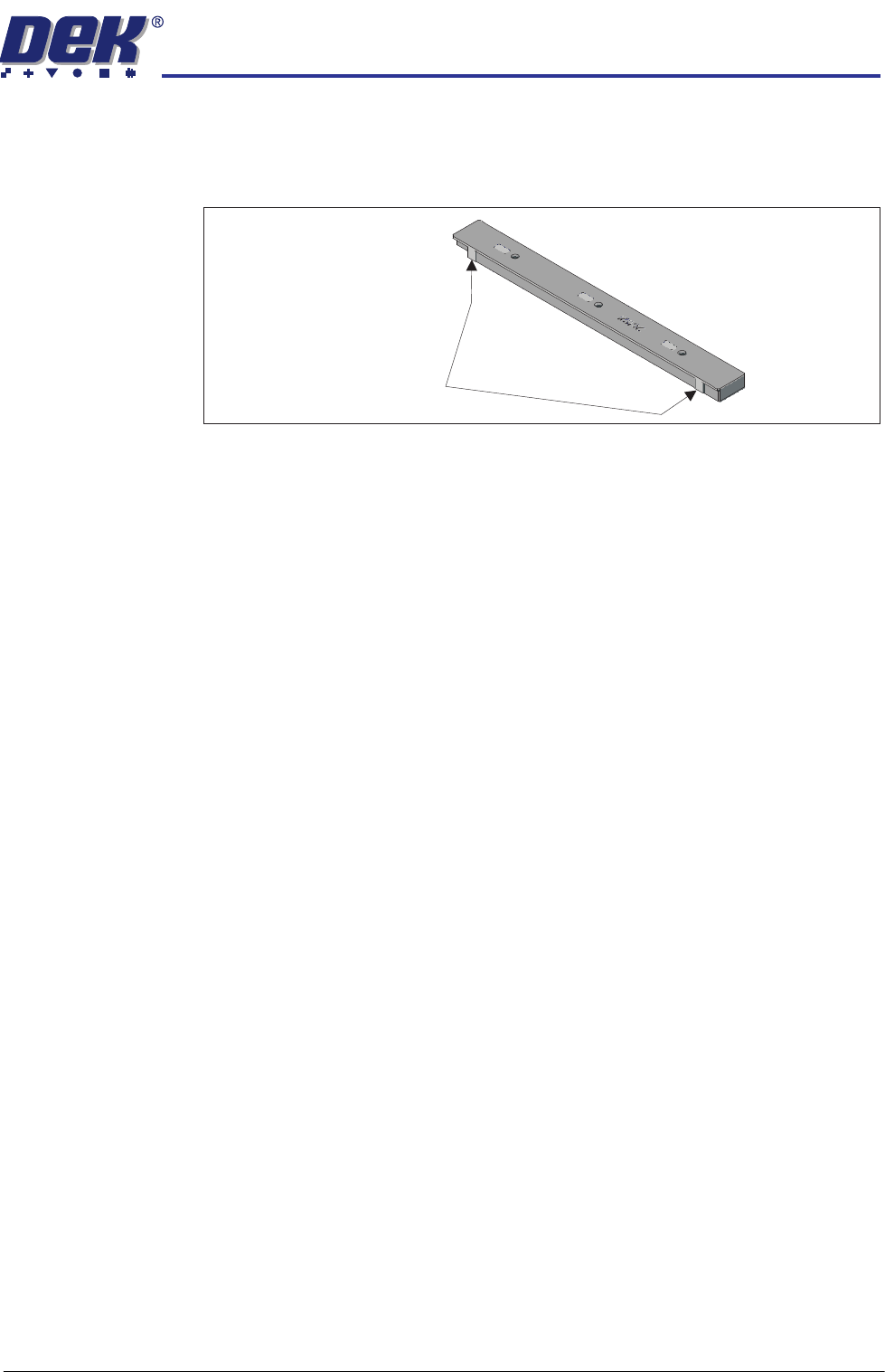
setting bar is parallel to the camera; measured at the two setting bar test
faces as shown below. Use an 0.05mm feeler gauge to test the alignment
of the rail to the camera beam.
17. If the adjuster block needs to be adjusted, release the locking grubscrew
and unscrew the adjustment screw. Lock the correct position: 44mm, with
the locking grubscrew.
18. Lock the adjustment block locking grubscrews.
19. Recheck the rail parallelism.
20. Move the camera beam to the centre; remove the setting bar and tooling
pins.
21. Close the front printhead cover.
22. Press the System button.
23. Select Exit.
24. Select Back.
25. Ensure that the side panel is refitted to the machine and move the machine
back into line.
Setting Bar Test Faces
HEAVY PALLET RAILS
ADJUSTMENTS & SETTINGS
1.24 Wafer Transport Solution Chapter Issue 1 August 11
Rear Rail Alignment 1. On the user interface navigate to the Diagnostics page.
2. Select Rail System.
3. Drive the rail to 250mm.
4. Open the front printhead cover.
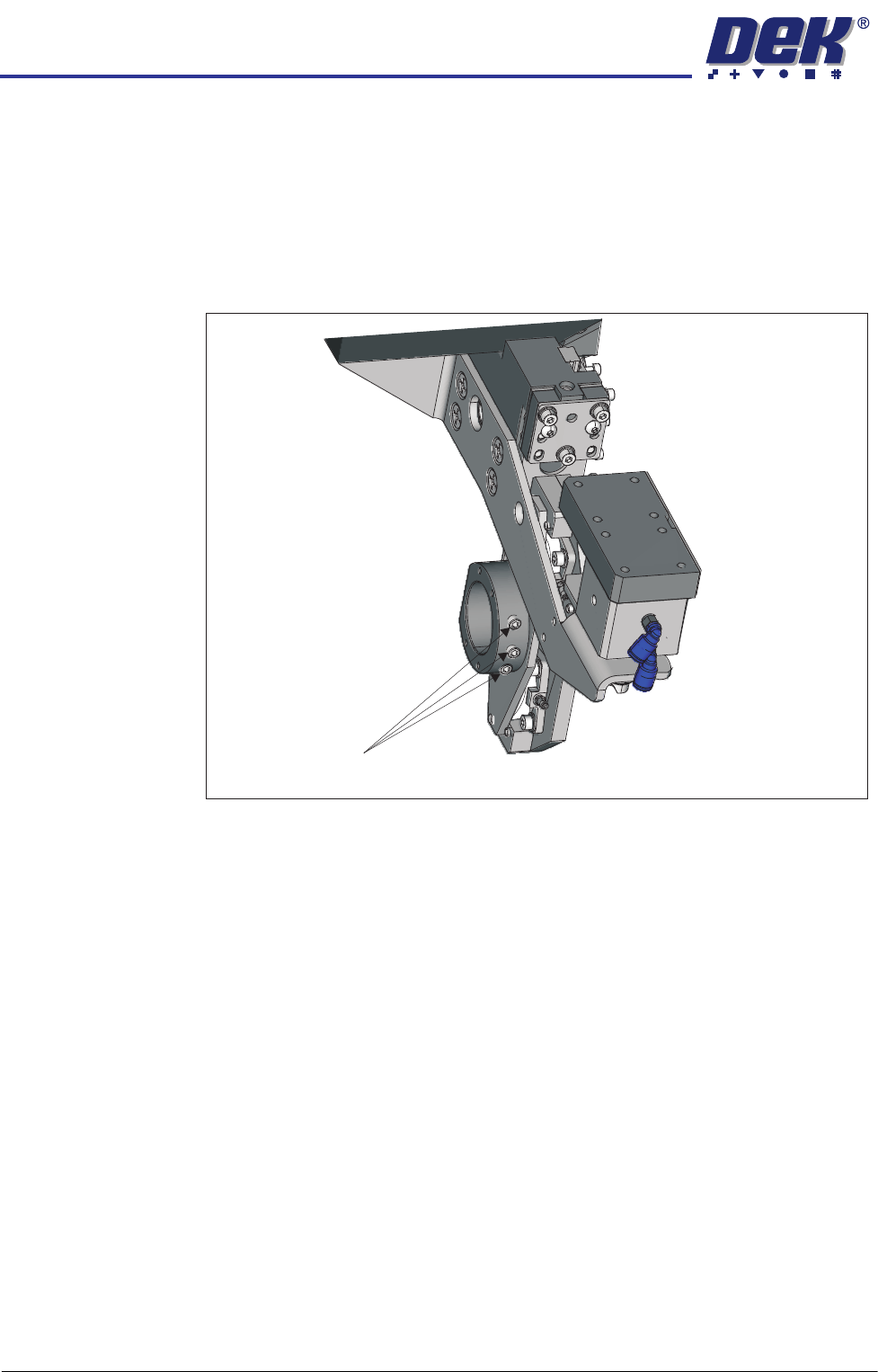
5. Loosen the three grubscrews retaining the left and right hand rail width
leadscrew nuts.
6. Using a digital vernier, measure between the rails at both ends of the
snugger rail. Adjust the rail parallelism by rotating the leadscrew nuts to
achieve parallelism of 0.05mm.
Board Width Check 1. Check the rail width, in three places along the rail length, with the digital
vernier; it should be within the limits 250.15mm to 250.25mm.
2. If the readings are outside the stated tolerance above, on the user interface
select Diagnostics.
3. Select Rail System.
4. Select Set Rail Board Width Calibration.
5. Select Run Diagnost..
6. Select Incr. or Decr. to adjust the rail width to within the stated tolerance.
7. Select Move.
8. Recheck the dimension. If OK select Set, select Yes.
9. Select Home Rail Width.
10. Select Run.
11. Select Drive Rail to Board Width.
12. Recheck the board width tolerance.
Grubscrews
View on Left Hand End of the Rear Rail