WaferTransportSolutionManual.pdf - 第39页
HEAVY PALLET RAILS ADJUST MENTS & SE TTINGS Chapter Issue 1 August 11 Wafer Transport Solutio n 1.31 micrometer tip contact s the left ha nd pallet su pport block. View on Front Left Quarter of the Front Rail View on…
HEAVY PALLET RAILS
ADJUSTMENTS & SETTINGS
1.30 Wafer Transport Solution Chapter Issue 1 August 11
NOTE
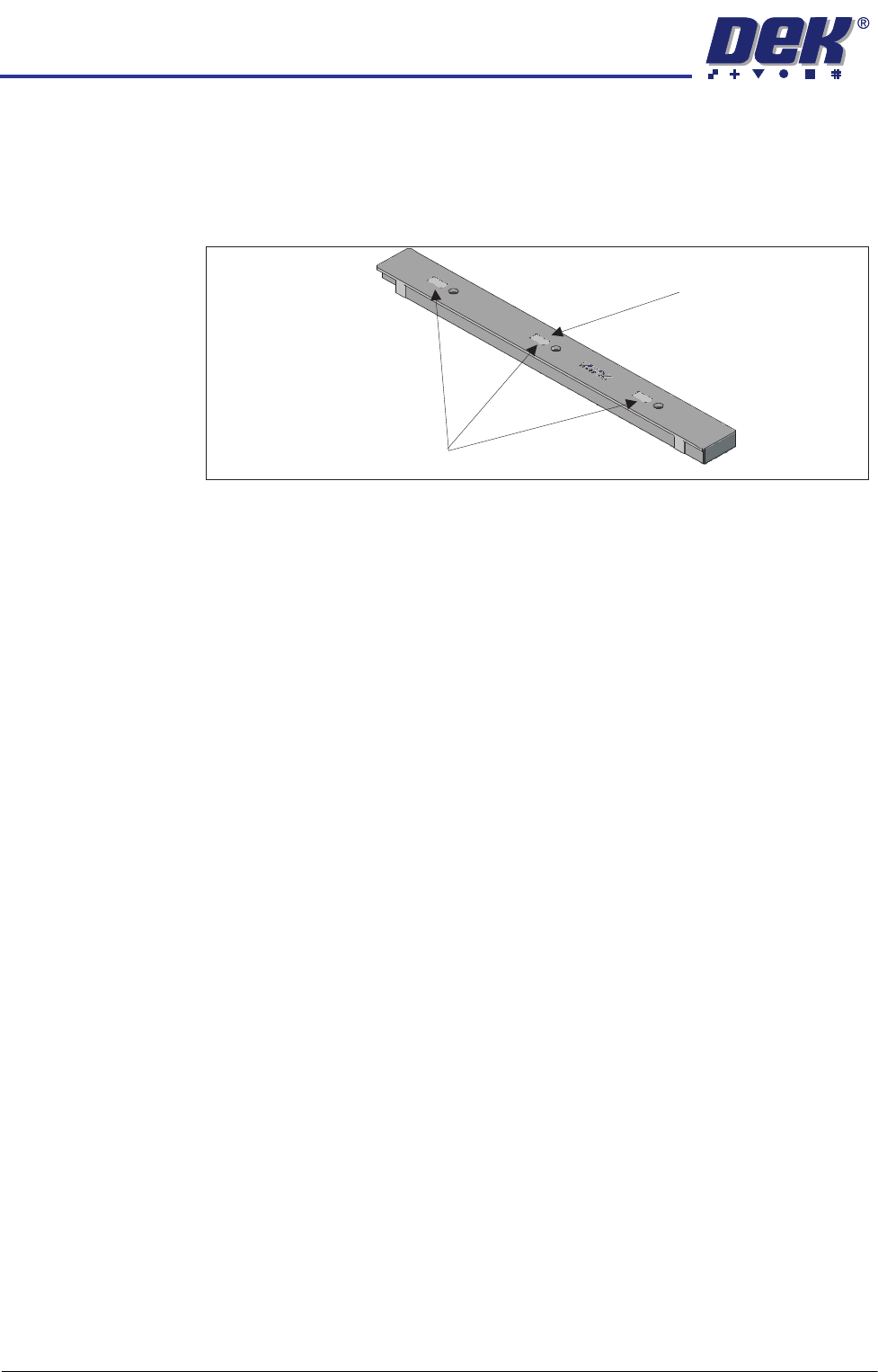
All setting bars are marked with unique readings expressing the bar’s
flatness. The centre reading is always zero, the other readings are relative
to the centre. These markings are known as the setting bar flatness
calibration figures.
19. Remove the depth micrometer.
20. Move the setting bar forward in the chase, so that it is over the front beam
pallet support blocks.
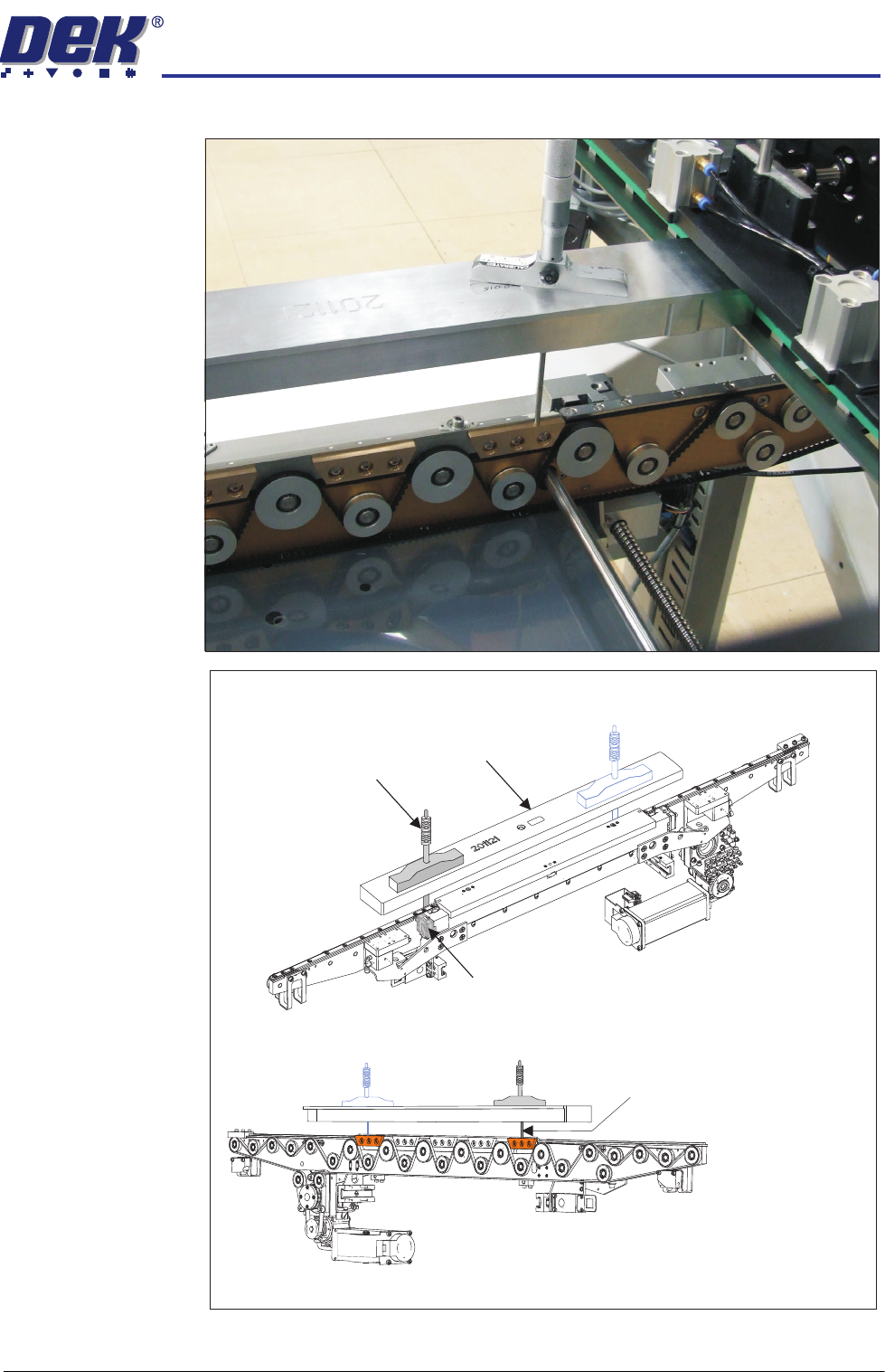
21. Insert the depth micrometer into the left hole of the setting bar. The depth
Setting Bar Flatness Calibration Figures
Centre is Zero (0.00)
HEAVY PALLET RAILS
ADJUSTMENTS & SETTINGS
Chapter Issue 1 August 11 Wafer Transport Solution 1.31
micrometer tip contacts the left hand pallet support block.
View on Front Left Quarter of the Front Rail
View on the Rear of the Front Rail
Depth Micrometer
Depth Micrometer
(Location 2)
Rail Height Adjuster
Setting Bar
Micrometer readings taken
from the top surface of the
pallet support blocks as shown
HEAVY PALLET RAILS
ADJUSTMENTS & SETTINGS
1.32 Wafer Transport Solution Chapter Issue 1 August 11
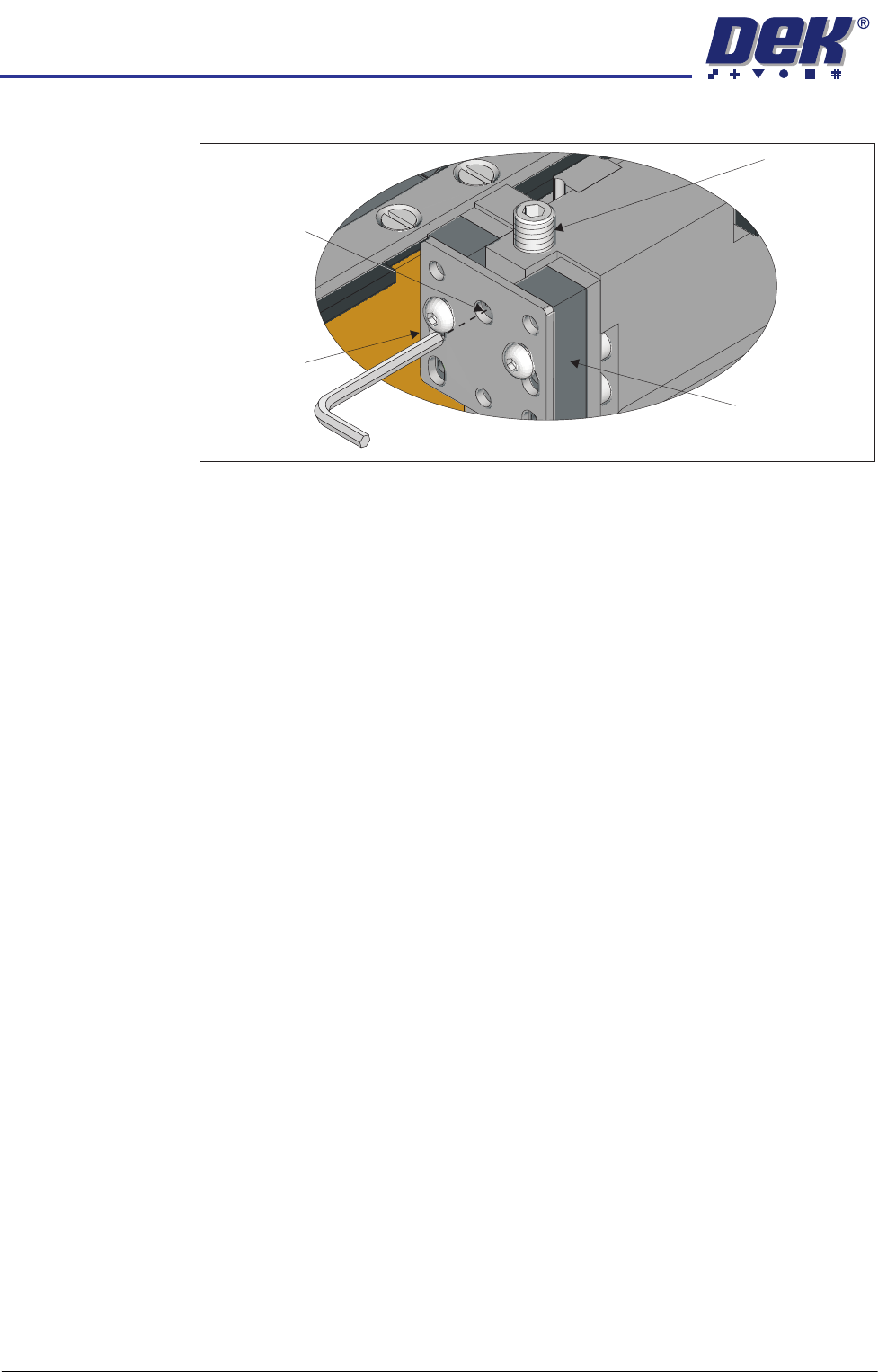
22. Slacken off the rail height adjuster lock screws on both sides of the rail.
23. Adjust the set screws to raise or lower the rail, until the reading on the depth
micrometer is the same as that of the reading made with the depth microm-
eter on the tooling pin, ± the setting bar calibration figure. The difference
should be within ± 0.01mm.
24. Repeat the steps above (17 through 23) with the depth micrometer on the
right hand side.
25. Tighten all lock screws and confirm the setting.
26. Carry out the procedure for the rear rail.
27. Restore the E Stop.
28. Close the front printhead cover.
29. Press the System Button.
30. Select Exit.
31. Select Rail System.
32. Select Select Module.
33. Select Toggle Heavy Rail Drop. This holds the pallet in the correct location
without clamping and lowers the belts.
34. Open the printhead front cover.
35. Place the setting bar across the top of both rails front to back.
36. Using the depth micrometer through the setting bar, as previously described,
check all four corners of the pallet. The reading on the depth micrometer is
the same as that of the reading made with the depth micrometer on the
tooling pin, ± the setting bar calibration figure. The difference should be
within ± 0.01mm.
37. If required, adjust the rail height, and recheck the settings.
38. Remove all tooling.
39. Remove the two setting rods.
40. Close the front printhead cover.
41. Press the System button.
42. Select Exit.
View on Left Front Rail Clamp
Set Screw
Rail Clamp
Linear Bearing
Height Adjuster
Lock Screw