WaferTransportSolutionManual.pdf - 第42页
HEAVY PALLET RAILS ADJUSTMENTS & SETTINGS 1.34 Wafer Transport Solutio n Chapter Issue 1 August 11 1. Ensure that the screen has been removed from the printer . 2. Ensure that the pallet and shim ha ve been removed f…

HEAVY PALLET RAILS
ADJUSTMENTS & SETTINGS
Chapter Issue 1 August 11 Wafer Transport Solution 1.33
43. Using Decr. or Incr..
44. Select the Rising Table.
45. Select Home Rising Table. Run the diagnostic.
46. Open the printhead front cover.
Top Plate Adjustment
WARNING
HEAVY OBJECT. EXTREME CAUTION SHOULD BE EXERCISED WHEN
MANUALLY HANDLING HEAVY ITEMS INTO OR OUT OF THE MACHINE.
NOTE
The precision pallet, shim, rail top plates and setting bar are all manufactured
to a high degree of flatness and are susceptible to surface flaws that can
degrade their function. In the following procedure hard tooling is used in contact
with these surfaces which may cause markings or more significant damage, if
not handled carefully. Tooling used must be clean and blemish free. All effort
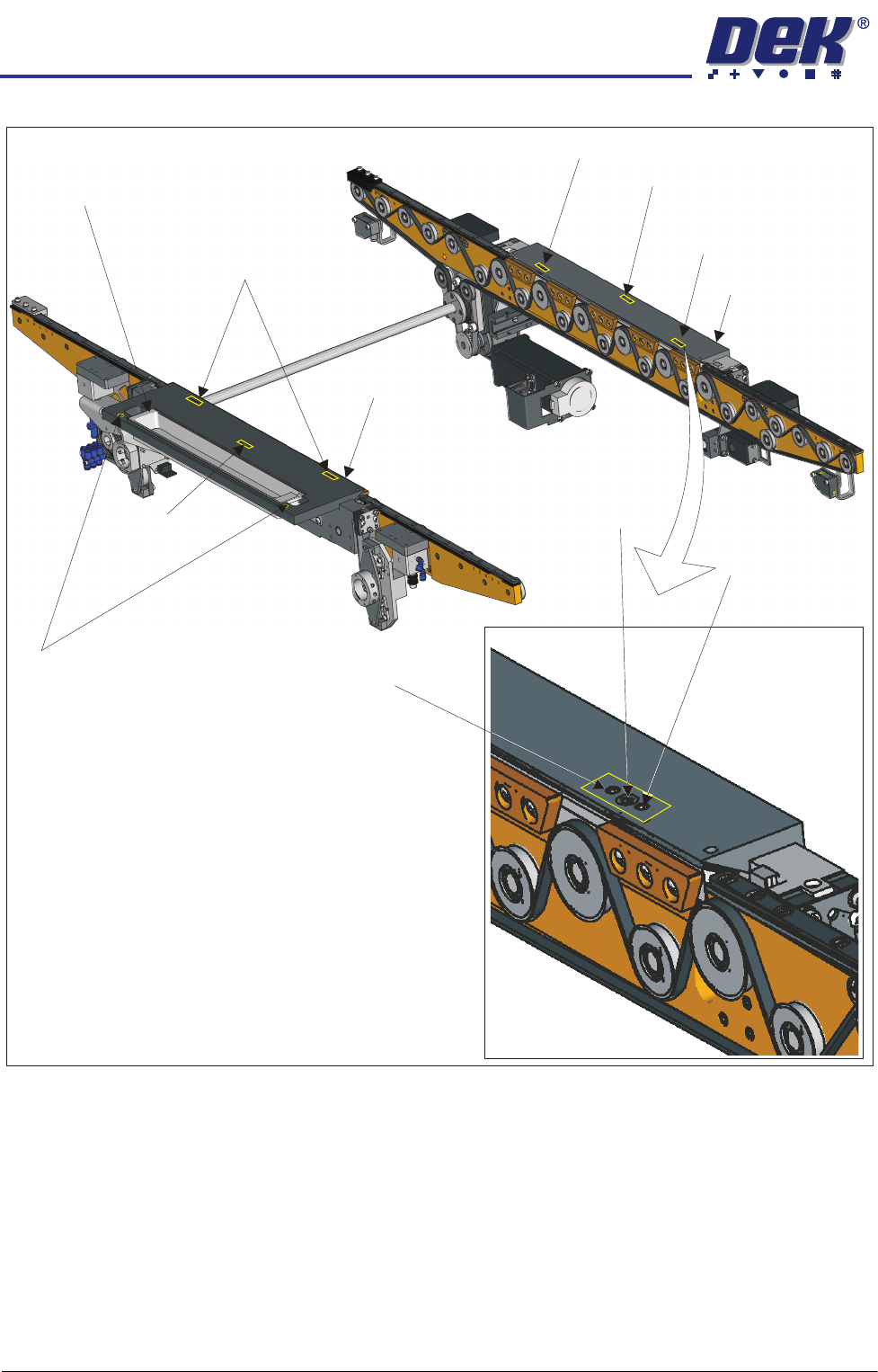
must be made to avoid dragging, dropping or knocking tools on the exposed
surfaces.
HEAVY PALLET RAILS
ADJUSTMENTS & SETTINGS
1.34 Wafer Transport Solution Chapter Issue 1 August 11
1. Ensure that the screen has been removed from the printer.
2. Ensure that the pallet and shim have been removed from the printer.
3. Select Setup Product.
4. Select Board Length Board Width.
5. Select Board Width. Set the board width to match the pallet.
6. Select Board Length. Set the board length to match the pallet.
7. Select Accept.
8. Select Back.
9. Select Maintenance.
Adjustment (1) Screws (2)and Locking
Sphere Dump Tray
Rear Top Plate
Front Top Plate
Locking Screw
Locking Screw
Adjustment (1) and Locking Screws (2)
Adjustment (1) Screw
Adjustment (1) Screw
Safety Screws (2)
Adjustment (1)
Locking
and
Screws (2)
Adjustment Screw

HEAVY PALLET RAILS
ADJUSTMENTS & SETTINGS
Chapter Issue 1 August 11 Wafer Transport Solution 1.35
10. Select Diagnostics.
11. Select Rail System.
12. Select Select Module.
13. Select Toggle Heavy Rail Drop.
14. Select Run Diagnost..
15. Open the printhead front cover. The software pauses and displays the
System Error - System Suspended While Covers Open Warning.
16. Move the print carriage to the rear of the printer.
17. Load the pallet and shim into the print area.
18. Carefully run a finger along the length of the top plates (front and rear) and
check for any areas where adjustment is needed.
19. Loosen the six locking screws (on each rail) and adjust the three adjustment
screws on the top plates so that the top plate matches the pallet height.
20. Tighten the locking screws.