WaferTransportSolutionManual.pdf - 第55页
HEAVY PALLET RAILS REPLACEMENT PROCEDURES Chapter Issue 1 August 11 Wafer Transport Solutio n 1.47 Front Drive Belt T o replace the front drive belt: 1. Ensure that the front transport belt has been removed first, see th…
HEAVY PALLET RAILS
REPLACEMENT PROCEDURES
1.46 Wafer Transport Solution Chapter Issue 1 August 11
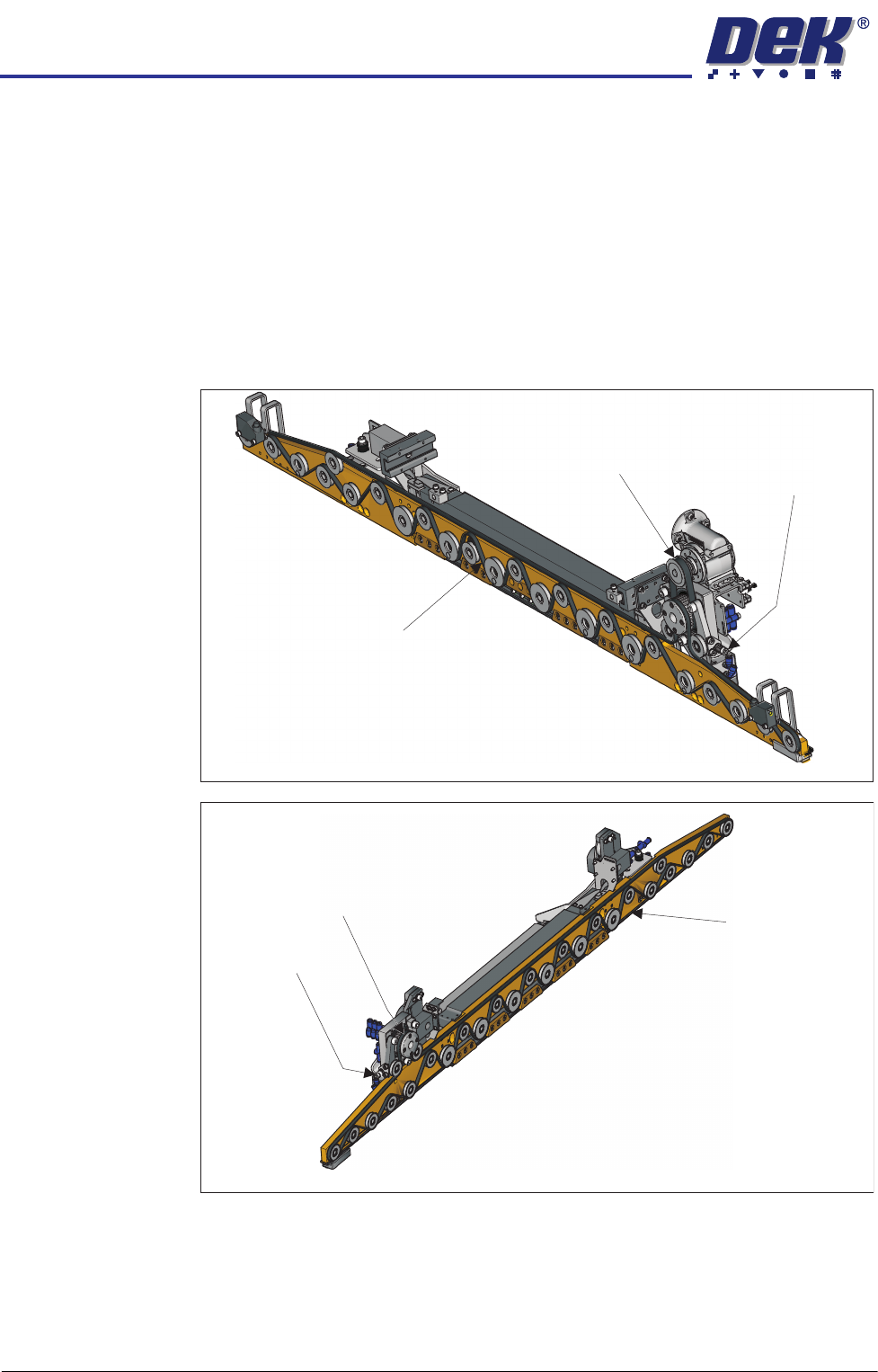
Transport Belts To replace a transport belt:
1. Ensure the drive shaft is out of the way, see previous procedure.
2. Slacken the transport belt tensioner by turning the bolt anti-clockwise using
a 5mm Allen key.
3. When slack, remove the belt from all of the pulleys, taking note of how to
reroute the belt for replacement.
4. Replace the belt; route it correctly around the pulleys and re-tension it. (See
belt tension settings in the Adjustments and Settings section of this Chapter
for details).
View on Underside of the Front Rail
Transport Belt
Tensioner
Drive Belt
Transport Belt
View on Underside of the Rear Rail
Transport Belt
Tensioner
Drive Belt
Transport Belt
HEAVY PALLET RAILS
REPLACEMENT PROCEDURES
Chapter Issue 1 August 11 Wafer Transport Solution 1.47
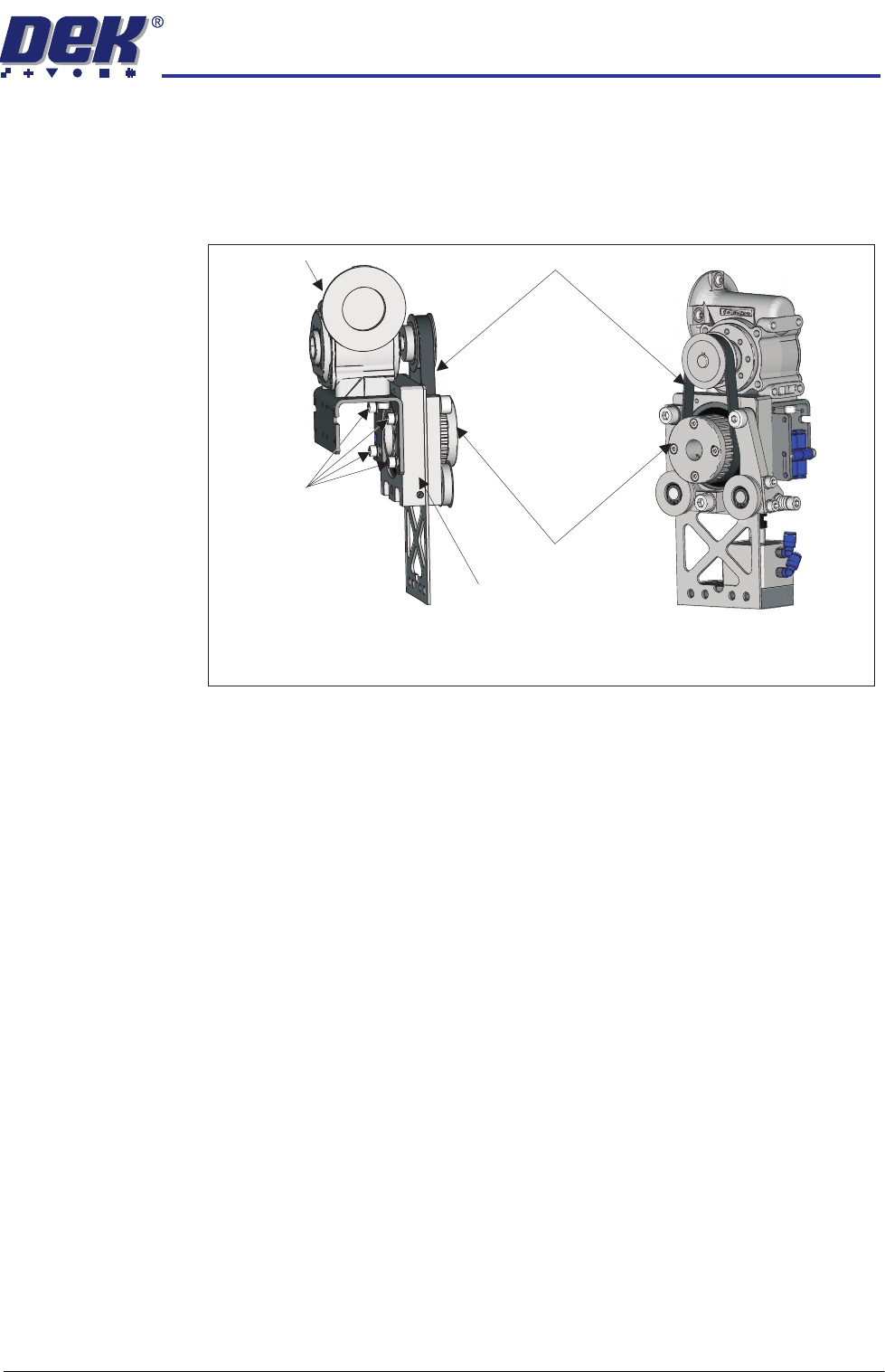
Front Drive Belt To replace the front drive belt:
1. Ensure that the front transport belt has been removed first, see the previous
procedure.
2. Slacken off the four mounting bracket bolts using a 4mm Allen key.
3. Support the weight of the motor and remove the belt.
4. Fit the replacement belt.
5. While supporting the weight of the motor, ensure the motor is horizontal.
6. Allow the weight of the motor to tension the belt so that it rests in the teeth
of both pulleys.
7. Tighten the four mounting bracket bolts; ensure that the belt is centralised.
8. Refit the transport belts.
9. Refit the drive shaft.
Running Check Having reassembled the assemblies, test that the belts all run smoothly.
1. Select the Rail System module in Diagnostics.
2. Select Toggle Heavy Rail Drop. Ensure that the rail is up.
3. Select Belt Speed Calibration.
4. Select Incr. or Decr.
5. Confirm that the belt tracks correctly under tension and do not ride up in the
pulleys.
6. Select Decr. or Incr. to reset to the correct value.
7. Select Exit.
8. Tension the belts in accordance with the belt tension settings in the Adjust-
ments and Settings section of this Chapter.
Drive Belt Mounting
Drive Mounting Viewed on Underside
Front Quarter View
Mounting
Bracket Bolts
Drive Belt
Driven Pulley Mount
Motor Mount
Driven Pulley
HEAVY PALLET RAILS
CALIBRATIONS
1.48 Wafer Transport Solution Chapter Issue 1 August 11
CALIBRATIONS
Board Stop X
Offset
This procedure overwrites the standard machine Board Stop X Offset setting.
1. Initialise the printer.
2. Select Load.
3. Load the Calibra. file.
4. Select Back.
5. Press the System button.
6. Select Maintenance.
7. Select Machine Setup.
8. Select Basics.
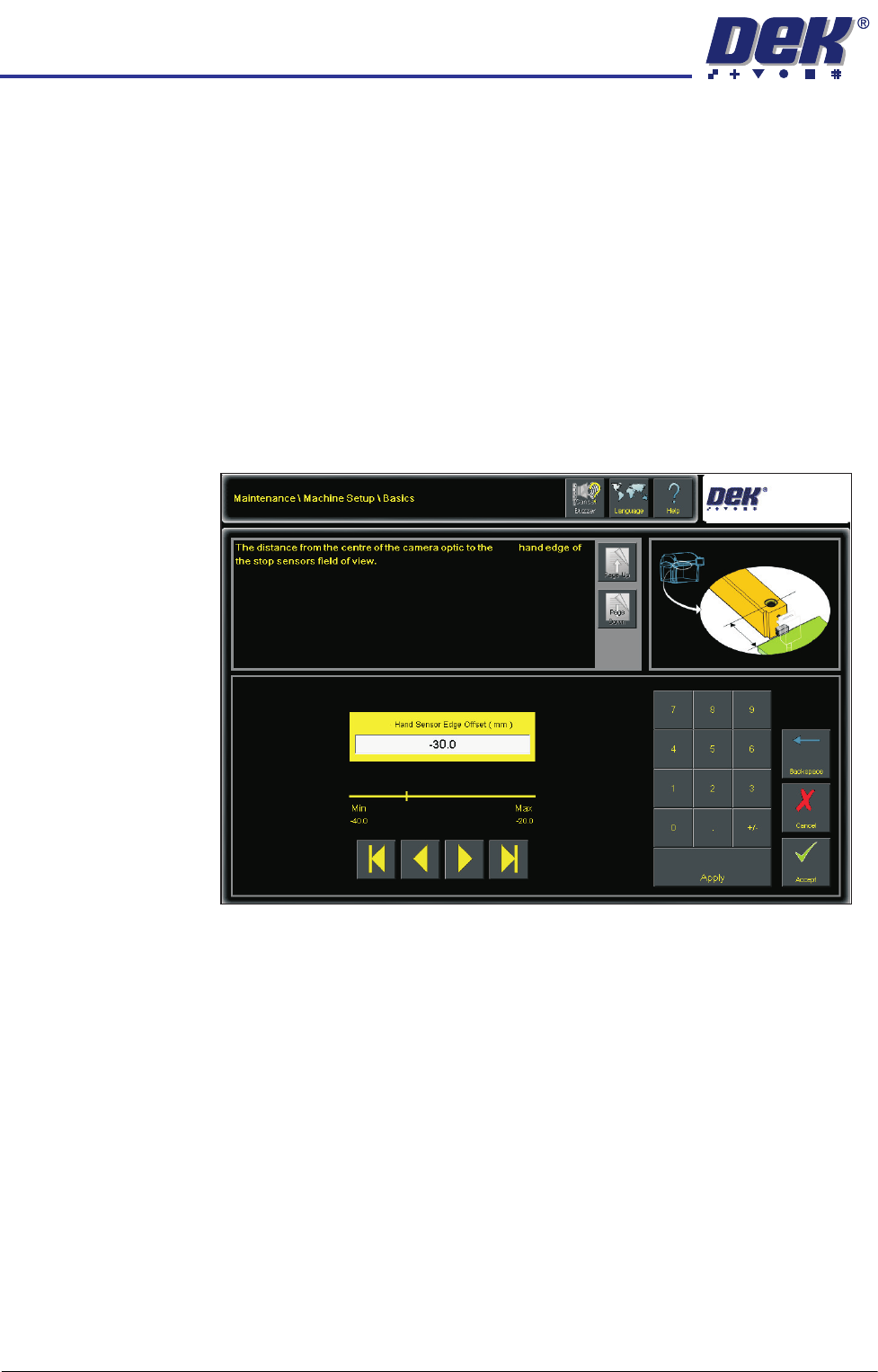
9. Select Left Hand Sensor Edge Offset.
NOTE
This is dependent upon whether or not the printer is set up for left to right or
right to left operation. For right to left operation, the setting would be: Right
Hand Sensor Edge Offset.
10. Set to -30mm.
11. Select Accept.
12. Select Back.
13. Select Back.
14. Select Back.
15. Place the calibration board (part number 201149) on the input rails and set
up the printer ready to print.
16. Select Maintenance.
17. Select Calibrations.
18. Select Board Stop Sensor.
Left
Left