WaferTransportSolutionManual.pdf - 第57页
HEAVY PALLET RAILS CALIBRATIONS Chapter Issue 1 August 11 Wafer Transport Solutio n 1.49 19. Select Calib. Sensor . The board loads; the camera moves to a position roughly at the centre of the printer . The vision window…
HEAVY PALLET RAILS
CALIBRATIONS
1.48 Wafer Transport Solution Chapter Issue 1 August 11
CALIBRATIONS
Board Stop X
Offset
This procedure overwrites the standard machine Board Stop X Offset setting.
1. Initialise the printer.
2. Select Load.
3. Load the Calibra. file.
4. Select Back.
5. Press the System button.
6. Select Maintenance.
7. Select Machine Setup.
8. Select Basics.
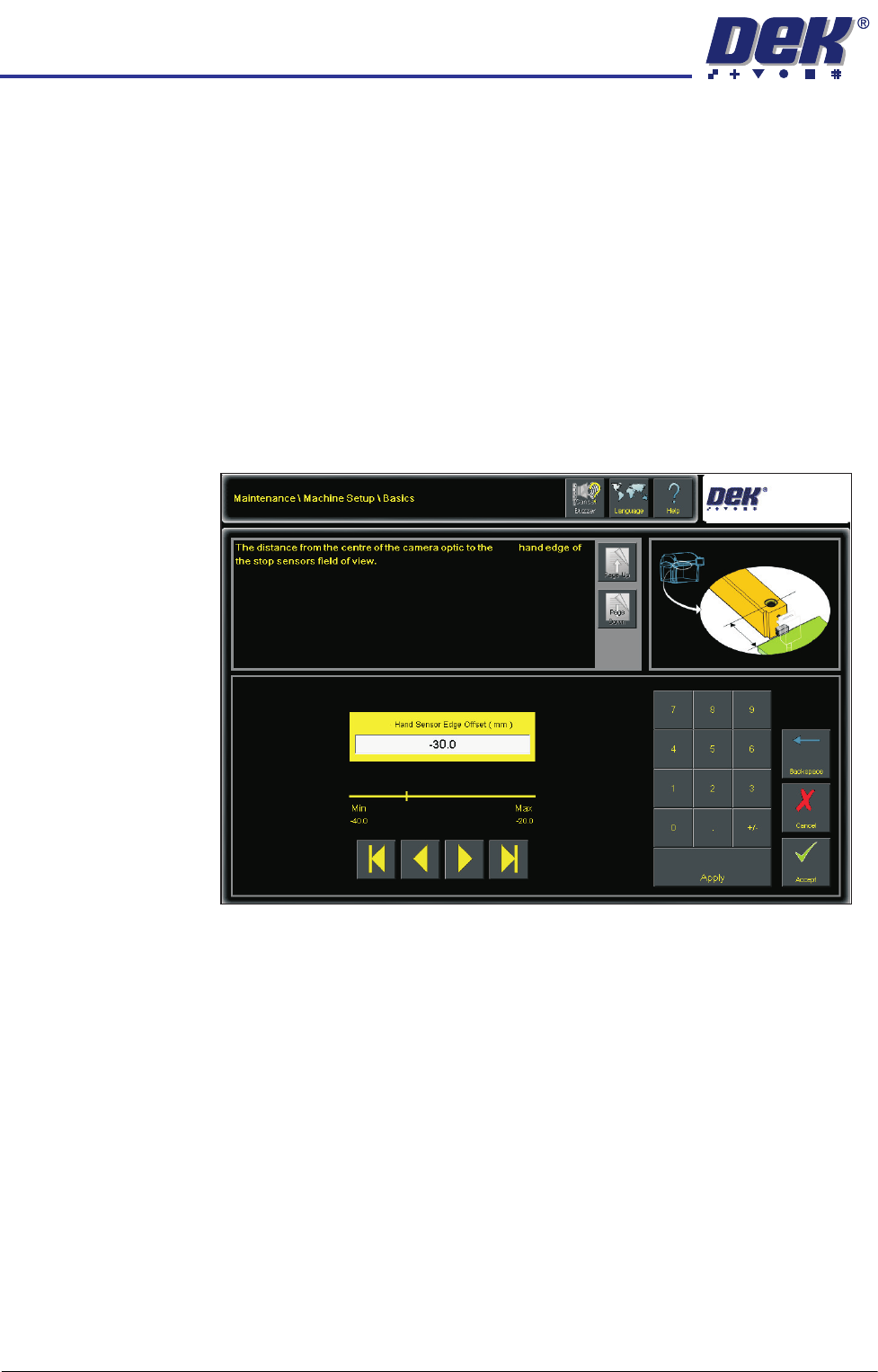
9. Select Left Hand Sensor Edge Offset.
NOTE
This is dependent upon whether or not the printer is set up for left to right or
right to left operation. For right to left operation, the setting would be: Right
Hand Sensor Edge Offset.
10. Set to -30mm.
11. Select Accept.
12. Select Back.
13. Select Back.
14. Select Back.
15. Place the calibration board (part number 201149) on the input rails and set
up the printer ready to print.
16. Select Maintenance.
17. Select Calibrations.
18. Select Board Stop Sensor.
Left
Left

HEAVY PALLET RAILS
CALIBRATIONS
Chapter Issue 1 August 11 Wafer Transport Solution 1.49
19. Select Calib. Sensor. The board loads; the camera moves to a position
roughly at the centre of the printer. The vision window displays the location
of the board centre ident (circle).
20. Using the jog buttons locate the circular ident at the centre of the board.
21. Select Confirm. The system carries out an automated cycle, checking the
left and right edges of the board, setting automatic values for the sensor
offset.
Pre-check Before
Standard
Calibration
This procedure sets the deceleration rate for the non-contact board stop.
1. Initialise the printer.
2. Select Load.
3. Load the Calibra. file.
4. Select Back.
5. Press the System button.
6. Select Setup Product.
7. Select Board Thickness and set to 5mm.
8. Select Load Product.
9. Select 265test1.
10. Select Load.
11. Select Back.
12. Select Board Thickness and set to 5mm. This must be set before
calibrating vision height.
13. Select Back.
14. On the user interface navigate to the Diagnostics page and select the
Rising Table module.
15. Select Restore Default Heights. Important. Printer damage may occur if
this step is not carried out.
16. Select Exit.
17. Select Back.
18. Complete the following calibrations as detailed in the machine’s technical
reference manual set:
a. Vision Height Calibration
b. Print Reference Height
c. Reference Position
HEAVY PALLET RAILS
CALIBRATIONS
1.50 Wafer Transport Solution Chapter Issue 1 August 11
Deceleration Setting 1.NOTE
A nominal setting is shown below for rotary and linear camera systems. The
setting must be verified using SPC. If a large shift in Pre-X or if fiducials
cannot be found while running SPC the settings below may need to be
increased.
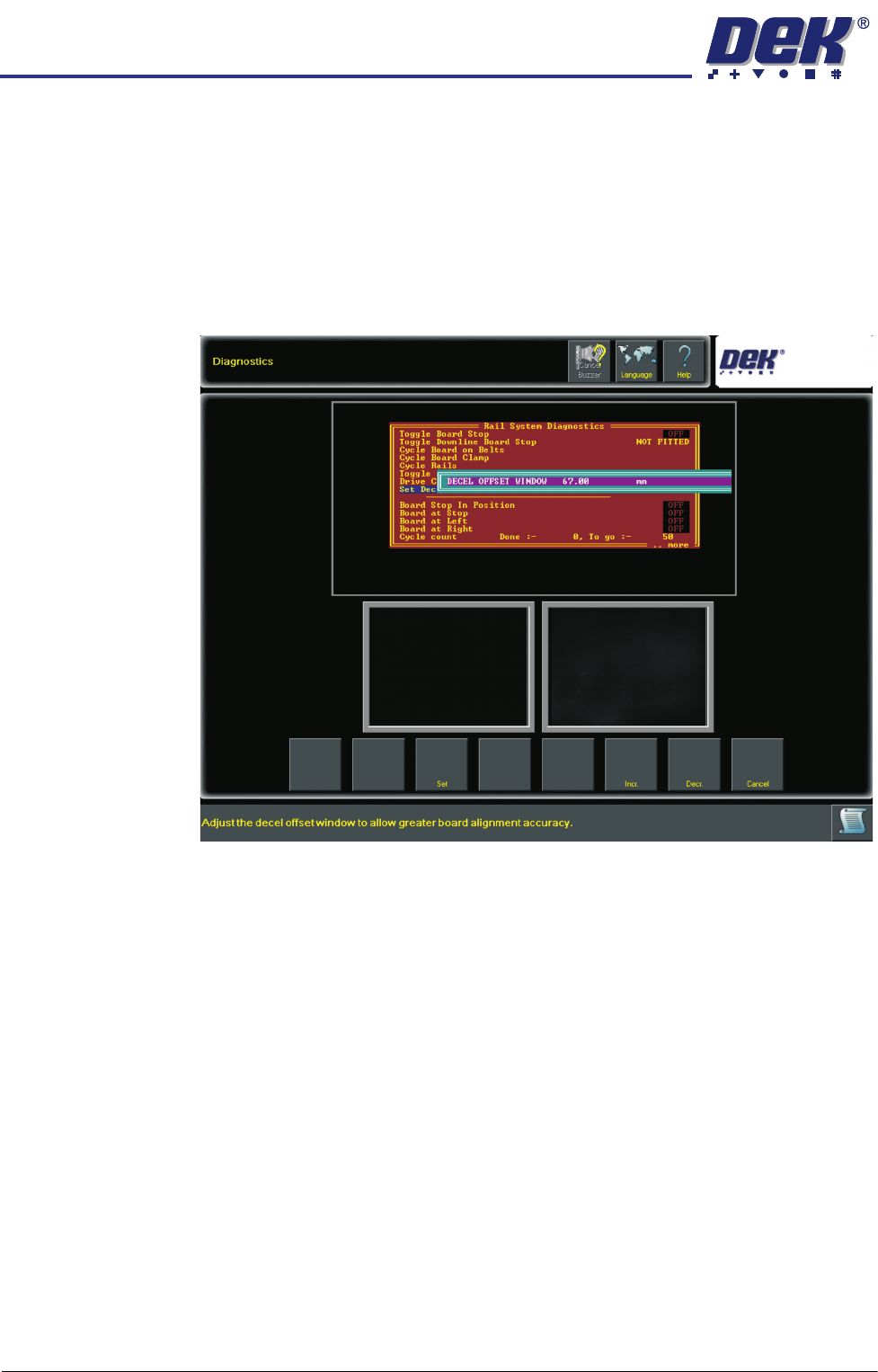
2. On the user interface navigate to the Diagnostics page and select the Rail
System module.
3. Select Set Decel Offset Window Calibration.
4. Set the minimum size to: 67mm for rotary bearing camera systems or
62mm for linear bearing systems.
5. Select Accept.
6. Select Exit.