00198711-01_UM_X-Serie-S_EN.pdf - 第236页
5 Tasks at the placement machine Ins truction manual SIPLACE X-Series S 5.2 Controls and displays From software version 713.0 Edition 11/2019 236 5.2.2 Description All the contr ols can be reached by a 1.40 m tall per so…
Instruction manual SIPLACE X-Series S 5 Tasks at the placement machine
From software version 713.0 Edition 11/2019 5.2 Controls and displays
235
5.2 Controls and displays
5.2.1 Overview
5
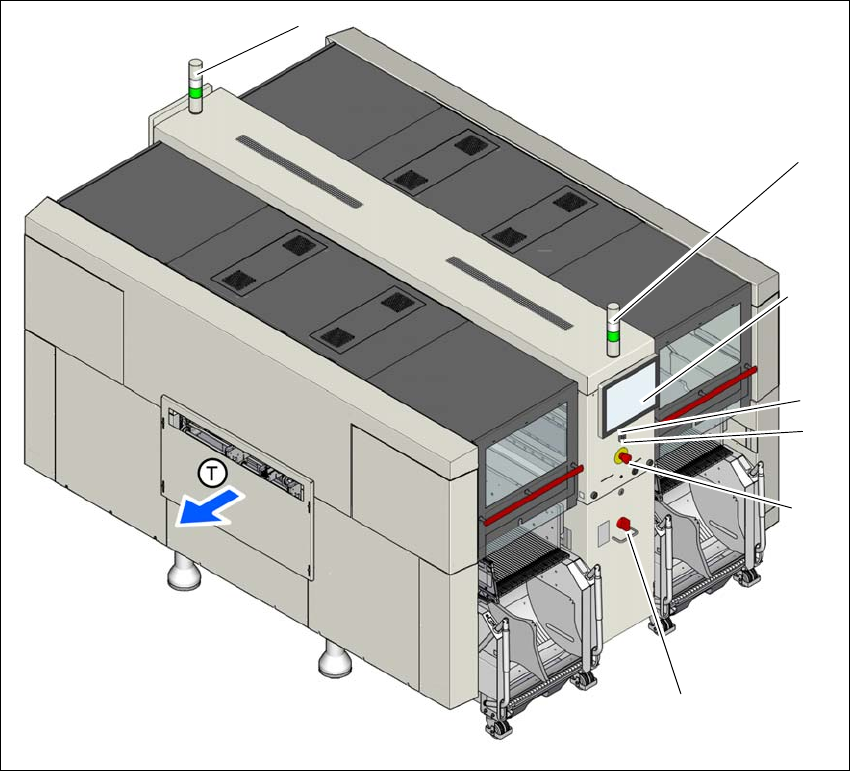
Fig. 5.2 - 1 Controls and displays (example of SIPLACE X2 S / X3 S / X4 S shown)
(1) Main switch (5) Multitouch monitor
(2) Stop button (black) (6) Indicator lamps with horn
(3) EMERGENCY STOP button (T) Direction of PCB transport
(4) Start button (white)
(1)
(2)
(3)
(4)
(5)
(6)
(7)

5 Tasks at the placement machine Instruction manual SIPLACE X-Series S
5.2 Controls and displays From software version 713.0 Edition 11/2019
236
5.2.2 Description
All the controls can be reached by a 1.40 m tall person.
Main switch 5
The main power switch is used to switch the power supply to the placement machine on and off.
5
Stop button (black) 5
This black button is used to stop the placement process at the placement machine.
Start button (white) 5
This white button starts the placement machine after it has been switched on or after faults have
been eliminated.
EMERGENCY STOP button 5
The EMERGENCY STOP button latches in the ON position when pressed. The power supply to
the gantry axes, the component trolleys, conveyors and used tape cutters is interrupted and the
voltage supplied to the star axes of the placement heads is reduced. Turn the button to release it.
Multitouch monitor 5
On each side of the placement machine, there is a flat screen with a highly sensitive "multi-touch"
surface (screen with multi-finger gesture recognition). Use the station software to show a key-
board for screen entries.
Indicator lamp with horn - two color (standard) 5
The sequence of colors of the indicator lamps is white - green. These lamps are used to signal
operating statuses and malfunctions of the placement machine. See also Section 5.7 on page
253.
Indicator lamp with horn - three color (optional) 5
The sequence of colors of the indicator lamps is red - yellow - green. These lamps are used to
signal operating statuses and malfunctions of the placement machine. See also Section 5.7 on
page 253.
DANGER
Lethal voltages!
Some parts inside the placement machine carry potentially lethal voltages - even when
switched off at the main power switch.

Instruction manual SIPLACE X-Series S 5 Tasks at the placement machine
From software version 713.0 Edition 11/2019 5.3 Switching on the SIPLACE line
237
5.3 Switching on the SIPLACE line
5.3.1 Starting the SIPLACE Pro Line Control GUI program
Start the program on the line computer SIPLACE Pro Line Control GUI
via the Windows Start menu
Start --> Programs --> SIPLACE Pro --> LCGUI
or
with the icon on your desktop.
Enter your user data.
The system connects to the SIPLACE Pro server and opens the user interface.
5.3.2 What to consider before switching on the stations
5
Check whether the stations are connected to the power and compressed air supplies.
Perform a sight check of the stations. Make sure that there are no obstacles in the travel
range of the gantries.
Make sure that the Z axes of all heads are in their uppermost end positions.
With waffle pack changer option: Switch the waffle pack changer on before you switch the
placement machine on.
5.3.3 Switching on the station and starting the station software user interface
5
Switch the station on at the main power switch.
After switching on, check whether the manometers show the required operating pressure.
The station computer software is loaded and the "Production" view of the station software is
shown for the "Production" operator level (see following diagram).
CAUTION
Before you switch on the stations, please perform the following steps.
CAUTION
Communication problems when switching on the station!
Early switching on of station can lead to communication problems.
Only switch the station on if the monitor of the SIPLACE Pro computer shows the
"Desktop",