00195467-01_Installation Manual Setup Center 2.2.pdf - 第21页
Installation Manual SIPLACE Setup Center 2.2 The drivers for the CAN ca rd are contain ed on the SC software installation CD. These need to be installed separately. For a detailed description, plea se see Section “Opti…

SIPLACE Setup Center 2.2 Installation Manual
5.2.2 Safety Instructions
The Dragon Scanner conforms to laser class 2.
LASER RADIATION!
Do not look into beam
Laser class 2
Warning label W216 (shown above) is displayed on the Dragon scanner.
CAUTION:
Before using the Dragon scanner, inform all operating personnel about the laser
regulations.
While operating the Dragon scanner, observe the respective regulations in line with
VDE 0837 „Protection from radiation emitted by laser devices“ and the „Laser
radiation“ accident prevention regulations (VBG93), applicable in Germany.
Also observe the accident prevention regulations applicable in your country.
Despite the low laser power, avoid looking directly at the laser beam. The natural
closure reflex of your eyelids will protect your eyes from the visible beam.
5.2.3 Optional: Docking Station
To obtain more details about using the docking station for X-Series tables, please refer to the
current version of the operating manual.
5.2.3.1 Installing the CAN Card in the PC
The data connection between the Setup Center PC, on which the Setup Center software is to be
installed, and the docking station is realized via a CAN Bus. This requires installation of a CAN
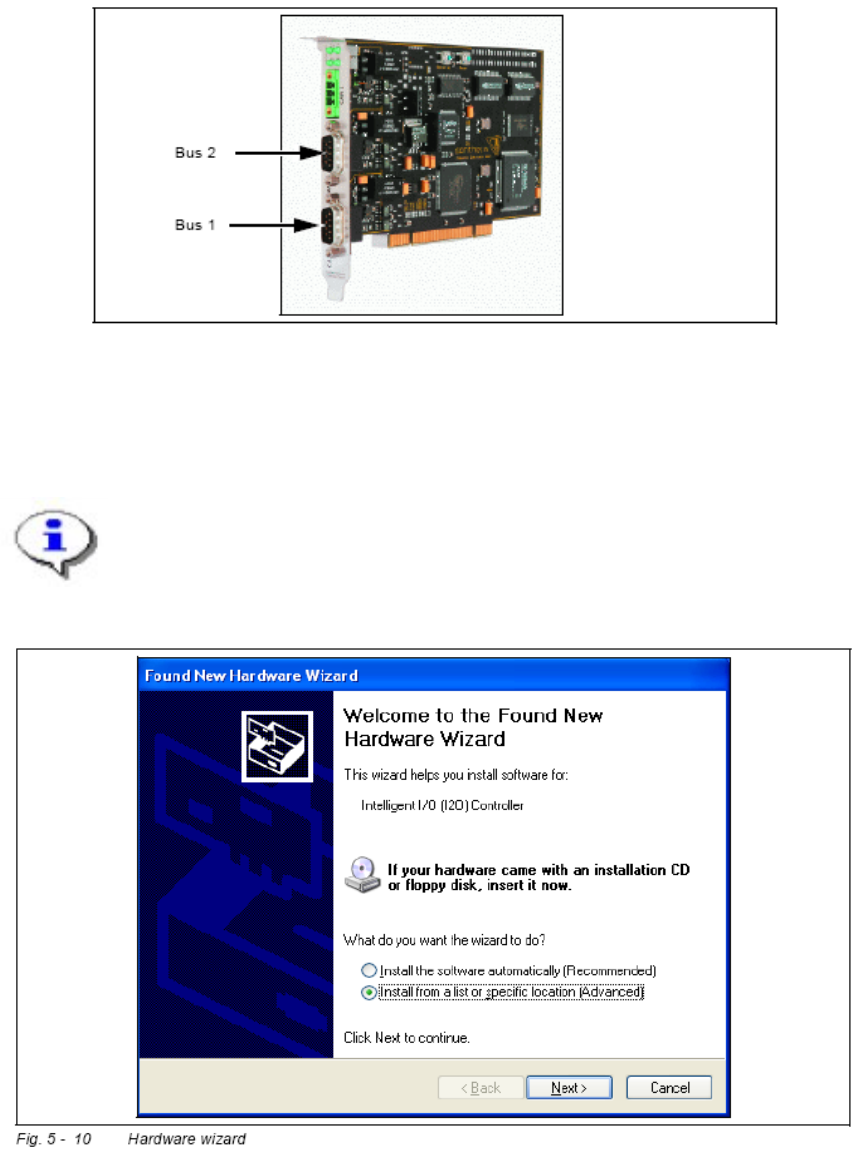
card in the SC PC on which the SC software is to be installed. This CAN card is included in the
delivery of docking station (optional). 5
Open the SC PC housing according to the manufacturer's instructions.
Select a free PCI slot in your SC PC for installing the CAN card.
Plug the CAN card into the selected PCI slot.
Close the SC PC housing according to the manufacturer's instructions.
20 of 90
Installation Manual SIPLACE Setup Center 2.2
The drivers for the CAN card are contained on the SC software installation CD. These
need to be installed separately. For a detailed description, please see Section “Optional:
Installing CAN Drivers”.
Fig. 5-2 CAN card - power CAN PCI
5.2.3.2 Installing CAN Drivers
Note:
You require administrator rights for the installation procedure!
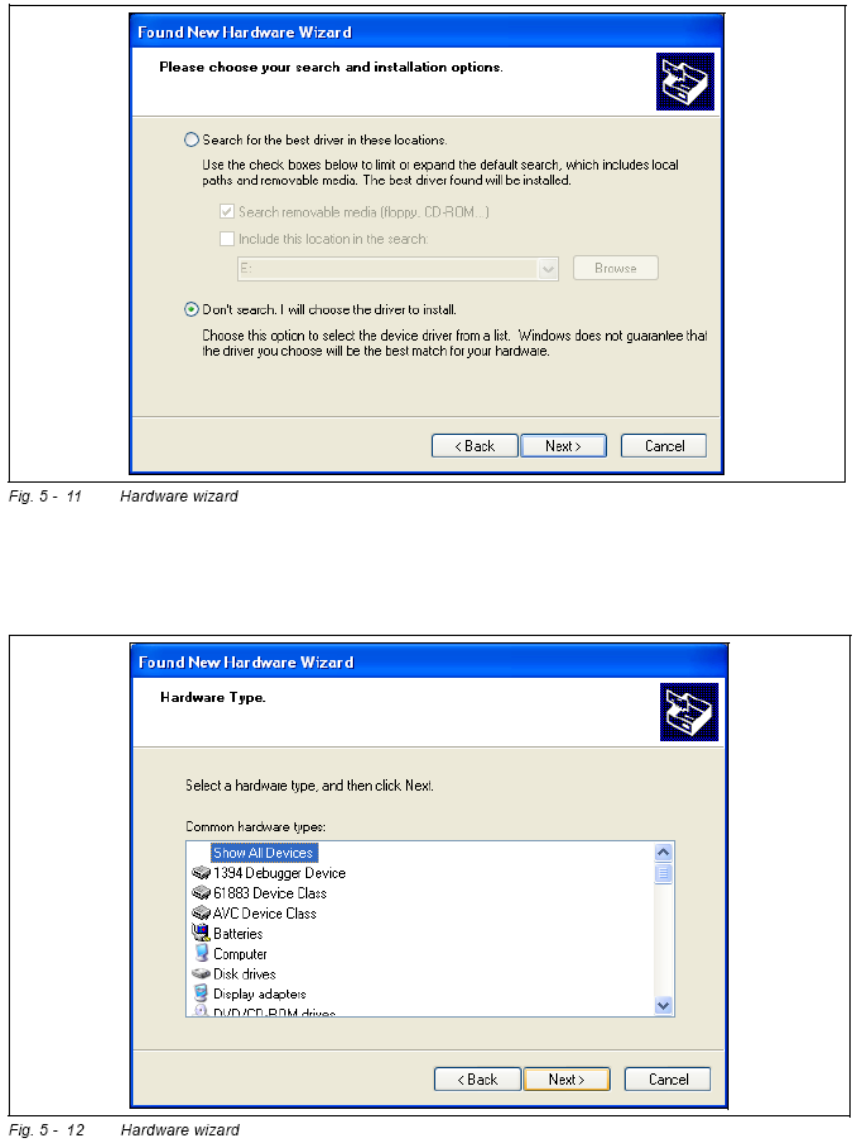
Switch on the SC PC. The hardware wizard will open.
21 of 90
-
SIPLACE Setup Center 2.2 Installation Manual
Select Install from a list or specific location ....
Click on Next to continue.
Select Don’t search. I will choose ....
Click on Next to continue.
Select Show All Devices and then click on Next.
22 of 90