00195467-01_Installation Manual Setup Center 2.2.pdf - 第26页
SIPLACE Setup Center 2.2 Installation Manual Click on Finish to finish the installation. 5.2.3.3 Installi ng Docking Station 5.2.3.3.1 Safety Instructions 26 of 90
Installation Manual SIPLACE Setup Center 2.2
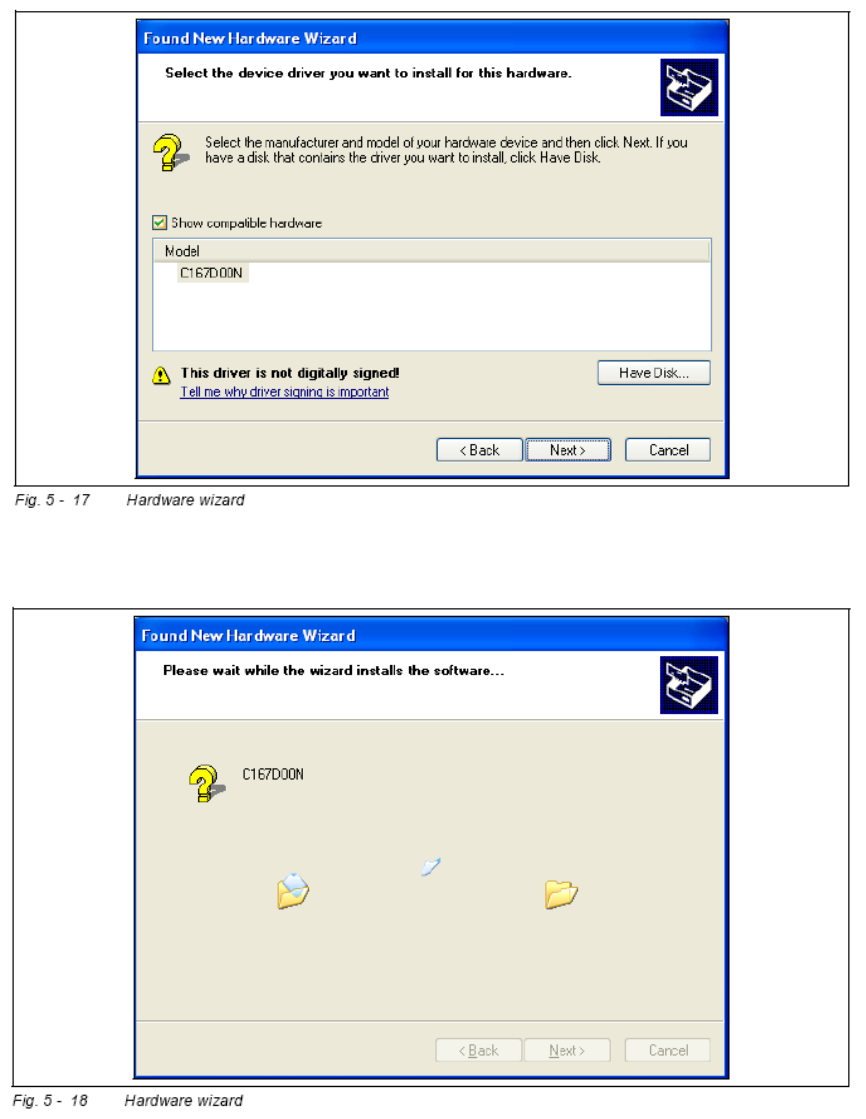
• Click on Next to continue. The CAN driver software will be installed.
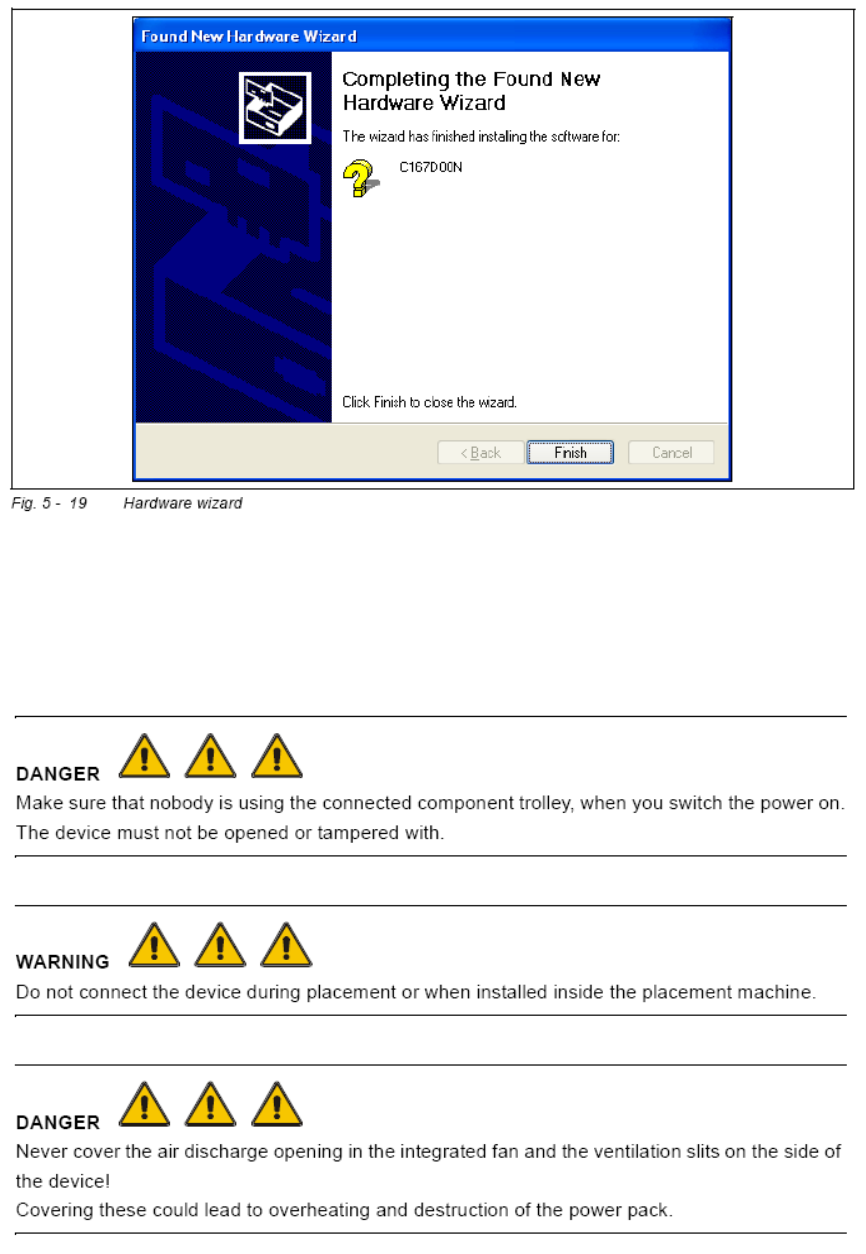
After the installation has been completed, the following dialog box will be opened.
25 of 90
-
SIPLACE Setup Center 2.2 Installation Manual
Click on Finish to finish the installation.
5.2.3.3 Installing Docking Station
5.2.3.3.1 Safety Instructions
26 of 90
Installation Manual SIPLACE Setup Center 2.2
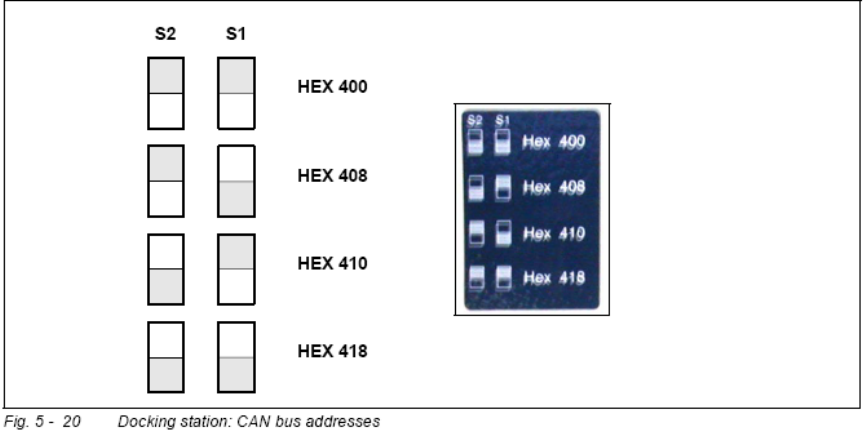
5.2.3.3.2 Setting the CAN Bus Address
You need to set a CAN Bus address for each docking station. This CAN Bus address must be
different for each docking station. 5
Set the CAN Bus address for the docking station.
5
Make sure that you only assign each address once, when setting the CAN Bus address,..
5.2.3.3.3 Establishing a Data Connection
Establish a data connection between the docking station and the SC PC. This data connection is
realized via a CAN Bus. You have already installed the CAN card in your PC, see Section
“Installing the CAN Card in the PC” on page
20. 5
Connect the CAN cable to the docking station and the PC. This CAN cable has 5 connections,
one of which you can use for the PC. This leaves 4 other connections, allowing you to connect up
to 4 docking station with this cable. 5
Connect the CAN cable to the CAN connection at your docking station. This can be found
on the back of the docking station.
Connect the CAN cable to the CAN card on the PC (CAN Bus 1 or 2).
27 of 90
-