00195467-01_Installation Manual Setup Center 2.2.pdf - 第41页
Installation Manual SIPLACE Setup Center 2.2 Step 2 The installation detects the existing SPI version a nd install s the according SIPLACE Setup Center files. In case no SPI is detected, a warning m essage is displayed. …
SIPLACE Setup Center 2.2 Installation Manual
5.3.1.2 Individual setup types and next steps
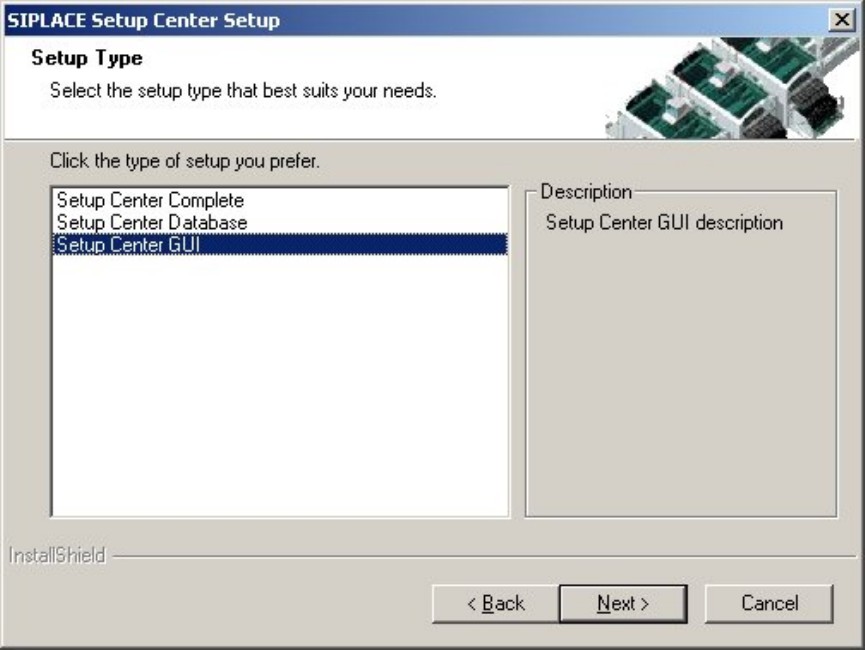
5.3.1.2.1 Setup Type – GUI
This setup type will install the GUI application of SIPLACE Setup Center. It is used to setup up a
client system while the database is located on a remote system.
Step 1
Run through the steps in”Gerneral Settings” from chapter
5.3.1.1
Figure 5-7 "Setup Type" dialog box
Select the SIPLACE Setup Center GUI setup type
Click Next.
40 of 90
Installation Manual SIPLACE Setup Center 2.2
Step 2
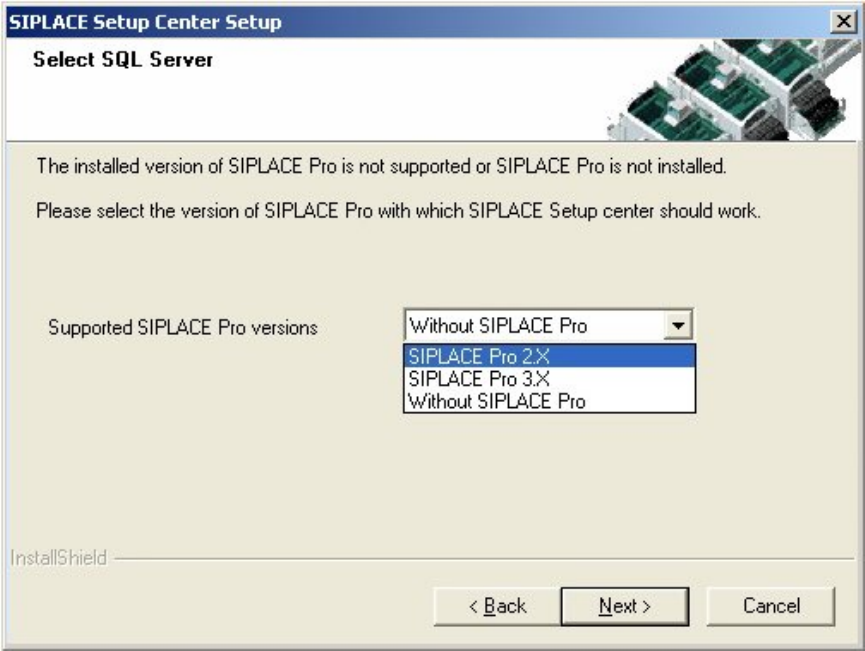
The installation detects the existing SPI version and installs the according SIPLACE Setup Center
files.
In case no SPI is detected, a warning message is displayed.
After this the installation prompts to select a SIPLACE Pro version. SIPLACE Setup Center will be
installed with the files to support the selected SIPLACE Pro version.
Figure 5-8 "Setup Type" dialog box
Select the SIPLACE PRO version
Click Next.
41 of 90
-
SIPLACE Setup Center 2.2 Installation Manual
Step 3
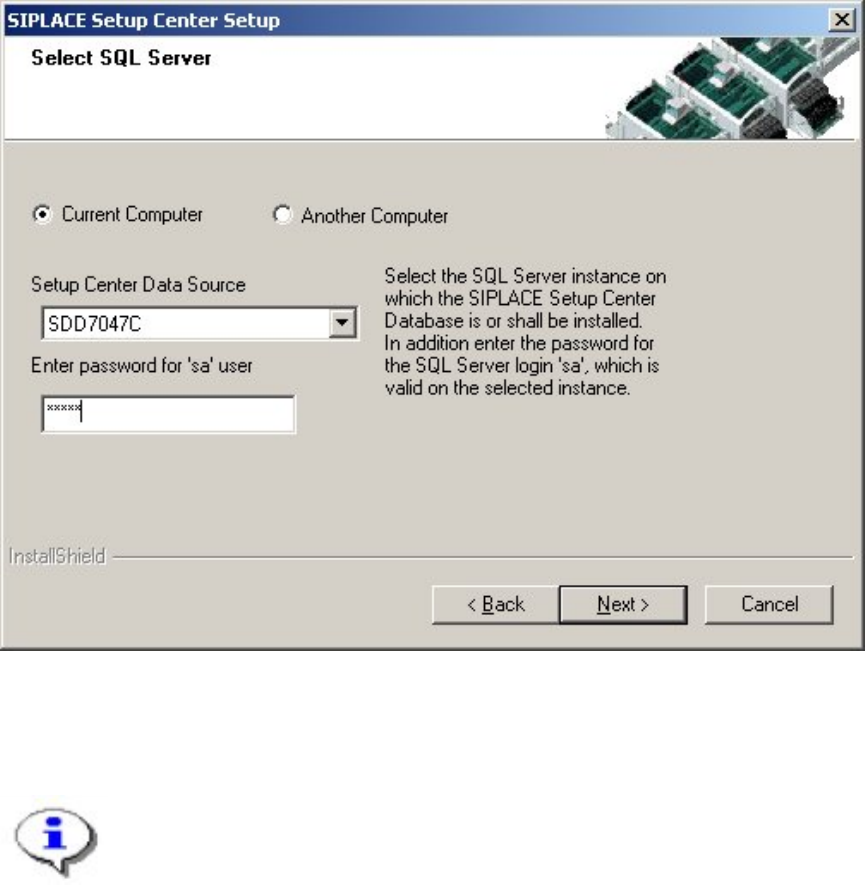
Enter the information required to be connected with the SQL Server and database in the
"Select SQL-Server" dialog box.
Figure 5-9 "Select SQL-Server" dialog box
4
Enter the "Password for the SQL Server user "sa", i.e. the SQL server system administrator.
Note
This password is empty if MSDE/SQL Server has been freshly installed. In this
case, erase the displayed default password. Subsequently, a window will open,
prompting you to change this password. You may accept the Siemens Service
default password or choose one of your own.
Choose your Another Computer from the pull-down menu to show other computer.
Choose your SQL Server Instance from the pull-down menu.
Click Next.
42 of 90