00195467-01_Installation Manual Setup Center 2.2.pdf - 第73页
Installation Manual SIPLACE Setup Center 2.2 Barcode Type Code 93 Exit and Save configuration Aiming pointer (standard is 300 ms). The aiming pointer holds the lase r beam on a single spot before reading a barcode. 30 0m…
SIPLACE Setup Center 2.2 Installation Manual
5.4.3.2 Setting of the scanner address
Each scanner requires a unique address.
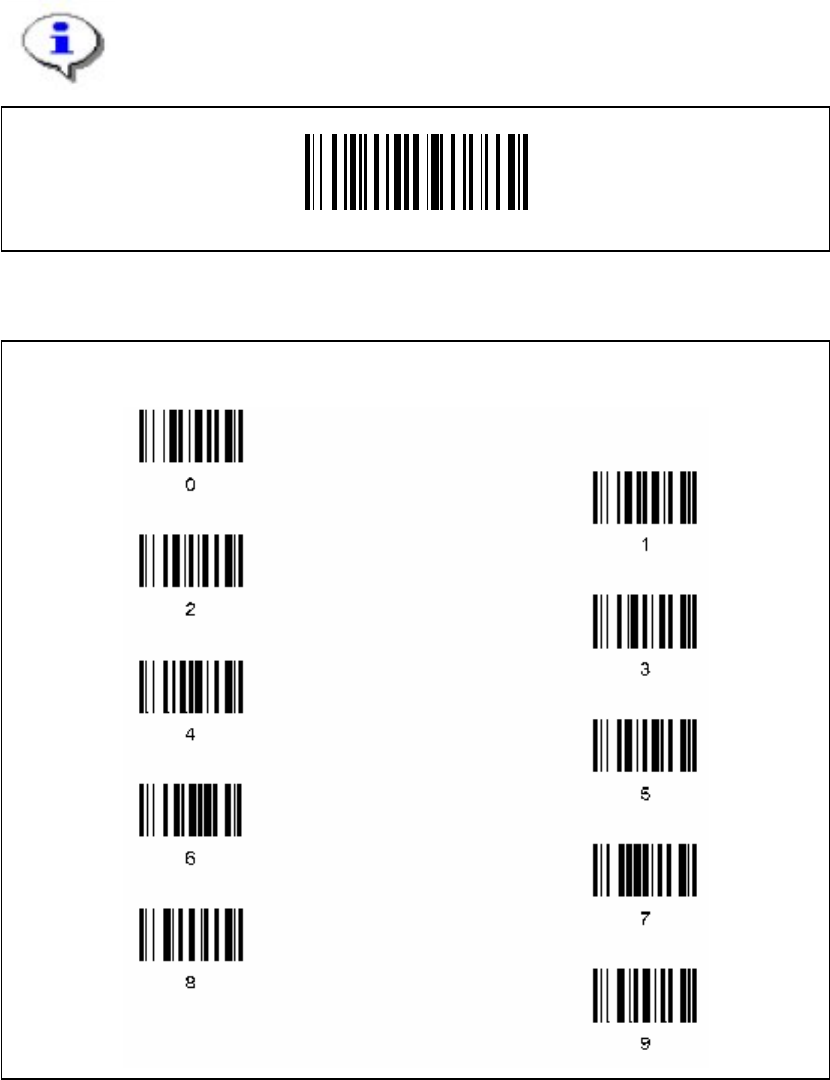
Enter the following barcode and scan the four digits for the scanner address, e.g. ‘0’ ‘0’ ‘0’ ‘1’.
Note
The address must consist of four digits. Don’t forget to enter heading zeros.
Set Radio Address
Four digits for the DRAGON ™ M Address (from 0000 to 1999).
72 of 90
Installation Manual SIPLACE Setup Center 2.2
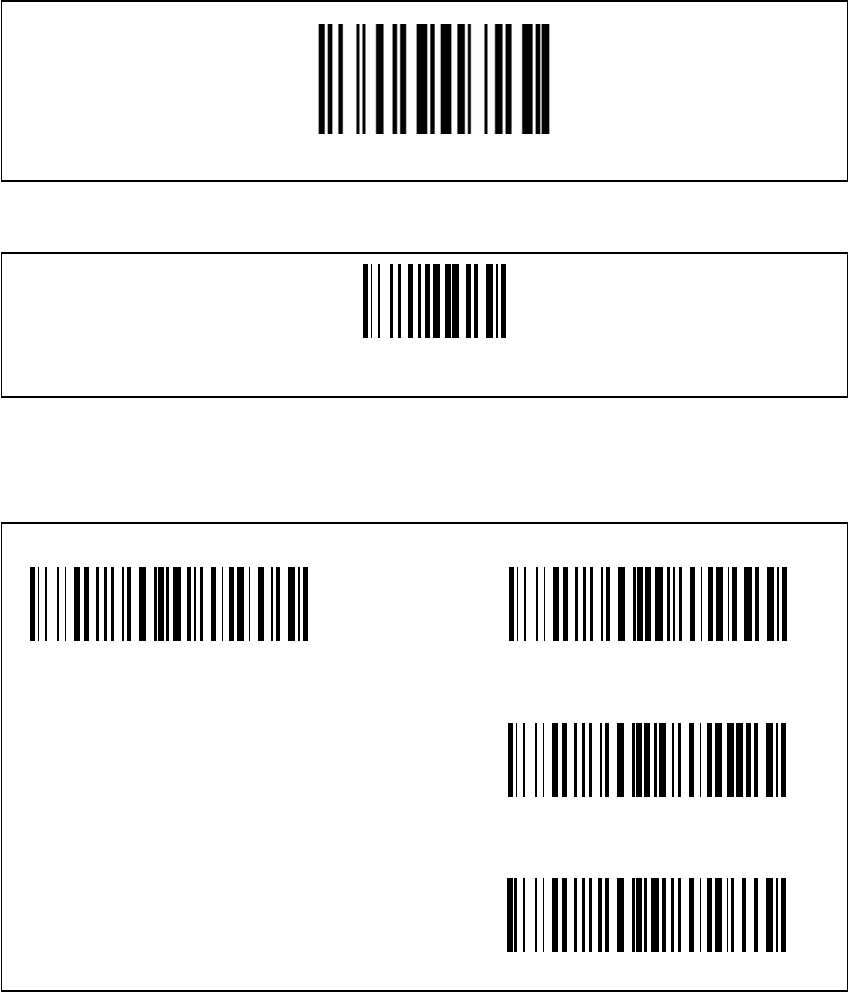
Barcode Type Code 93
Exit and Save configuration
Aiming pointer (standard is 300 ms). The aiming pointer holds the laser beam on a single spot
before reading a barcode.
300ms 500ms
1 sec
Aiming system disabled
The scanner is now ready configured. Now it needs to be bound to a RF station as described
below.
73 of 90
-
SIPLACE Setup Center 2.2 Installation Manual
5.4.3.3 Bind or Join the scanner to a RF station
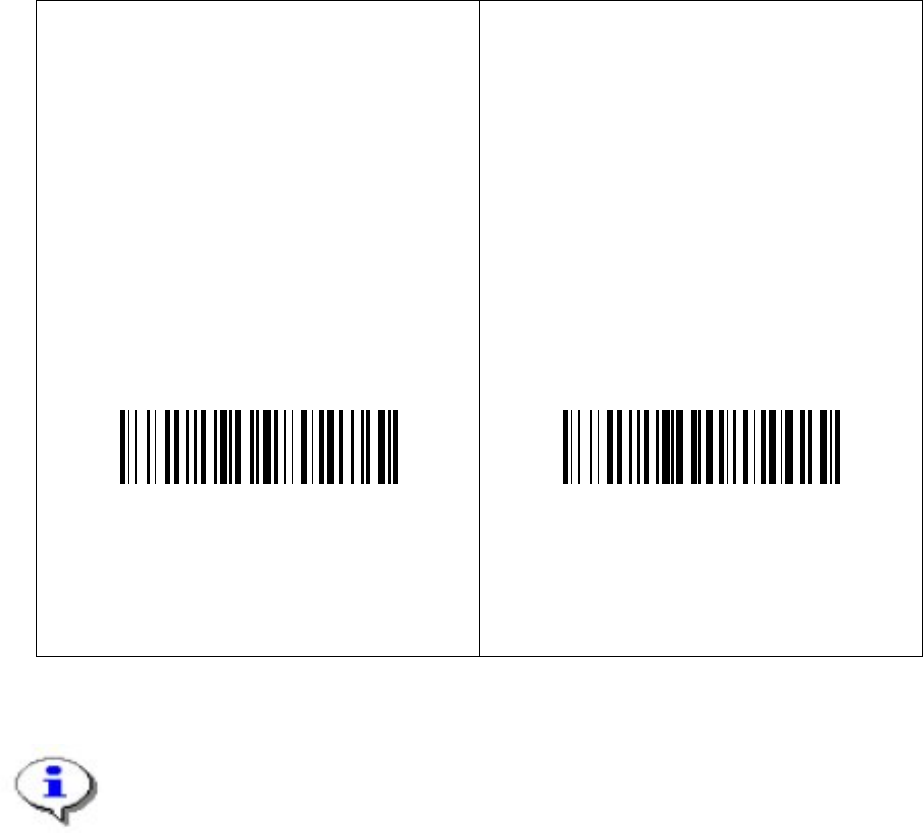
You can connect more than one scanner to one RF station. With the first scanner you need to
scan the barcode label Bind, with all further scanners you need to scan the barcode label Join.
Please follow one of the following instructions according to your choice.
Bind
Make sure the RF station is on (yellow light
is on).
When scanning the following barcode the
green LED of the scanner is active for
about 10 seconds. Put the scanner into the
RF station during these 10 seconds.
Bind
The connection can be tested by scanning any
barcode with the scanner. After the scanning, the
yellow LED “power/data” is switched off for 0.5
seconds.
Join
The following barcode may be used to add
further scanners to one RF station.
Keep in mind that the first scanner need to
be bound to the station as described on the
left side. Each scanner must be set to a
unique address (see the chapter
5.4.3.2
Setting of the scanner address).
Join
You can never recognize if the Dragon scanner has the configuration Bind or Join.
Therefore please note your configuration you did. If you do not remember your
configuration you have to configure it once again.
74 of 90