00195467-01_Installation Manual Setup Center 2.2.pdf - 第81页
Installation Manual SIPLACE Setup Center 2.2 - Finishing the installation See above for more infomation 7 Uninst alling 7.1 7.2 Backup configuration files Copy all .xml files from the “\Program Files\Siemens SIPLACE\Setu…
SIPLACE Setup Center 2.2 Installation Manual
5.6.6 Remote installation with Windows XP clients
Error description: 6
If you are logged on to the server via remote desktop connection and start the installation
following message will be shown. 6
1607: Installation of Install Shield Scripting not possible 6
Solution:
Copy the complete content from the Setup CD to the server to be able to start the installation.
5.6.7 Conflicting applications
At the moment, no conflicting applications exist.
6 Modify
6.1
6.2
Modify Setup Center
It is possible to modify the installation by starting the Installer on a computer where the Setup
Center is installed. The Installer detects the installation automatically and offers the modify option.
Select the packages you want to remove or to add. Refer to the procedures described above for
more details.
Modify Forced Setup Center
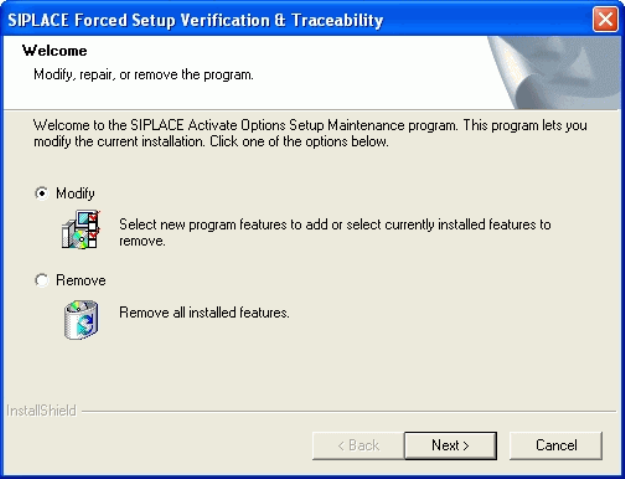
If the Setup at the Activation-CD is called up again, the following dialog appears.
• You can change the current installation by selecting the checkbox Modify.
• The following masks appears:
- Configuration of the Splice detection (If not X-machine)
- Fill Level Control
- Transition area at the packaging changeover
- Activation of locked tracks
- Setup verification system (If a 408 station-software)
- Traceability
- Manual input of the PCB barcode
- Overview of the settings
80 of 90
Installation Manual SIPLACE Setup Center 2.2
- Finishing the installation
See above for more infomation
7 Uninstalling
7.1
7.2
Backup configuration files
Copy all .xml files from the “\Program Files\Siemens SIPLACE\Setup Center” directory to a save
location.
It is recommended that the unsupported tool “Configuration backup and recovery” is used to back
up the SIPLACE Setup Center configuration before uninstalling the software.
Uninstalling Setup Center GUI
Uninstalling SIPLACE Setup Center deletes all SIPLACE Setup Center software components
from the system except for the SIPLACE Setup Center database. 7
The SIPLACE Setup Center database is not uninstalled automatically in order to prevent possible
data loss.7
Step 1
Uninstall SIPLACE Setup Center via the Control Panel. 7
You require the uninstall window in Windows for uninstalling. 7
Click Start in the Windows start menu.
81 of 90
-
SIPLACE Setup Center 2.2 Installation Manual
Click Settings.
Click Control Panel.
Double-click Add / Remove Programs.
A list appears with the names of the software packages installed on the computer. 7
Select SIPLACE Setup Center.
Click the Change/Remove components button.
In the "Confirm File Deletion" dialog box, click Yes if you wish to proceed or No if you wish
to cancel the uninstall process.
Select Remove to remove all installed features.
Click Next to continue.
In the "Confirm File Deletion" dialog box, click OK if you wish to proceed or Cancel if you
wish to cancel the uninstall process.
Click Next and you get a summary of all components to be deleted.
Click Next if you accept all the information entered so far.
Click Done.
Step 2
Clean up the disk and make sure that there are no more program files. 7
Check the path Program Files\Siemens SIPLACE\SIPLACE Setup Center.
If you will find additional files, please delete them (except for the database files with
extensions .mdf and .ldf).
7.3 Uninstalling Setup Center Database
The database can be uninstalled with the Microsoft SQL Server 2000 Enterprise Manager.
Expand the node “Microsoft SQL Servers”
Expand the node “SQL Server group”
Expand the node of the database server instance on which the SIPLACE Setup Center
database was installed to.
Expand the node “Microsoft SQL Servers”
Expand the node “Databases”
Right click the node “SIPLACESetupCenter” and select “Delete”.
Confirm the deletion of the database.
Go back to the node of the database server instance.
82 of 90