00196378-0102_UM X-Feeder_EN.pdf - 第73页
Operating Tape Feeder Modules Setting the Conveyor Speed for 8 - 88 mm Feeder Modules Using the Operator Panel User Manual X Feeder M odules SIPLACE Family 73 4.3.4 Setting the Conveyor Speed for 8 - 88 mm Feeder Modules…
Operating Tape Feeder Modules
Using the Operator Panel Setting the Pitch
72 User Manual X Feeder Modules SIPLACE Family
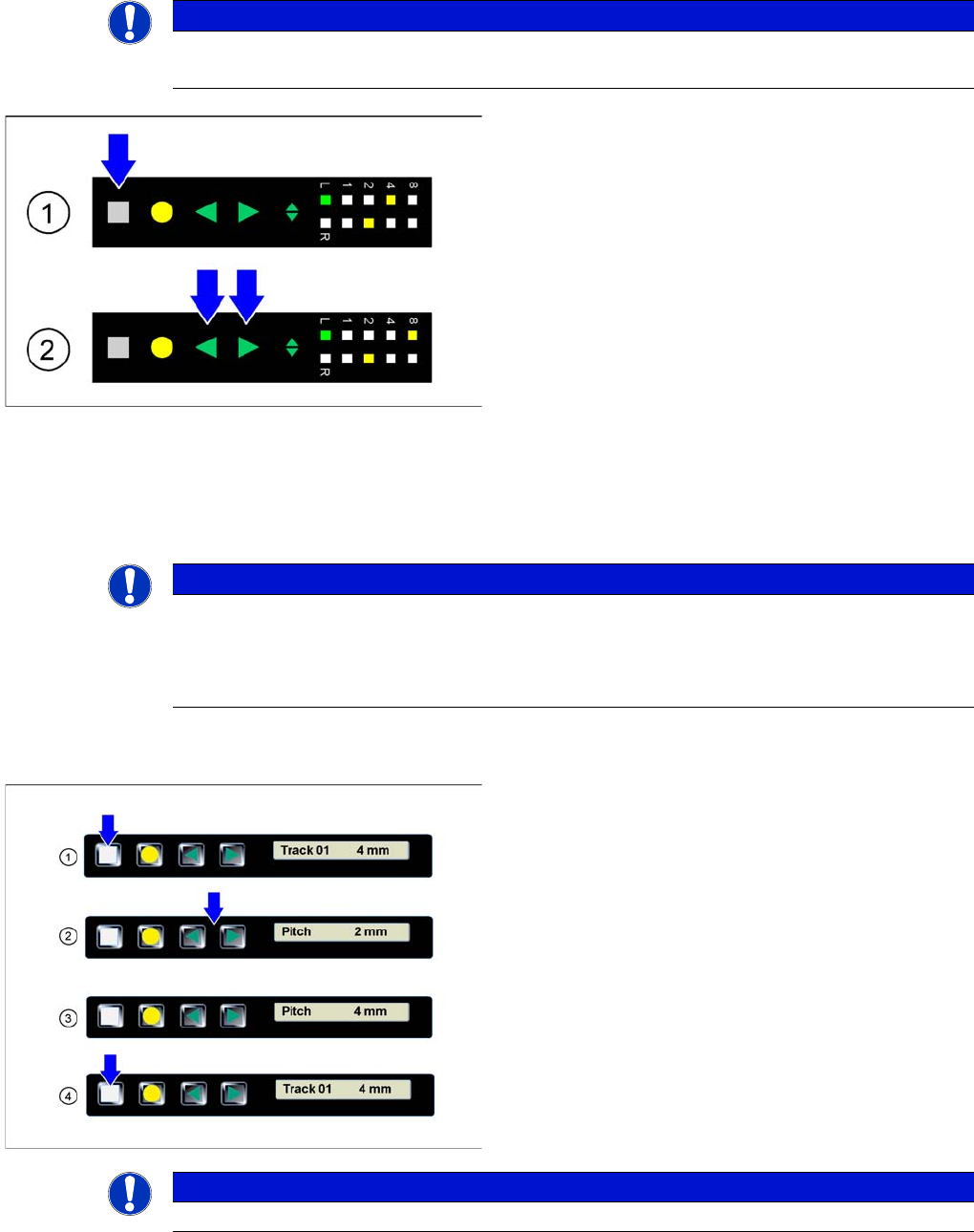
4.3.3.1 Setting the Pitch on 2x8 mm Feeder Modules
On 2x8 mm feeder modules 4 different pitches are available: 1 mm, 2 mm, 4 mm und 8 mm
The currently set pitch is indicated at the operator panel for both tracks by the corresponding LED 1, 2,
4 or 8.
The pitch can be changed as follows:
4.3.3.2 Setting the Pitch on 8 - 88 mm Feeder Modules
NOTICE
Before the adjustment it may be necessary to select the desired track using the Track change
button.
►(1) Initial status: To change the pitch of the selected
track, press the Set button first. This button must be
pressed during the whole adjustment process.
►(2) Changing the pitch: In addition to the Set button
briefly press the Forwards or Backwards button.
After releasing the Forwards or Backwards button,
the pitch display of the selected track changes
accordingly (increases or decreases). As long as the
Set button is pressed, the pitch can be changed
further by briefly re-pressing the Forwards or Back-
wards button.
►Completing the adjustment: If the desired pitch is set,
release the Set button. The changed pitch of the se-
lected track is now saved by the feeder module. If re-
quired, the feeder module will automatically change
the position of the sprocket wheel.
NOTICE
The adjustment is automatically cancelled, if the feeder module receives a request or conveyor
command from the machine or if the Set button is being pressed more than 30 seconds.
In these cases any modification made is cancelled and the previously set pickup position is
retained.
►(1) The display shows the start screen ("Track")
.Press the Set button until the display shows "Pitch."
►(2) Press the Forwards or Backwards button until
the display shows the value for the desired pitch.
►(3) Repeatedly press the Set button to return to the
start screen.
The setting is retained automatically.
NOTICE
The feeder will also return to the start screen, if no button is pressed for 1 minute.
Operating Tape Feeder Modules
Setting the Conveyor Speed for 8 - 88 mm Feeder Modules Using the Operator Panel
User Manual X Feeder Modules SIPLACE Family 73
4.3.4 Setting the Conveyor Speed for 8 - 88 mm Feeder Modules
4.3.5 Setting the Language for 8 - 88 mm Feeder Modules
The language of the texts that are displayed in the operator panel of the feeder module can be set at the
user interface of the station computer via the "
Language
" menu.
If a feeder module is logged in at a station computer, it will be initialized at first. During this process the
language of the feeder module is adapted to the user interface language of the station computer.
▪ If German is set as the language at the station computer, the feeder modules will also be set to Ger-
man.
▪ If any other language than German is set at the station computer, the feeder modules will ALWAYS
be set to English.
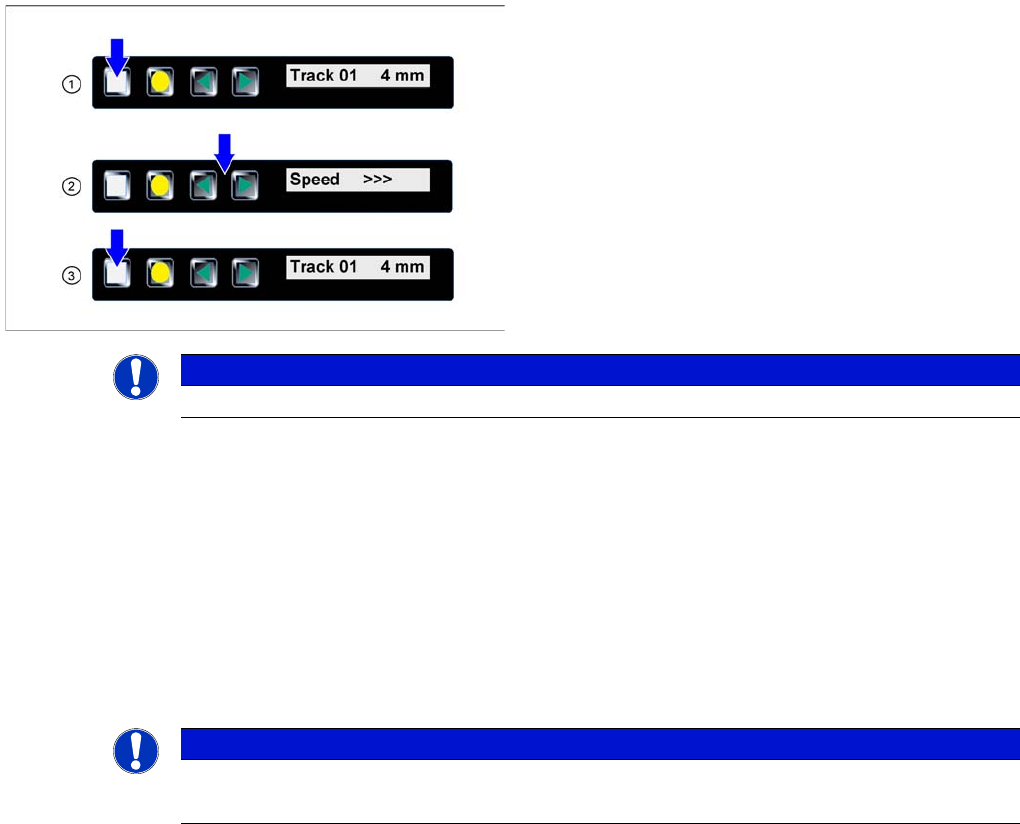
►(1) The display shows the start screen ("Track").
Press the Set button until the display shows "Speed."
►(2) Press the Forwards or Backwards button until
the display shows the value for the desired transport
speed.
⇨ > = very slow
⇨ >> = slow
⇨ >>> = standard transport speed
►(3) Repeatedly press the Set button to return to the
start screen.
The setting is retained automatically.
NOTICE
The feeder will also return to the start screen, if no button is pressed for 1 minute.
NOTICE
It is not possible to set the language at the feeder module itself.
The language set in SITEST does not influence the language shown on the feeder module.
Operating Tape Feeder Modules
Removing the Feeder Module from the Component Table Setting the Language for 8 - 88 mm Feeder Modules
74 User Manual X Feeder Modules SIPLACE Family
4.4 Removing the Feeder Module from the Component Table
There are the following ways to remove the feeder module from the placement machine.
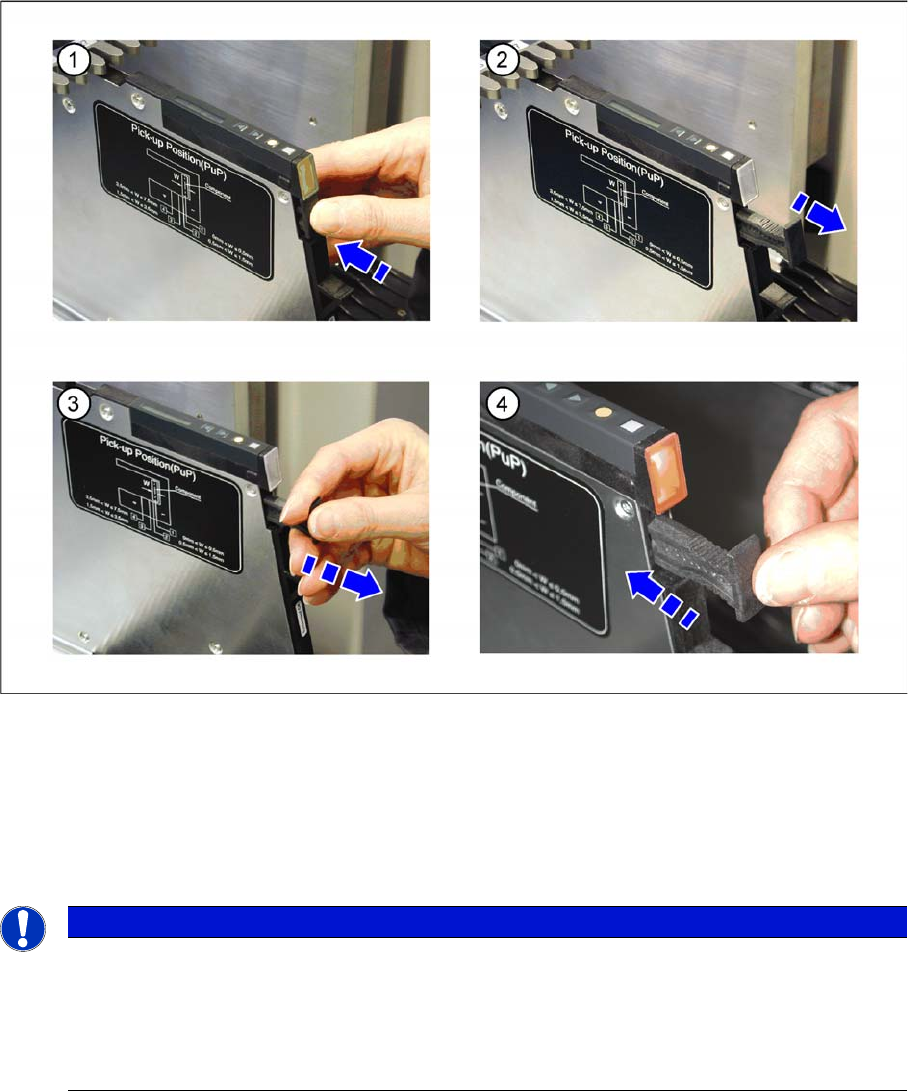
Feeder module logout via the handle
►(1) Press on the handle below the LED at the rear end of the feeder module.
►(2) The logout procedure for the feeder module is started, the status display is switched off and the
removal handle is released. All key data will be saved in the feeder module. After that the feeder
module is automatically logged out at the FCU and the FCU opens the mechanical lock at the com-
ponent table. As soon as the status displays are dark, the logout procedure is completed.
►(3) Use the removal handle to pull the feeder module out of the component table.
NOTICE
(4) If you hesitate too long (approx. 5 seconds), the status display lights up red and the feeder
module must be logged in again.
►Press the removal handle back into the feeder module.
The login procedure for the feeder module is started.
►Wait until the login procedure is completed and the status display lights up green.