00197483-02_VD_SIPLACE-OIB-3.3_EN.pdf - 第26页
Version Descripti on SIPLAC E OI B 3.3 04/2014 E dition 26 Delete ch eckpoin t files To delete check point files : Caution: Incorrectly ed iting the r egistr y might se verel y dam age your s ystem. Bef ore m aking chang…

Version Description
SIPLACE OIB 3.3 04/2014 Edition
25
13 Troubleshooting
13.1 MSMQ Fails to Start
There might be situations during power failures where the MSMQ store will be corrupted or is left in an
inconsistent state. Then the MSMQ service is unable to start, which implies that the SIPLACE OIB Service
does not start as well, because they depend on MSMQ service. Please follow the instructions from the
knowledgebase article http://technet.microsoft.com/en-us/library/cc733512.aspx
Event Details
Product:
Windows Operating System
ID:
2053
Source:
MSMQ
Version:
6.0
Symbolic
Name:
EVENT_ERROR_QM_INIT_INSEQ_FILE
Message:
The incoming sequences checkpoint file failed to initialize. The file
MQInSeqs.lg1 or MQInSeqs.lg2 in the Msmq\Storage folder is corrupted or
absent. Error %1: %2
Delete incoming sequence checkpoint files
Checkpoint files must be available for Message Queuing to function properly. To resolve this issue, you
must delete the incoming sequence checkpoint files, as well as the QMLog file in the Message Queuing
storage directory. This can result in some messages being duplicated. However, this will get the service
running as soon as possible and usually without data loss.
To perform these procedures, you must have membership in Administrators, or you must have been
delegated the appropriate authority.
Version Description
SIPLACE OIB 3.3 04/2014 Edition
26
Delete checkpoint files
To delete checkpoint files:
Caution: Incorrectly editing the registry might severely damage your system. Before making changes to
the registry, you should back up any valued data.
→
Open Microsoft Windows Explorer, and then browse to your storage directory. This directory is typically
located under C:\Windows\System32\msmq\storage.
→
Delete the following files: MQInSeqs.lg1, MQInSeqs.lg2, and QMLog file.
→
Open Registry Editor. To open Registry Editor, click Start. In the search box, type regedit, and then
press ENTER.
→
Browse to HKEY_LOCAL_MACHINE\SOFTWARE\Microsoft\MSMQ\Parameters, and then click
Parameters.
→
On the Edit menu, point to New, and then click DWORD (32-bit) Value.
→
In the Name field, enter "LogDataCreated," and then ensure that the value is set to 0.
→
Close Registry Editor.
Restart the MSMQ Service
To restart the MSMQ Service:
→
Open the Services console. To open Services, click Start. In the search box, type services.msc, and
then press ENTER.
→
Right-click Message Queuing, and then click Restart. You must restart all the dependent services, as
well.
Verify
Verify that the MSMQ Service is installed and running.
To perform this procedure, you must have membership in Administrators, or you must have been
delegated the appropriate authority.
To verify that the MSMQ Service is installed and running:
→
Open the Services snap-in. To open Services, click Start. In the search box, type services.msc, and
then press ENTER.
→
Locate the Message Queuing service, and then confirm that the value in the Status column is Started.
→
For further confirmation, run a test application that uses the Active Directory features that you require.
Version Description
SIPLACE OIB 3.3 04/2014 Edition
27
13.2 Re-indexing the Object IDs in OIB, when SIPLACE Pro performed the
re-indexing
For customers which are using large databases in SIPLACE Pro it can happen that the internal Object ID
counter can exceed the upper limit. Therefore a check has been added in SIPLACE Pro to perform a re-
indexing in the database. This functionality is available for SIPLACE Pro 9.3 and higher and SIPLACE OIB
2.5 and higher.
Background
The SIPLACE OIB Line Control Adapter stores the Configuration Manager references to the SIPLACE Pro
Databases with each download. This information is normally consistent, because the object ids will not
change inside SIPLACE Pro. When the re-mapping is performed to reuse formerly used Ids of already
deleted objects in SIPLACE Pro these references will break. Therefore the remapping in the SIPLACE OIB
database has to be performed.
Caution
If several instances of a SIPLACE Pro server are installed in a factory these procedure applies
to each installation separately. The adjustments in OIB must be performed for each SIPLACE
Pro installation separately when necessary.
Perform re-indexing in SIPLACE Pro
→
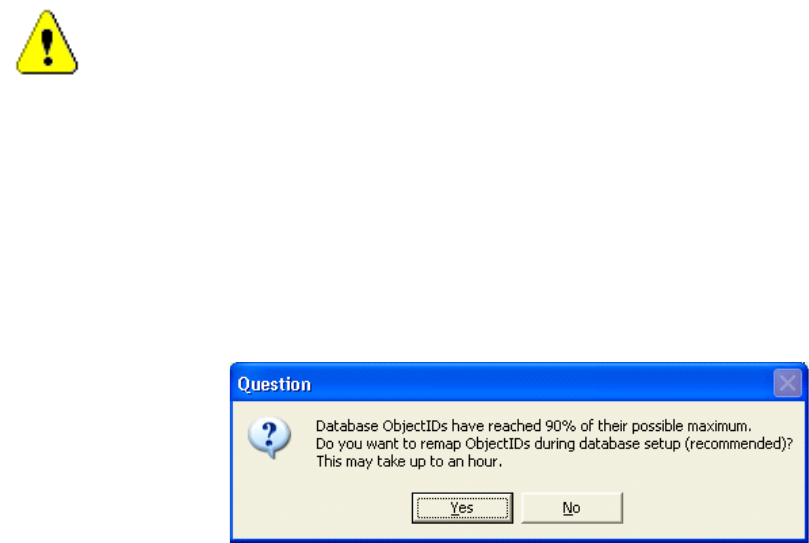
SIPLACE Pro checks during the installation, either update or maintenance if the threshold for issuing a
warning or forced re-indexing has been reached. The installation will perform the re-indexing and
create a file at the end. This file will be the input for the OIB re-indexing.
→
If the SIPLACE Pro database allocates 70% - 80% of the available indices then the waning dialog pops
up. The customer can still skip the re-indexing.