00197443-02_IM_707_1_DE_EN.pdf - 第25页
Station S oftware 70 7.1 / Ins tallation Man ual Ausgabe 05/2014 E dition 25 5.2.2 Changing the D isplay S ettings ► Select Sta rt Settings Control P anel Displa y . ► Click the Settings tab. ► Set the Screen resol…
Station Software 707.1 / Installation Manual Ausgabe 05/2014 Edition
24
5.2 Preparations for Installing the Software
5.2.1 Requirements
Requirements for installing the SIPLACE software and the Vision computer software:
– The Windows XP embedded operating system with Service Pack 2 / Windows Embedded
Standard (XPe SP3) / Windows Embedded Standard 7 SP1 must be installed on the
machine computer and in two-computer operation on the Vision computer (see "Installation
Manual Operating System Windows XP Embedded SP2", item number [00196737-xx] or
Installation Manual Operating System Windows Embedded Standard 7,
item number [00197366-xx])
NOTICE
Error message after installation of the operating system
After installation of the operating system an error message
Windows Out of Virtual
Memory might appear after the station computer is booted.
► In this case, perform the steps that are described in the Technical Information
TI2011-02C06.pdf.
Or
– The Windows XP Professional operating system with Service Pack 3 and all current
hotfixes (SIPLACE Hotfix CD) must be installed on the machine computer and in two-computer
operation on the Vision computer (see the Installation Manual for the Windows XP operating
system, item number [00196151-xx]).
NOTICE
It depends on the fixed license label and the station software version which of the
operating systems will be used. The 707.0 station software supports the operating
systems mentioned above, independently of the machine type.
Under Windows XP Professional the default Windows display settings have to be changed and
the touch screen has to be calibrated. Under Windows XP Embedded / Windows Embedded
Standard only the touch screen has to be calibrated. You must be logged in as Administrator in
order to be able to carry out this work.
Station Software 707.1 / Installation Manual Ausgabe 05/2014 Edition
25
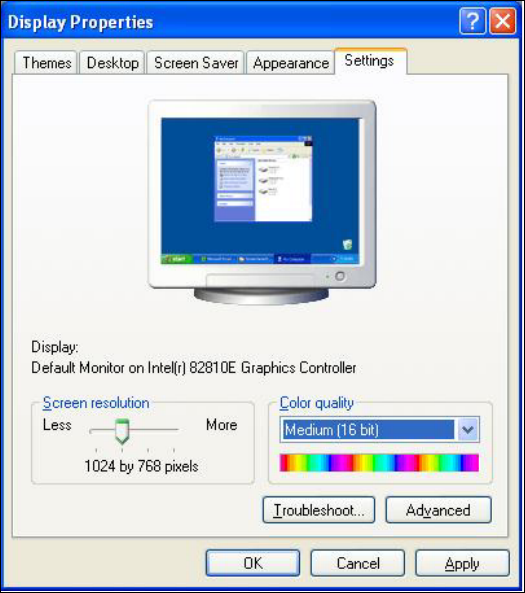
5.2.2 Changing the Display Settings
► Select Start
Settings
Control Panel
Display.
► Click the Settings tab.
► Set the Screen resolution slider to 1024 by 768 pixels.
Figure 5-2: Screen settings
► Confirm the settings by clicking OK.
Station Software 707.1 / Installation Manual Ausgabe 05/2014 Edition
26
5.2.3 Calibrating the Touch Screen
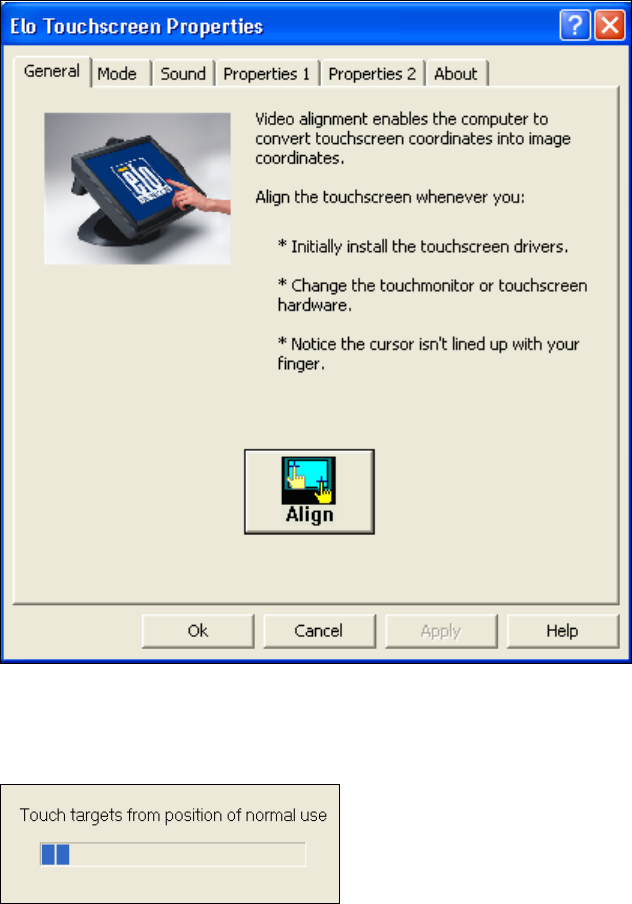
The touch screen has to be installed by the software configurator during the operating system
installation. If the calibration does not start automatically after installation:
► Select Start
Settings
Control Panel
Elo to go to EloTouchscreen Properties:
Figure 5-3: Elo Touchscreen properties
► Click the Align button.
The following message then appears:
Figure 5-4: Instruction for the screen to be calibrated
► Follow the instructions on the screen.