00197443-02_IM_707_1_DE_EN.pdf - 第38页
Station S oftware 70 7.1 / Ins tallation Man ual Ausgabe 05/2014 E dition 38 6 Inst allin g the Vision C omputer S oftware (with or withou t Copla n) C AUT I O N The st ation software must not run on the statio n compute…
Station Software 707.1 / Installation Manual Ausgabe 05/2014 Edition
37
The necessary files are installed.
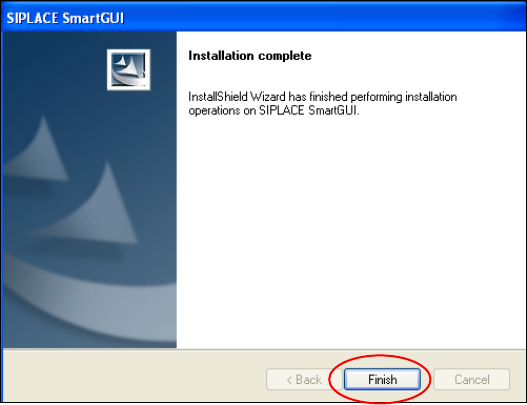
5.5.2 Finalizing the Installation
Figure 5-20: Finalizing the installation
► Click the Finish button.
Station Software 707.1 / Installation Manual Ausgabe 05/2014 Edition
38
6 Installing the Vision Computer Software (with or
without Coplan)
CAUTION
The station software must not run on the station computer during installation of the
Vision computer software!
NOTICE
In one-computer operation the Vision computer software is automatically installed during
the station software installation.
In two-computer operation the Vision computer software has to be installed explicitly.
The installation requires approx. 20 minutes.
► Connect the USB keyboard to the Vision computer.
► Connect the USB DVD drive to the Vision computer.
► Switch the video multiplexer from the machine computer to the Vision computer.
► Log in to the Vision computer as Administrator (under Windows XP) or as ASM_Admin
(under Windows 7). Insert the installation DVD in the drive.
► Open the Explorer and start setup.exe under drive E: by double clicking it.
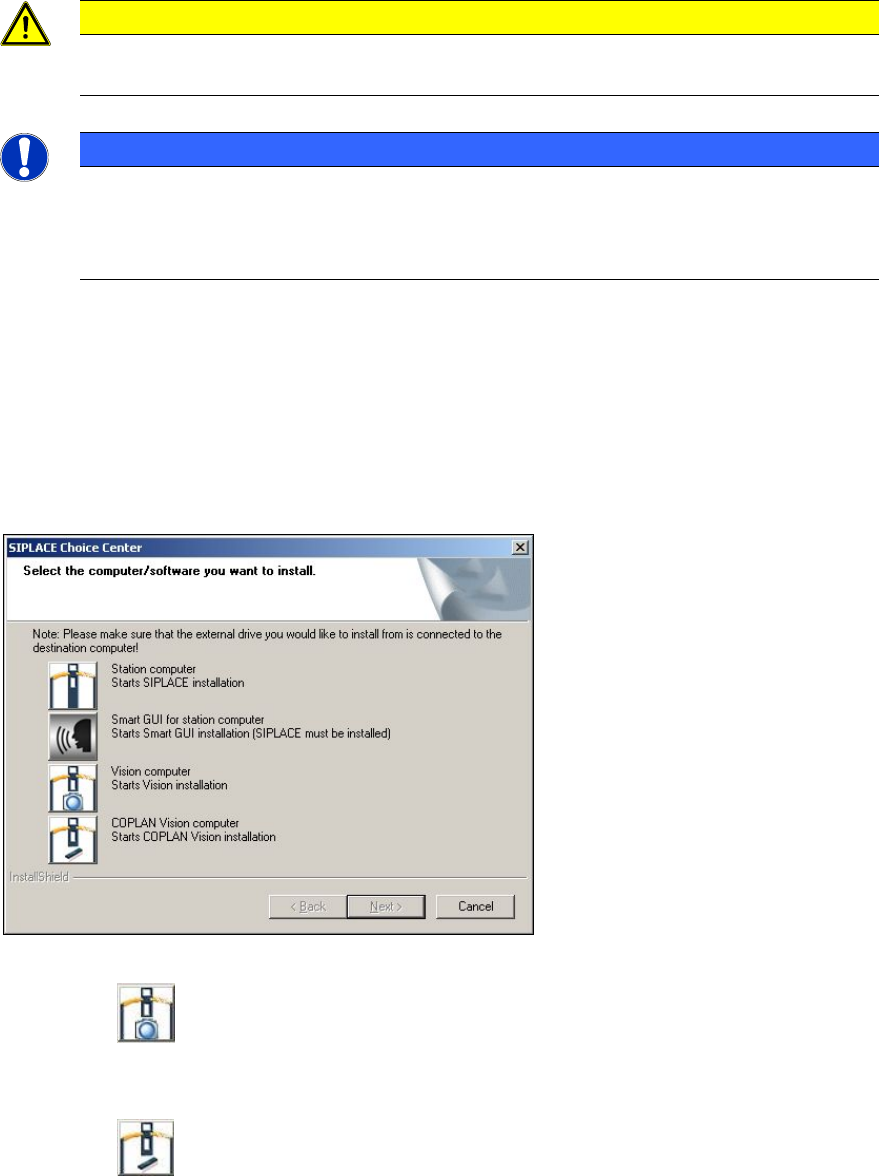
The SIPLACE Choice Center dialog box is opened.
Figure 6-1: "SIPLACE Choice Center" dialog box
► Click the Vision computer button to install the Vision computer software without
Coplan.
Or
► Click the COPLAN Vision computer button to install the Vision computer software with
Coplan.
Installation of the Vision computer software continues with the welcome screen.
Station Software 707.1 / Installation Manual Ausgabe 05/2014 Edition
39
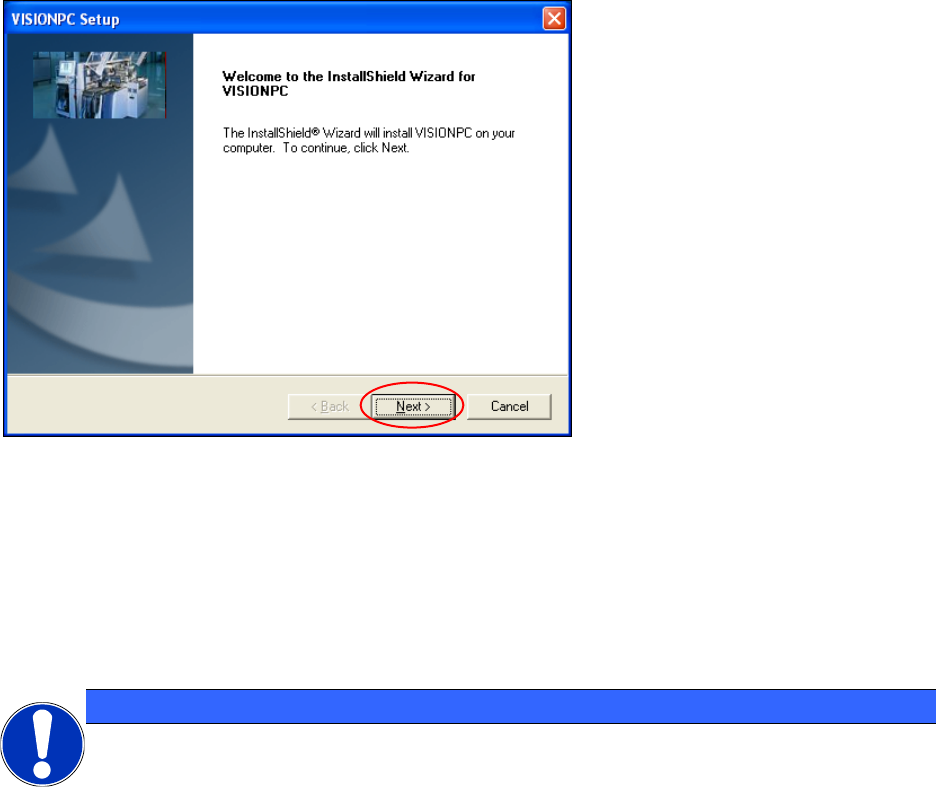
6.1 Welcome Screen
Figure 6-2: Welcome screen
► Click the Next button.
The necessary files are installed on the Vision computer.
6.2 Finalizing the Installation
NOTICE
The status only lists the programs that have just been installed.
If errors occurred during installation, the status is indicated by the Error
button being displayed
next to the program name instead of the Ok button.
► If you wish to read the log of the installation of any program, click the Ok (or Error) button next
to the name of the program. The Notepad is started and displays the appropriate file.